




Behöver du ett VPN till Windows?
Skaffa ExpressVPN nu
Älskar du ExpressVPN? Vill du ha en månad gratis?
Bjud in en vän nuDen här guiden visar hur du delar din VPN-anslutning från din Windows 10- eller Windows 11-enhet. Detta gör att dina andra enheter kan använda VPN-anslutningen som delas från din Windows-enhet.
Innan du börjar, se till att konfigurera ExpressVPN-appen på din Windows-enhet. Anslut inte till appen när du konfigurerar den virtuella routern eller en mobil hotspot.
Hoppa till…
(Windows 10 & 11) Konfigurera din mobila hotspot
Anslut till ExpressVPN-appen
Anslut enheter till VPN-anslutningen
Inaktivera VPN-anslutningen
Konfigurera mobil hotspot
Windows 11
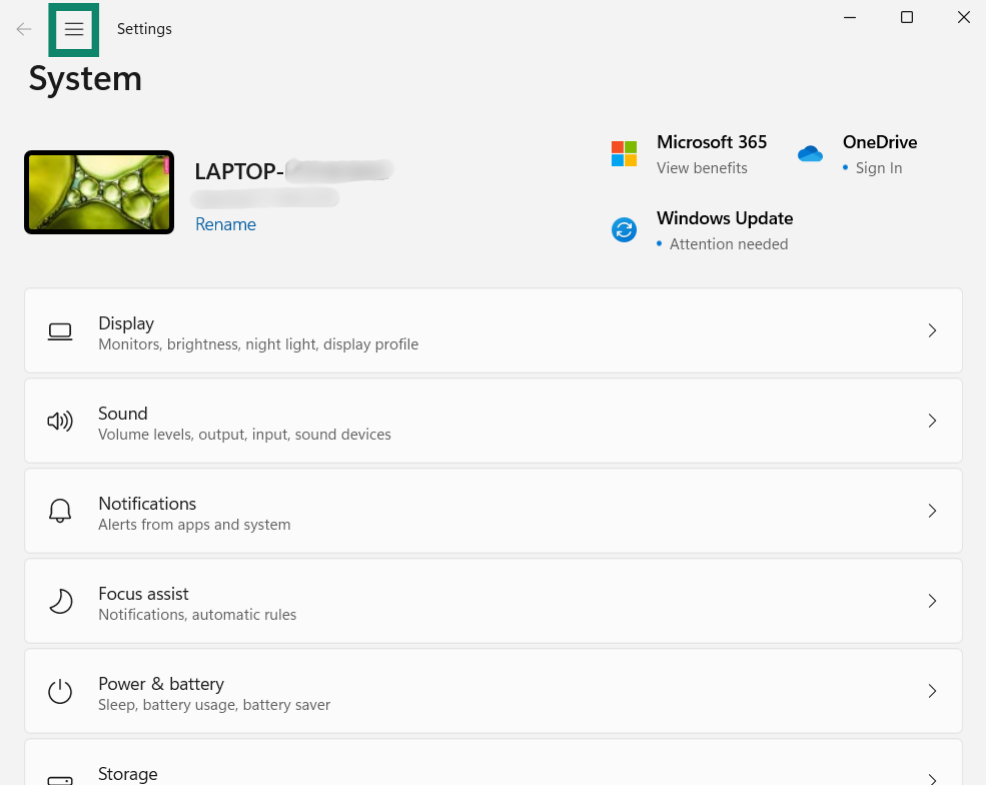
- Klicka på Settings (Inställningar).


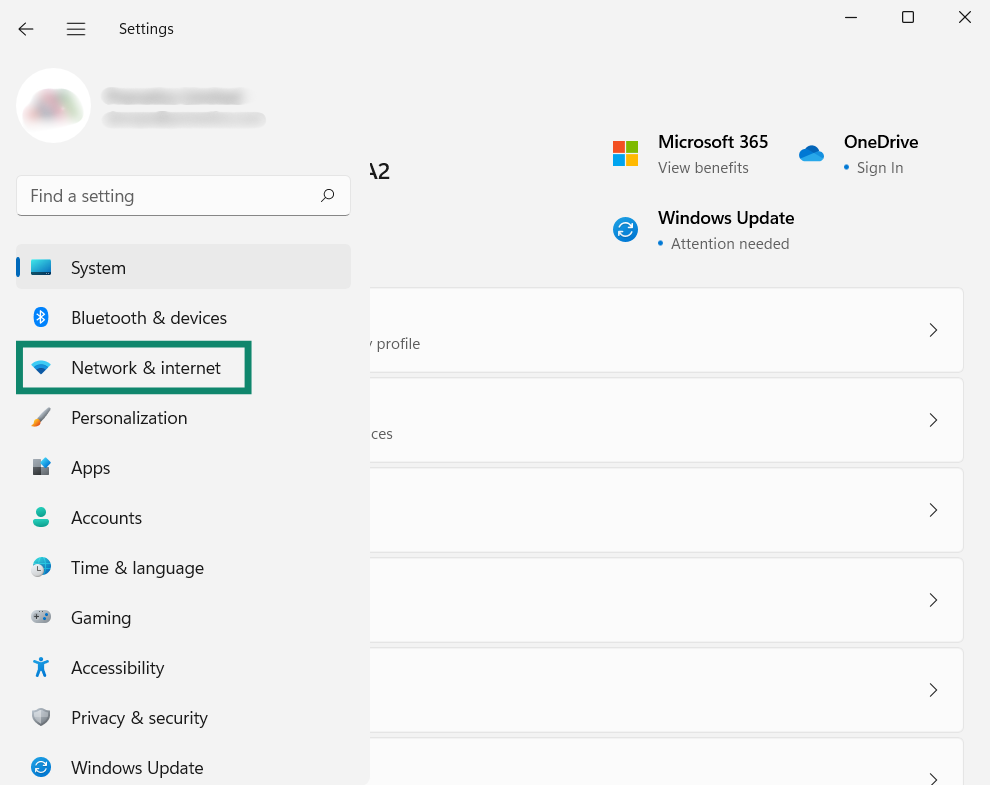
- I det vänstra sidofältet klickar du på Network & internet (Nätverk och internet).

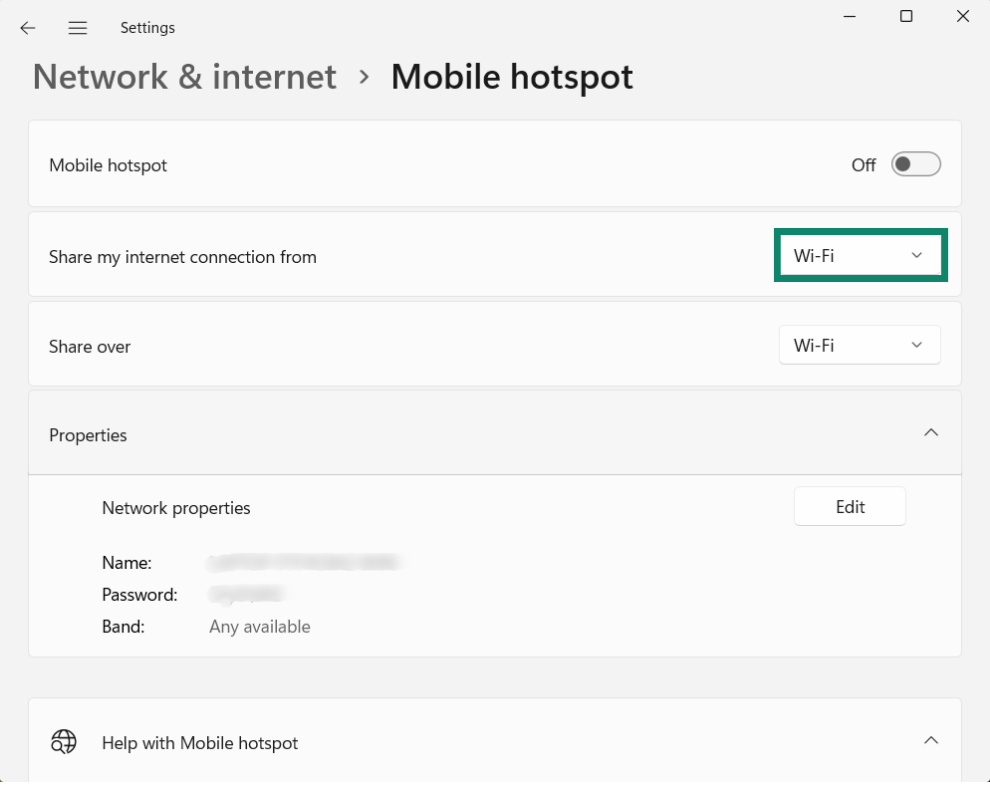
- Bredvid Share my internet connection from (Dela min internetanslutning från), väljer du Wi-Fi.

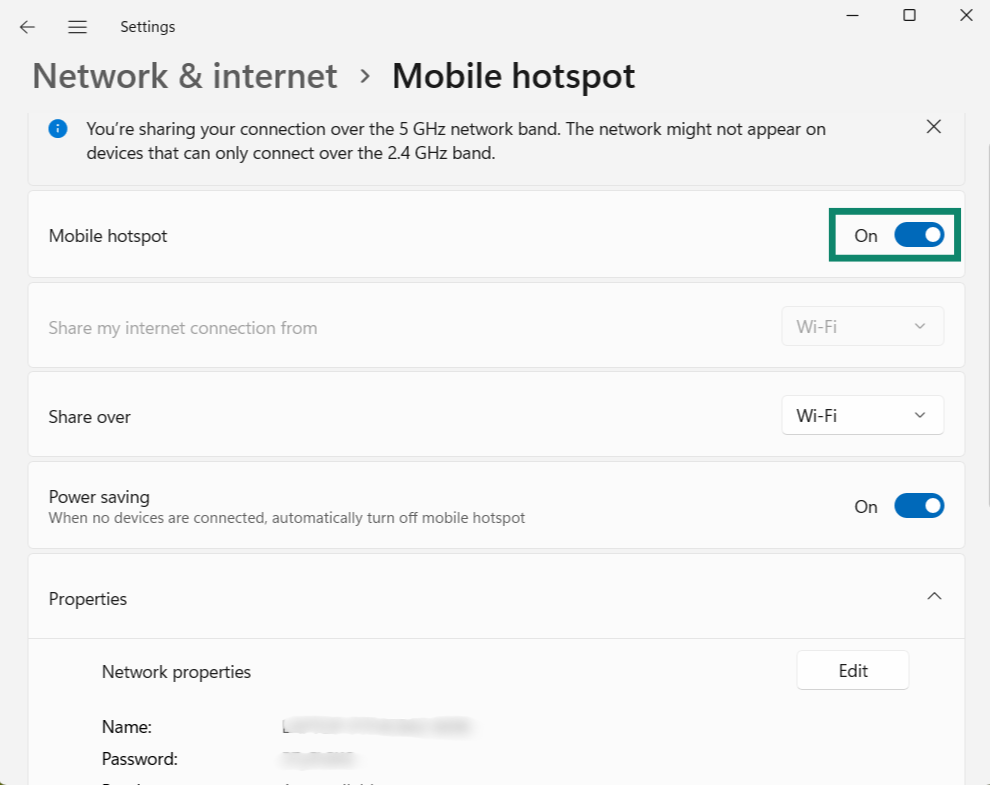
- Aktivera sedan Mobile hotspot (Mobil hotspot).

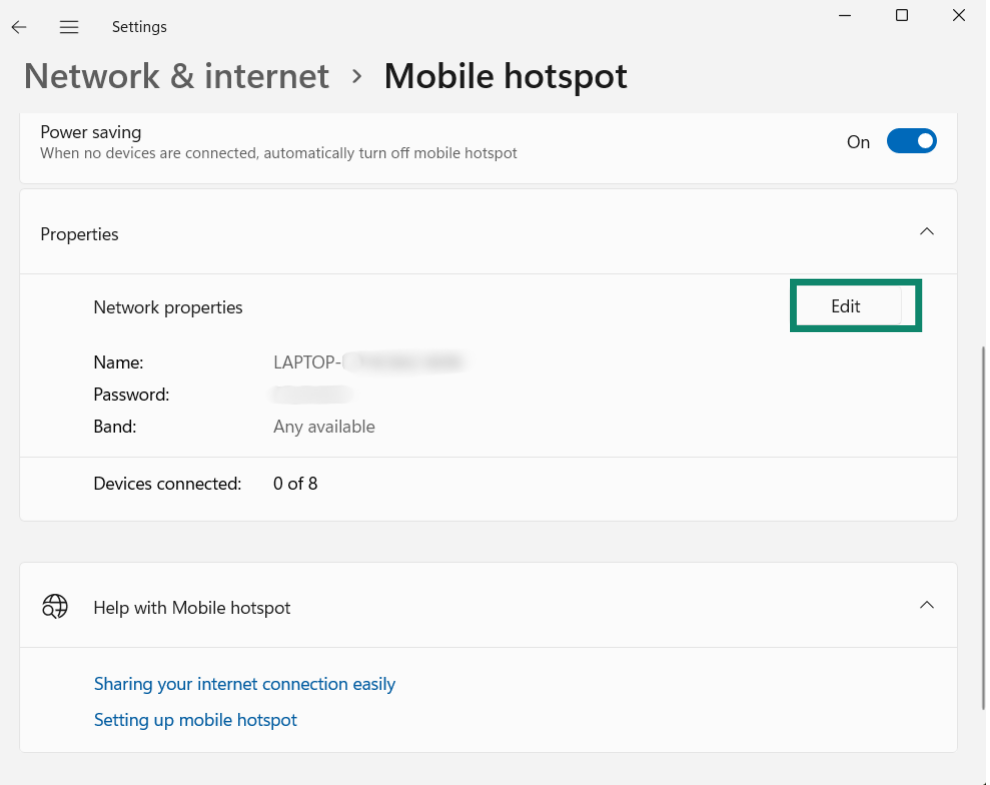
- För att ange ett annat nätverksnamn och lösenord för din mobila hotspot, klicka på Properties (Egenskaper) > Edit (Redigera). Ange ditt önskade nätverksnamn och nätverkslösenord och klicka sedan på Save (Spara).

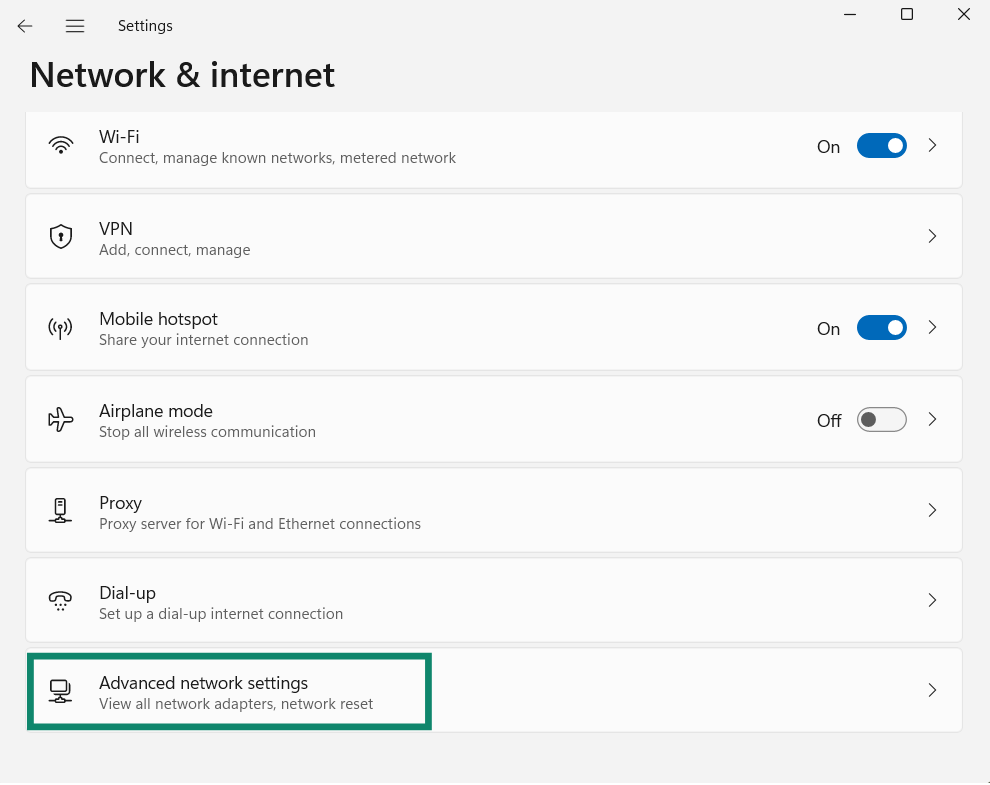
- Gå tillbaka till huvudsidan Network & internet (Nätverk och internet) och klicka sen på Advanced network settings (Avancerade nätverksinställningar).

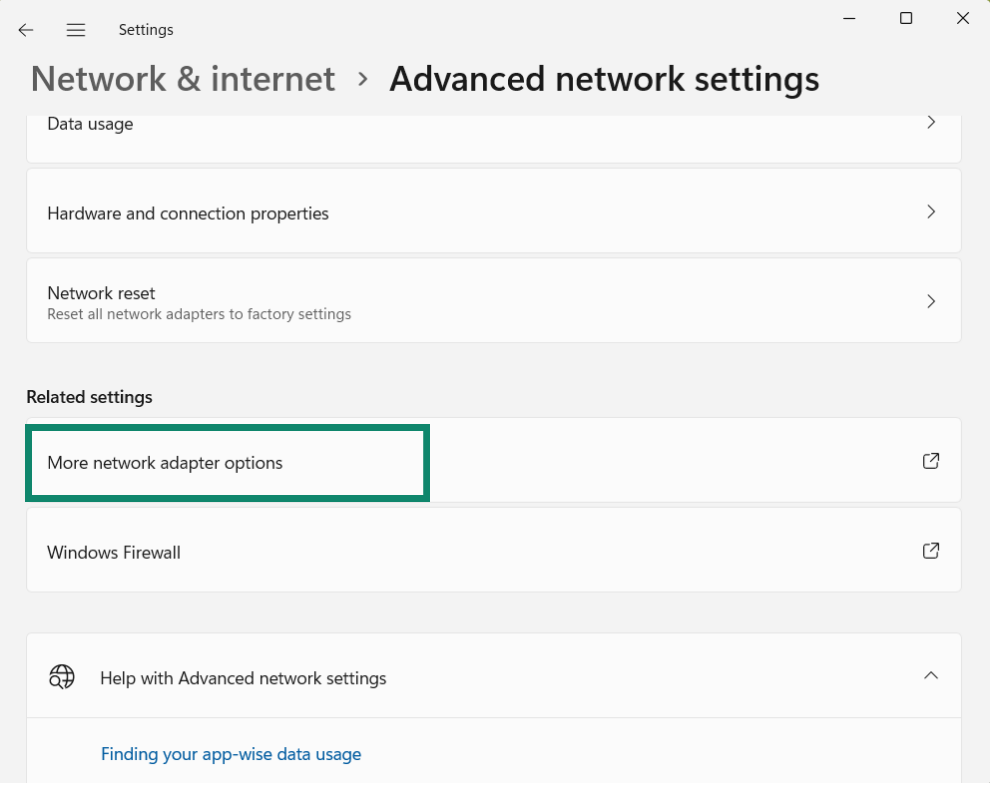
- Scrolla ner till Related settings (Relaterade inställningar) och klicka på More network adapter options (Fler nätverkskortsalternativ).

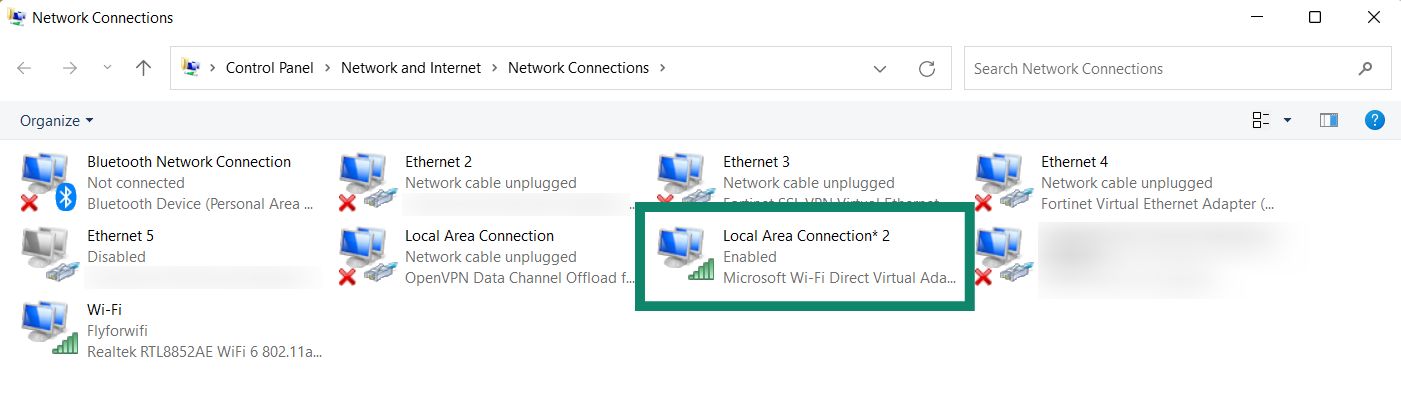
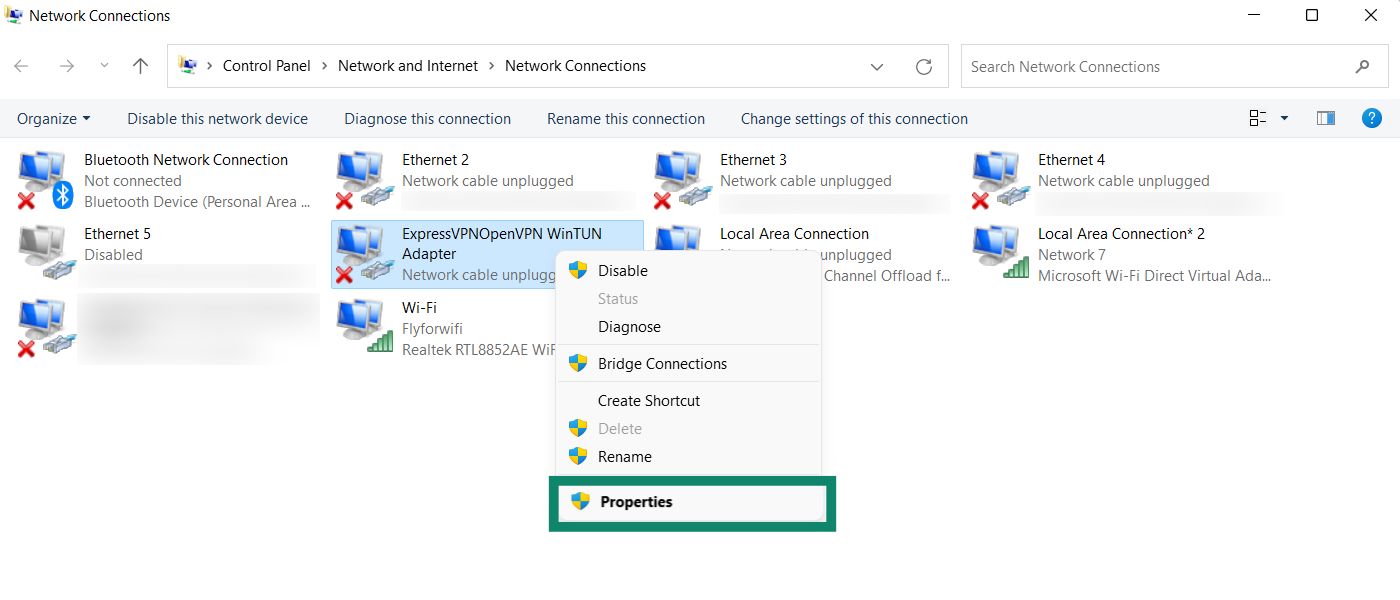
- I Network Connections (Nätverksanslutningar) ser du ett nätverk som heter Local Area Connection* (Lokal anslutning*) eller liknande. Detta är den nya mobila hotspot som du just skapat.


- Hitta ett nätverk med beskrivningen ExpressVPN WinTUN Adapter. Högerklicka på det och välj Properties (Egenskaper).


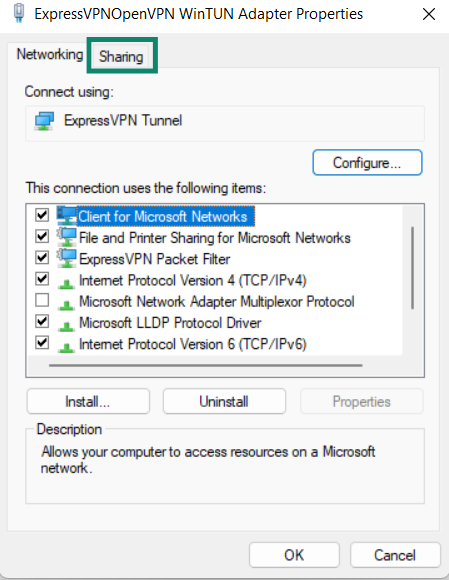
- Klicka på fliken Sharing (Delning) högst upp.


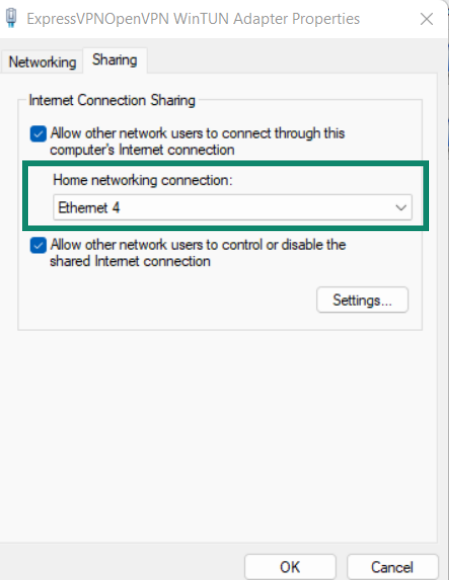
- Markera rutan för Allow other network users to connect through this computer’s Internet connection (Tillåt andra nätverksanvändare att ansluta via den här datorns internetanslutning).

- Under Hemmanätverksanslutning väljer du namnet på den mobila hotspot (Lokal anslutning*) som du just skapade. Klicka på OK.
Behöver du hjälp? Kontakta ExpressVPN:s supportteam för omedelbar hjälp.
Windows 10
- Klicka på din Windows-enhet. Klicka på Settings (Inställningar) > Network & Internet (Nätverk och internet).
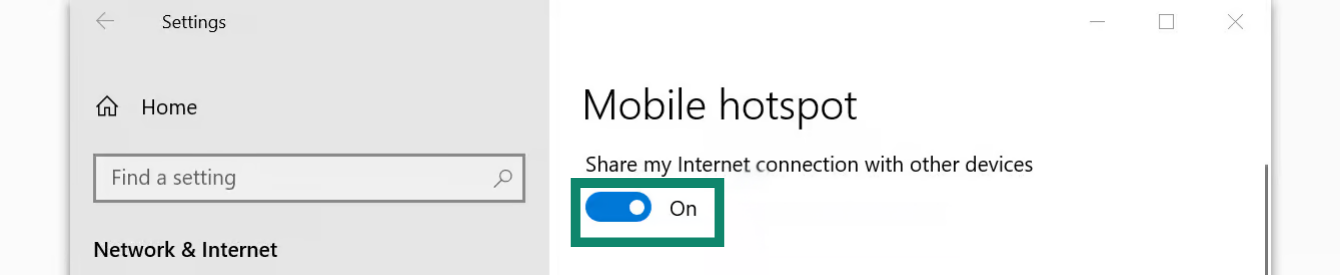
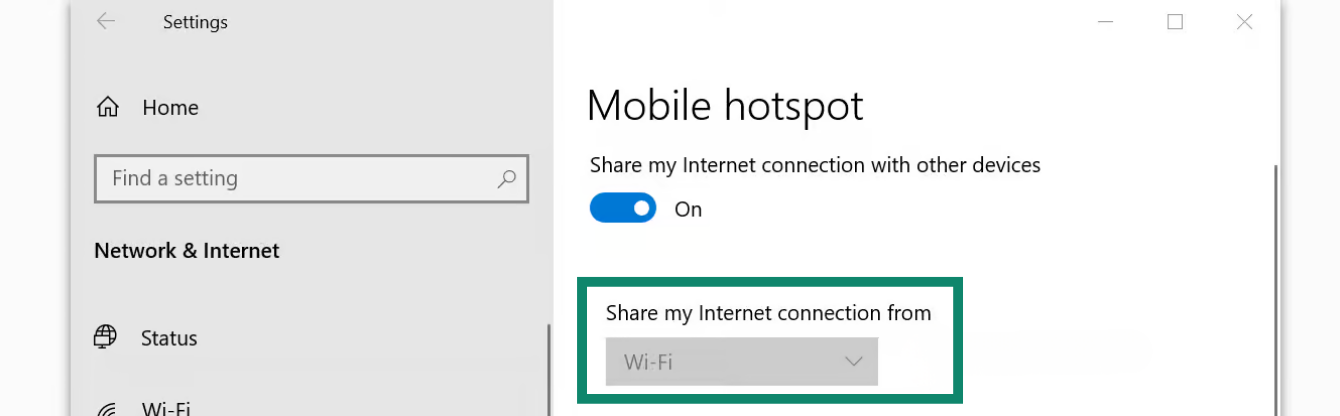
- Klicka på Mobile hotspot (Mobil hotspot). Aktivera Mobile hotspot (Mobil hotspot).


- Under Share my Internet connection (Dela min internetanslutning) från, välj Wi-Fi.


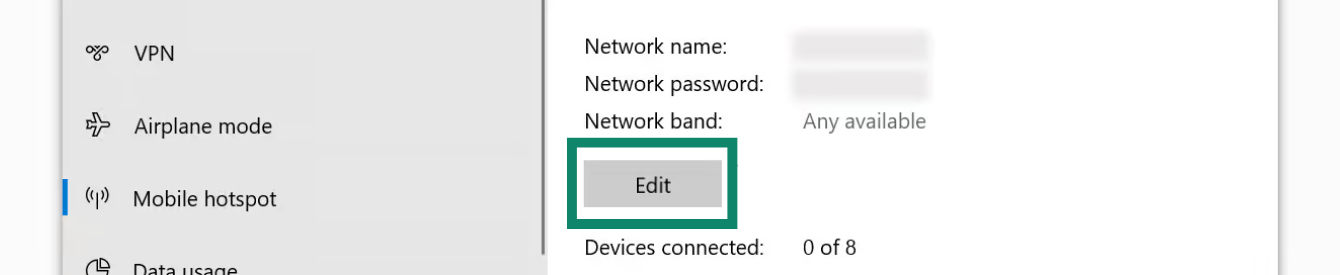
- För att ange ett annat nätverksnamn och lösenord för din mobila hotspot, klicka på Edit (Redigera). Ange ditt önskade nätverksnamn och nätverkslösenord och klicka sedan på Save (Spara).

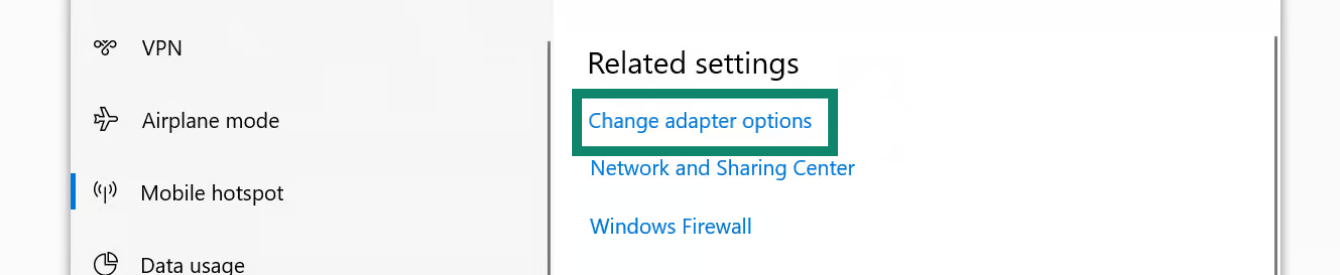
- Under Related settings (Relaterade inställningar), klicka på Change adapter options (Ändra adapteralternativ).

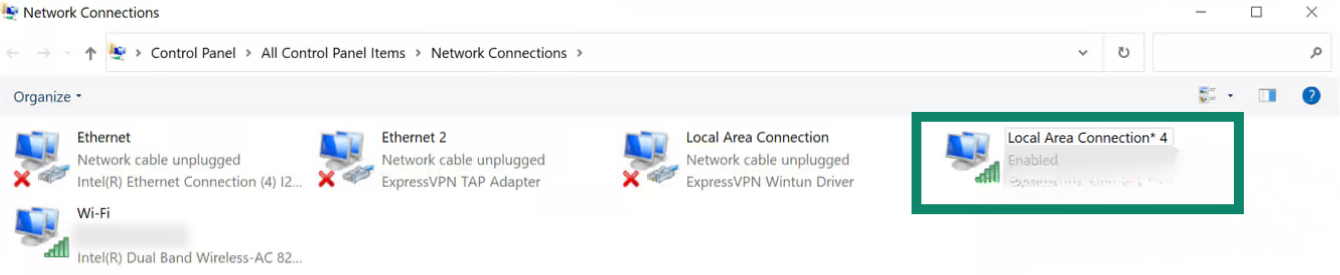
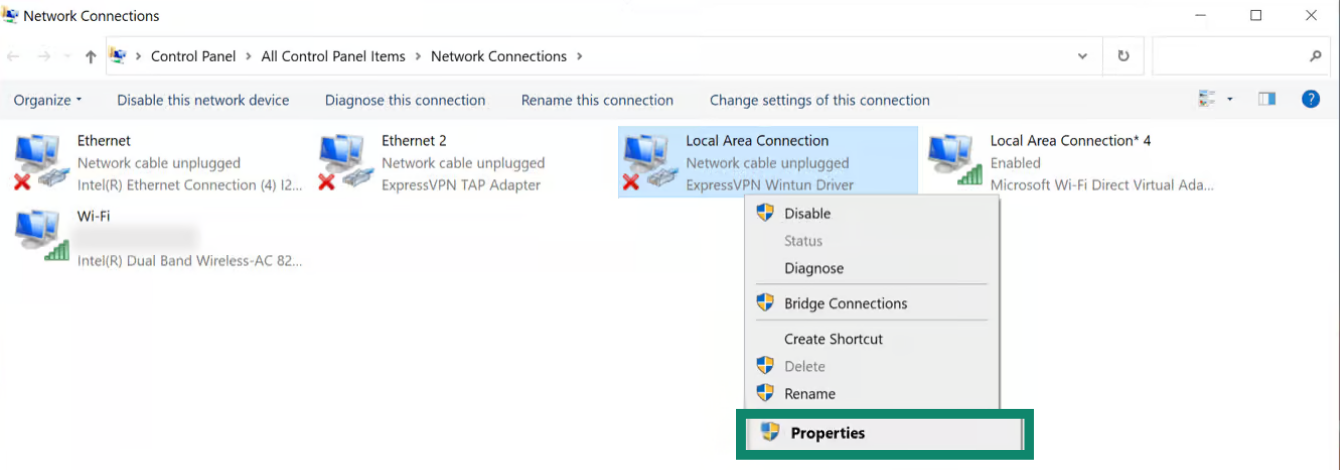
- I fönstret Network Connections (Nätverksanslutningar) ser du ett nätverk som heter Local Area Connection* (Lokal anslutning*). Detta är den nya mobila hotspot som du just skapat.

- Hitta ett nätverk med beskrivningen ExpressVPN WinTUN Adapter. Högerklicka på det och välj Properties (Egenskaper)..


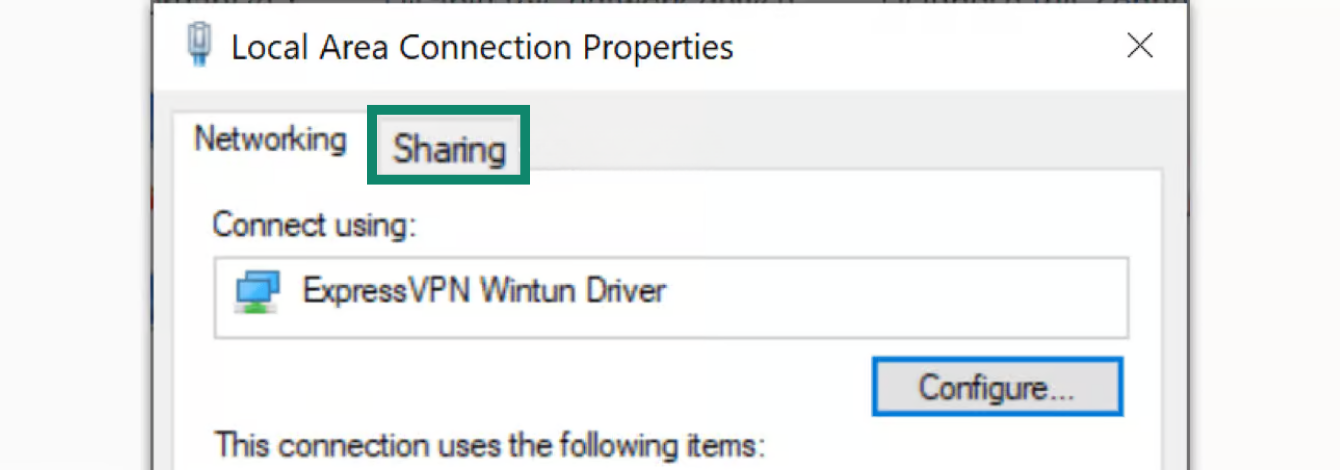
- Klicka på fliken Sharing (Delning) högst upp.

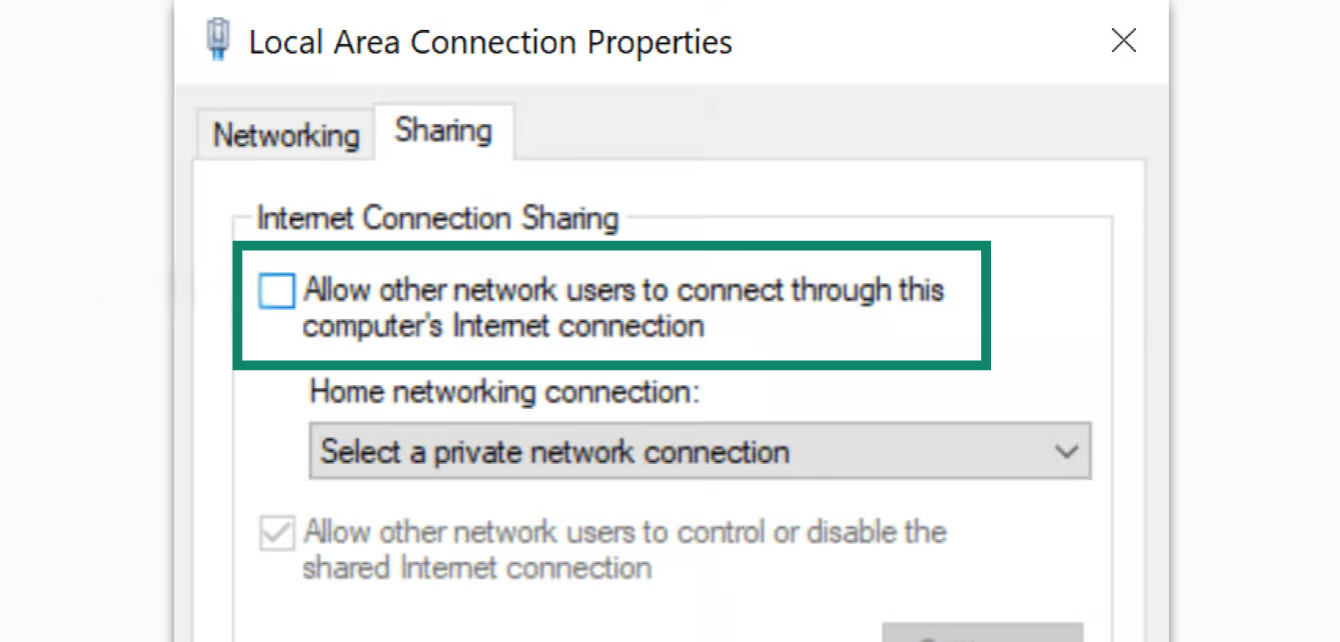
- Markera rutan för Allow other network users to connect through this computer’s Internet connection (Tillåt andra nätverksanvändare att ansluta via den här datorns internetanslutning).


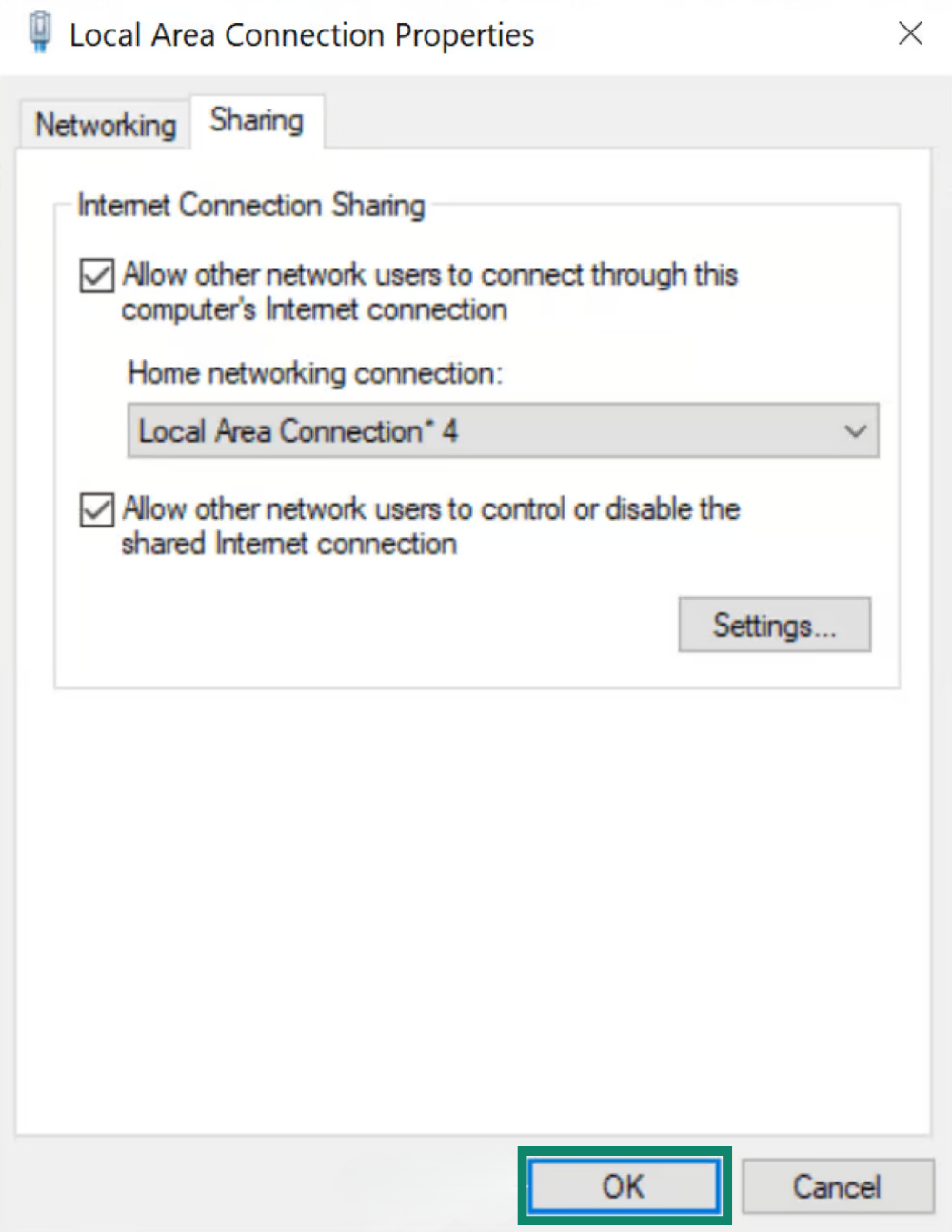
- Under Home networking connection (Hemmanätverksanslutning) väljer du namnet på den mobila hotspot (Local Area Connection*) som du just skapade. Klicka på OK.


- Fortsätt för att ansluta till ExpressVPN-appen.
Behöver du hjälp? Kontakta ExpressVPN:s supportteam för omedelbar hjälp.
Anslut till ExpressVPN-appen
- Öppna ExpressVPN-appen på din Windows-enhet.
- Anslut till en VPN-serverplats du själv väljer.
Fortsätt för att ansluta dina enheter till VPN-anslutningen.
Behöver du hjälp? Kontakta ExpressVPN:s supportteam för omedelbar hjälp.
Anslut enheter till VPN-anslutningen
- Gå till dina Wi-Fi-inställningar på en separat enhet.
- Hitta namnet på nätverket du skapade tidigare och ange lösenordet.
- För att verifiera att du är ansluten kan du använda ExpressVPN:s IP-adresskontroll för att kontrollera din IP-adress och plats. De ska matcha IP-adressen och platsen som visas i ExpressVPN-appen.
Behöver du hjälp? Kontakta ExpressVPN:s supportteam för omedelbar hjälp.
Inaktivera VPN-anslutningen
- Klicka på din Windows-enhet.


- Klicka på Inställningar > Nätverk och internet > Mobil hotspot.
- Stäng av mobil hotspot.
Behöver du hjälp? Kontakta ExpressVPN:s supportteam för omedelbar hjälp.