




Hai bisogno di una VPN per Windows?
Scarica subito ExpressVPN
Adori ExpressVPN? Vuoi un mese gratis?
Invita un amicoQuesta guida ti mostrerà come condividere la tua connessione VPN dal tuo dispositivo Windows 10 o 11. In questo modo, gli altri tuoi apparecchi potranno utilizzare la connessione VPN condivisa dal tuo dispositivo Windows..
Prima di iniziare, assicurati di configurare l’app ExpressVPN sul tuo dispositivo Windows. Non collegarti all’app durante la configurazione del router virtuale o dell’hotspot mobile.
Vai a…
(Windows 10 e 11) Configura il tuo hotspot
Connettiti alla app di ExpressVPN
Collega i dispositivi alla connessione VPN
Disattiva la connessione VPN
Configura il tuo hotspot
Windows 11
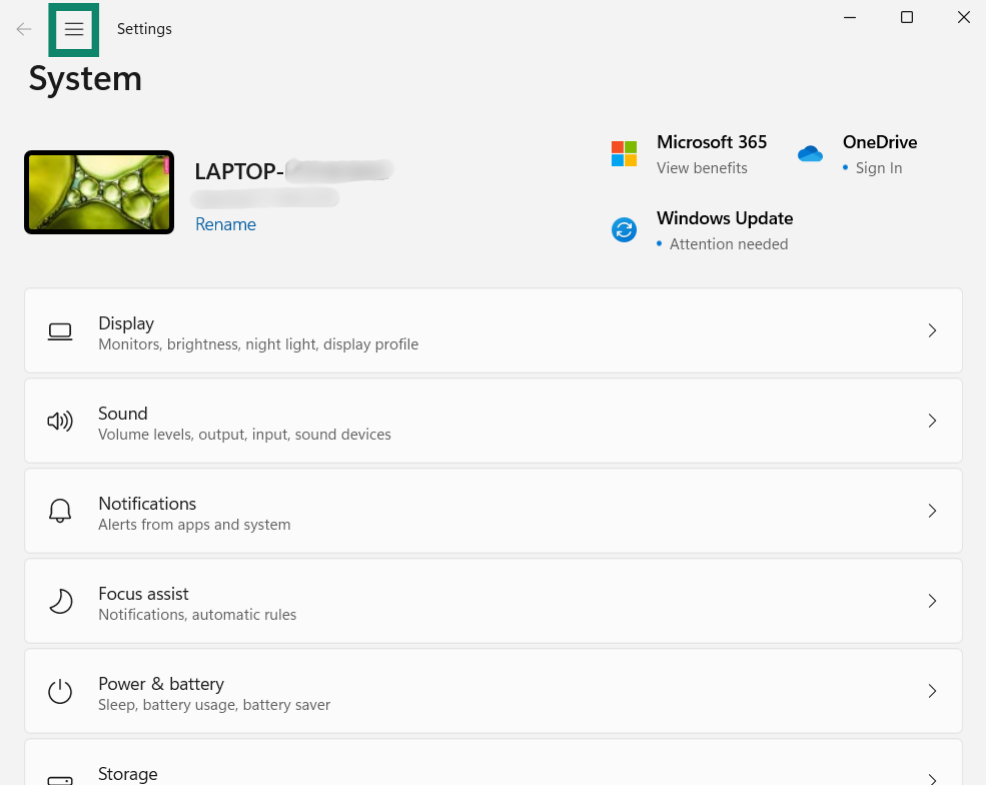
- Sul tuo dispositivo Windows, clicca su Settings (impostazioni).


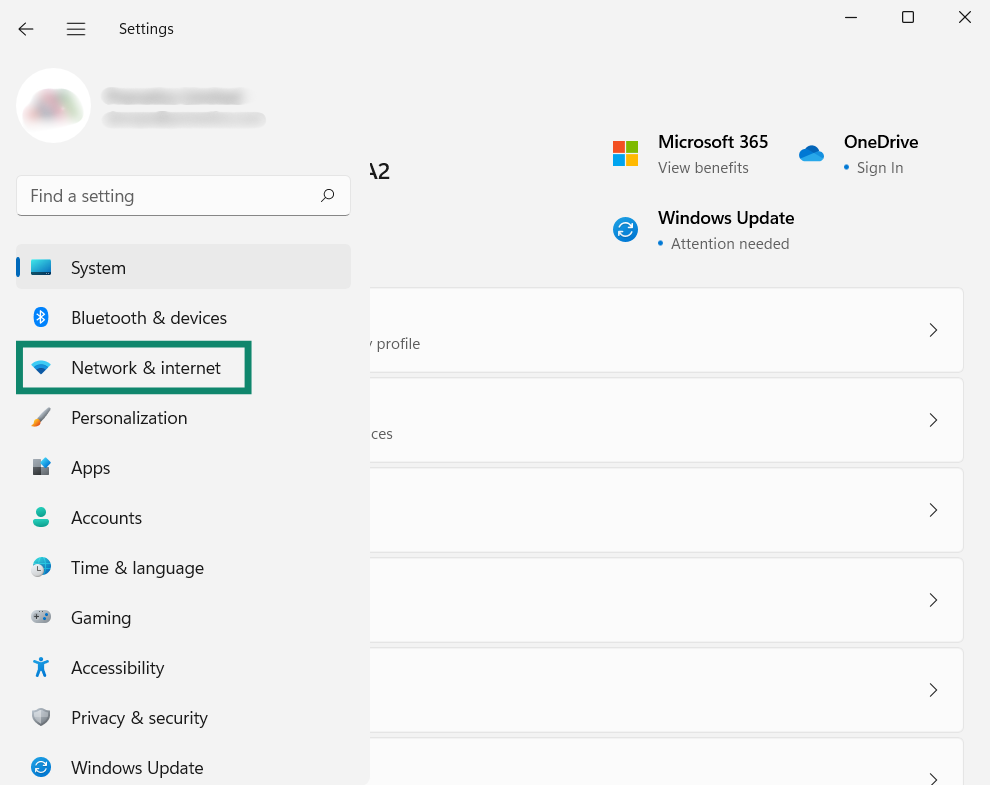
- Nel menu a sinistra, clicca su Network & internet (reti e internet).

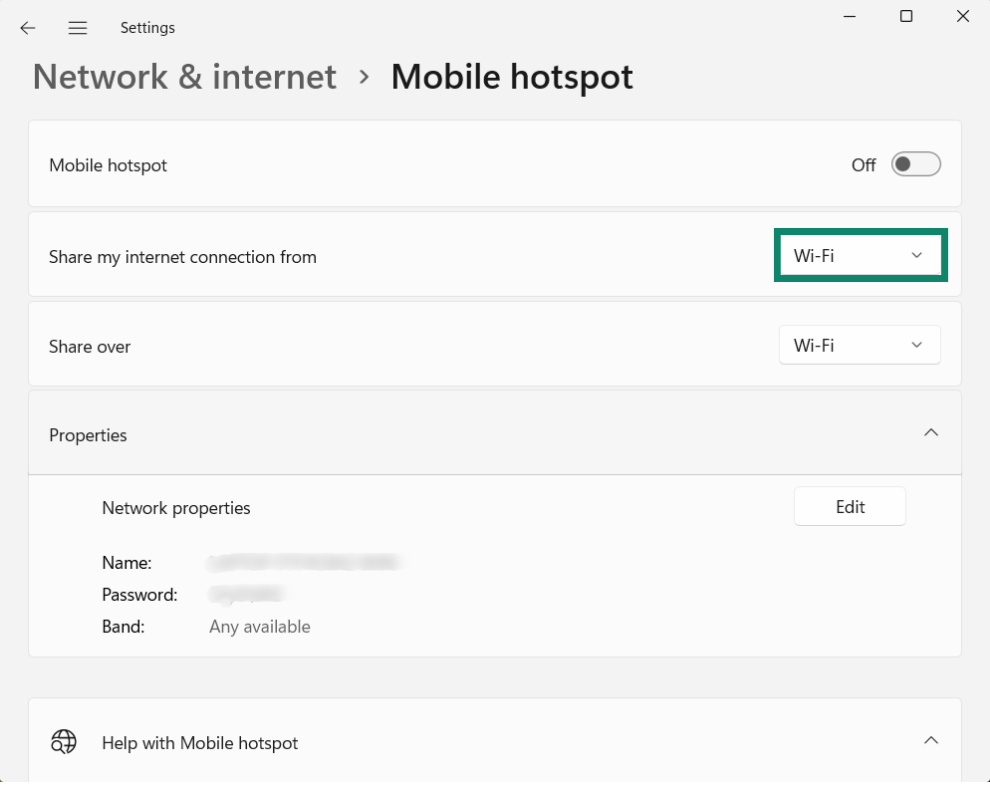
- Accanto a Share my internet connection from (condividi la mia connessione internet da), seleziona Wi-Fi.

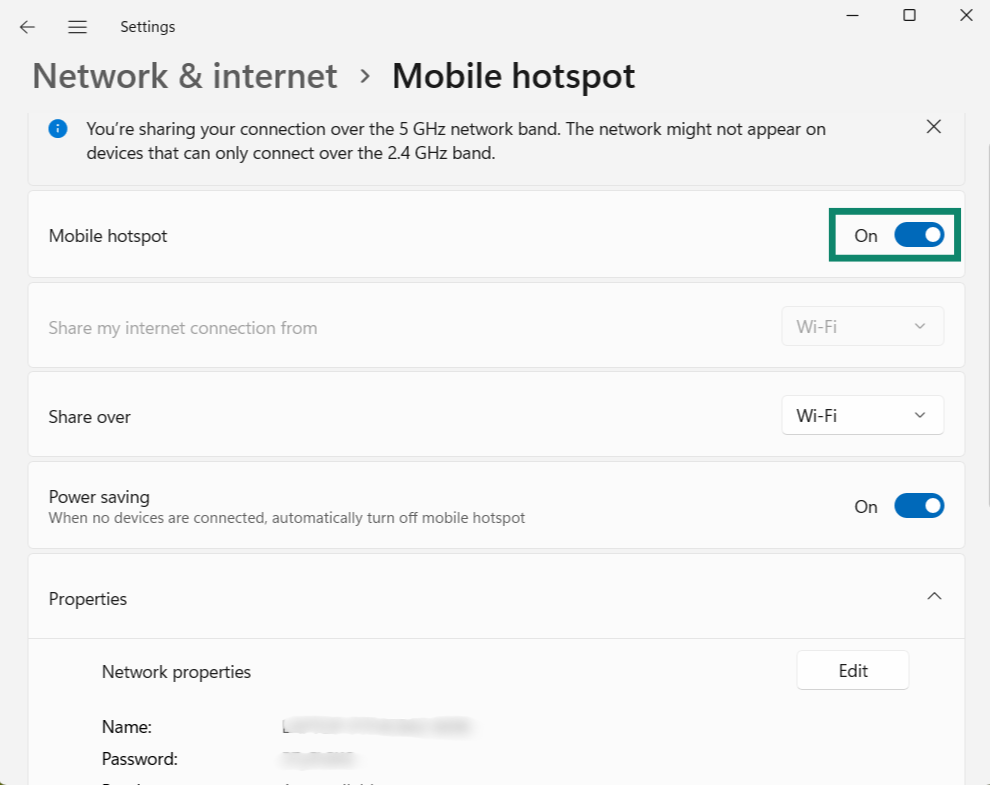
- A quel punto, attiva Mobile hotspot.

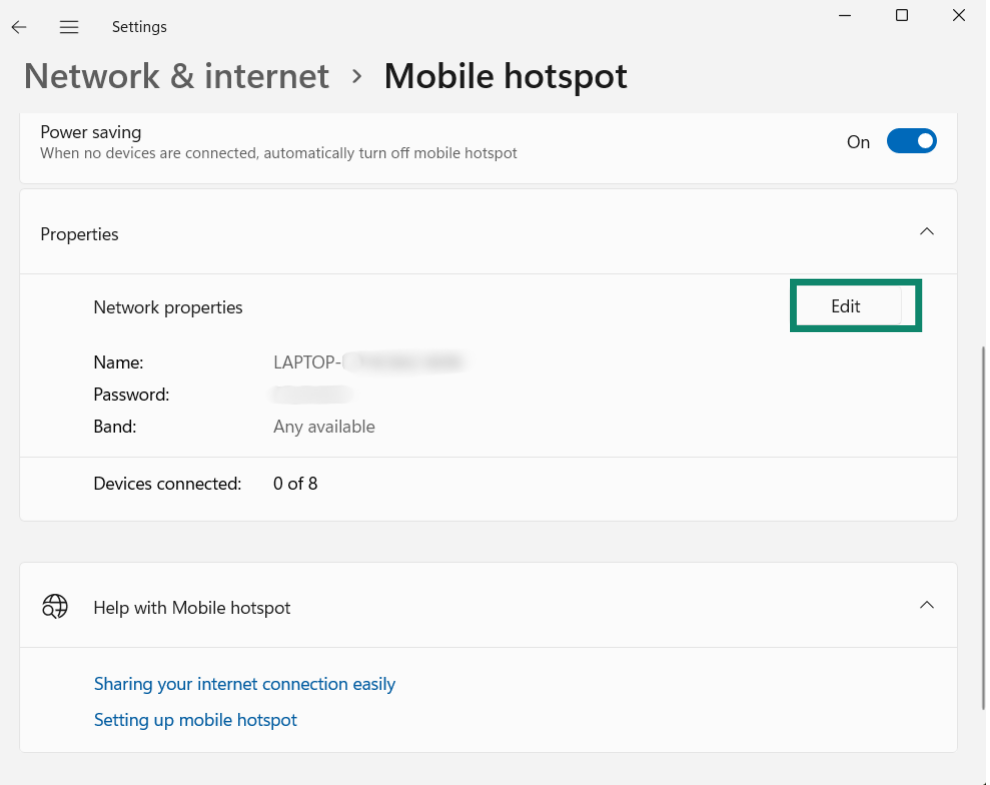
- Per impostare un nome di rete e una password diversi per l’hotspot mobile, clicca su Properties (Proprietà) > Edit (Modifica). Inserisci il nome della rete e la password di rete desiderati, quindi clicca su Save (salva).

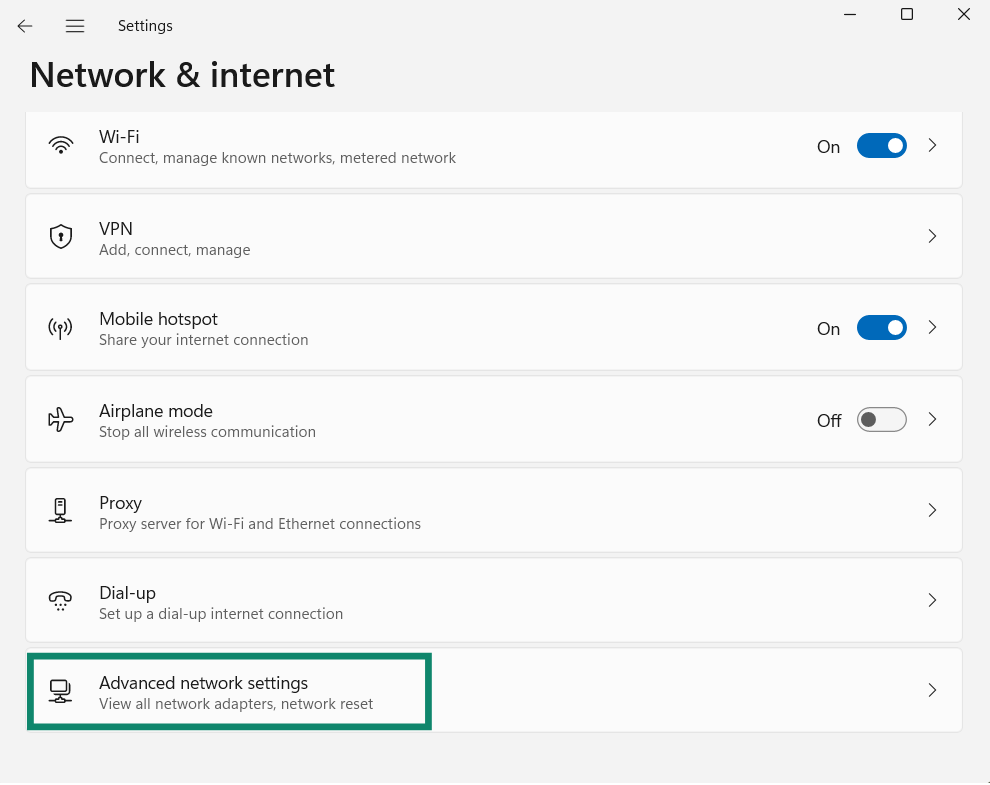
- Torna alla pagina principale Network & internet (reti e internet), e clicca su Advanced network settings (configurazione di rete avanzata).

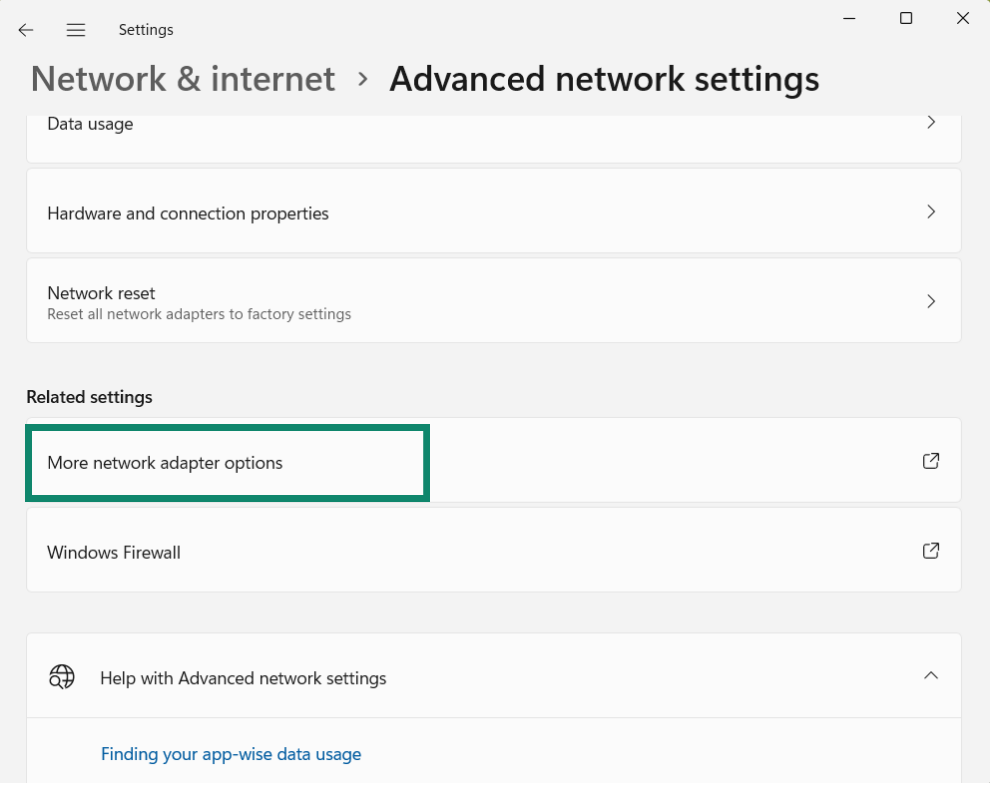
- Scorri verso il basso fino a Related settings (impostazioni associate), e clicca su More network adapter options (altre opzioni per adattatori di rete).

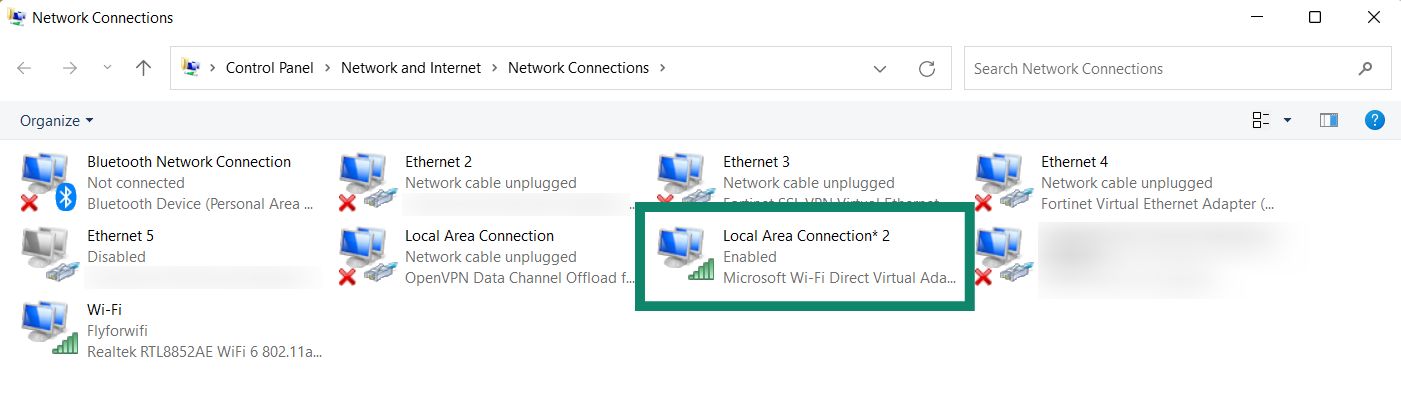
- Nella finestra Network Connections (connessioni di rete), vedrai una rete denominata Local Area Connection* (connessione locale*) o una dicitura simile. Si tratta del nuovo hotspot mobile che hai appena creato.


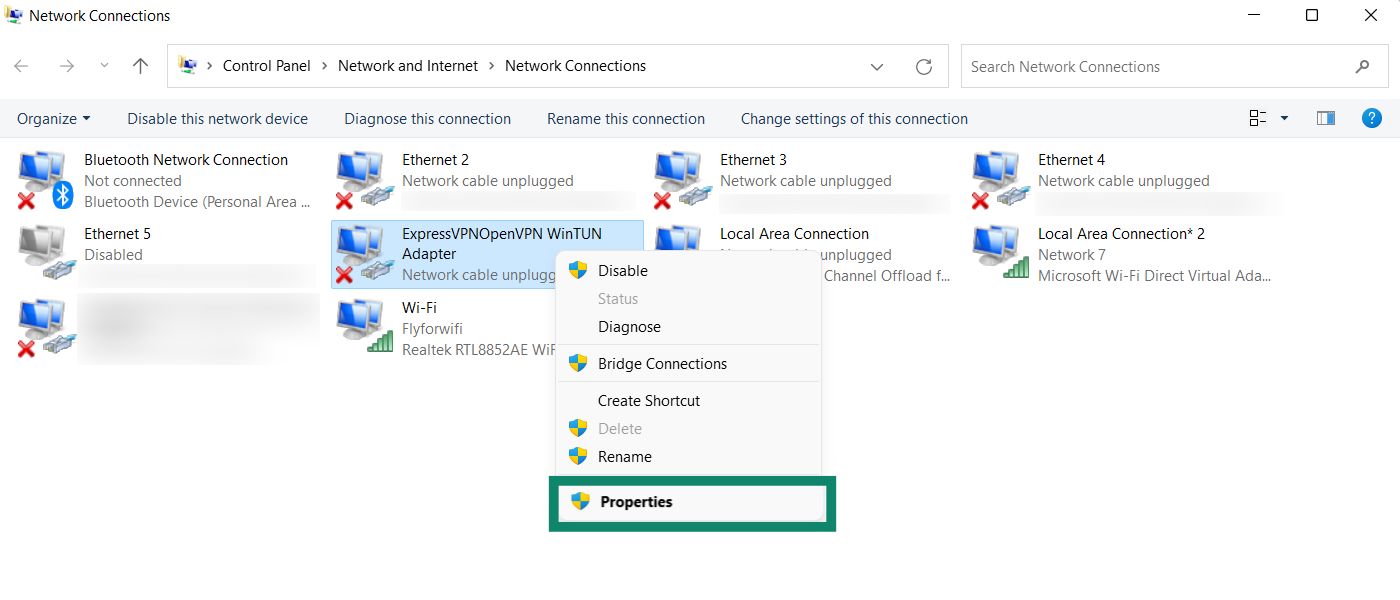
- Trova una rete con la descrizione ExpressVPN WinTUN Adapter. Clicca con il tasto destro e seleziona Properties (proprietà).


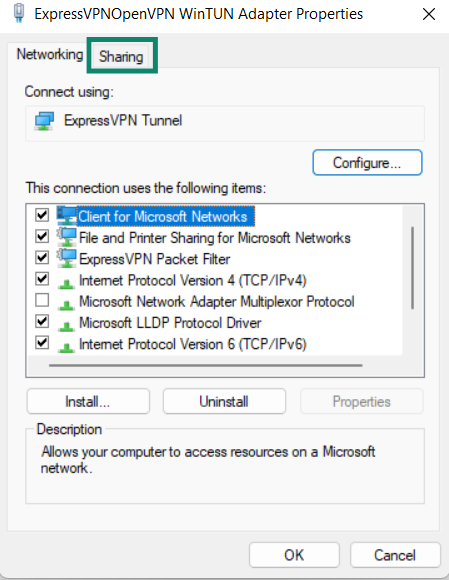
- Nella parte superiore, clicca sulla sezione Sharing (condivisione).


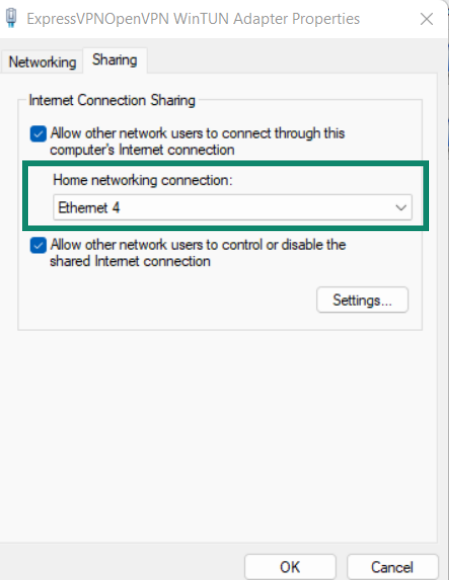
- Seleziona la casella Allow other network users to connect through this computer’s Internet connection (consentire ad altri utenti della rete di collegarsi tramite la connessione internet di questo computer).

- Nella sezione Connessioni di rete domestiche, seleziona il nome dell’hotspot mobile (Connessione locale*) che hai appena creato. Clicca su OK.
Ti serve aiuto? Contatta il team di supporto ExpressVPN per ricevere assistenza immediata.
Windows 10
- Sul tuo dispositivo Windows, clicca su Settings (impostazioni) > Network & internet (reti e internet).
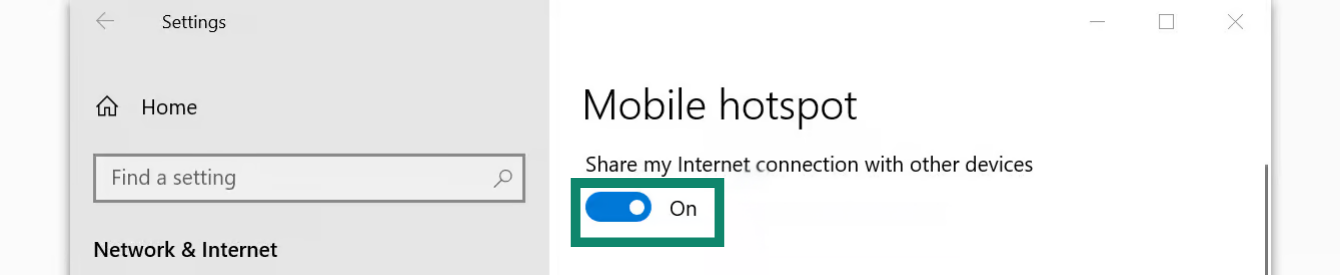
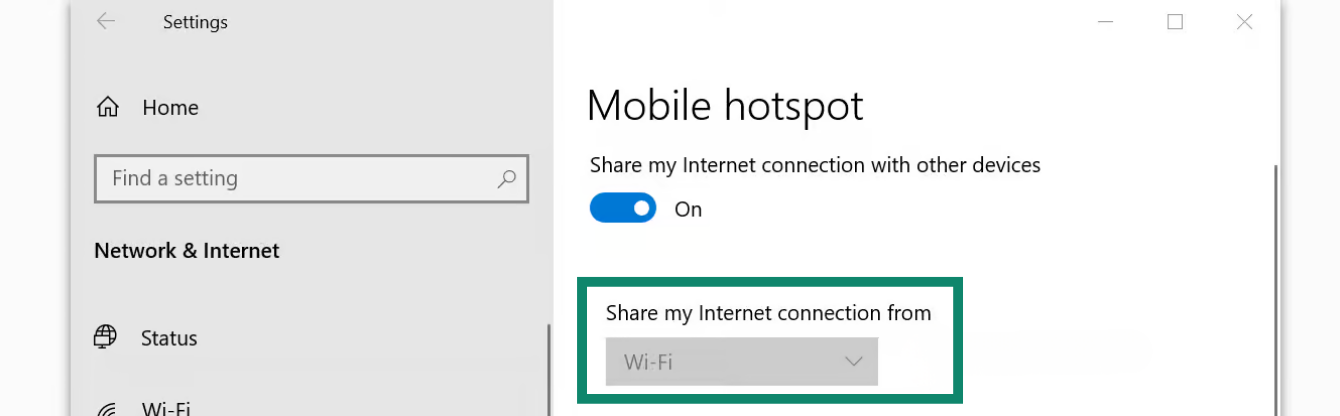
- Clicca su Mobile hotspot. Attiva Mobile hotspot.


- Nella sezione Share my internet connection from (Condividi la mia connessione internet da), seleziona Wi-Fi.


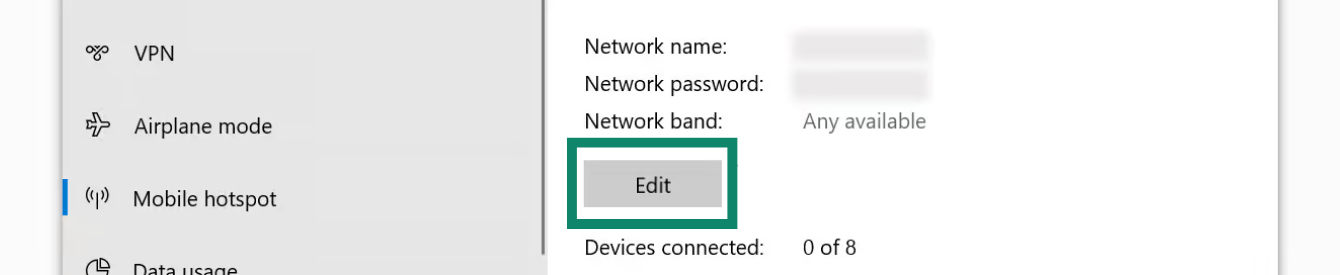
- Per impostare un nome di rete e una password diversi per l’hotspot mobile, clicca su Edit (modifica). Inserisci il nome della rete e la password di rete desiderati, quindi clicca su Save (salva).

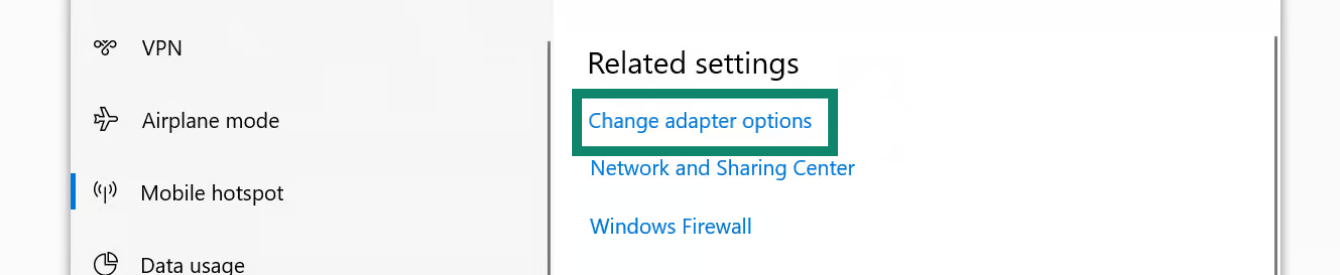
- Nella sezione Related settings (impostazioni associate), clicca su Change adapter options (modifica opzioni adattatore).

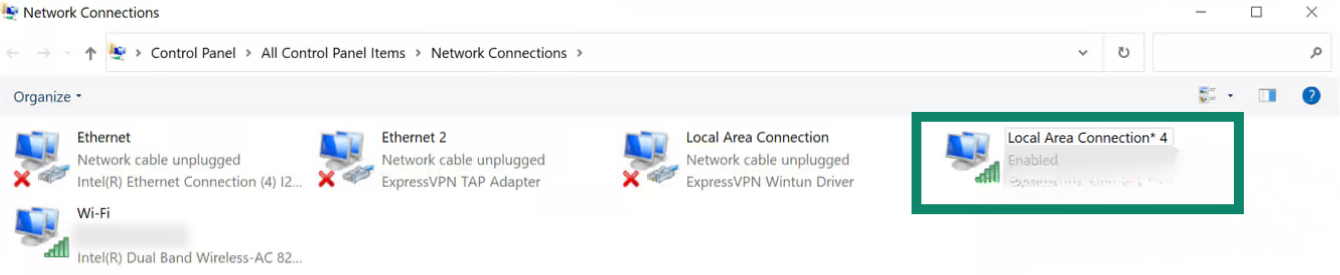
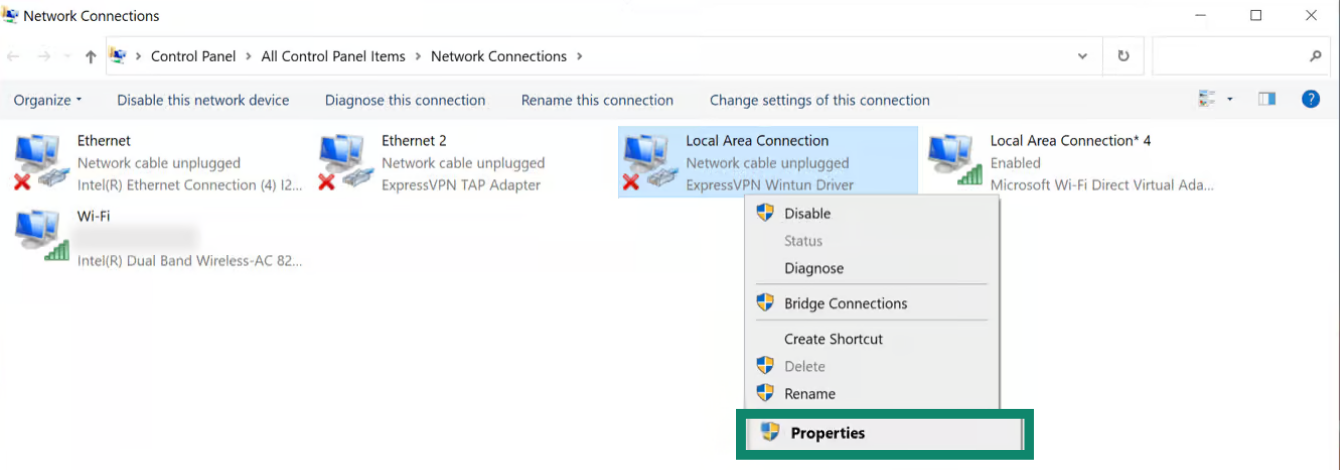
- Nella pagina Network Connections (connessioni di rete), vedrai una rete denominata Local Area Connection* (connessione locale*). Si tratta del nuovo hotspot mobile che hai appena creato..

- Trova una rete con la descrizione ExpressVPN Wintun Driver. Clicca con il tasto destro e seleziona Properties (proprietà).


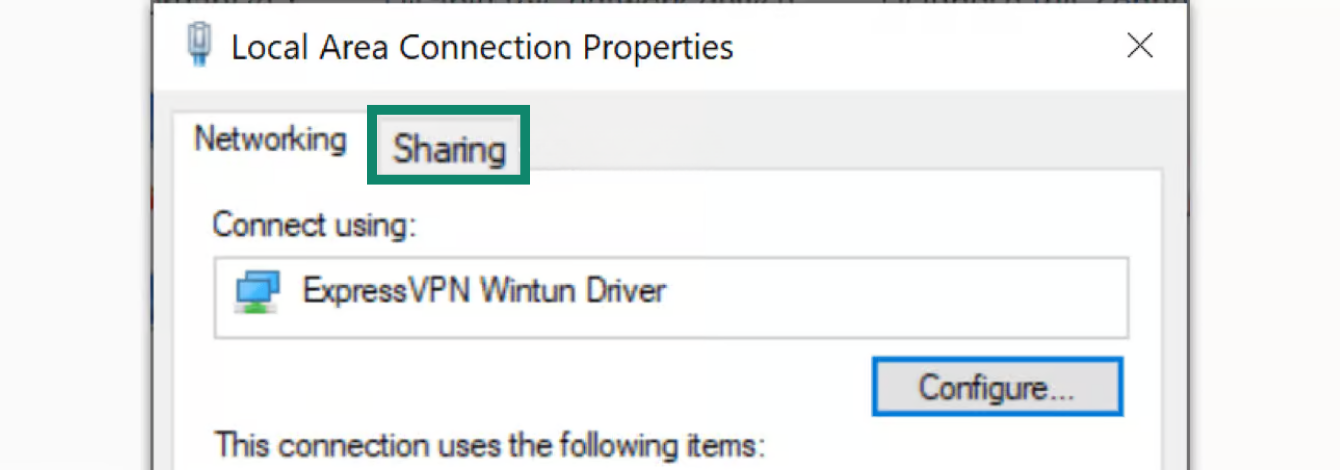
- Nella parte superiore, clicca sulla sezione Sharing (condivisione).

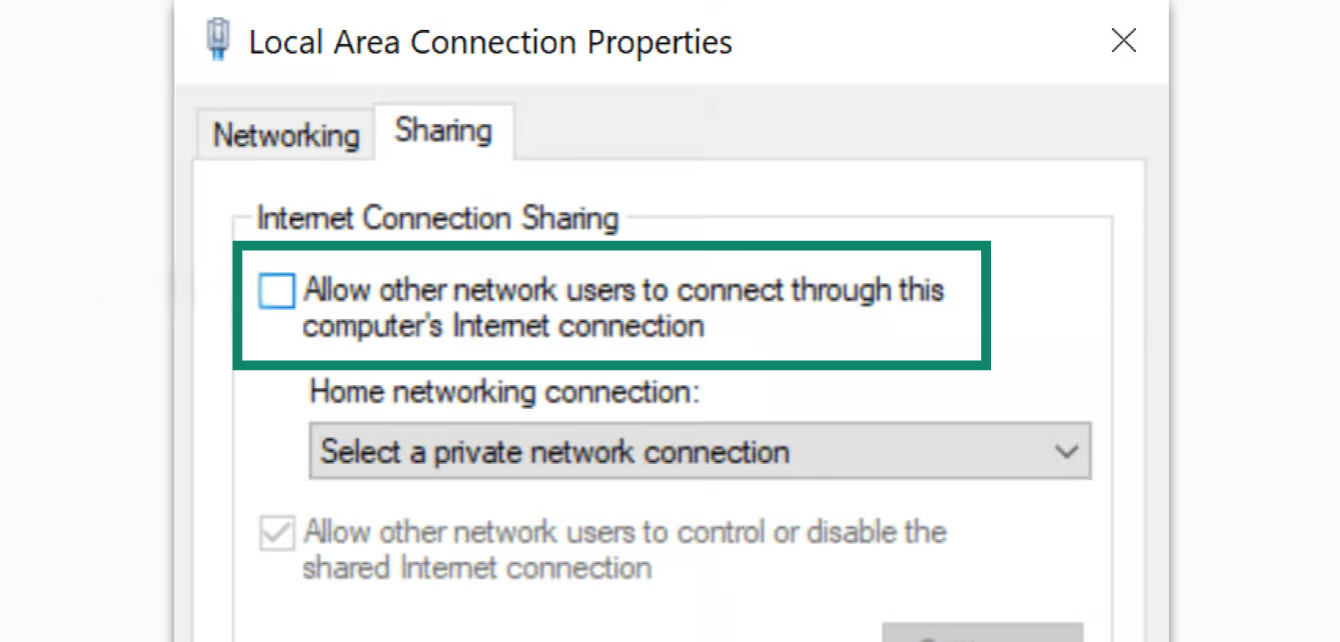
- Seleziona la casella Allow other network users to connect through this computer’s Internet connection (consentire ad altri utenti della rete di collegarsi tramite la connessione internet di questo computer).


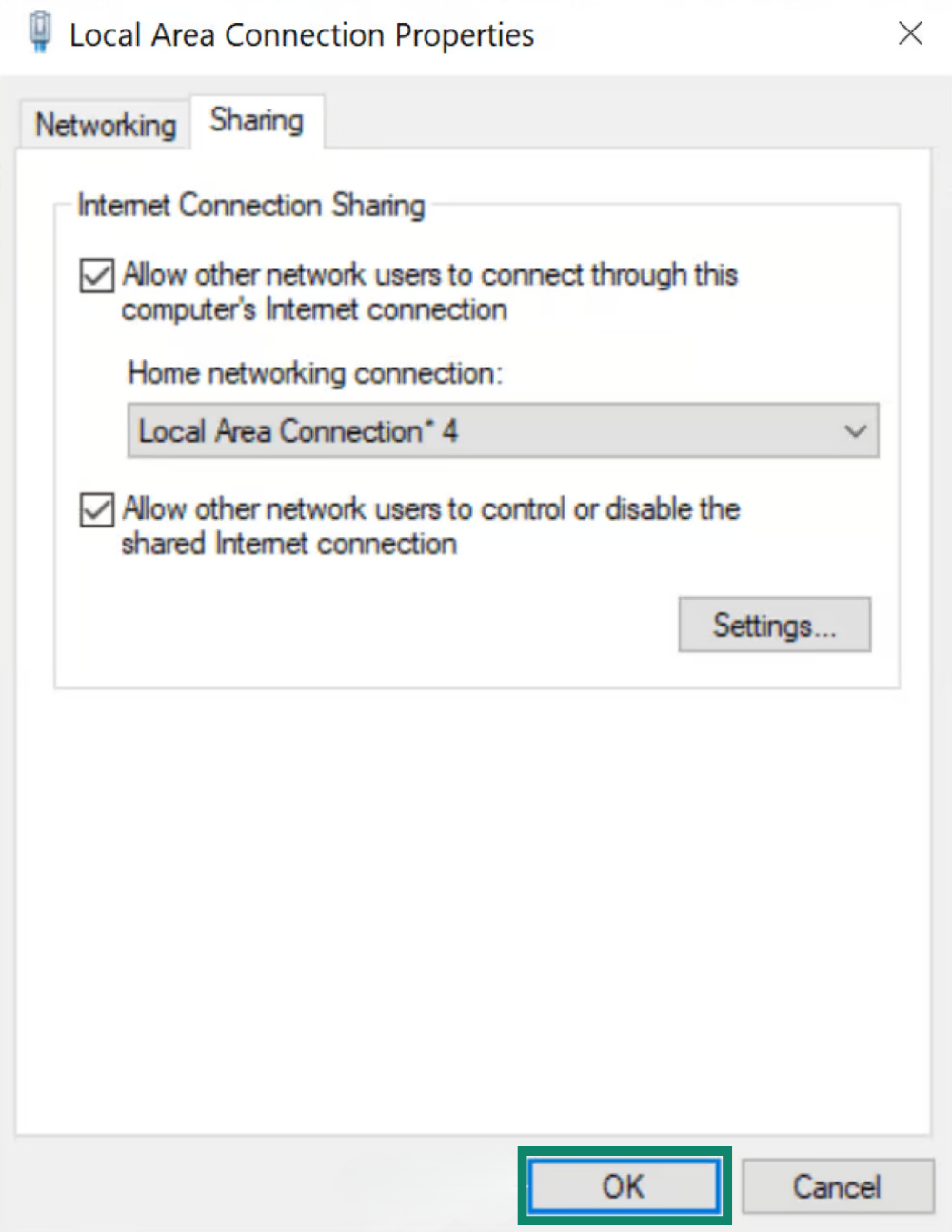
- Nella sezione Home networking connection (connessioni di rete domestiche), seleziona il nome dell’hotspot mobile (Connessione locale*) che hai appena creato. Clicca su OK.


- Prova a connetterti alla app di ExpressVPN.
Ti serve aiuto? Contatta il team di supporto ExpressVPN per ricevere assistenza immediata.
Connettiti alla app di ExpressVPN
- Sul tuo dispositivo Windows, apri l’app ExpressVPN.
- Connettiti a un server VPN nella posizione desiderata.
Procedi con la connessione dei tuoi dispositivi alla VPN.
Ti serve aiuto? Contatta il team di supporto ExpressVPN per ricevere assistenza immediata.
Collega i dispositivi alla connessione VPN
- Da un altro dispositivo, accedi alle tue impostazioni Wi-Fi.
- Individua il nome della rete creata in precedenza e inserisci la password.
- Per verificare di essere connesso, potrai utilizzare Address Checker IP di ExpressVPN per verificare il tuo indirizzo IP e la tua posizione. Dovrebbero corrispondere all’indirizzo IP e alla posizione indicati nell’app di ExpressVPN.
Ti serve aiuto? Contatta il team di supporto ExpressVPN per ricevere assistenza immediata.
Disattiva la connessione VPN
- Sul tuo dispositivo Windows, clicca su

 .
. - Clicca su Impostazioni > Reti e internet > Mobile hotspot.
- Disattiva Mobile hotspot.
Ti serve aiuto? Contatta il team di supporto ExpressVPN per ricevere assistenza immediata.