ExpressVPN
    • ノーログポリシー
    • Servers in 113 Countries
    • Use on Multiple Devices
    • High-Speed VPN
    • Access Online Services Securely
    • ゲームに最適なVPN
    • 全ての機能を見る
    • ExpressVPNについて
    Sign Up For Expressvpn

    One subscription gives you access to a fast-growing suite of privacy and security tools that work seamlessly together to improve your digital life.

    View all products
    • Lightway VPNプロトコル
    • Internet Kill Switch
    • スプリットトンネル
    • Private, Encrypted DNS
    • Avoid ISP Throttling
    • Threat Manager
    • 広告ブロッカー
    • ペアレンタルコントロール
    • 固定IP
  • VPNのダウンロード
    • Windows new
    • MacOS new
    • Linux new
    • iPhone / iPad
    • Android
    • Apple TV
    • Fire Stick
    • Android TV
    • ルーター版VPN
    • Aircoveルーター
    • Chrome
    • Firefox
    • Edge
  • Pricing
    • VPNとは?
    • VPN for Beginners
    • How To Use a VPN
    • VPN Encryption Explained
    • ブログ
    • Glossary
    • IP Address Checker
    • DNS漏洩テスト
    • WebRTC漏洩テスト
    • パスワード生成
    • サポートセンター
    • よくある質問 (FAQ)
    • ライブチャット
    • VPN設定方法
    • Redemption Code
  • Icon10VPN for Teams
  • プロダクト
    Icon11

    ExpressVPN for Teams Get fast, secure VPN protection for growing teams. Easy to deploy, simple to manage, built to scale.

    Img2
    • ExpressVPN

      ExpressVPN Industry-leading, ultra-fast VPN with secure servers in 113 countries.

    • ExpressMailGuard

      ExpressMailGuard Private email relay service to protect your inbox and identity.

    • ExpressKeys

      ExpressKeys Secure password management, multi-factor authentication, and more.

    • ExpressAI

      ExpressAI The first consumer AI powered by confidential computing for privacy-led intelligence.

    • Identity Defender

      Identity Defender Powerful suite of ID protection, monitoring, and data removal tools

    Other products from the family behind ExpressVPN

    • holiday.com eSIM

      holiday.com eSIM Unlimited data with a single eSIM across 150+ destinations.

    • Intego

      Intego Award-winning macOS antivirus, firewall, system tools, and more.

  • マイアカウント
プランを見る
ExpressVPN
    • ノーログポリシー
    • Servers in 113 Countries
    • Use on Multiple Devices
    • High-Speed VPN
    • Access Online Services Securely
    • ゲームに最適なVPN
    • 全ての機能を見る
    • ExpressVPNについて
    Sign Up For Expressvpn

    One subscription gives you access to a fast-growing suite of privacy and security tools that work seamlessly together to improve your digital life.

    View all products
    • Lightway VPNプロトコル
    • Internet Kill Switch
    • スプリットトンネル
    • Private, Encrypted DNS
    • Avoid ISP Throttling
    • Threat Manager
    • 広告ブロッカー
    • ペアレンタルコントロール
    • 固定IP
  • VPNのダウンロード
    • Windows new
    • MacOS new
    • Linux new
    • iPhone / iPad
    • Android
    • Apple TV
    • Fire Stick
    • Android TV
    • ルーター版VPN
    • Aircoveルーター
    • Chrome
    • Firefox
    • Edge
  • Pricing
    • VPNとは?
    • VPN for Beginners
    • How To Use a VPN
    • VPN Encryption Explained
    • ブログ
    • Glossary
    • IP Address Checker
    • DNS漏洩テスト
    • WebRTC漏洩テスト
    • パスワード生成
    • サポートセンター
    • よくある質問 (FAQ)
    • ライブチャット
    • VPN設定方法
    • Redemption Code
  • VPN for Teams
  • プロダクト
    • ExpressVPN

      ExpressVPN Industry-leading, ultra-fast VPN with secure servers in 113 countries.

    • ExpressMailGuard

      ExpressMailGuard Private email relay service to protect your inbox and identity.

    • ExpressKeys

      ExpressKeys Secure password management, multi-factor authentication, and more.

    • ExpressAI

      ExpressAI The first consumer AI powered by confidential computing for privacy-led intelligence.

    • Identity Defender

      Identity Defender Powerful suite of ID protection, monitoring, and data removal tools

    Other products from the family behind ExpressVPN

    • holiday.com eSIM

      holiday.com eSIM Unlimited data with a single eSIM across 150+ destinations.

    • Intego

      Intego Award-winning macOS antivirus, firewall, system tools, and more.

    Icon11

    ExpressVPN for Teams Get fast, secure VPN protection for growing teams. Easy to deploy, simple to manage, built to scale.

    Img2
  • マイアカウント
プランを見る
Home Home » WindowsデバイスからVPN接続を共有する方法

設定チュートリアル

WindowsデバイスからVPN接続を共有する方法

最終更新: 2026/09/16

Share in FacebookShare in TwitterShare in WhatsappShare in TelegramShare by email
Get ExpressVPN on Windows.
WindowsにVPNが必要ですか?
今すぐExpressVPNを購入する

Refer a friend to use ExpressVPN.
ExpressVPNを気に入りましたか?1ヶ月の無料サービスを獲得しよう
今すぐ友達に紹介

このチュートリアルでは、Windows 10またはWindows 11デバイスからVPN接続を共有する方法を説明します。これにより、他のデバイスでもWindowsデバイスから共有されたVPN接続を利用できます。

開始する前に、WindowsデバイスにExpressVPNアプリをセットアップしておいてください。仮想ルーターまたはモバイルホットスポットを設定するときは、アプリに接続しないでください。

項目へ移動…

(Windows 10および11)モバイルホットスポットを設定する
ExpressVPNアプリに接続する
デバイスをVPN接続に接続する
VPN接続を無効にする


モバイルホットスポットを設定する

Windows 11

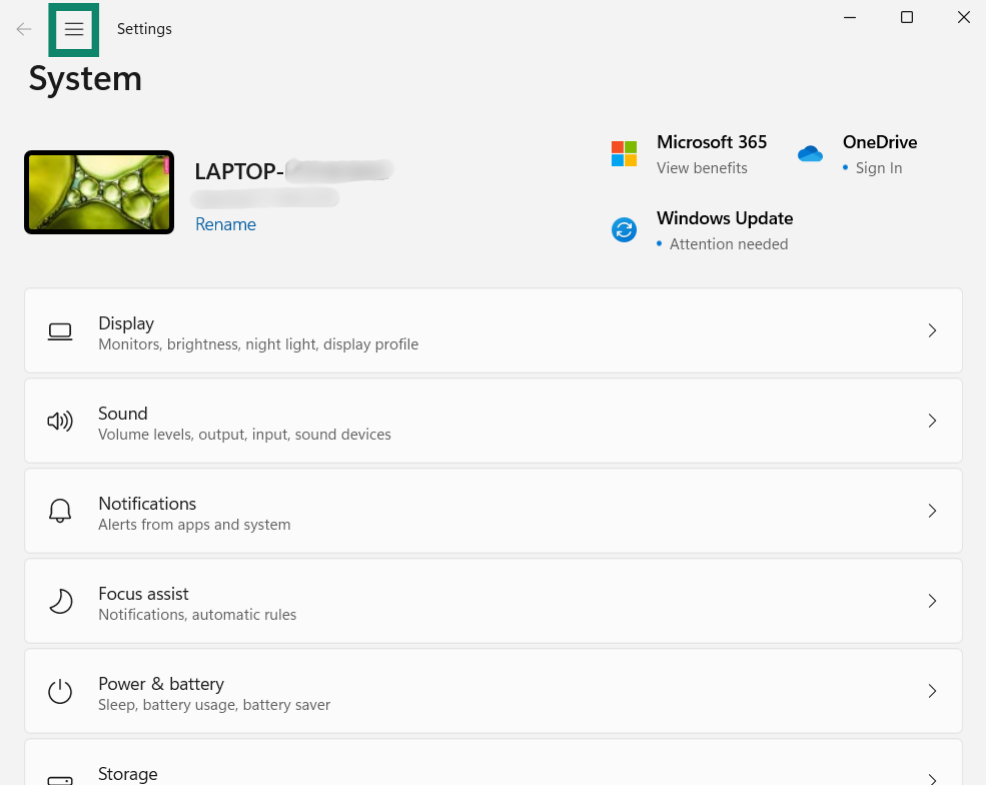
  1. Windowsデバイスで、クリックし、次に Settings(設定)をクリックします。
    The Windows 11 Settings window with a green box highlighting the navigation menu icon in the top left corner.
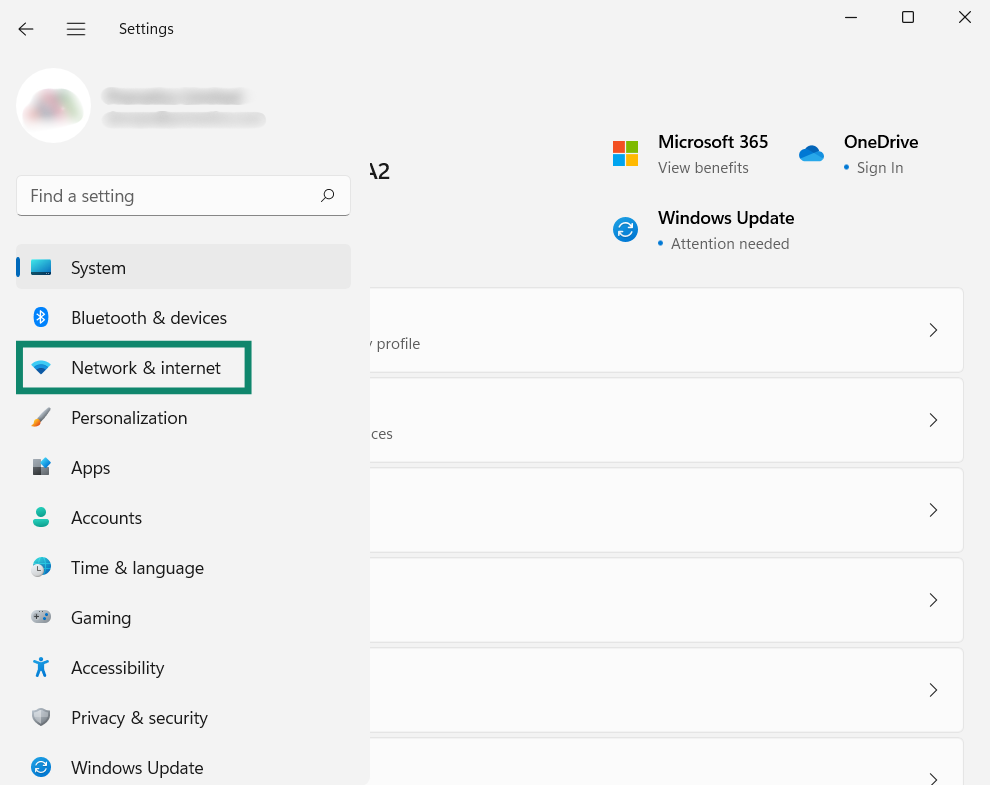
  2. 左側のサイドバーで、Network & internet(ネットワークとインターネット)をクリックします。
    The Windows 11 Settings window with a green box highlighting the "Network & internet" option in the left-hand navigation sidebar.
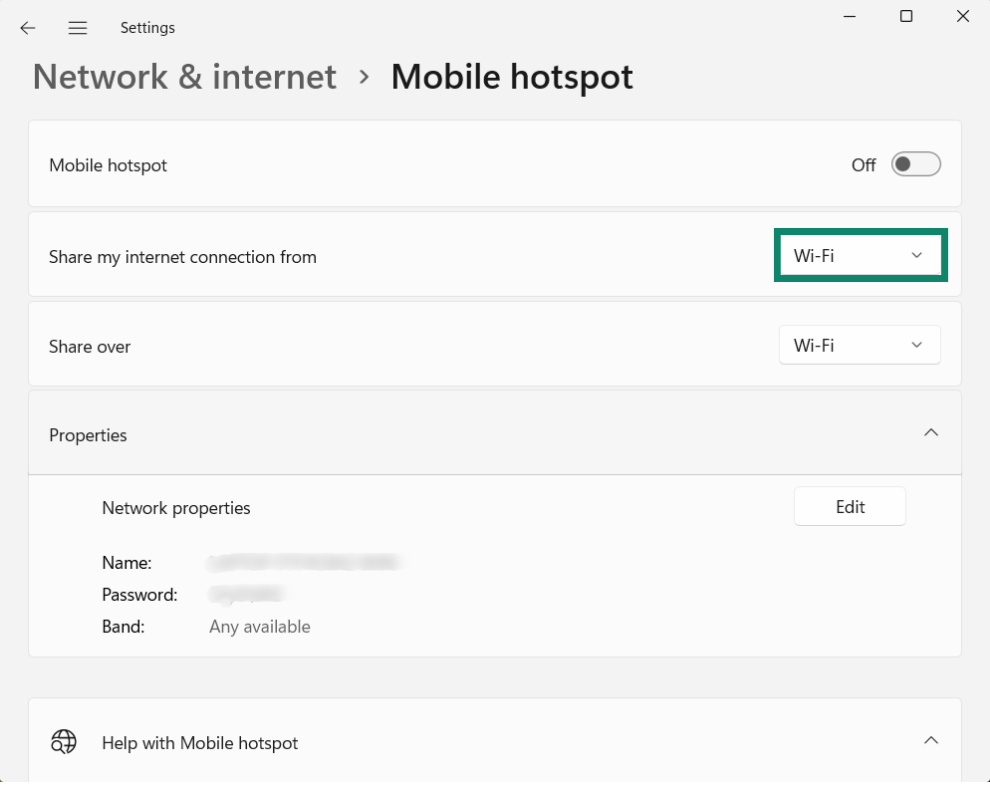
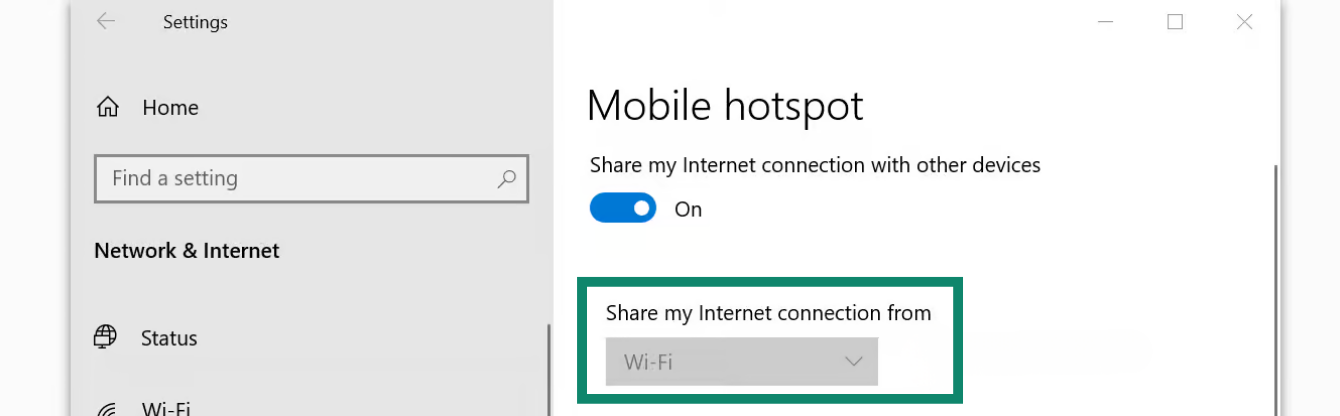
  3. Share my internet connection from(インターネット接続の共有元)の横で、Wi-Fiを選択します。
    The Windows 11 Mobile hotspot settings screen with a green box highlighting the "Share my internet connection from" dropdown menu, which is set to Wi-Fi.
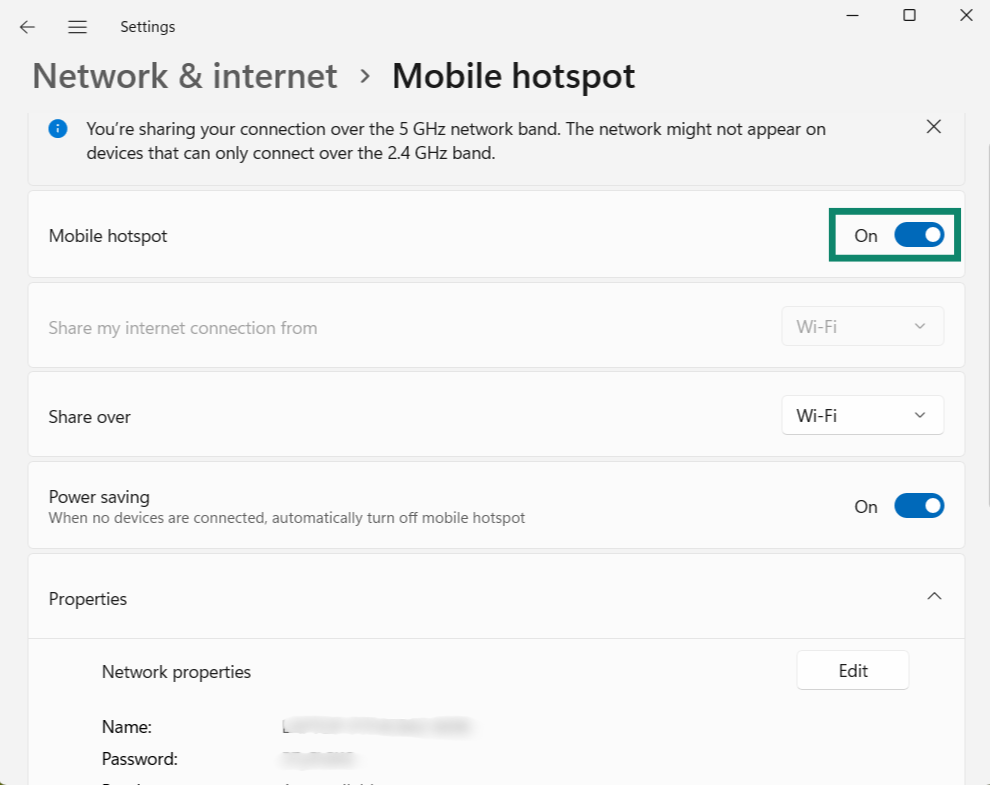
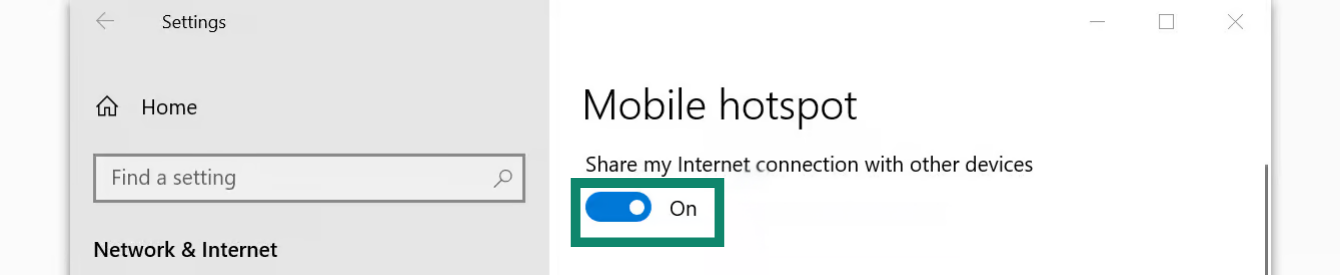
  4. Mobile hotspot(モバイル ホットスポット)をオンに切り替えます。
    The Windows 11 Mobile hotspot settings screen with a green box highlighting the Mobile hotspot toggle switch set to On.
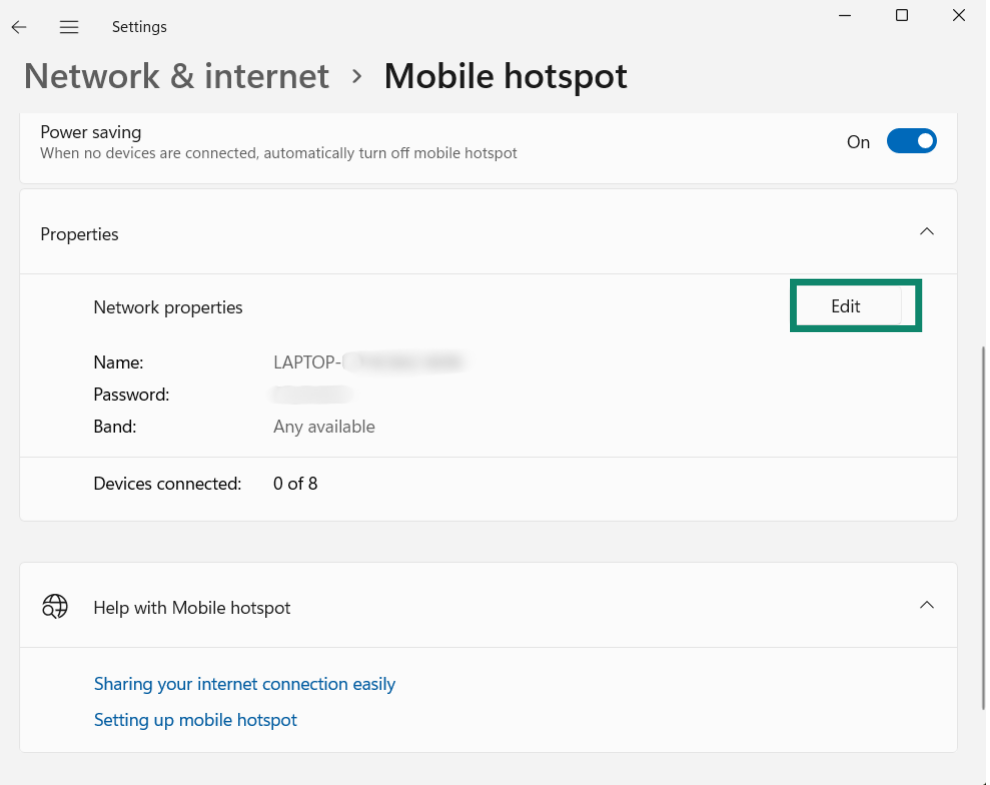
  5. モバイルホットスポットのネットワーク名とパスワードを変更するには、Properties(プロパティ) > Edit(編集)をクリックします。希望するNetwork name(ネットワーク名)とNetwork password(ネットワーク パスワード)を入力し、Save(保存)をクリックします。
    The Windows 11 Mobile hotspot settings screen scrolled down to the Properties section, with a green box highlighting the Edit button.
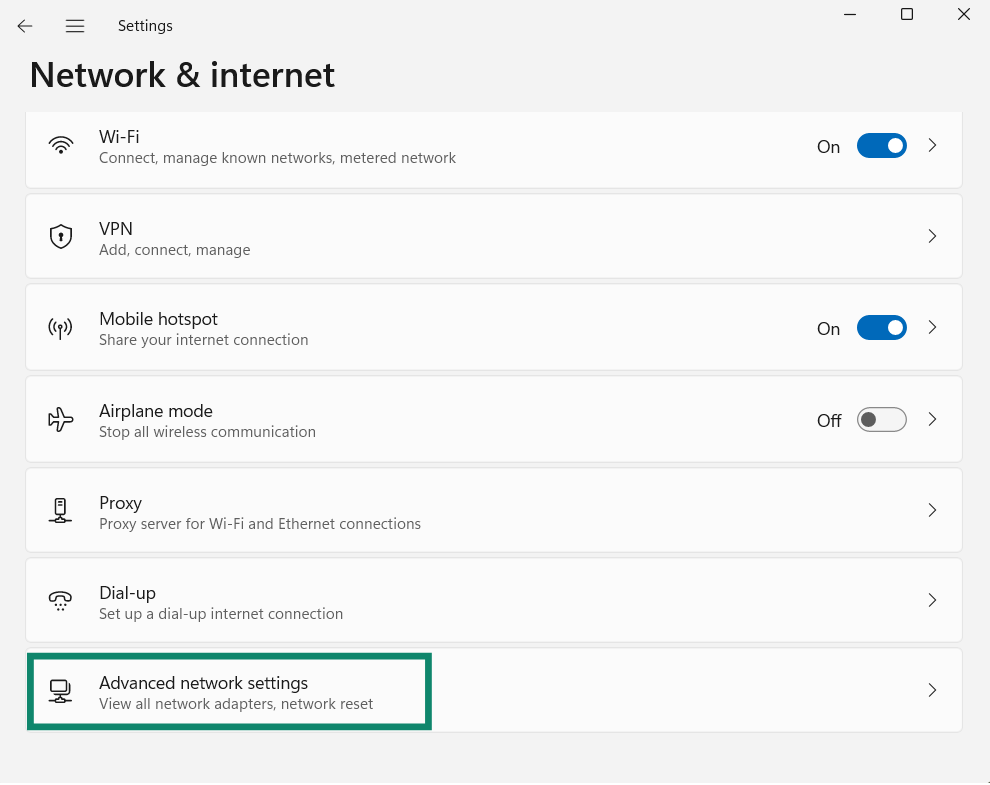
  6. メインのNetwork & internet(ネットワークとインターネット)ページに戻り、Advanced network settings(ネットワークの詳細設定)をクリックします。
    The Windows 11 Network & internet settings screen with a green box highlighting the "Advanced network settings" option at the bottom of the list.
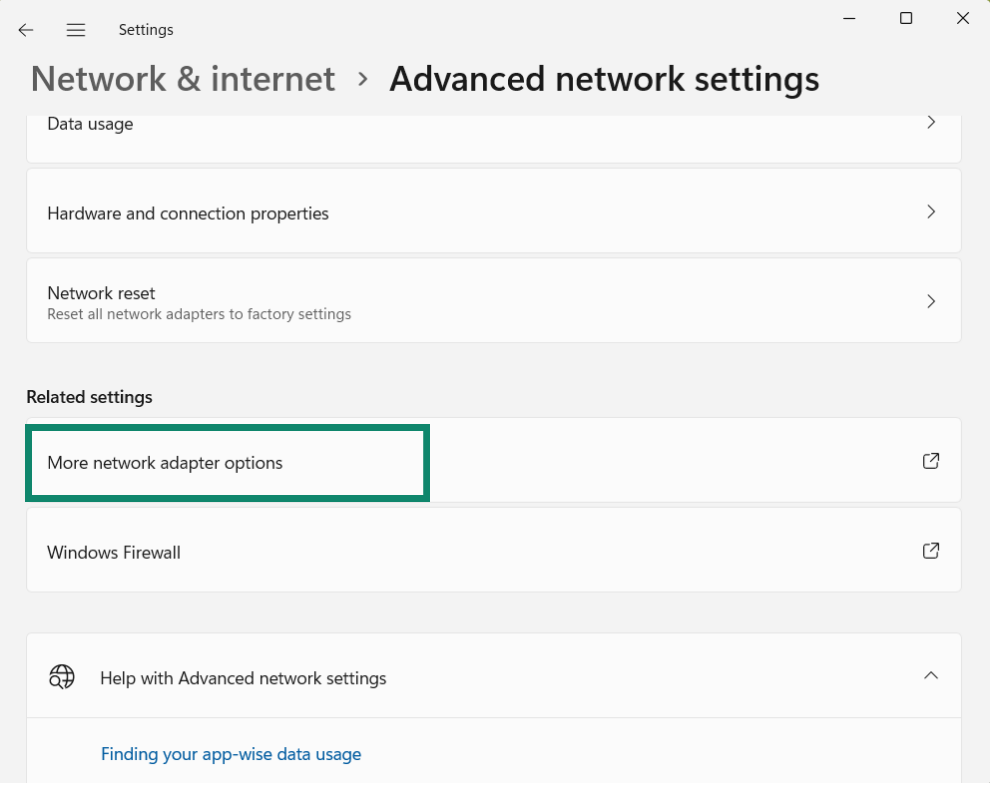
  7. Related settings(関連設定)まで下にスクロールし、More network adapter options(ネットワーク アダプター オプションの詳細)をクリックします。
    The Windows 11 Advanced network settings screen with a green box highlighting the "More network adapter options" link under the Related settings header.
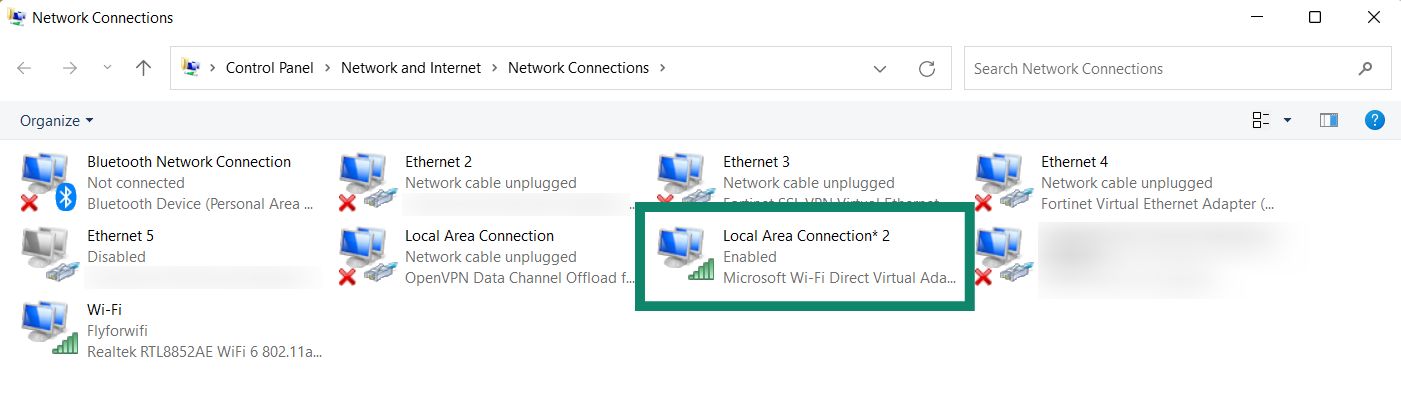
  8. Network Connections(ネットワーク接続)ウィンドウに、Local Area Connection*(ローカル エリア接続*)または類似した名前のネットワークが表示されます。これが先ほど作成した新しいモバイルホットスポットです。
    The Windows Network Connections window with a green box highlighting the newly created mobile hotspot network, labeled as Local Area Connection* 2.
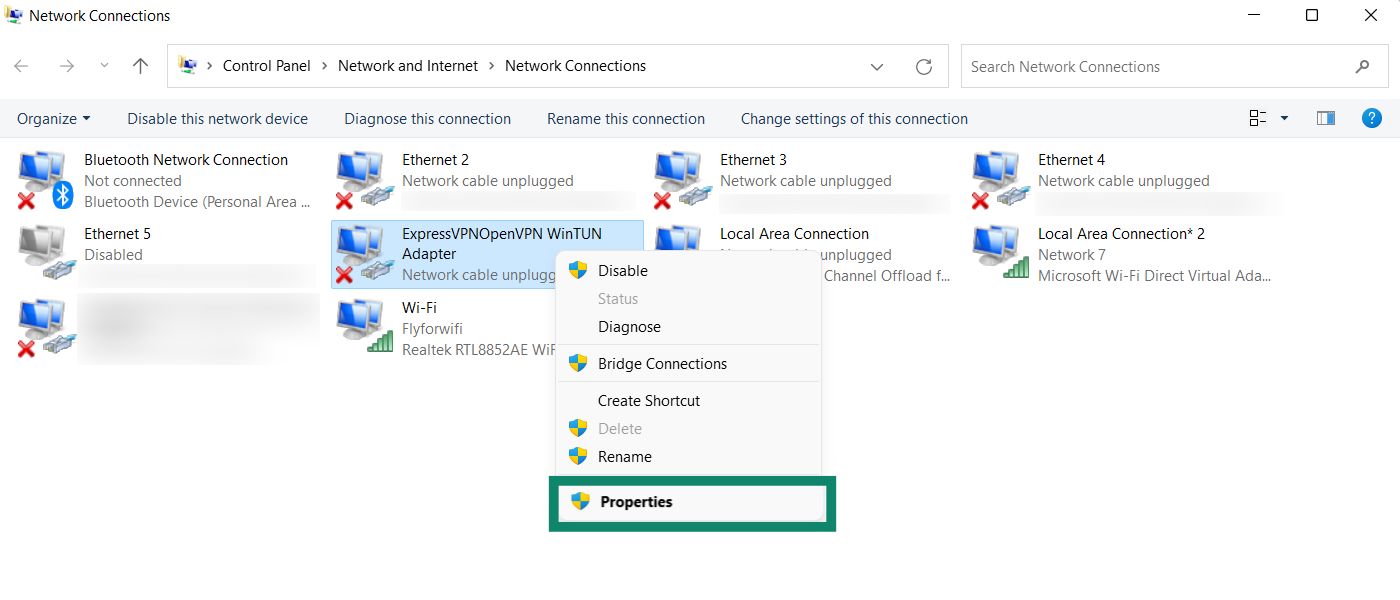
  9. 説明にExpressVPN WinTUN Adapter(ExpressVPN WinTUNアダプター)と表示されているネットワークを探します。右クリックしてProperties(プロパティ)を選択します。
    The Windows Network Connections window with a green box highlighting the Properties option in the right-click menu of the ExpressVPNOpenVPN WinTUN Adapter.
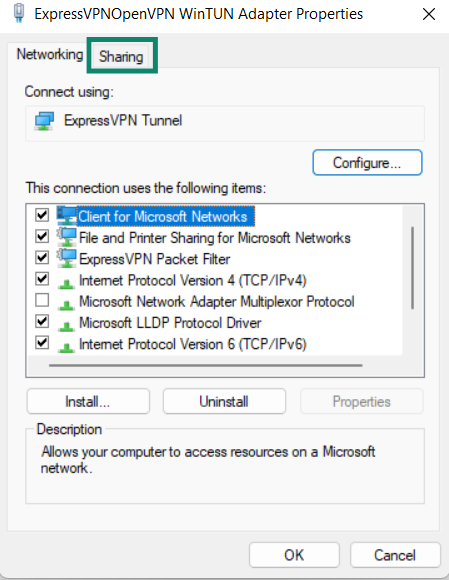
  10. 上部にあるSharing(共有)タブをクリックします。
    The Sharing tab of the ExpressVPNOpenVPN WinTUN Adapter Properties window, with a green box highlighting the checked box for "Allow other network users to connect through this computer's Internet connection."
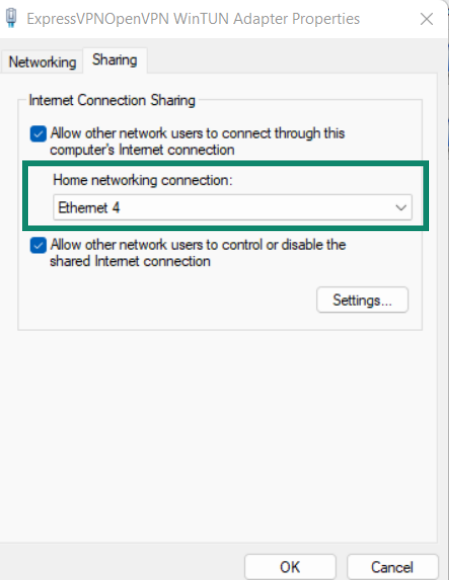
  11. Allow other network users to connect through this computer’s Internet connection(ネットワークのほかのユーザーに、このコンピューターのインターネット接続を通して接続することを許可する)にチェックを入れます。
    The Sharing tab of the ExpressVPNOpenVPN WinTUN Adapter Properties window, with a green box highlighting the Home networking connection dropdown menu.
  12. Home networking connection(ホーム ネットワーク接続)で、先ほど作成したモバイルホットスポット(Local Area Connection*(ローカル エリア接続*))の名前を選択します。OKをクリックします。

サポートが必要ですか? すぐにサポートを受けるには、ExpressVPNサポートチームまでお問い合わせください。

トップへ戻る

Windows 10

  1. Windowsデバイスで、をクリックします。次に Settings(設定) > Network & Internet(ネットワークとインターネット)をクリックします。
  2. Mobile hotspot(モバイル ホットスポット)をクリックします。Mobile hotspot(モバイル ホットスポット)をオンに切り替えます。
    The Windows Mobile hotspot settings screen with a green box highlighting the toggle switch set to On.
  3. Share my Internet connection from(インターネット接続の共有元)で、Wi-Fiを選択します。
    The Windows Mobile hotspot settings screen showing Wi-Fi selected as the internet connection, with a green box highlighting the Mobile hotspot toggle switch set to On.
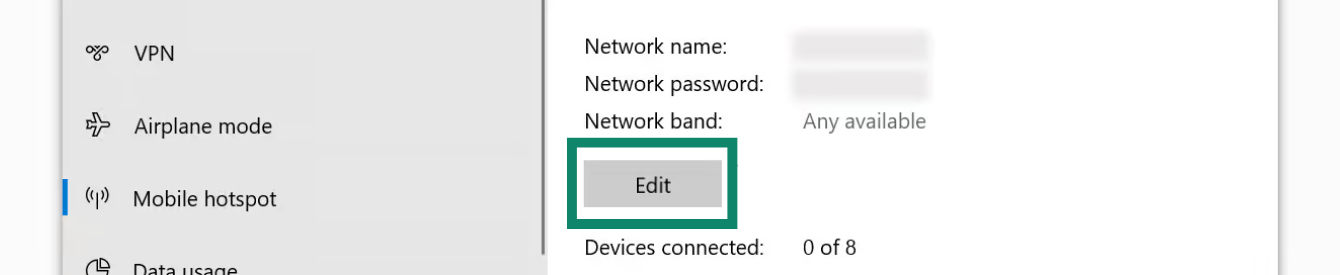
  4. モバイルホットスポットのネットワーク名とパスワードを変更するには、Edit(編集)をクリックします。希望するNetwork name(ネットワーク名)とNetwork password(ネットワーク パスワード)を入力し、Save(保存)をクリックします。
    Windows mobile hotspot network settings, with a green highlight on the Edit button.
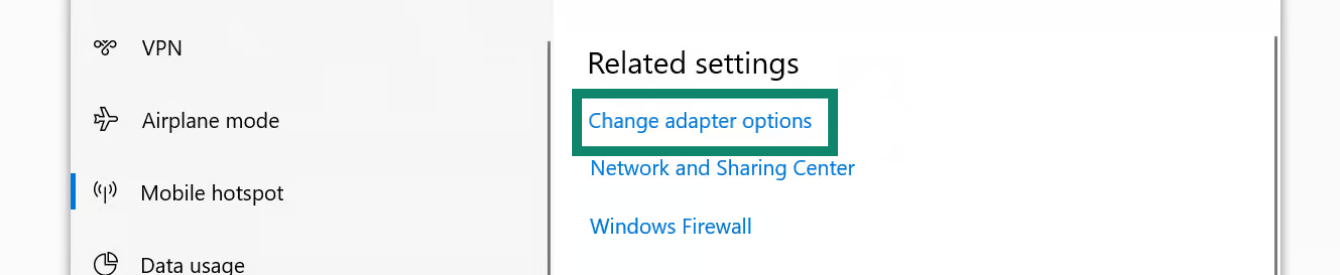
  5. Related settings(関連設定)で、Change adapter options(アダプターのオプションを変更する)をクリックします。
    The Windows network settings screen with a green box highlighting the Change adapter options link under the Related settings header.
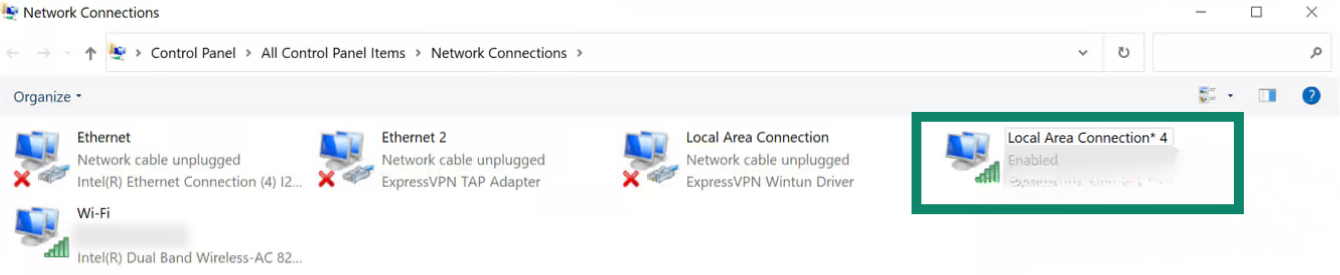
  6. Network Connections(ネットワーク接続)ウィンドウに、Local Area Connection*(ローカル エリア接続*)というネットワークが表示されます。これが先ほど作成した新しいモバイルホットスポットです。
    The Windows Network Connections window with a green box highlighting the newly created mobile hotspot network, labeled as a Local Area Connection.
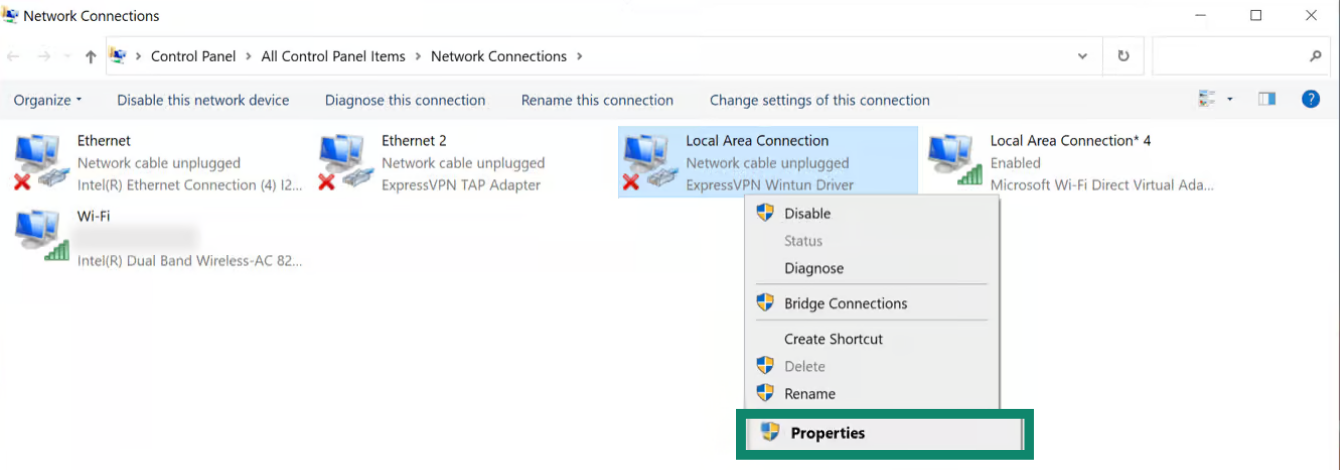
  7. 説明にExpressVPN Wintun Driver(ExpressVPN Wintunドライバー)と表示されているネットワークを探します。右クリックしてProperties(プロパティ)を選択します。
    The Windows Network Connections window with a green box highlighting the Properties option in the right-click menu of the ExpressVPN Wintun Driver network adapter.
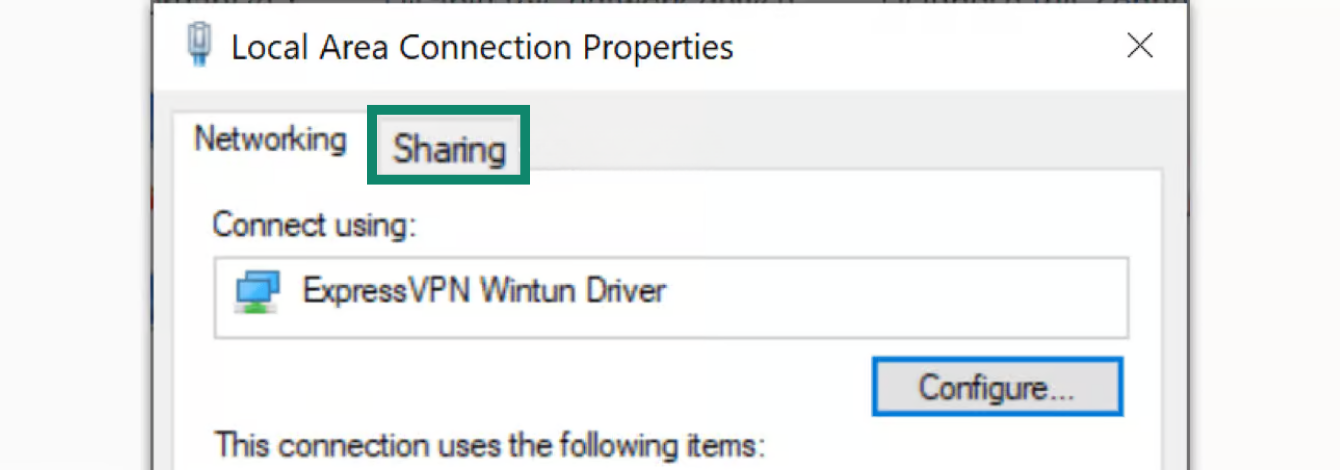
  8. 上部にあるSharing(共有)タブをクリックします。
    The Local Area Connection Properties window with a green box highlighting the Sharing tab at the top of the dialog box.
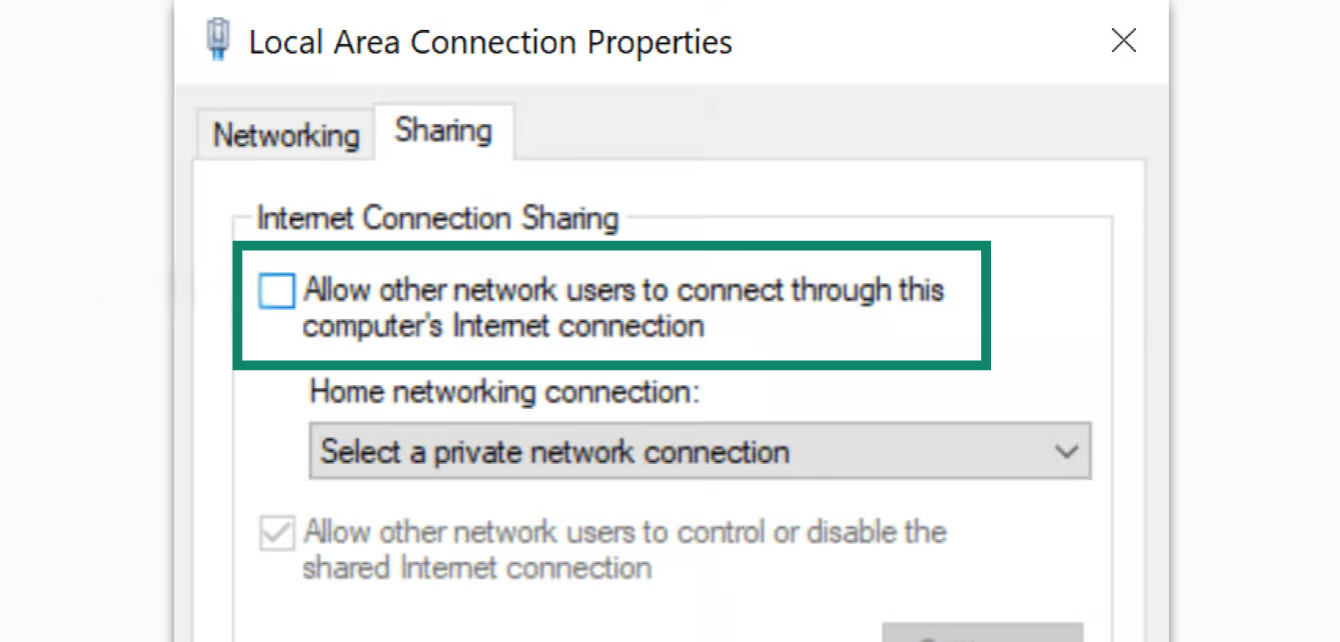
  9. Allow other network users to connect through this computer’s Internet connection(ネットワークのほかのユーザーに、このコンピューターのインターネット接続を通して接続することを許可する)にチェックを入れます。
    The Sharing tab in the Local Area Connection Properties window, with a green box highlighting the checkbox for "Allow other network users to connect through this computer's Internet connection."
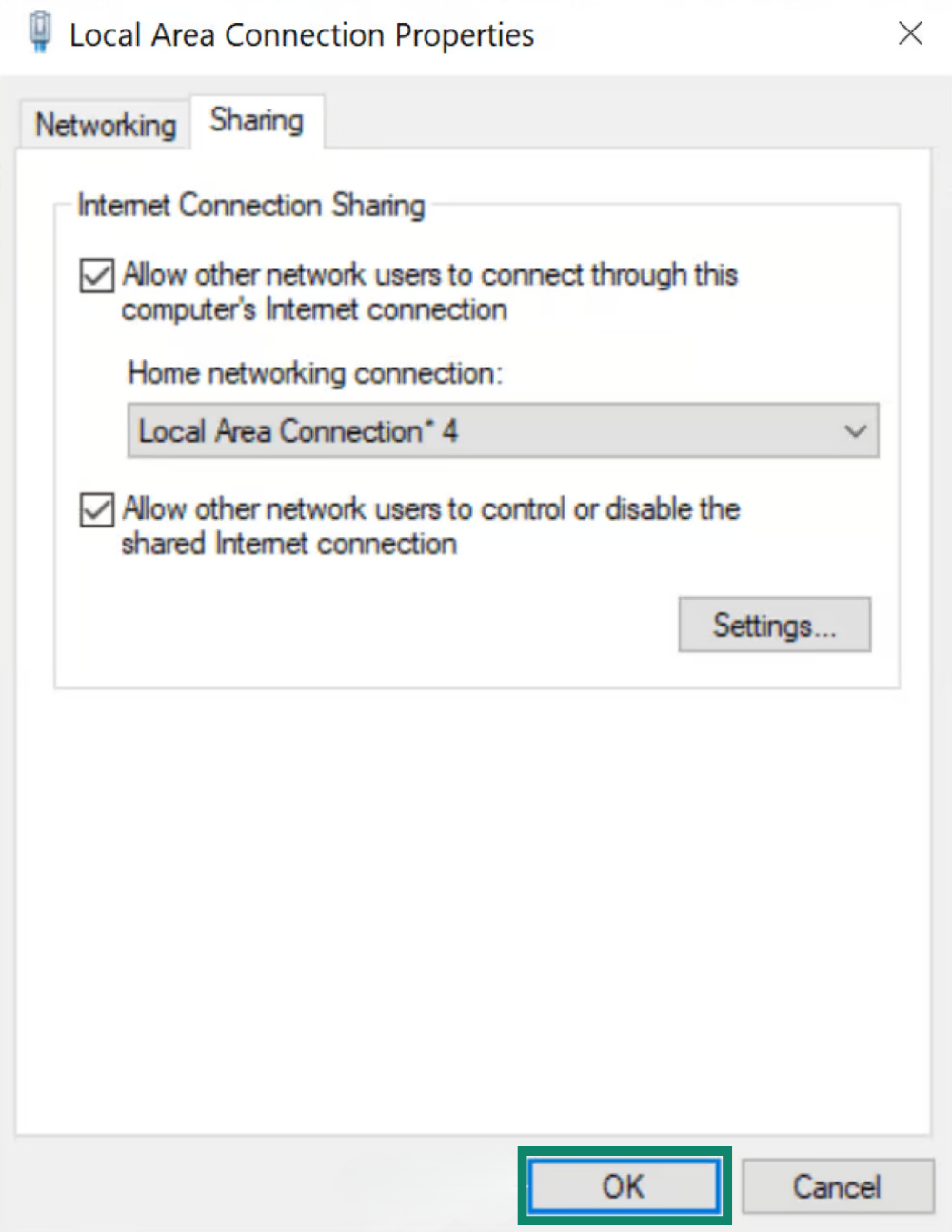
  10. Home networking connection(ホーム ネットワーク接続)で、先ほど作成したモバイルホットスポット(Local Area Connection*(ローカル エリア接続*))の名前を選択します。OKをクリックします。
    The Sharing tab showing the mobile hotspot selected in the Home networking connection dropdown menu, with a green box highlighting the OK button at the bottom.
  11. 続いて、ExpressVPNアプリに接続するに進みます。

サポートが必要ですか? すぐにサポートを受けるには、ExpressVPNサポートチームまでお問い合わせください。

トップへ戻る


ExpressVPNアプリに接続する

  1. WindowsデバイスでExpressVPNアプリを開きます。
  2. 任意のVPNサーバーロケーションに接続します。

続いて、デバイスをVPN接続に接続するに進みます。

サポートが必要ですか? すぐにサポートを受けるには、ExpressVPNサポートチームまでお問い合わせください。

トップへ戻る


デバイスをVPN接続に接続する

  1. 別のデバイスでWi-Fi設定を開きます。
  2. 先ほど作成したネットワーク名を見つけ、パスワードを入力します。
  3. 接続を確認するには、ExpressVPNのIPアドレスチェッカーを使用してIPアドレスとロケーションを確認できます。表示されるIPアドレスとロケーションがExpressVPNアプリに表示されているものと一致していることを確認してください。

サポートが必要ですか? すぐにサポートを受けるには、ExpressVPNサポートチームまでお問い合わせください。

トップへ戻る


VPN接続を無効にする

Windows 10およびWindows 11

  1. WindowsデバイスでWindow's Start button.をクリックします。
  2. 設定 > ネットワークとインターネット > モバイル ホットスポットをクリックします。
  3. モバイル ホットスポットをオフに切り替えます。

サポートが必要ですか? すぐにサポートを受けるには、ExpressVPNサポートチームまでお問い合わせください。

トップへ戻る

Share in FacebookShare in TwitterShare in WhatsappShare in TelegramShare by email
この記事は役立ちましたか?

ご不便をおかけして申し訳ございません。よろしければ、今後の改善策をお聞かせください。

Please enter a valid email address.

サポートチームのメンバーがこの問題についてフォローアップいたします。

Share in FacebookShare in TwitterShare in WhatsappShare in TelegramShare by email
  • マルウェアとは?
  • ネットワークセキュリティキーとは?
  • VPNは合法ですか?
  • iPhoneで国を変更する方法
  • デジタルフットプリントとは?
  • VPNとTorを併用してネット上で匿名性を守る方法
  • 複数のデバイスに最適なVPNを入手
各デバイス対応のVPN
  • ExpressVPNのダウンロード
  • MacOS
  • Windows PC
  • iOS (iPhone & iPad)
  • Android
  • Linux
  • ルーター
  • Apple TV
  • Fire Stick
  • Android TV
  • Chrome拡張機能
VPNサーバーロケーション
  • 113ヶ国のサーバー
  • アメリカ対応VPN
  • イギリス対応VPN
  • カナダ対応VPN
  • オーストラリア対応VPN
特徴
  • 全ての機能を見る
  • VPNトライアル
  • プランと価格
プロダクト
  • ExpressKeys
  • ExpressMailGuard
  • ExpressAI
ExpressVPNについて
  • 弊社について
  • 信頼できるVPNへの取り組み
  • デジタルの権利
  • セキュリティ監査
  • ExpressVPNのレビュー
  • 弊社のエキスパートたち
  • プレス
  • 採用
プログラム
  • トッテナム・ホットスパー
  • Brooklyn Nets
  • パートナー
  • アフィリエイト
  • インフルエンサー
サポート
  • VPN設定方法
  • よくある質問 (FAQ)
  • VPNを購入する
詳しく知る
  • VPNとは?
  • 自分のIPを確認する
  • 私のIPを隠す
  • VPN用途トップ5
  • ブログ

© 2026 ExpressVPN. All rights reserved.(無断転載および引用禁止)

  • プライバシーポリシー
  • 利用規約
  • Cookieの設定

言語を選択してください

  • English
  • Dansk
  • Deutsch
  • Español
  • Français
  • Italiano
  • Nederlands
  • Norsk
  • Polski
  • Português
  • Suomi
  • Svenska
  • Türkçe
  • Русский
  • ภาษาไทย
  • 한국어

Live chat

Need help? Chat with us!

Online