Get ExpressVPN on Windows.
Windows용 VPN이 필요하신가요?
지금 ExpressVPN에 가입하세요

Refer a friend to use ExpressVPN.
ExpressVPN 계정 하나로 모든 기기에서 이용
지금 친구에게 추천하세요

이 튜토리얼에서는 Windows 10 또는 Windows 11 기기에서 VPN 연결을 공유하는 방법을 안내합니다. 이렇게 하면 다른 기기에서도 Windows 기기에서 공유한 VPN 연결을 사용할 수 있습니다.

시작하기 전에 Windows 기기에 ExpressVPN 앱을 설정하세요. 가상 라우터 또는 모바일 핫스팟을 설정하는 동안에는 앱에 연결하지 마세요.

바로가기…

(Windows 10 및 11) 모바일 핫스팟 설정
ExpressVPN 앱에 연결
기기를 VPN 연결에 연결
VPN 연결 비활성화


모바일 핫스팟 설정

Windows 11

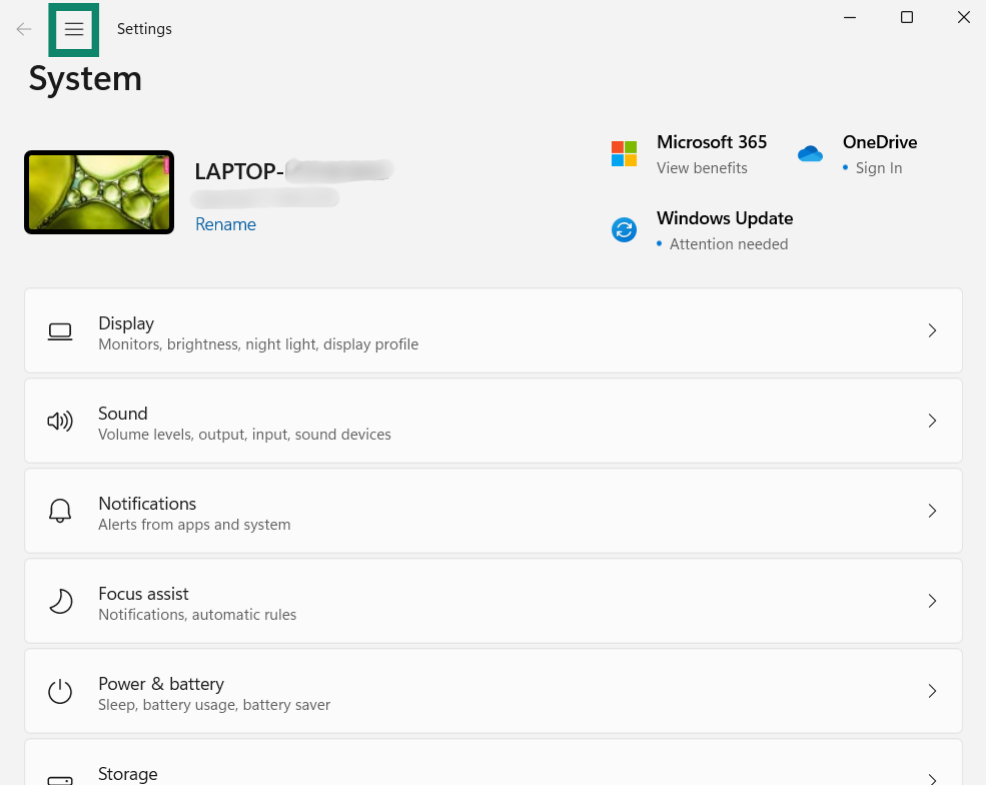
  1. Windows 기기에서 시작 아이콘을 클릭한 다음 Settings (설정)을 클릭하세요.
    The Windows 11 Settings window with a green box highlighting the navigation menu icon in the top left corner.
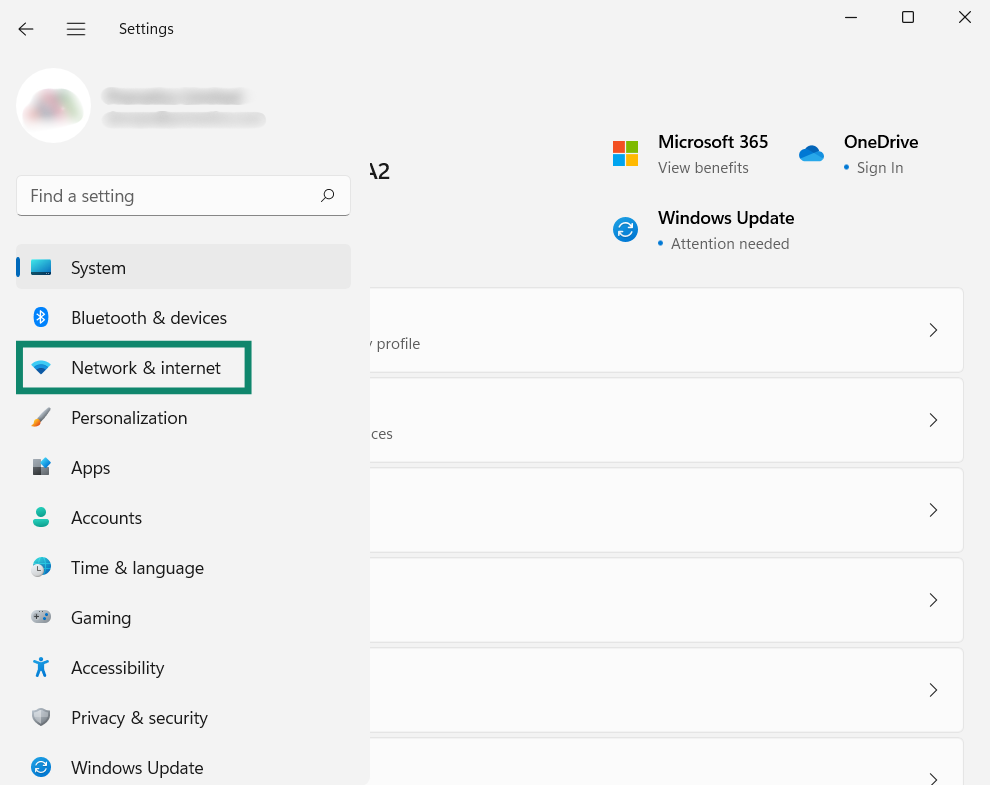
  2. 왼쪽 사이드바에서 Network & internet (네트워크 및 인터넷)을 클릭하세요.
    The Windows 11 Settings window with a green box highlighting the "Network & internet" option in the left-hand navigation sidebar.
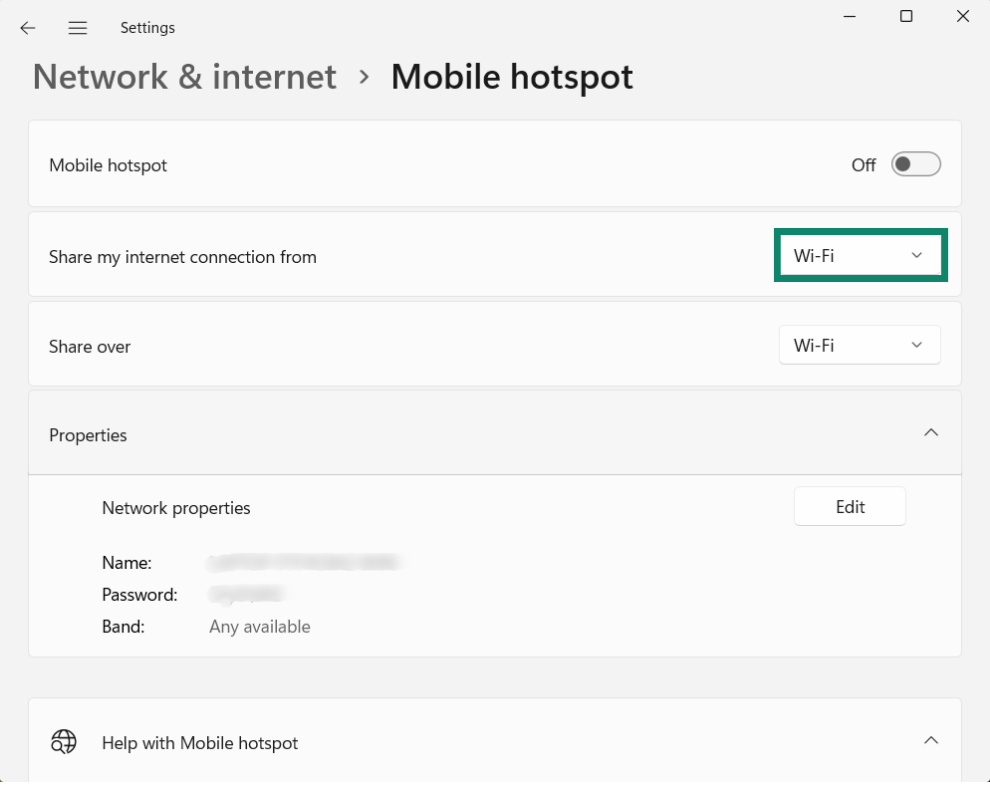
  3. Share my internet connection from (인터넷 연결 공유)에서 Wi-Fi를 선택하세요.
    The Windows 11 Mobile hotspot settings screen with a green box highlighting the "Share my internet connection from" dropdown menu, which is set to Wi-Fi.
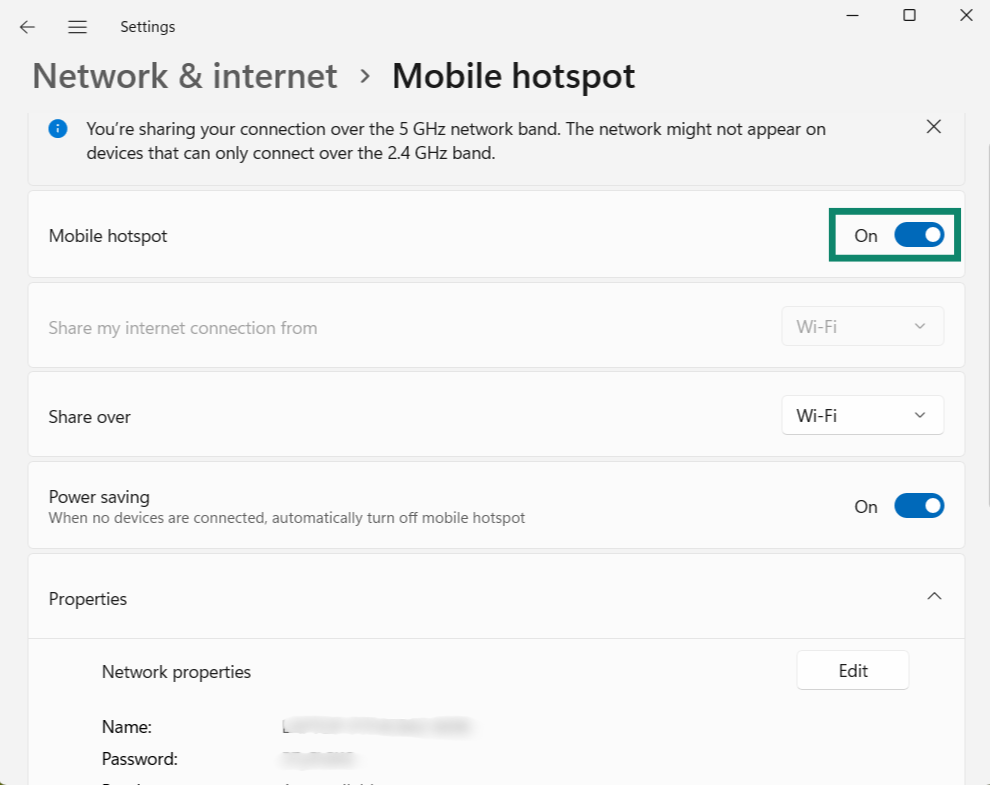
  4. 그런 다음 Mobile hotspot (모바일 핫스팟)을 켜세요.
    The Windows 11 Mobile hotspot settings screen with a green box highlighting the Mobile hotspot toggle switch set to On.
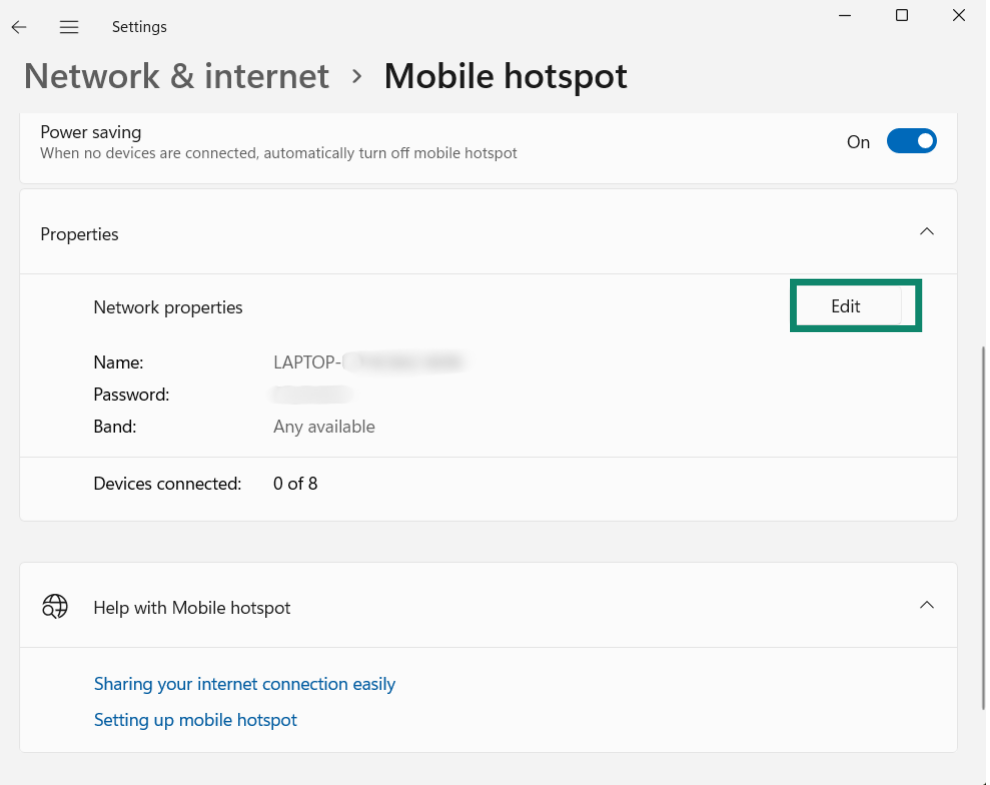
  5. 모바일 핫스팟의 네트워크 이름과 비밀번호를 변경하려면 Properties (속성) > Edit (편집)을 클릭하세요. 원하는 Network name (네트워크 이름)Network password (네트워크 암호)를 입력한 다음 Save (저장)을 클릭하세요.
    The Windows 11 Mobile hotspot settings screen scrolled down to the Properties section, with a green box highlighting the Edit button.
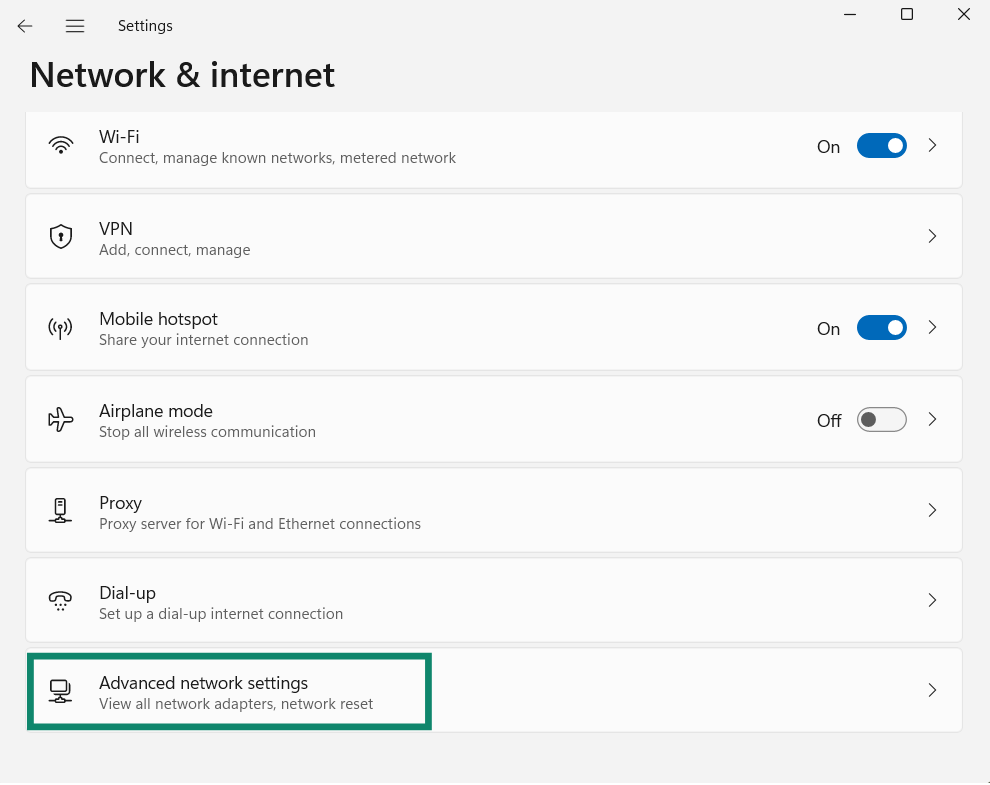
  6. 기본 Network & internet (네트워크 및 인터넷) 페이지로 돌아가 Advanced network settings (고급 네트워크 설정)을 클릭하세요.
    The Windows 11 Network & internet settings screen with a green box highlighting the "Advanced network settings" option at the bottom of the list.
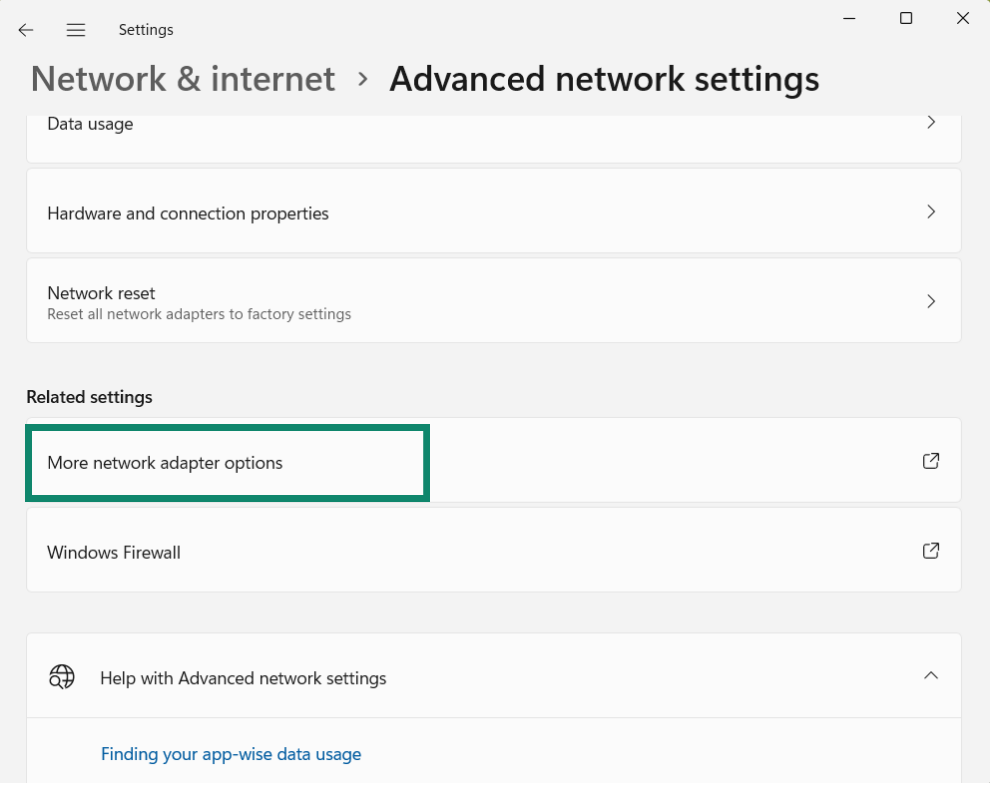
  7. Related settings (관련 설정)까지 아래로 스크롤한 다음 More network adapter options (기타 네트워크 어댑터 옵션)을 클릭하세요.
    The Windows 11 Advanced network settings screen with a green box highlighting the "More network adapter options" link under the Related settings header.
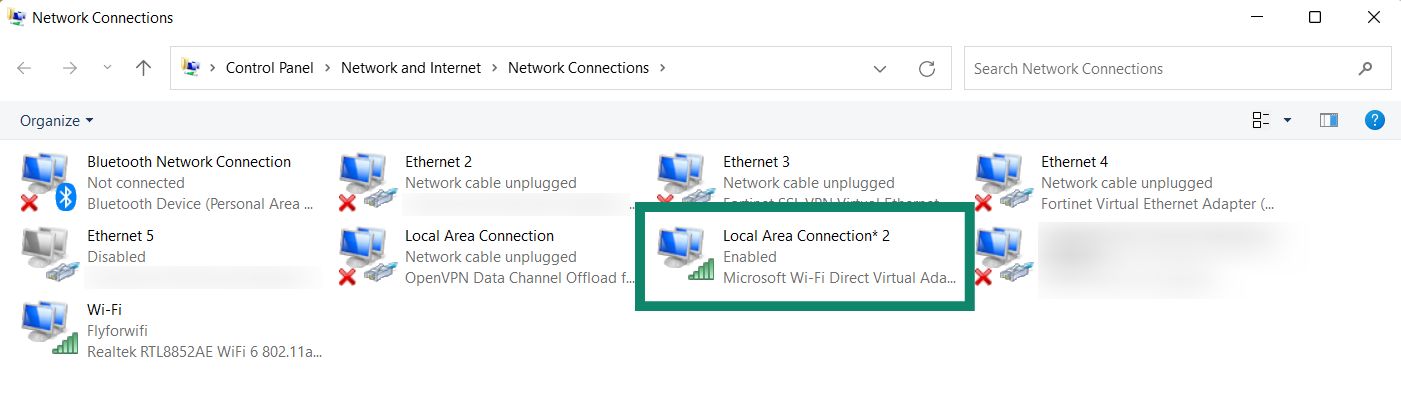
  8. Network Connections (네트워크 연결) 창에 Local Area Connection* (로컬 영역 연결*) 또는 비슷한 이름의 네트워크가 표시됩니다. 이것이 방금 생성한 새로운 모바일 핫스팟입니다.
    The Windows Network Connections window with a green box highlighting the newly created mobile hotspot network, labeled as Local Area Connection* 2.
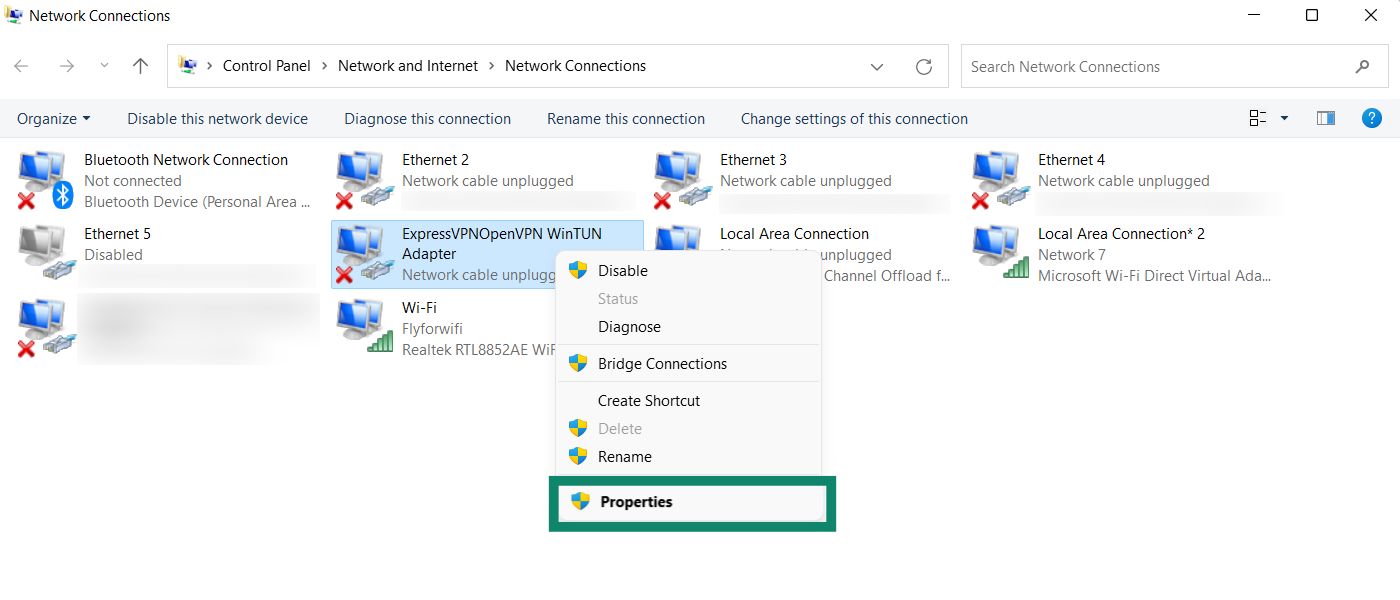
  9. 설명이 ExpressVPN WinTUN Adapter인 네트워크를 찾으세요. 마우스 오른쪽 버튼으로 클릭한 다음 Properties (속성)을 선택하세요.
    The Windows Network Connections window with a green box highlighting the Properties option in the right-click menu of the ExpressVPNOpenVPN WinTUN Adapter.
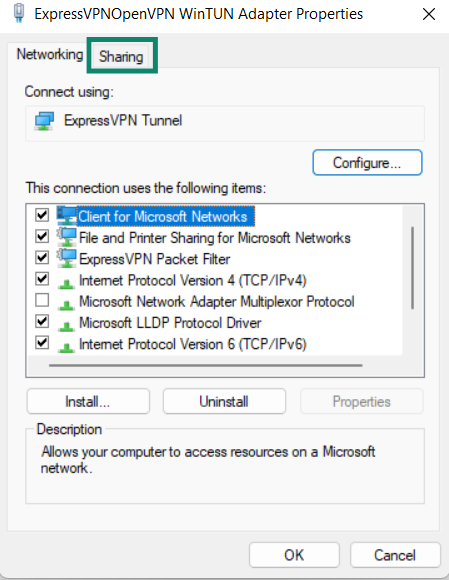
  10. 상단에서 Sharing (공유) 탭을 클릭하세요.
    The Sharing tab of the ExpressVPNOpenVPN WinTUN Adapter Properties window, with a green box highlighting the checked box for "Allow other network users to connect through this computer's Internet connection."
  11. Allow other network users to connect through this computer’s Internet connection (다른 네트워크 사용자가 이 컴퓨터의 인터넷 연결을 통해 연결하도록 허용)을 선택하세요.
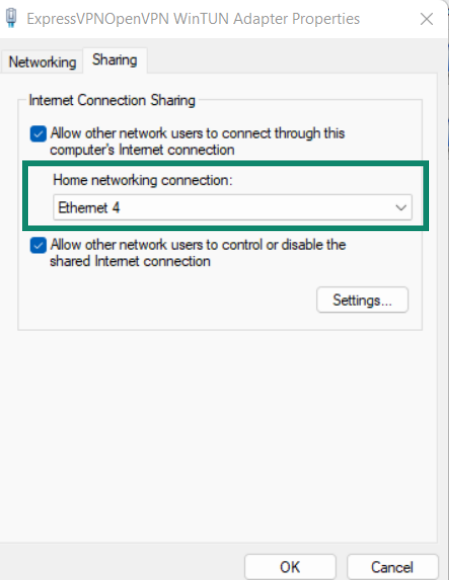
    The Sharing tab of the ExpressVPNOpenVPN WinTUN Adapter Properties window, with a green box highlighting the Home networking connection dropdown menu.
  12. Home networking connection (홈 네트워킹 연결)에서 방금 생성한 모바일 핫스팟(로컬 영역 연결*)을 선택한 다음 확인(OK)을 클릭하세요.

도움이 필요하신가요? ExpressVPN 지원팀에 문의하고 즉각적인 지원을 받아보세요.

맨 위로 돌아가기

Windows 10

  1. Windows 기기에서 시작 아이콘을 클릭하세요. 그런 다음 Settings (설정) > Network & Internet (네트워크 및 인터넷)을 클릭하세요.
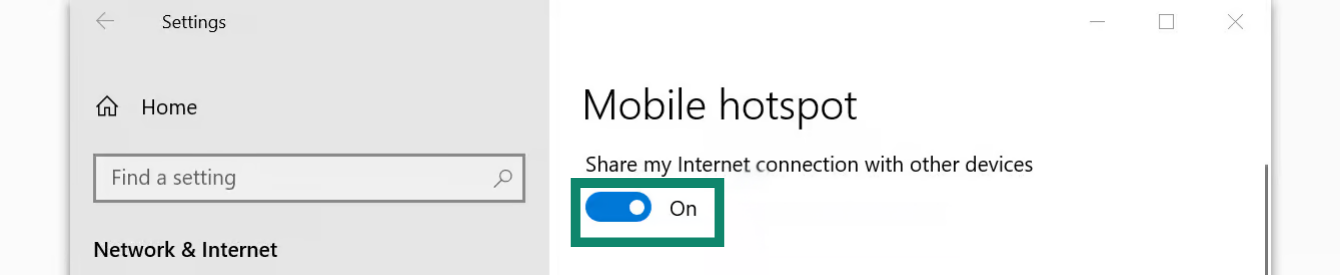
  2. Mobile hotspot (모바일 핫스팟)을 클릭한 다음 Mobile hotspot (모바일 핫스팟)을 켜세요.
    The Windows Mobile hotspot settings screen with a green box highlighting the toggle switch set to On.
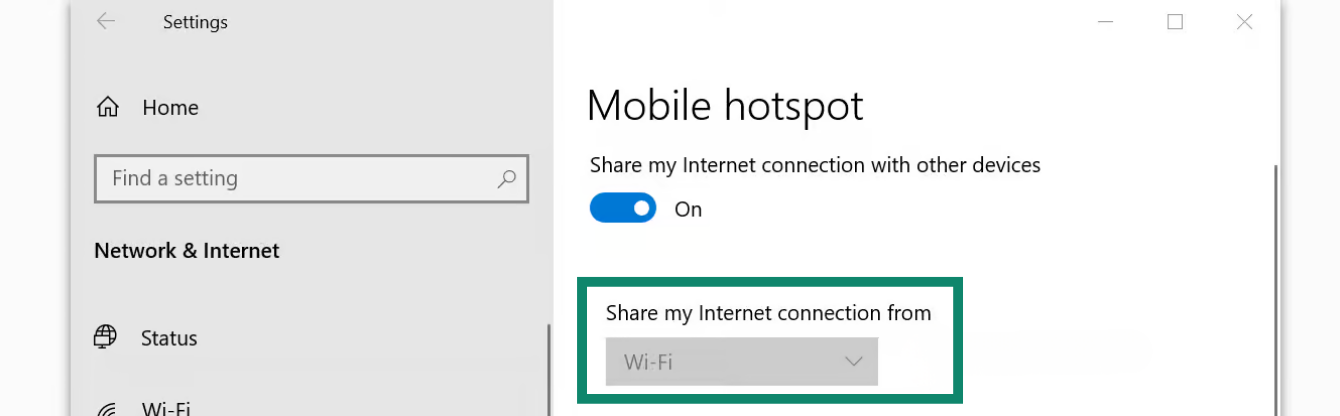
  3. Share my Internet connection (인터넷 연결 공유)에서 Wi-Fi를 선택하세요.
    The Windows Mobile hotspot settings screen showing Wi-Fi selected as the internet connection, with a green box highlighting the Mobile hotspot toggle switch set to On.
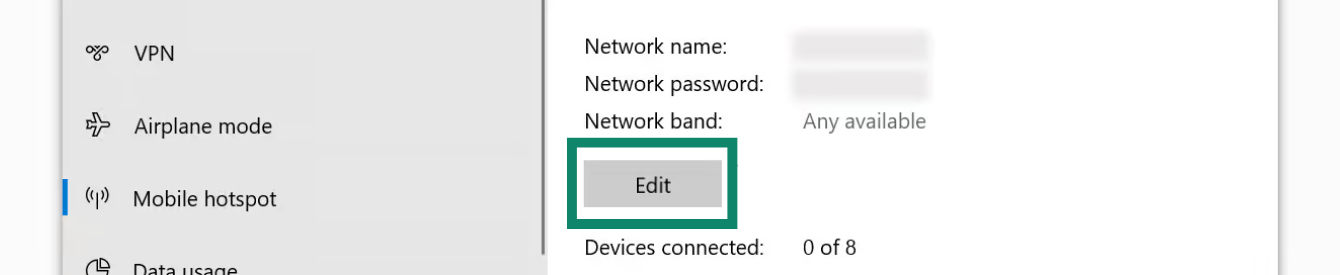
  4. 모바일 핫스팟의 네트워크 이름과 비밀번호를 변경하려면 Edit (편집)을 클릭하세요. 원하는 Network name (네트워크 이름)Network password (네트워크 암호)를 입력한 다음 Save (저장)을 클릭하세요.
    Windows mobile hotspot network settings, with a green highlight on the Edit button.
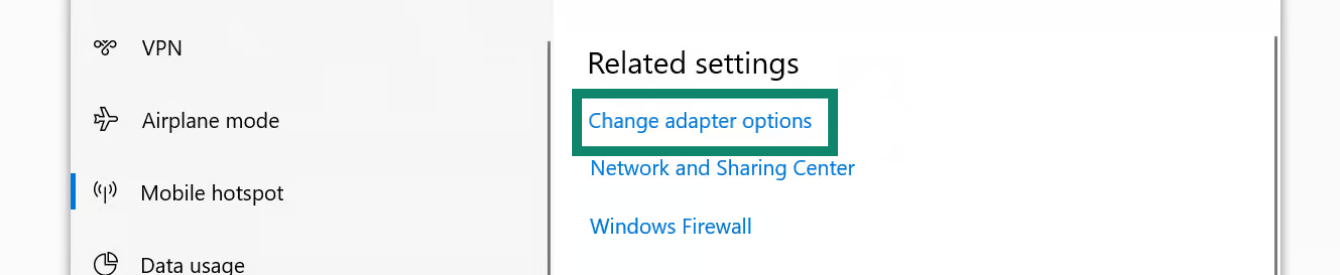
  5. Related settings (관련 설정)에서 Change adapter options (어댑터 옵션 변경)을 클릭하세요.
    The Windows network settings screen with a green box highlighting the Change adapter options link under the Related settings header.
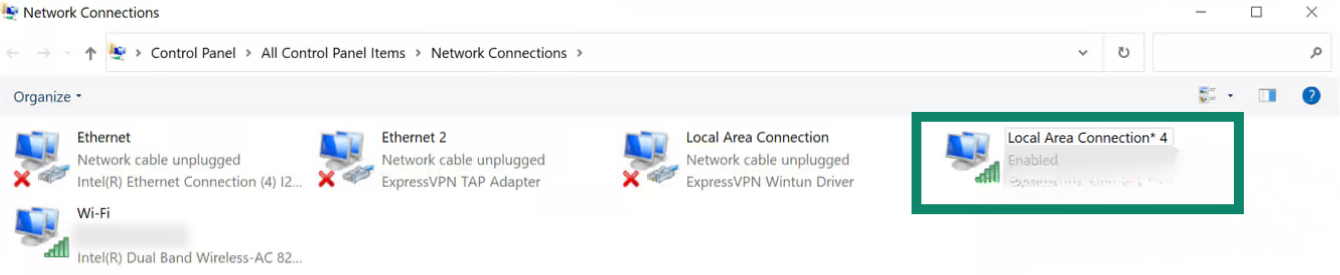
  6. Network Connections (네트워크 연결) 창에 Local Area Connection (로컬 영역 연결)*라는 네트워크가 표시됩니다. 이것이 방금 생성한 새로운 모바일 핫스팟입니다.
    The Windows Network Connections window with a green box highlighting the newly created mobile hotspot network, labeled as a Local Area Connection.
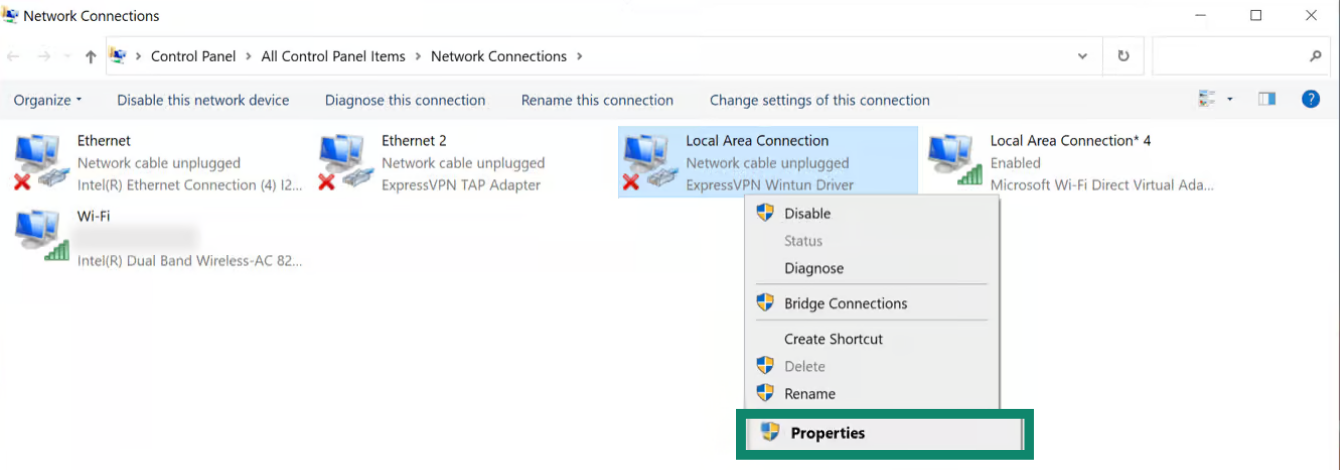
  7. 설명이 ExpressVPN Wintun Driver인 네트워크를 찾으세요. 마우스 오른쪽 버튼으로 클릭한 다음 Properties (속성)을 선택하세요.
    The Windows Network Connections window with a green box highlighting the Properties option in the right-click menu of the ExpressVPN Wintun Driver network adapter.
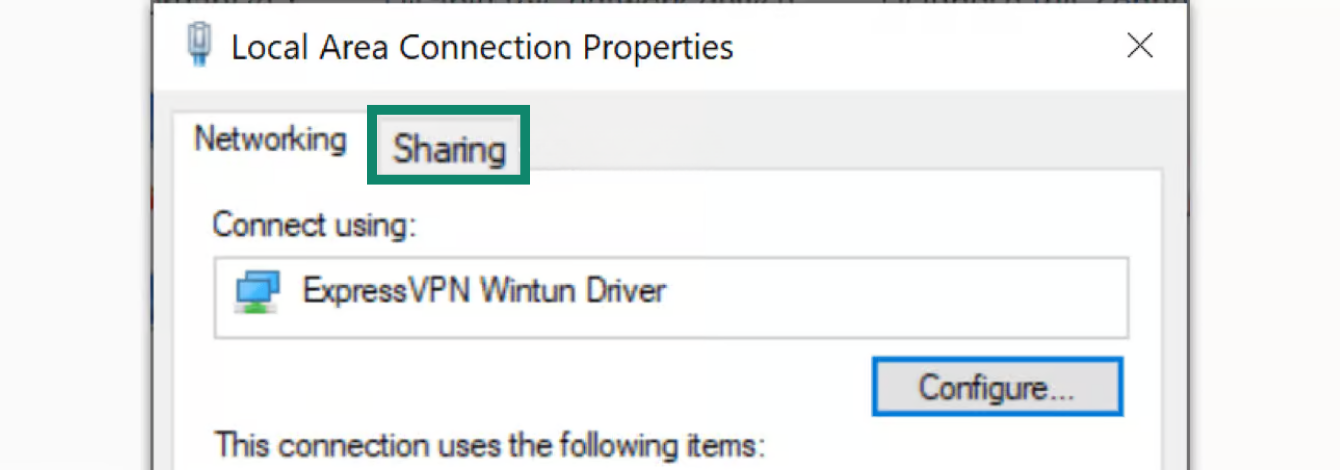
  8. 상단에서 Sharing (공유) 탭을 클릭하세요.
    The Local Area Connection Properties window with a green box highlighting the Sharing tab at the top of the dialog box.
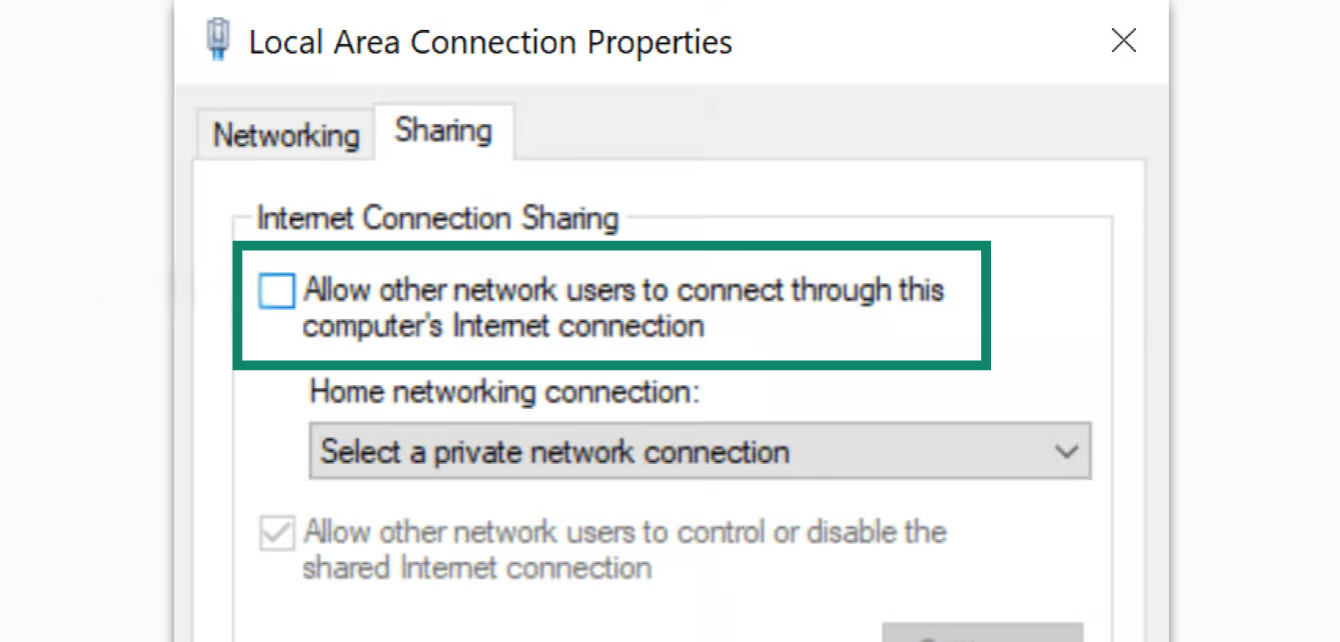
  9. Allow other network users to connect through this computer’s Internet connection (다른 네트워크 사용자가 이 컴퓨터의 인터넷 연결을 통해 연결하도록 허용)을 선택하세요.
    The Sharing tab in the Local Area Connection Properties window, with a green box highlighting the checkbox for "Allow other network users to connect through this computer's Internet connection."
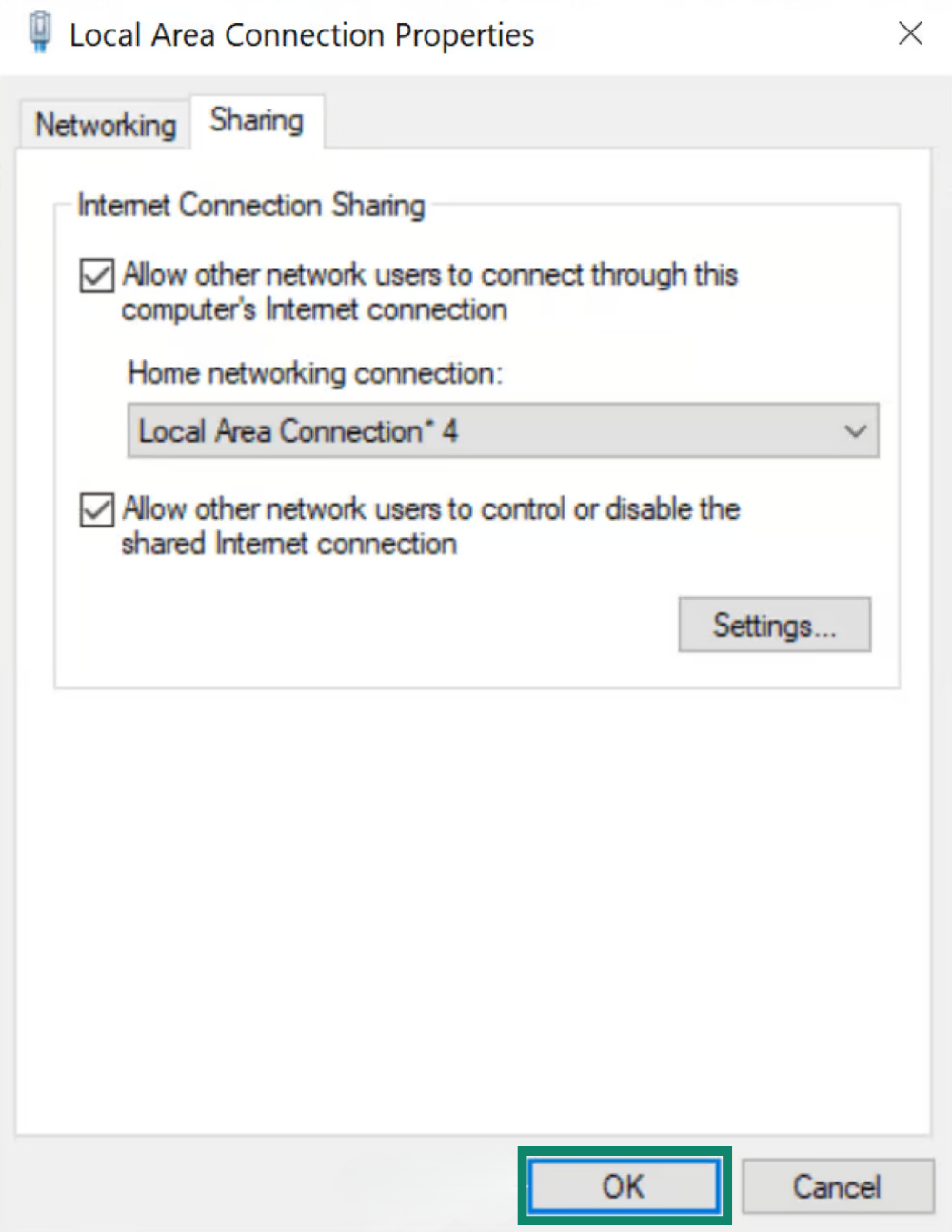
  10. Home networking connection (홈 네트워킹 연결)에서 방금 생성한 모바일 핫스팟(로컬 영역 연결*(Local Area Connection*))을 선택한 다음 확인(OK)을 클릭하세요.
    The Sharing tab showing the mobile hotspot selected in the Home networking connection dropdown menu, with a green box highlighting the OK button at the bottom.
  11. ExpressVPN 앱에 연결 단계로 이동하세요.

도움이 필요하신가요? ExpressVPN 지원팀에 문의하고 즉각적인 지원을 받아보세요.

맨 위로 돌아가기


ExpressVPN 앱에 연결

  1. Windows 기기에서 ExpressVPN 앱을 여세요.
  2. 원하는 VPN 서버 위치에 연결하세요.

기기를 VPN 연결에 연결 단계로 이동하세요.

도움이 필요하신가요? ExpressVPN 지원팀에 문의하고 즉각적인 지원을 받아보세요.

맨 위로 돌아가기


기기를 VPN 연결에 연결

  1. 다른 기기에서 와이파이 설정으로 이동하세요.
  2. 앞서 만든 네트워크 이름을 찾아 비밀번호를 입력하세요.
  3. 연결 여부를 확인하려면 ExpressVPN IP 주소 확인 도구를 사용해 IP 주소와 위치를 확인할 수 있습니다. ExpressVPN 앱에 표시된 IP 주소 및 위치와 일치해야 합니다.

도움이 필요하신가요? ExpressVPN 지원팀에 문의하고 즉각적인 지원을 받아보세요.

맨 위로 돌아가기


VPN 연결 비활성화

  1. Windows 기기에서 Window's Start button.을 클릭하세요.
  2. 설정 > 네트워크 및 인터넷 > 모바일 핫스팟을 클릭하세요.
  3. 모바일 핫스팟을 끄세요.

도움이 필요하신가요? ExpressVPN 지원팀에 문의하고 즉각적인 지원을 받아보세요.

맨 위로 돌아가기

이 글이 도움이 되었나요?

죄송합니다. 저희가 어떻게 개선할 수 있을지 알려주세요.

저희 지원팀이 문제를 처리할 것입니다.