




¿Necesita una VPN para Windows?
Comprar ExpressVPN ahora
¿Le gusta ExpressVPN? ¿Quiere un mes gratis?
Referir a un amigo ahoraEste tutorial te enseñará cómo compartir tu conexión VPN desde tu dispositivo con Windows 10 o Windows 11. Esto permitirá que tus otros dispositivos utilicen la conexión VPN compartida desde tu dispositivo Windows.
Antes de empezar, asegúrate de instalar la aplicación de ExpressVPN en tu dispositivo Windows. No te conectes a la aplicación cuando configures el router virtual o el punto de acceso móvil.
Ir a…
(Windows 10 y 11) Establece tu punto de acceso móvil
Conéctate a la aplicación de ExpressVPN
Conecta dispositivos a la conexión VPN
Desactiva la conexión VPN
Establece tu punto de acceso móvil
Windows 11
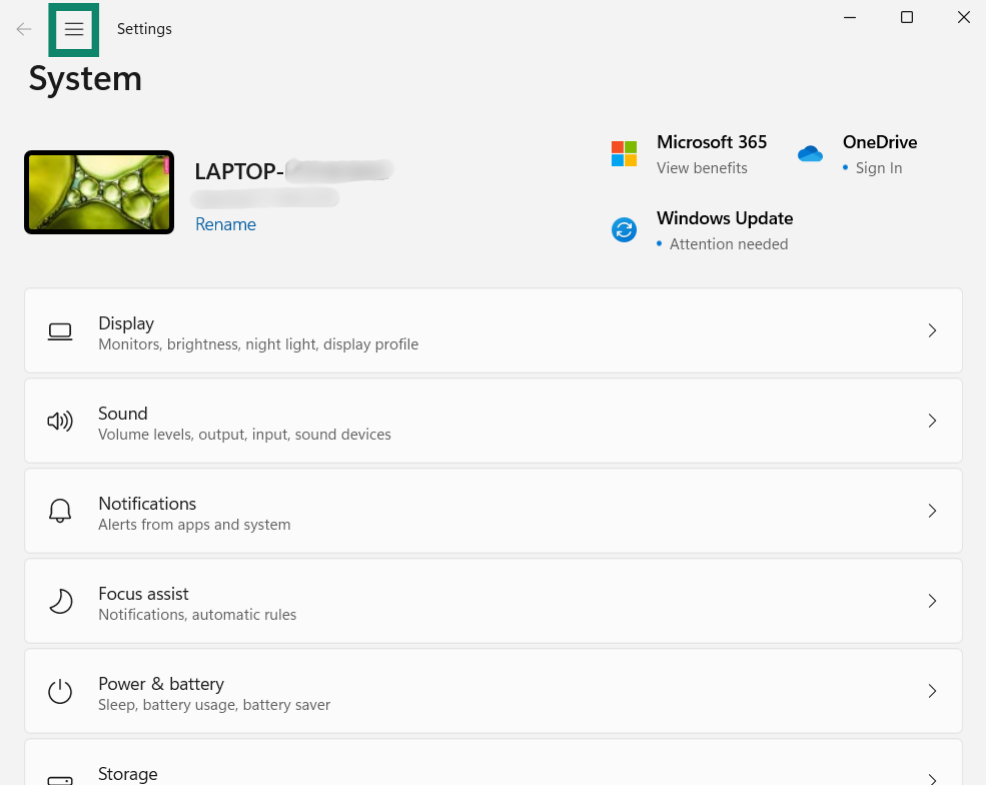
- En tu dispositivo Windows, haz clic en «Settings (Configuración)».


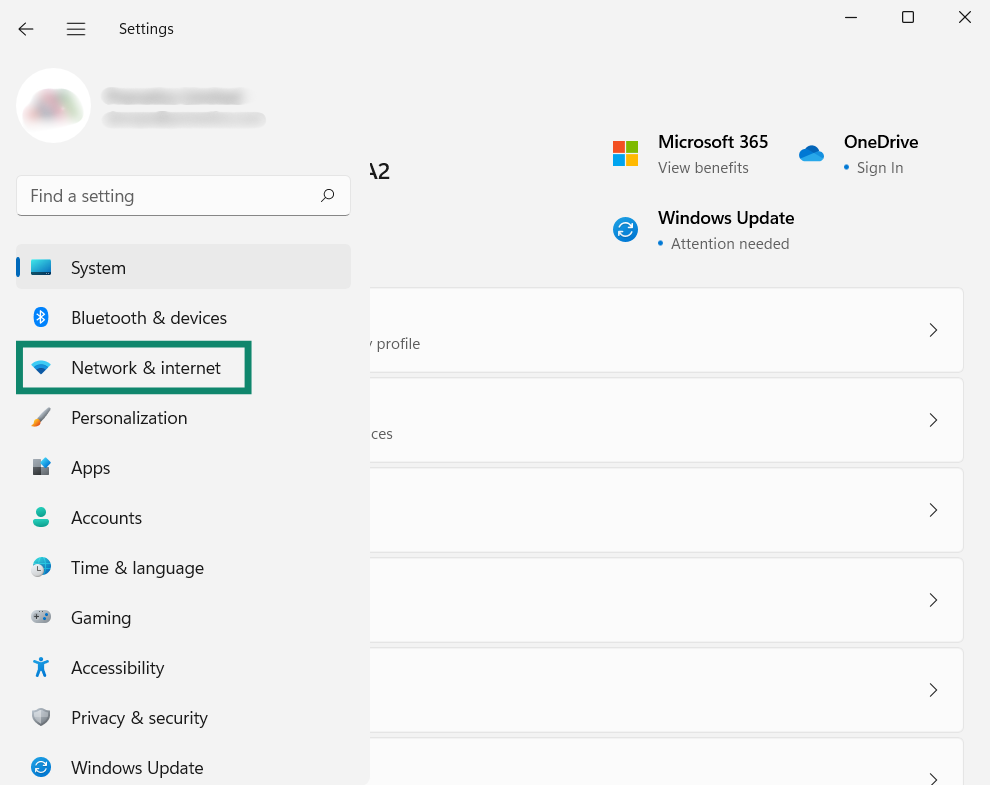
- En la barra lateral izquierda, haz clic en «Network & internet (Red e Internet)».

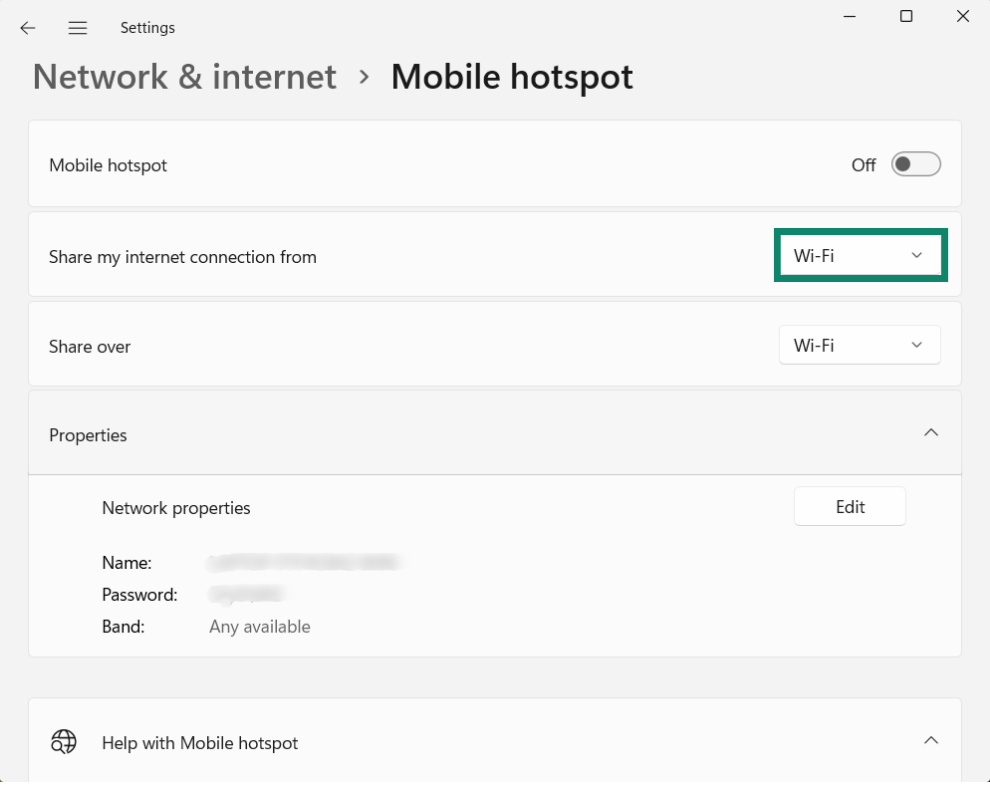
- Junto a «Share my internet connection from (Compartir mi conexión a Internet desde)», selecciona «Wi-Fi».

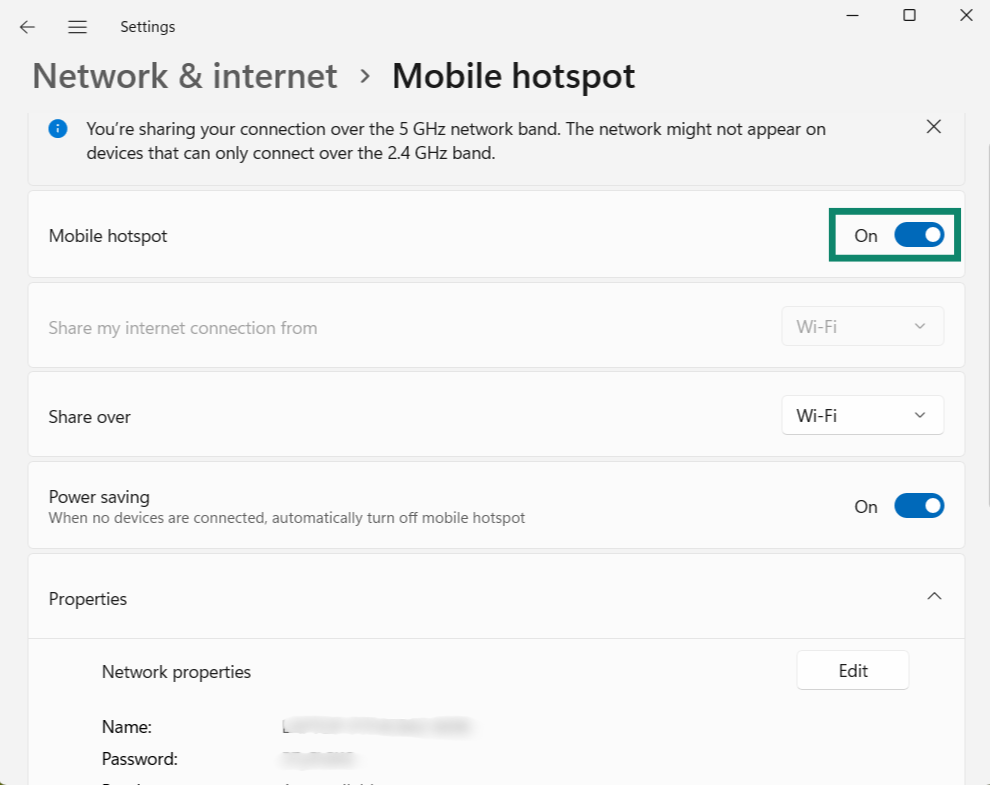
- A continuación, activa el Mobile hotspot (punto de acceso móvil).

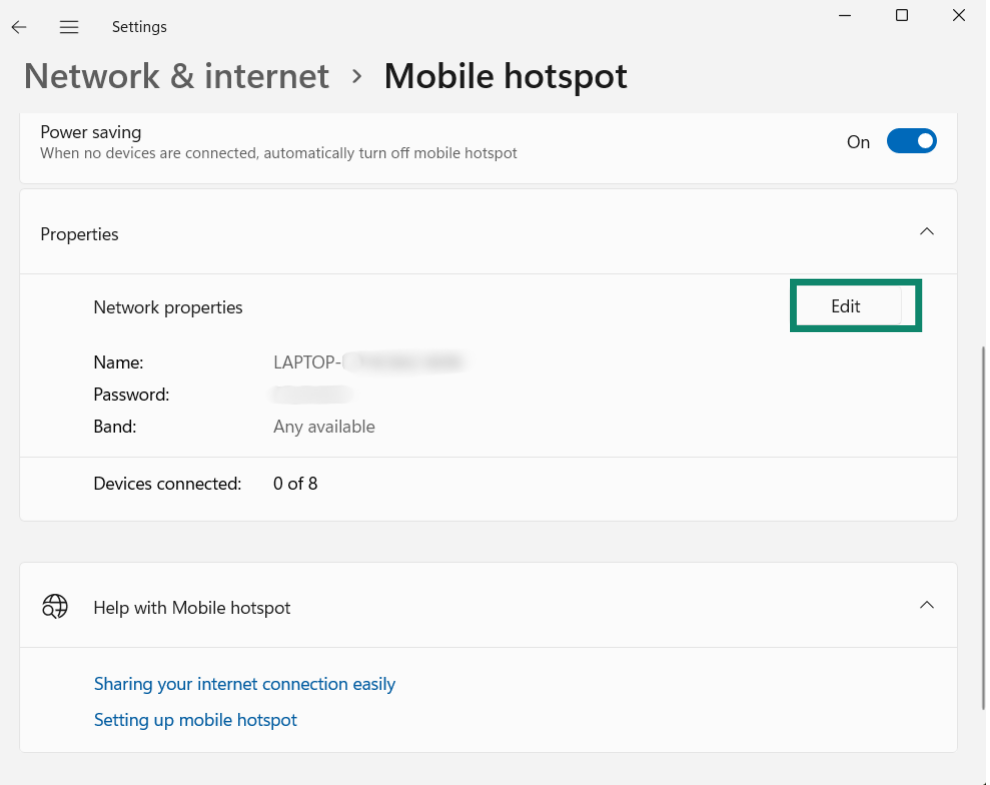
- Para establecer un nombre de red y una contraseña diferentes para el punto de acceso móvil, haz clic en Properties (Propiedades) > Edit (Editar). Introduce el nombre de red y la contraseña de red que prefieras y, a continuación, haz clic en «Save (Guardar)».

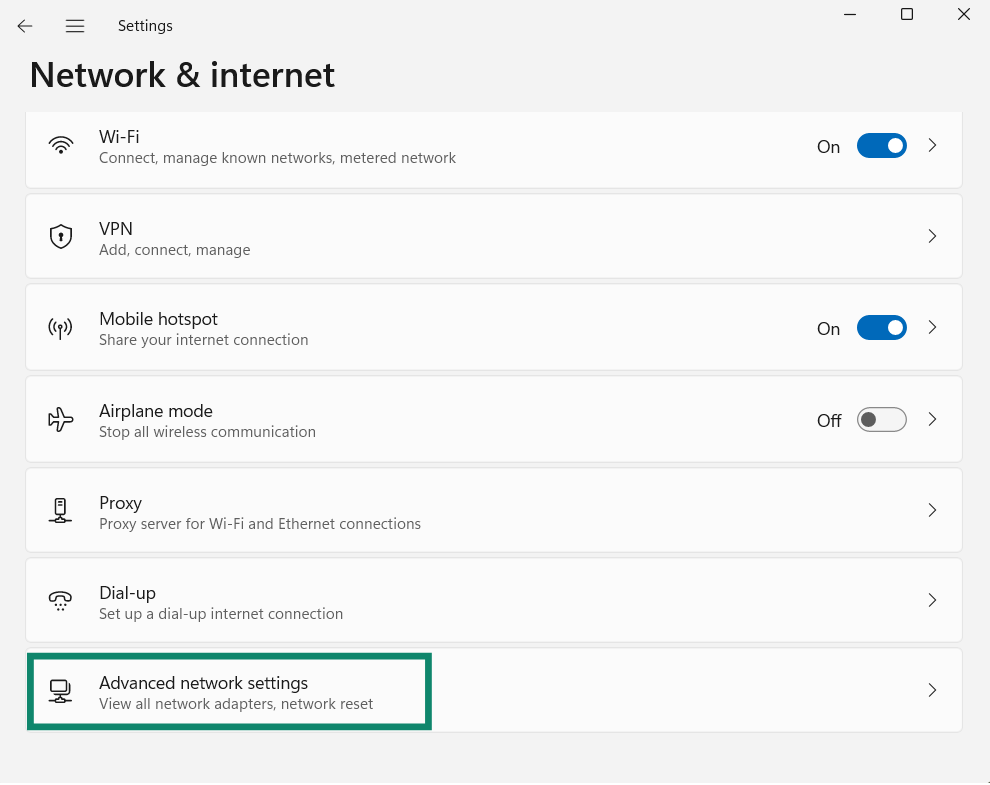
- Vuelve a la página principal de «Network & internet (Red e Internet)» y haz clic en «Advanced network settings (Configuración avanzada de red)».

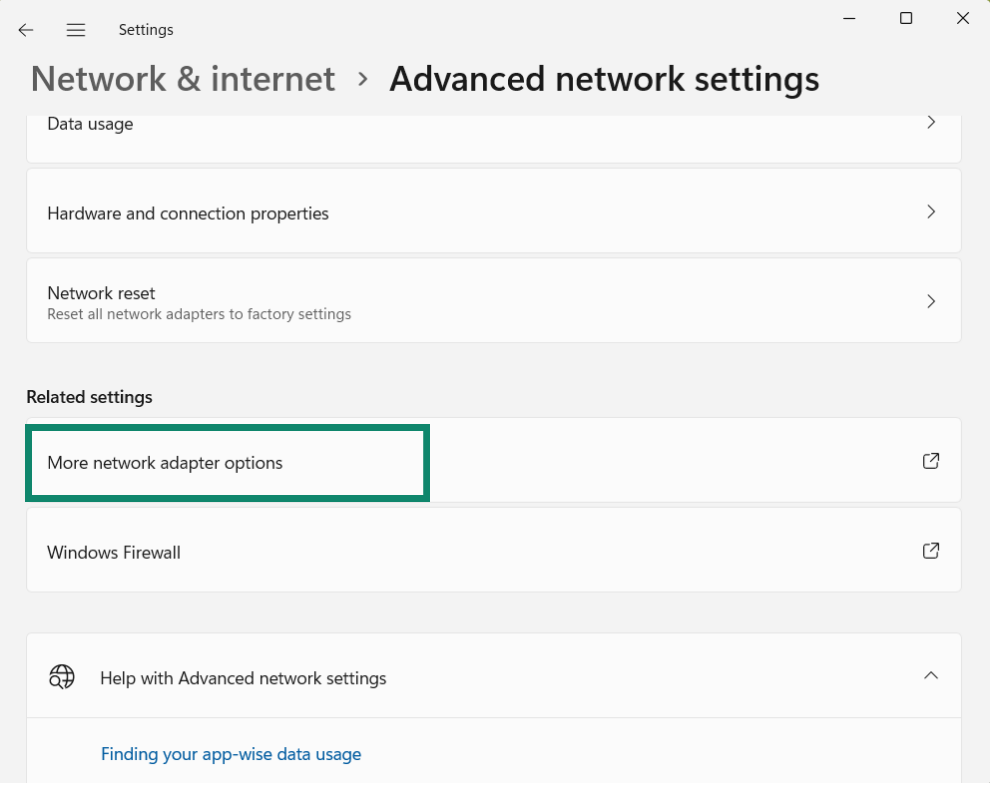
- Desplázate hacia abajo hasta «Related settings (Ajustes relacionados)», y haz clic en «More network adapter options (Más opciones de adaptador de red)».

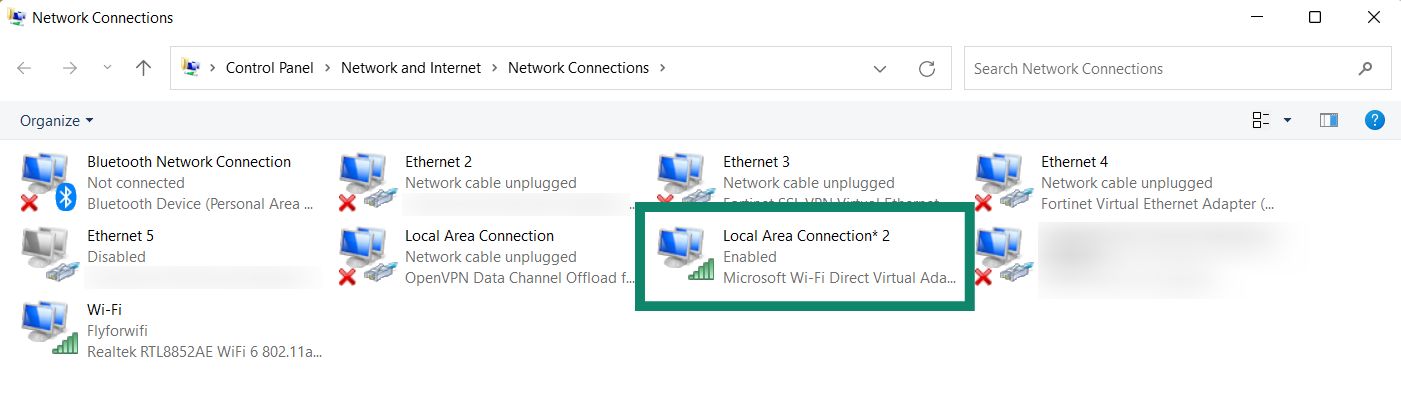
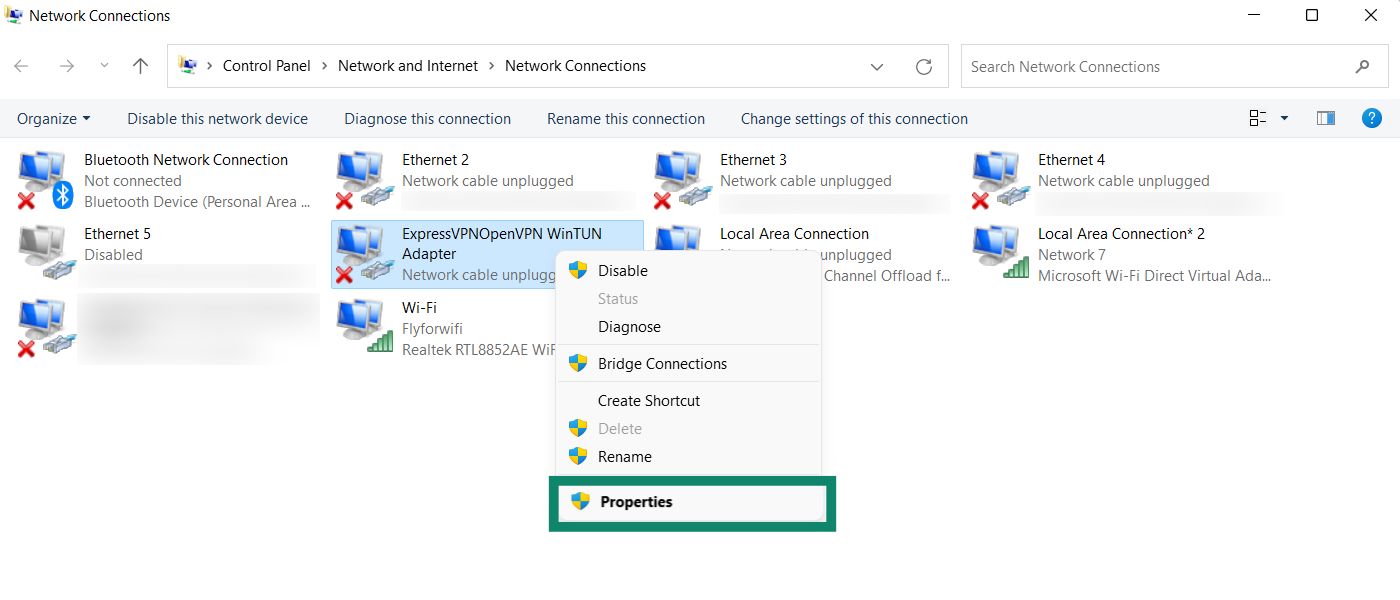
- En la ventana «Network Connections (Conexiones de red)», verás una red llamada «Local Area Connection* (Conexión de área local*)» o algo similar. Este es el nuevo punto de acceso móvil que acabas de crear.


- Busca una red con la descripción «ExpressVPN WinTUN Adapter». Haz clic con el botón derecho y selecciona «Properties (Propiedades)».


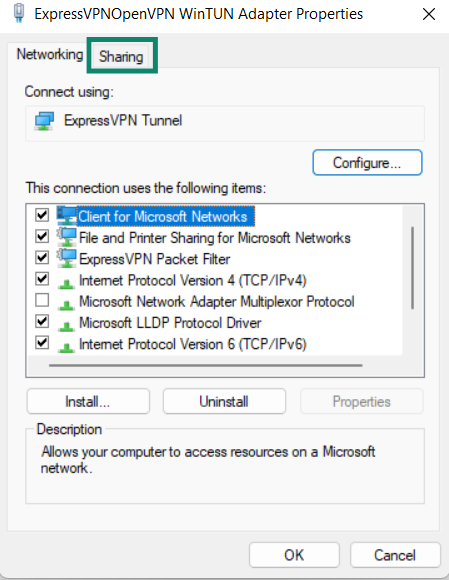
- En la parte superior, haz clic en la pestaña «Sharing (Compartir)».


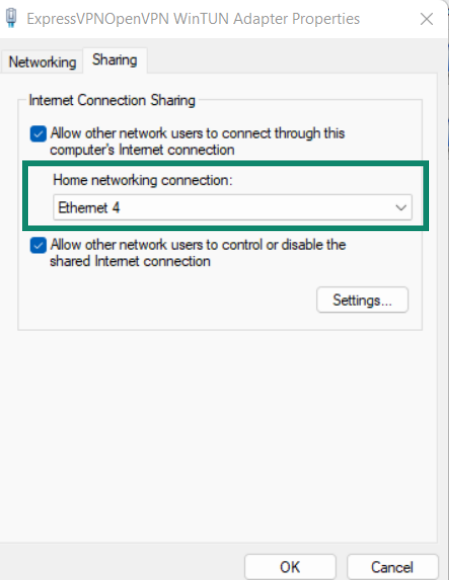
- Marca la casilla «Allow other network users to connect through this computer’s Internet connection (Permitir que otros usuarios de la red se conecten a través de la conexión a Internet de este ordenador)».

- En Conexión de red doméstica, selecciona el nombre del punto de acceso móvil (Conexión de área local nº) que acabas de crear y haz clic en Aceptar. Haz clic en «Aceptar».
¿Necesitas ayuda? Ponte en contacto con el equipo de soporte de ExpressVPN para recibir asistencia inmediata.
Windows 10
- En tu dispositivo Windows, haz clic en . Ve a «Settings (Configuración)» > «Network & Internet (Red e Internet)».
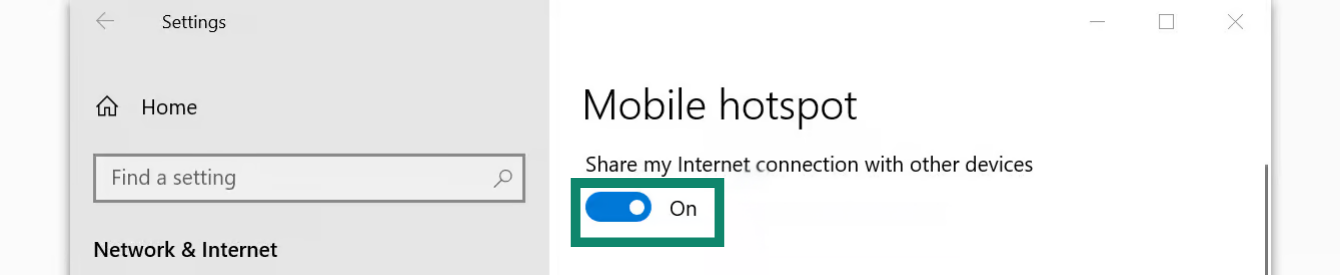
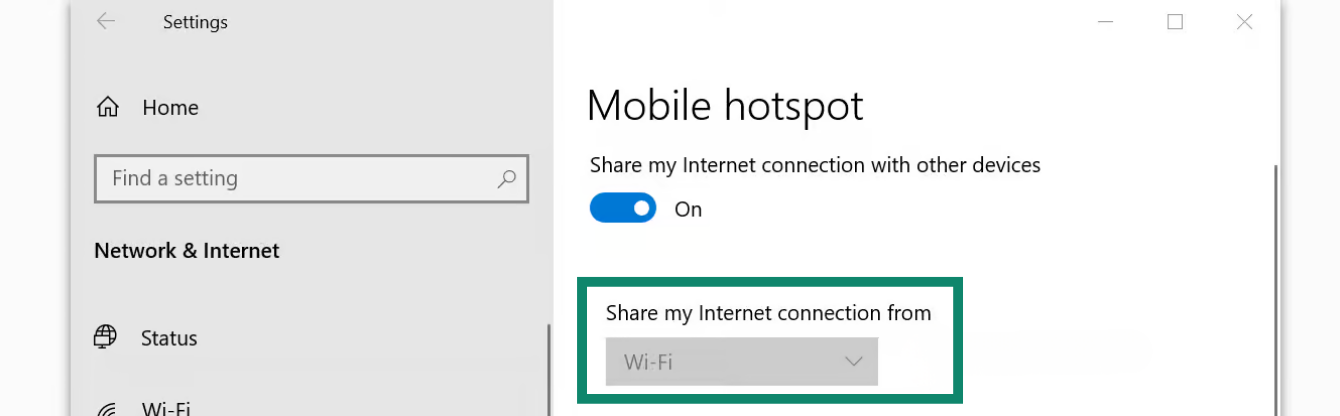
- Haz clic en «Mobile hotspot (Punto de acceso móvil)». Activa el Mobile hotspot (punto de acceso móvil).


- En «Share my Internet connection (Compartir mi conexión a Internet) desde», selecciona «Wi-Fi».


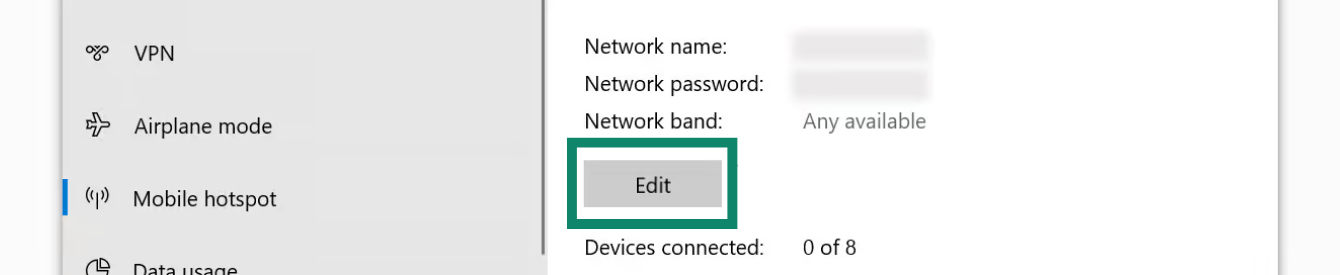
- Para establecer un nombre de red y una contraseña diferentes para el punto de acceso móvil, haz clic en «Edit (Editar)». Introduce el nombre de red y la contraseña de red que prefieras y, a continuación, haz clic en «Save (Guardar)».

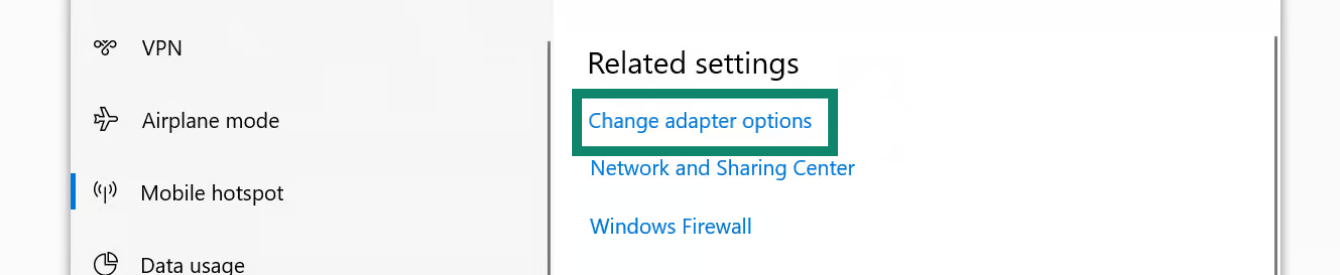
- En «Related settings (Configuración relacionada)», haz clic en «Change adapter options (Cambiar opciones del adaptador)».

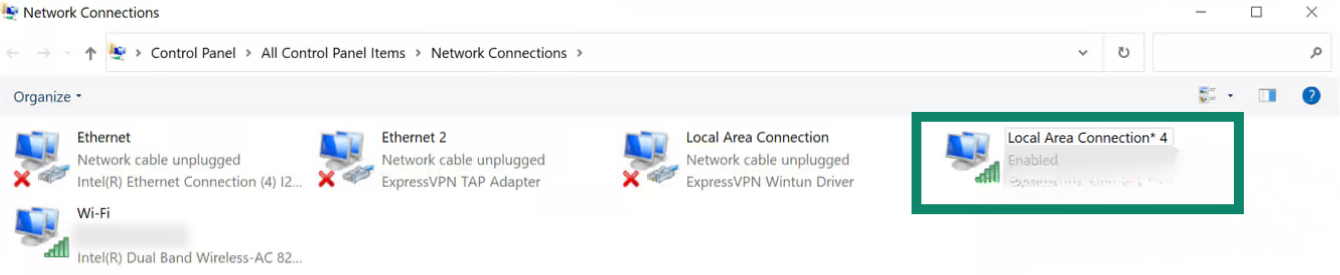
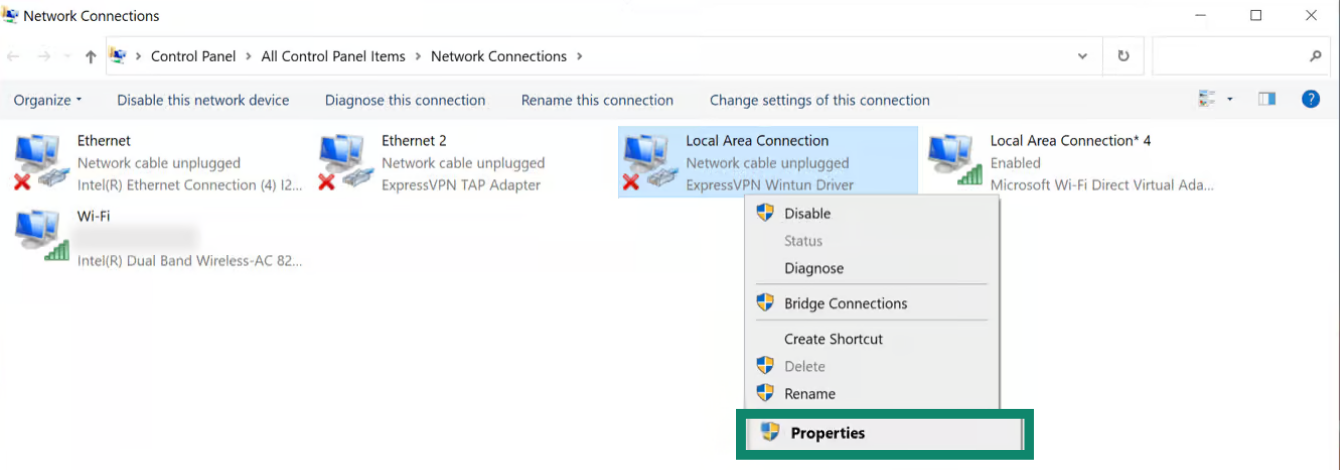
- En la ventana «Network Connections (Conexiones de red)», verás una red llamada «Local Area Connection* (Conexión de área local*)». Este es el nuevo punto de acceso móvil que acabas de crear.

- Busca una red con la descripción «ExpressVPN Wintun Driver». Haz clic con el botón derecho del ratón sobre ella y selecciona «Properties (Propiedades)».


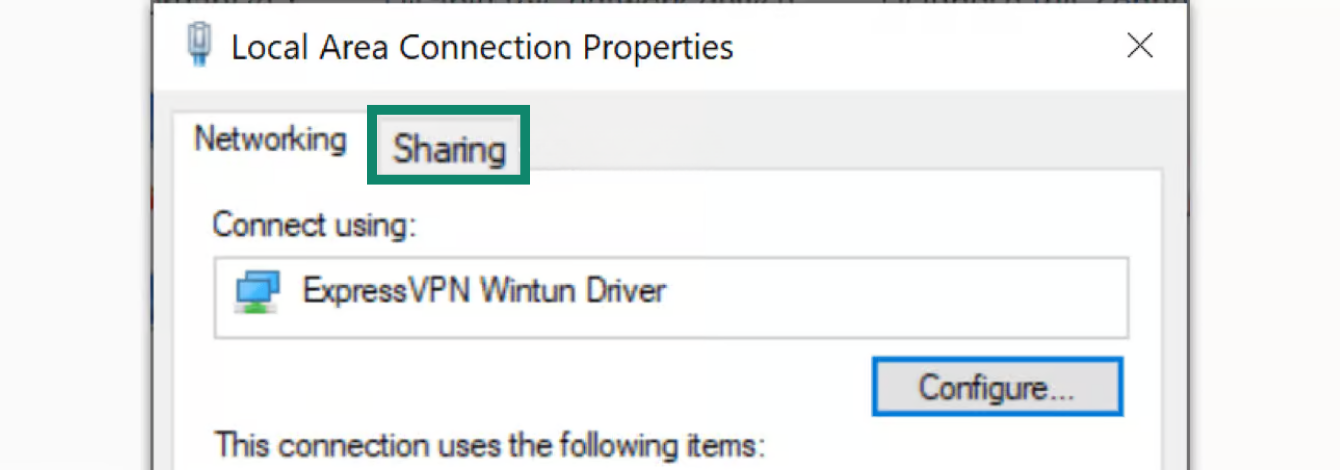
- En la parte superior, haz clic en la pestaña «Sharing (Compartir)».

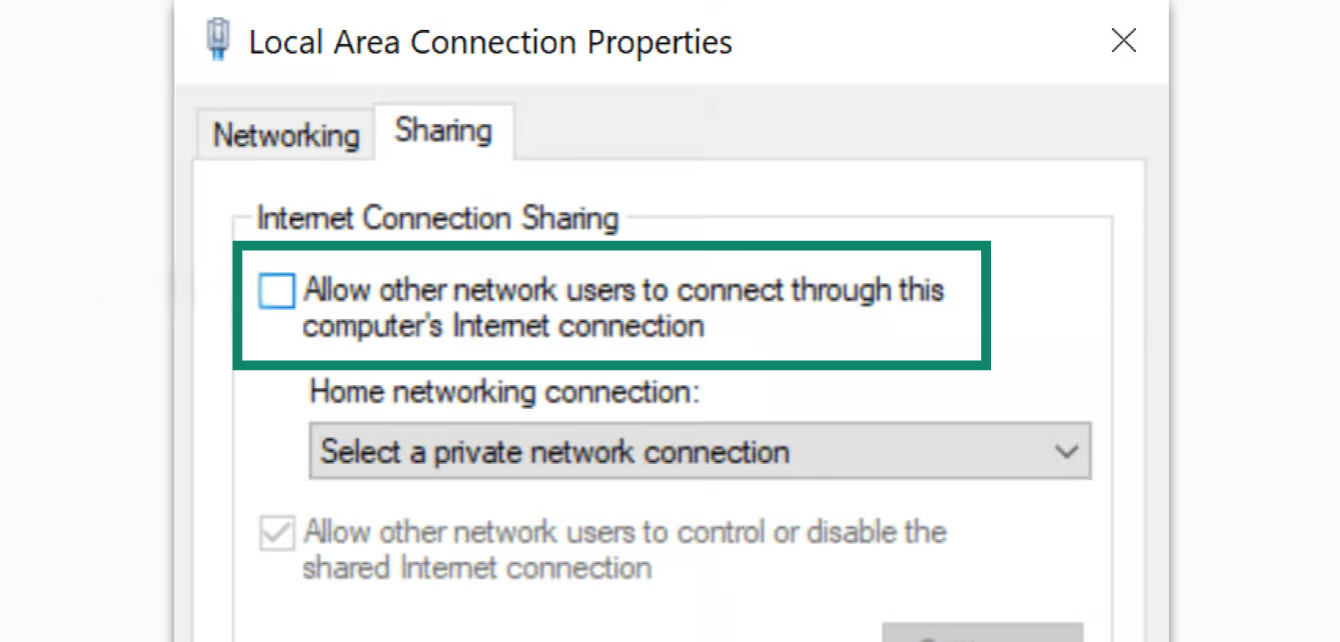
- Marca la casilla «Allow other network users to connect through this computer’s Internet connection (Permitir que otros usuarios de la red se conecten a través de la conexión a Internet de este ordenador)».


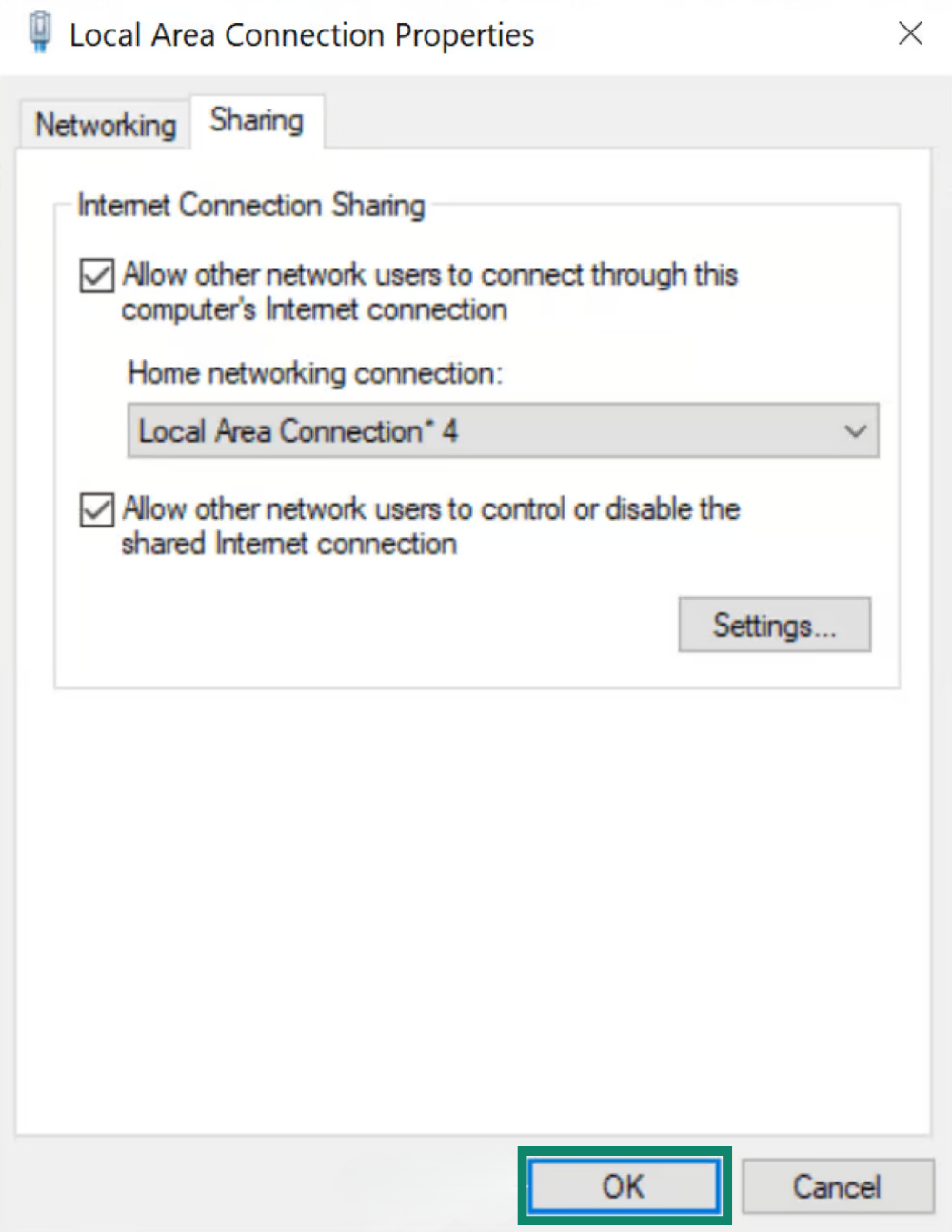
- En Home networking connection (Conexión de red doméstica), selecciona el nombre del punto de acceso móvil (Conexión de área local nº) que acabas de crear y haz clic en Aceptar. Haz clic en «Aceptar».


- Sigue adelante conectándote a la aplicación de ExpressVPN.
¿Necesitas ayuda? Ponte en contacto con el equipo de soporte de ExpressVPN para recibir asistencia inmediata.
Conéctate a la aplicación de ExpressVPN
- En tu dispositivo Windows, abre la aplicación de ExpressVPN.
- Conéctate a la ubicación de servidor VPN que prefieras.
Continúa conectando tus dispositivos a la VPN.
¿Necesitas ayuda? Ponte en contacto con el equipo de soporte de ExpressVPN para recibir asistencia inmediata.
Conecta tus dispositivos a la VPN
- En otro dispositivo, ve a la configuración de Wi-Fi.
- Busca el nombre de la red que has creado antes e introduce la contraseña.
- Para comprobar que estás conectado, puedes usar el verificador de direcciones IP de ExpressVPN para ver tu dirección IP y tu ubicación. Deben coincidir con la dirección IP y la ubicación que aparecen en la aplicación de ExpressVPN.
¿Necesitas ayuda? Ponte en contacto con el equipo de soporte de ExpressVPN para recibir asistencia inmediata.
Desactiva la conexión VPN
- En tu dispositivo Windows, haz clic en

 .
. - Haz clic en Configuración > Red e Internet > Punto de acceso móvil.
- Desactiva el punto de acceso móvil.
¿Necesitas ayuda? Ponte en contacto con el equipo de soporte de ExpressVPN para recibir asistencia inmediata.