• No-Logs Policy
    • Servers in 105 Countries
    • Use on Multiple Devices
    • High-Speed VPN
    • Access Online Services Securely
    • VPN for Gaming
    • 30-Day Money-Back Guarantee
    • Explore All Features
    • About ExpressVPN
    Sign Up For ExpressVPN

    One subscription gives you access to a fast-growing suite of privacy and security tools that work seamlessly together to improve your digital life.

    View all products
    • Lightway VPN Protocol
    • Internet Kill Switch
    • Split Tunneling
    • Private, Encrypted DNS
    • Avoid ISP Throttling
    • Threat Manager
    • Ad Blocker
    • Parental Controls
    • Dedicated IP
    • Windows
    • MacOS
    • Linux
    • iPhone / iPad
    • Android
    • Apple TV
    • Fire Stick
    • Android TV
    • VPN for Routers
    • Aircove Routers
    • Chrome
    • Firefox
    • Edge
    • All Apps & Devices
  • Pricing
    • What Is a VPN?
    • VPN for Beginners
    • How To Use a VPN
    • VPN Encryption Explained
    • Blog
    • Glossary
    • IP Address Checker
    • DNS Leak Test
    • WebRTC Leak Test
    • Password Generator
    • Support Center
    • FAQ
    • Live Chat
    • VPN Setup Tutorials
    • Redemption Code
  • VPN for Teams
    • ExpressVPN

      ExpressVPN Industry-leading, ultra-fast VPN with secure servers in 105 countries.

    • ExpressMailGuard

      ExpressMailGuard Private email relay service to protect your inbox and identity.

    • ExpressKeys

      ExpressKeys Secure password management, multi-factor authentication, and more.

    • ExpressAI

      ExpressAI The first consumer AI powered by confidential computing for privacy-led intelligence.

    • Identity Defender

      Identity Defender Powerful suite of ID protection, monitoring, and data removal tools.

    • View All Products

    Other products from the family behind ExpressVPN

    • holiday.com eSIM

      holiday.com eSIM Unlimited data with a single eSIM across 150+ destinations.

    • Intego

      Intego Award-winning macOS antivirus, firewall, system tools, and more.

    ExpressVPN for Teams
    ExpressVPN for Teams

    Get fast, secure VPN protection for growing teams. Easy to deploy, simple to manage, built to scale.

  • My Account
  • Aircoveを入手する はじめる
  • プランを見る
  • プランを見る Aircoveを入手する はじめる
  • Explore ExpressVPN
    • Why ExpressVPN?
    • No-Logs Policy
    • Servers in 105 Countries
    • Use on Multiple Devices
    • High-Speed VPN
    • Access Online Services Securely
    • VPN for Gaming
    • 30-Day Money-Back Guarantee
    • Explore All Features
    • About ExpressVPN
    • VPN Security & Access Features
    • Lightway VPN Protocol
    • Internet Kill Switch
    • Split Tunneling
    • Private, Encrypted DNS
    • Avoid ISP Throttling
    • Threat Manager
    • Ad Blocker
    • Parental Controls
    • Dedicated IP
  • Download VPN
    • Desktop
    • Windows
    • MacOS
    • Linux
    • Mobile
    • iPhone / iPad
    • Android
    • TV & Streaming
    • Apple TV
    • Fire Stick
    • Android TV
    • Routers
    • VPN for Routers
    • Aircove Routers
    • Extensions
    • Chrome
    • Firefox
    • Edge
    • All Apps & Devices
  • Pricing
  • Resources
    • VPN Basics
    • What Is a VPN?
    • VPN for Beginners
    • How To Use a VPN
    • VPN Encryption Explained
    • Content Library
    • Blog
    • Glossary
    • Tools
    • IP Address Checker
    • DNS Leak Test
    • WebRTC Leak Test
    • Password Generator
    • Support
    • Support Center
    • FAQ
    • Live Chat
    • VPN Setup Tutorials
    • Redemption Code
  • VPN for Teams
  • Products
    • ExpressVPN

      ExpressVPN Industry-leading, ultra-fast VPN with secure servers in 105 countries.

    • ExpressMailGuard

      ExpressMailGuard Private email relay service to protect your inbox and identity.

    • ExpressKeys

      ExpressKeys Secure password management, multi-factor authentication, and more.

    • ExpressAI

      ExpressAI The first consumer AI powered by confidential computing for privacy-led intelligence.

    • Identity Defender

      Identity Defender Powerful suite of ID protection, monitoring, and data removal tools.

    • View All Products

    Other products from the family behind ExpressVPN

    • holiday.com eSIM

      holiday.com eSIM Unlimited data with a single eSIM across 150+ destinations.

    • Intego

      Intego Award-winning macOS antivirus, firewall, system tools, and more.

    ExpressVPN for Teams
    ExpressVPN for Teams

    Get fast, secure VPN protection for growing teams. Easy to deploy, simple to manage, built to scale.

  • My Account
Home Home » LinuxにOpenVPNを手動で設定する方法

設定チュートリアル

LinuxにOpenVPNを手動で設定する方法

最終更新: 2023/09/13

Share in FacebookShare in TwitterShare in WhatsappShare in TelegramShare by email

弊社のアプリと設定を使用するには、まずExpressVPNアカウントに登録してください。

このガイドでは、ExpressVPNの構成ファイルを用いて、OpenVPNプロトコルを使ってLinuxにExpressVPNを手動で設定する方法をご紹介します。

手動構成接続では、すべてのExpressVPNロケーションを利用できるというわけではありません。VPNロケーションの全リストを利用するには、設定を使用してください。

重要:OpenVPN手動設定は、ExpressVPNアプリと同じセキュリティとプライバシーのメリットを提供しません。インターネット検閲レベルが高い国にお住まいの場合には、VPN接続をより安定させるためにExpressVPNアプリを使用することをおすすめします。

アプリ設定を選択しますか?Linux対応ExpressVPNアプリの設定手順をご覧ください。

目次

1. VPNアカウント認証情報の確認
2. VPNのインストールと接続                                                                                     VPNサーバーロケーションから切断


1. VPNアカウント認証情報の確認

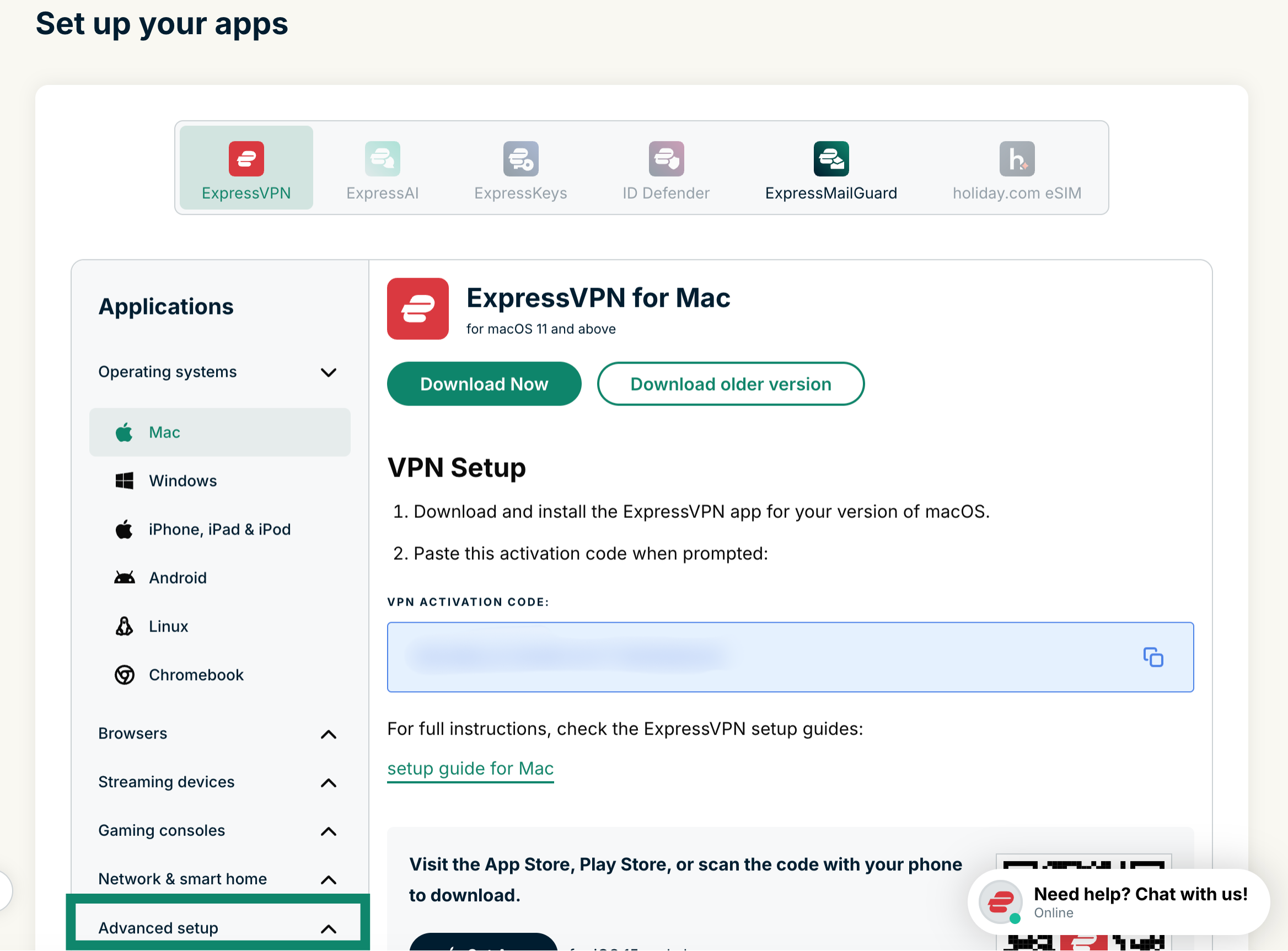
ExpressVPN設定ページにアクセスします。プロンプトが表示されたら、ExpressVPN認証情報を入力して、サインインをクリックします。

アカウント認証情報を入力して、「サインイン」をクリックします

お使いのメールアドレスに送信された認証コードを入力します。

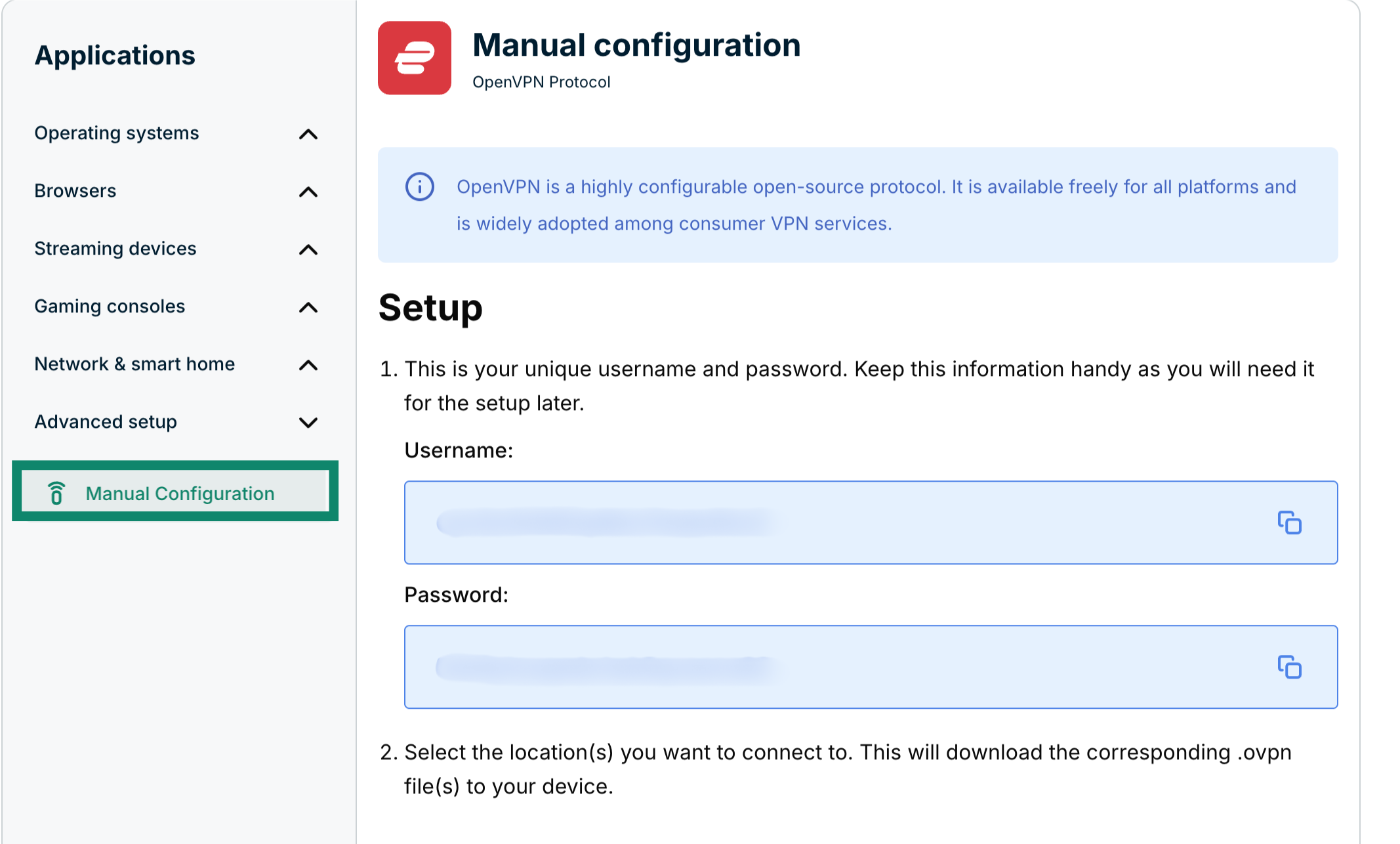
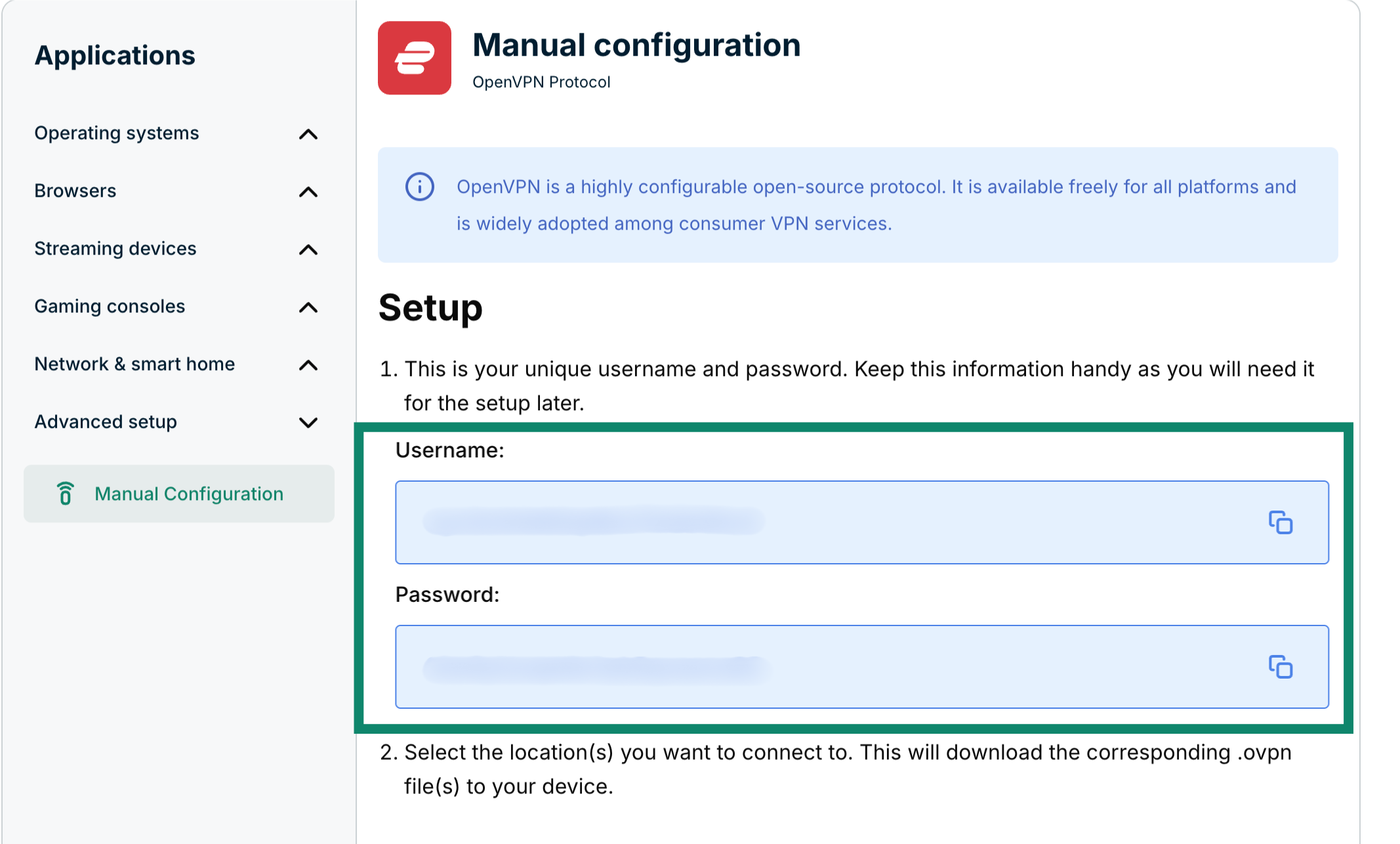
すでにOpenVPNが選択されているので、右側でユーザー名、パスワード、OpenVPN設定ファイルのリストを確認することができます。

「OpenVPN」を選択すると、ユーザー名、パスワード、OpenVPN設定ファイルのリストが表示されます。

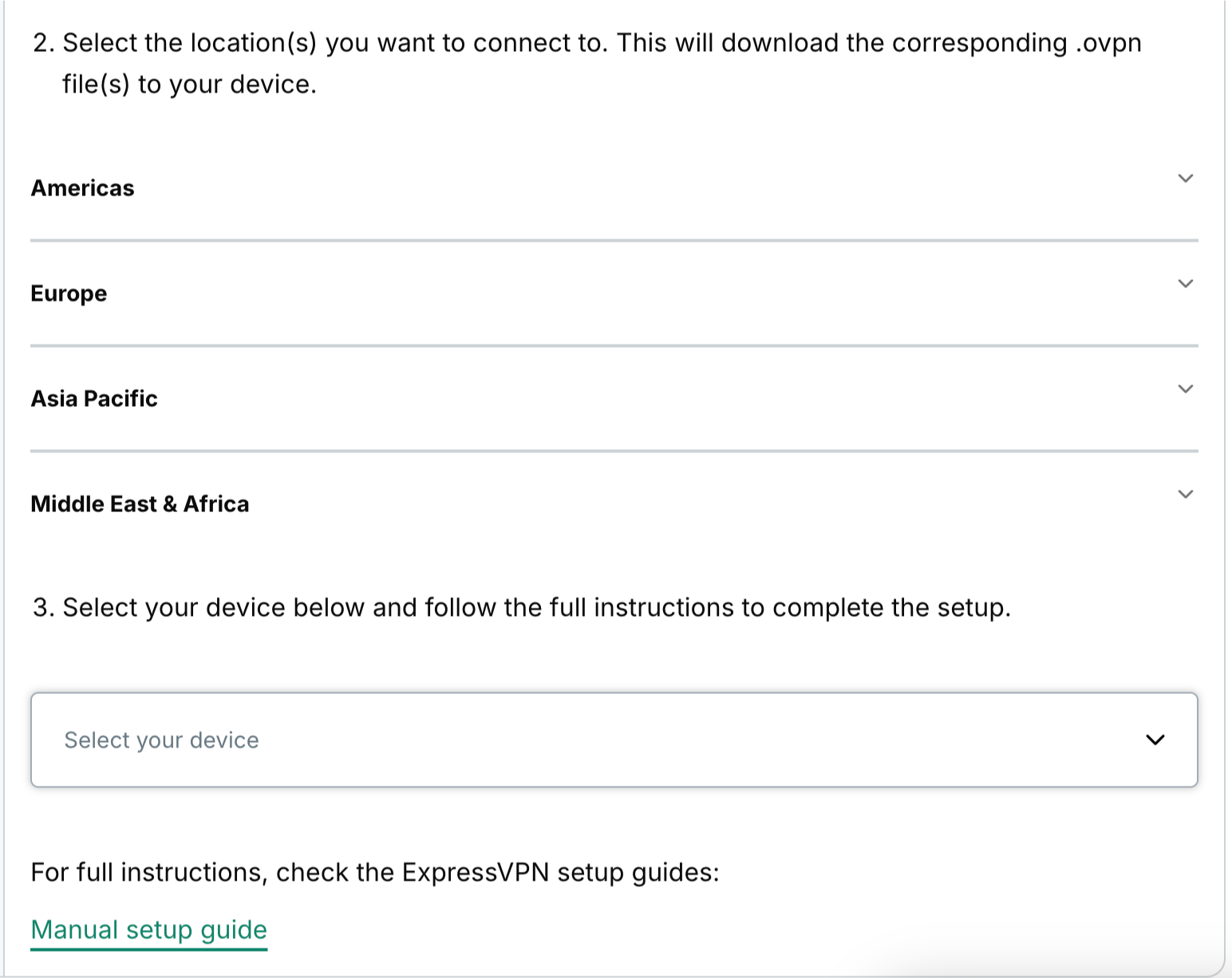
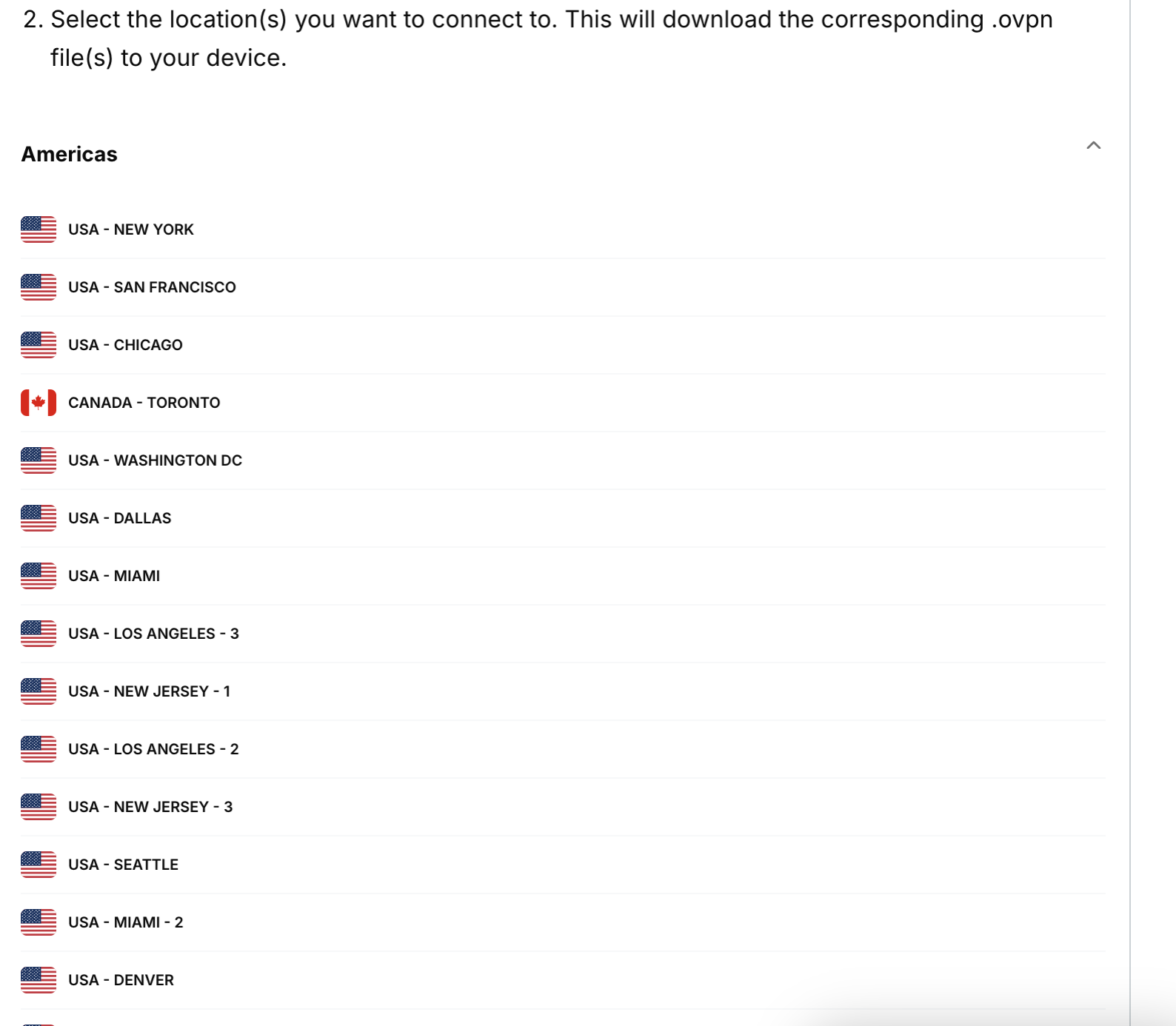
.ovpnファイルのダウンロード先をクリックします。

このブラウザウィンドウを開いたままにしておきます。後の設定でこの情報が必要になります。

ヘルプが必要ですか? ExpressVPNサポートチームに問い合わせを行い、迅速なサポートを受けましょう。

トップに戻る


2. VPNのインストールと接続

下で、お使いのLinuxディストリビューションに対応するセクションをご参照ください。

Ubuntu

注意:以下の手順は、Ubuntu 20.04 LTS (Focal Fossa)でテストされました。

パッケージのインストールには、Terminal画面に以下の情報を入力します。

$ sudo apt install openvpn openvpn-systemd-resolved

パスワードを入力します。それからYを入力して続けます。

「Y」を入力して続けます。

OpenVPNの起動には、以下の情報を入力します。

$ sudo openvpn --config /[path to file]/my_expressvpn_[server location].ovpn --script-security 2 --up /etc/openvpn/update-systemd-resolved --down /etc/openvpn/update-systemd-resolved --dhcp-option 'DOMAIN-ROUTE .' --down-pre

注意:[path to file]をExpressVPN構成ファイルがダウンロードされたパスに、[server location]をファイル名に表示されるロケーションに置き換えてください。

先に確認したユーザー名とパスワードを入力します。

ExpressVPNに接続できると、「Initialization Sequence Completed.」(初期化シーケンス完了)と表示されます。

ExpressVPNに接続できると、「 Initialization Sequence Completed.」と表示されます。

VPN接続をアクティブに維持するには、バックグラウンドでターミナルウィンドウを実行し続けます。

ヘルプが必要ですか? ExpressVPNサポートチームに問い合わせを行い、迅速なサポートを受けましょう。

トップに戻る

Debian

注意:以下の手順は、Debian 10 (Buster)でテストされました。

パッケージのインストールには、Terminalウィンドウに以下の情報を入力します。

$ sudo apt install openvpn resolvconf

パスワードを入力します。それからYを入力して続けます。

「Y」を入力して続けます。

OpenVPNの起動には、以下の情報を入力します。

$ sudo openvpn --config /[path to file]/my_expressvpn_[server location].ovpn --script-security 2 --up /etc/openvpn/update-resolv-conf --down /etc/openvpn/update-resolv-conf

注意:[path to file]をExpressVPN構成ファイルがダウンロードされたパスに、[server location]をファイル名に表示されるロケーションに置き換えてください。

先に確認したユーザー名とパスワードを入力します。

ExpressVPNに接続できると、「Initialization Sequence Completed.」(初期化シーケンス完了)と表示されます。

ExpressVPNに接続できると、「 Initialization Sequence Completed.」と表示されます。

VPN接続をアクティブに維持するには、バックグラウンドでターミナルウィンドウを実行したままにしてください。

ヘルプが必要ですか? ExpressVPNサポートチームに問い合わせを行い、迅速なサポートを受けましょう。

トップに戻る

Fedora

注意:以下の手順はFedora 38でテストされました。この手順はCentOSでも利用できるはずです。

パッケージのインストールには、ターミナルウィンドウに以下の情報を入力します。

$ sudo dnf install openvpn

DNSの設定には、以下の情報を入力します。

$ sudo cp /usr/share/doc/openvpn/contrib/pull-resolv-conf/client.{up,down} /etc/openvpn/

$ sudo chmod +x /etc/openvpn/client.{up,down}

$ sudo sed -i -e 's|\bresolvconf\b|ignore-&|' /etc/openvpn/client.{up,down}

OpenVPNの起動には、以下の情報を入力します。

$ sudo openvpn --config /[path to file]/my_expressvpn_[server location].ovpn --script-security 2 --up /etc/openvpn/client.up --down /etc/openvpn/client.down

注意:[path to file]をExpressVPN構成ファイルがダウンロードされたパスに、[server location]をファイル名に表示されるロケーションに置き換えてください。

先に確認したユーザー名とパスワードを入力します。

ExpressVPNに接続できると、「Initialization Sequence Completed.」(初期化シーケンス完了)と表示されます。

VPN接続をアクティブに維持するには、バックグラウンドでターミナルウィンドウを実行したままにしてください。

ヘルプが必要ですか? ExpressVPNサポートチームに問い合わせを行い、迅速なサポートを受けましょう。

トップに戻る


VPNサーバーロケーションから切断

切断するには、ターミナルウィンドウにCtrl + Cを入力します。

ヘルプが必要ですか? ExpressVPNサポートチームに問い合わせを行い、迅速なサポートを受けましょう。

トップに戻る

Share in FacebookShare in TwitterShare in WhatsappShare in TelegramShare by email
この記事は役立ちましたか?

ご不便をおかけして申し訳ございません。よろしければ、今後の改善策をお聞かせください。

Please enter a valid email address.

サポートチームのメンバーがこの問題についてフォローアップいたします。

Share in FacebookShare in TwitterShare in WhatsappShare in TelegramShare by email
  • 各デバイス対応のVPN
  • ExpressVPNのダウンロード
  • MacOS
  • Windows PC
  • iOS (iPhone & iPad)
  • Android
  • Linux
  • ルーター
  • Apple TV
  • Fire Stick
  • Android TV
  • Chrome拡張機能
  • VPNサーバーロケーション
  • 105ヶ国のサーバー
  • アメリカ対応VPN
  • イギリス対応VPN
  • カナダ対応VPN
  • オーストラリア対応VPN
  • 特徴
  • 全ての機能を見る
  • VPNトライアル
  • プランと価格
  • プロダクト
  • Keysパスワードマネージャー
  • Aircoveルーター
  • ExpressVPNについて
  • 弊社について
  • 信頼できるVPNへの取り組み
  • デジタルの権利
  • セキュリティ監査
  • ExpressVPNのレビュー
  • 弊社のエキスパートたち
  • プレス
  • 採用
  • プログラム
  • トッテナム・ホットスパー
  • パートナー
  • アフィリエイト
  • インフルエンサー
  • サポート
  • サポートセンター
  • VPN設定方法
  • よくある質問 (FAQ)
  • お問い合わせ
  • VPNを購入する
  • 引き換えコードを入力
  • 詳しく知る
  • VPNとは?
  • 自分のIPアドレスを調べる
  • 私のIPを隠す
  • VPN用途トップ5
  • ブログ

© 2026 ExpressVPN. All rights reserved.(無断転載および引用禁止)

プライバシーポリシー 利用規約 Cookie Preferences
Youtube Linkedin Twitter Facebook Instagram

言語を選択してください

  • English
  • Dansk
  • Deutsch
  • Español
  • Français
  • Italiano
  • Nederlands
  • Norsk
  • Polski
  • Português
  • Suomi
  • Svenska
  • Türkçe
  • Русский
  • ภาษาไทย
  • 한국어

Live chat

Need help? Chat with us!

Online