



This tutorial will show you how to set up a VPN connection for your Amazon Fire TV Stick or Fire TV using a VPN router or a virtual VPN router.
Before proceeding, make sure you have an active ExpressVPN subscription. To sign up for a new subscription, go to our Order page.
Jump to…
1. Set up your VPN router or virtual VPN router
2. Connect your Amazon Fire device to the router
1. Set up your VPN router or virtual VPN router
To establish a VPN connection, you need to set up a VPN router or a virtual VPN router.
Use a dedicated VPN router
You can use a dedicated VPN router like Fortify. The Fortify router comes with ExpressVPN built-in, so you don’t need to install a VPN manually.
Use the ExpressVPN app for routers
You can use the ExpressVPN for routers firmware on select Asus, Linksys, and Netgear routers.
See instructions on setting up:
Note that security updates for ExpressVPN for routers have ended, based on our router support timelines. You can still install and use the latest available firmware, but it will not receive new security fixes.
Use ExpressVPN manual configurations for routers
You can set up ExpressVPN manual configurations on these routers.
Set up a virtual VPN router
You can also set up a virtual VPN router on your Windows PC.
Need help? Contact the ExpressVPN Support Team for immediate assistance.
2. Connect your Amazon Fire device to the router
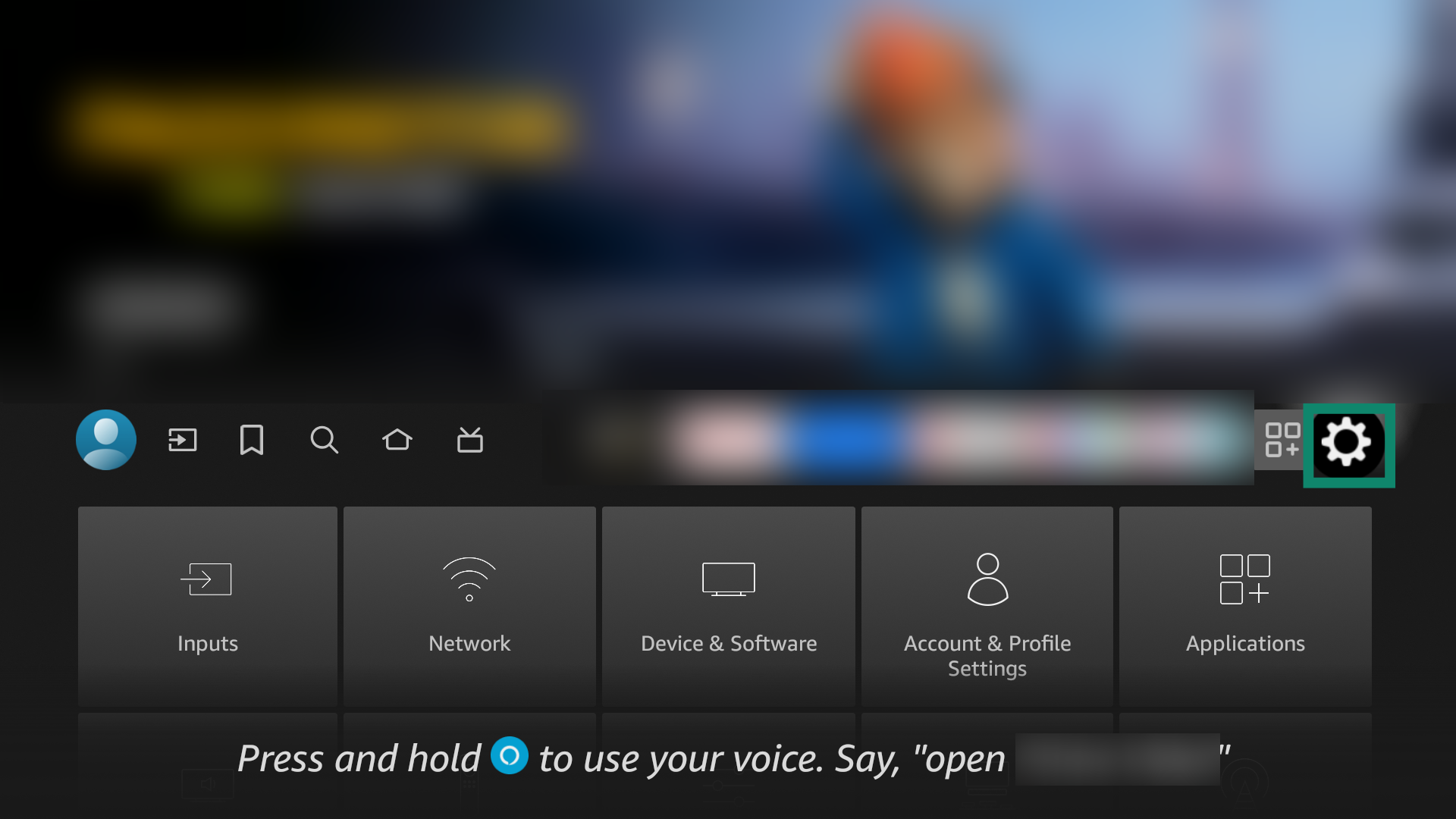
- On your Amazon Fire device’s menu, select Settings.
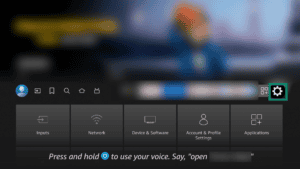

- Select Network.
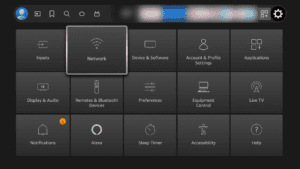
- Select the network name of the VPN router or virtual VPN router that you set up earlier.
- Enter the network password for your VPN router or virtual VPN router:
- VPN routers: Enter the Wi-Fi network password.
- Virtual VPN routers: Enter the password you created on your Windows PC earlier.
- Select CONNECT.
Need help? Contact the ExpressVPN Support Team for immediate assistance.