




Need a VPN for Your Chrome Browser?
Find Out More HereThis guide will show you what Smart Routing is and how to set up and modify Smart Routing rules in the ExpressVPN browser extension.
Jump to…
What is Smart Routing?
How to turn on Proxy Mode
How to set up a Smart Routing rule
How to modify Smart Routing rules
What is Smart Routing?
Smart Routing lets you control when the VPN connects or disconnects for specific websites in the ExpressVPN browser extension.
You can create rules based on website URLs or locations. Selecting a website applies the rule to that specific website. Selecting a country applies the rule to all matching websites in that location. For example, selecting the United Kingdom applies the rule to all websites ending in .co.uk.
How to turn on Proxy Mode
You will need to turn on Proxy Mode before you can enable Smart Routing:
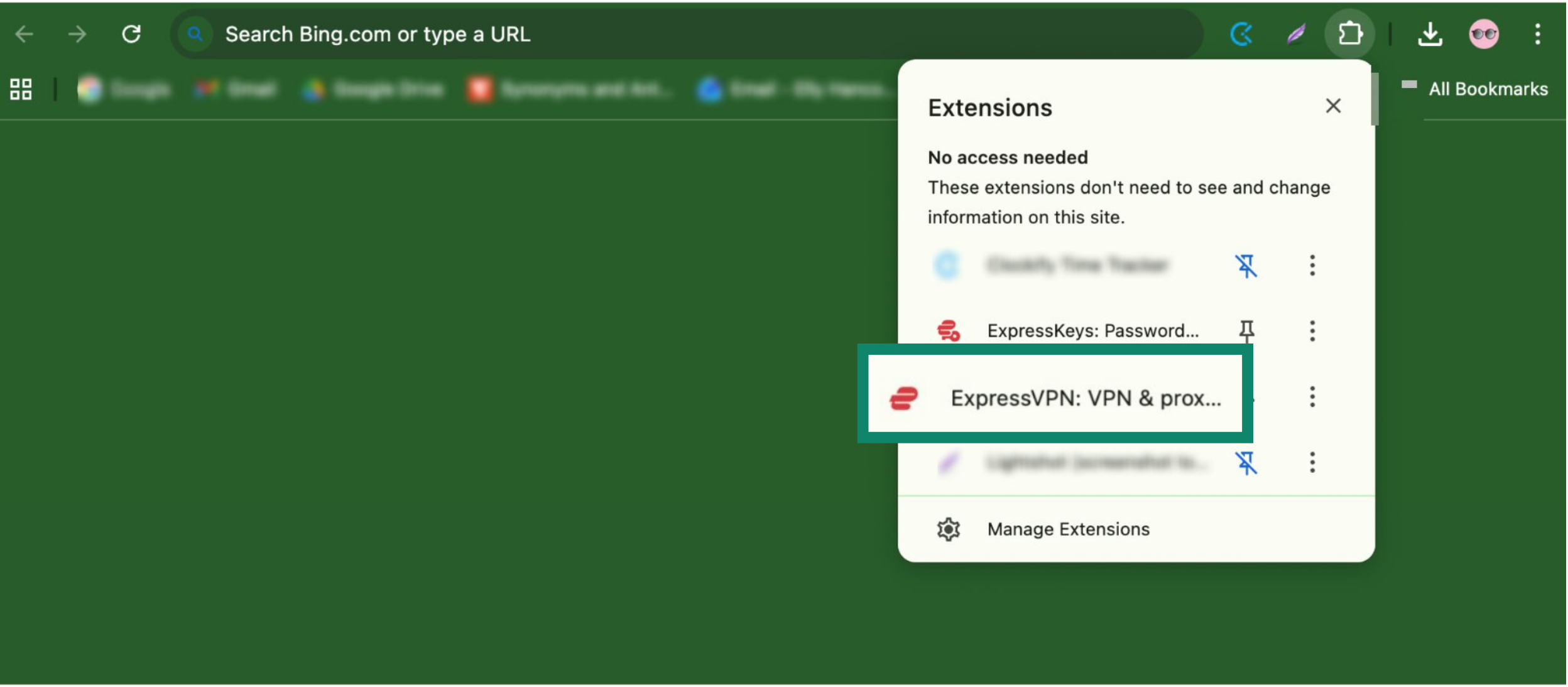
- In the toolbar, open Extensions (jigsaw icon) and click ExpressVPN.


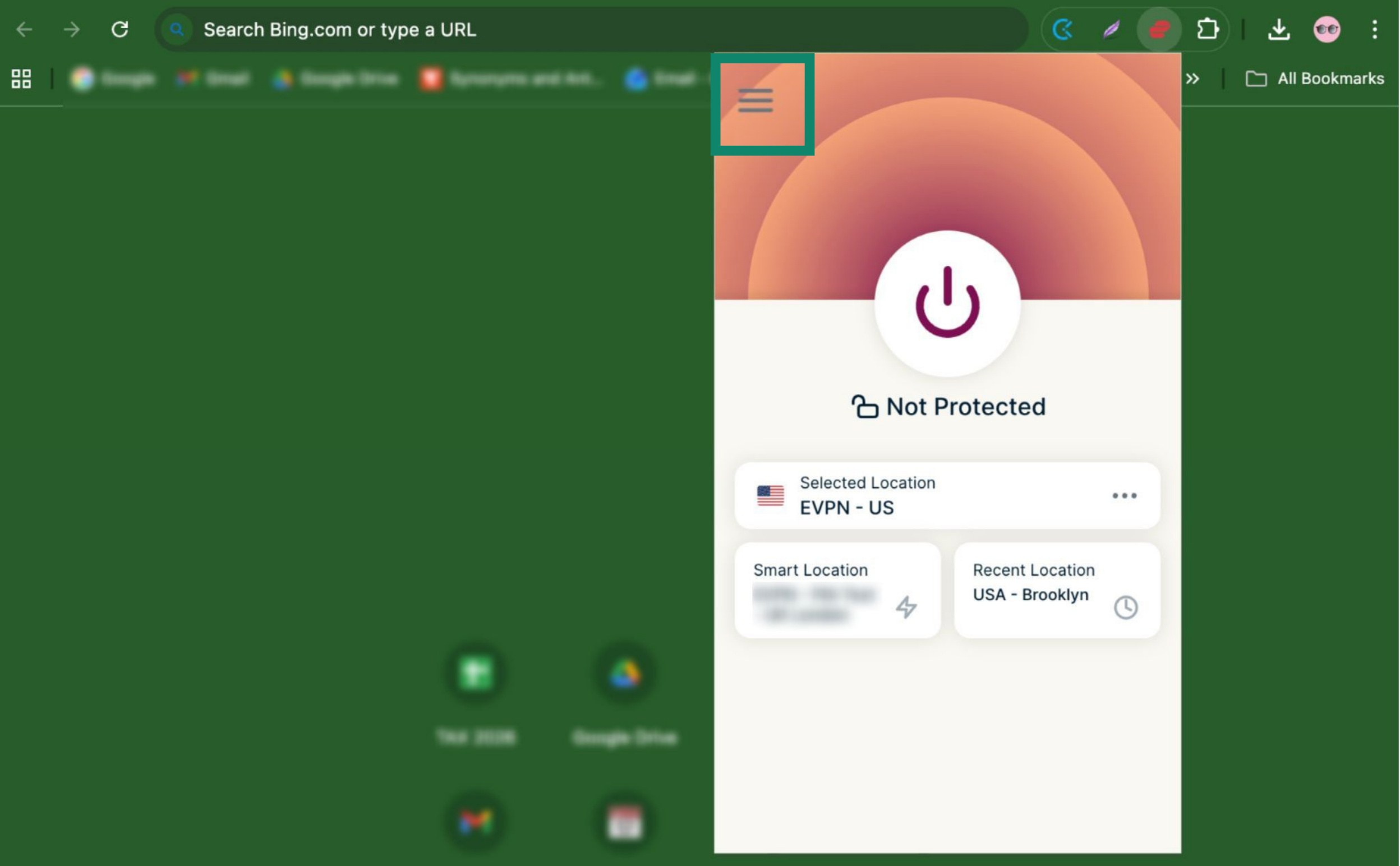
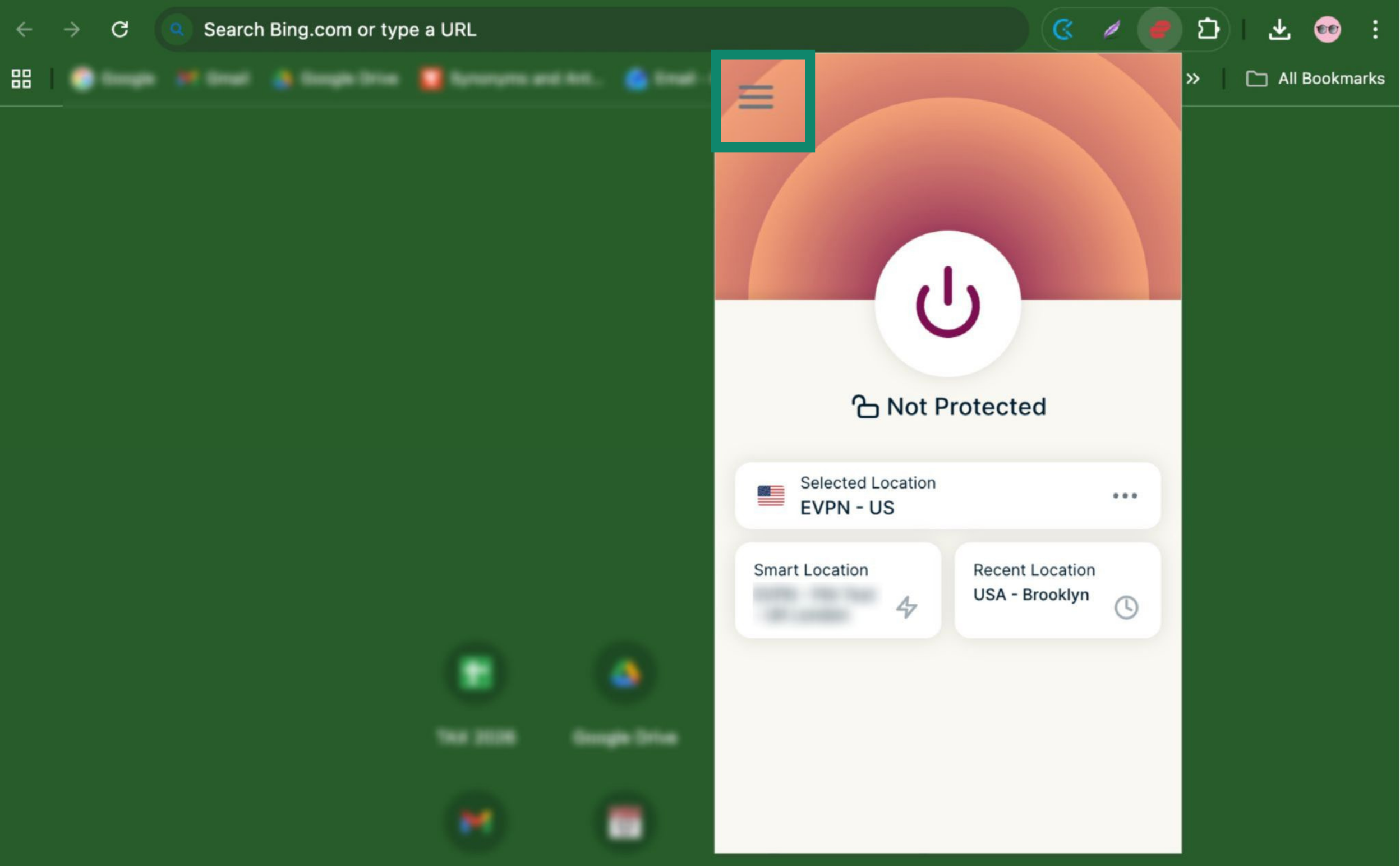
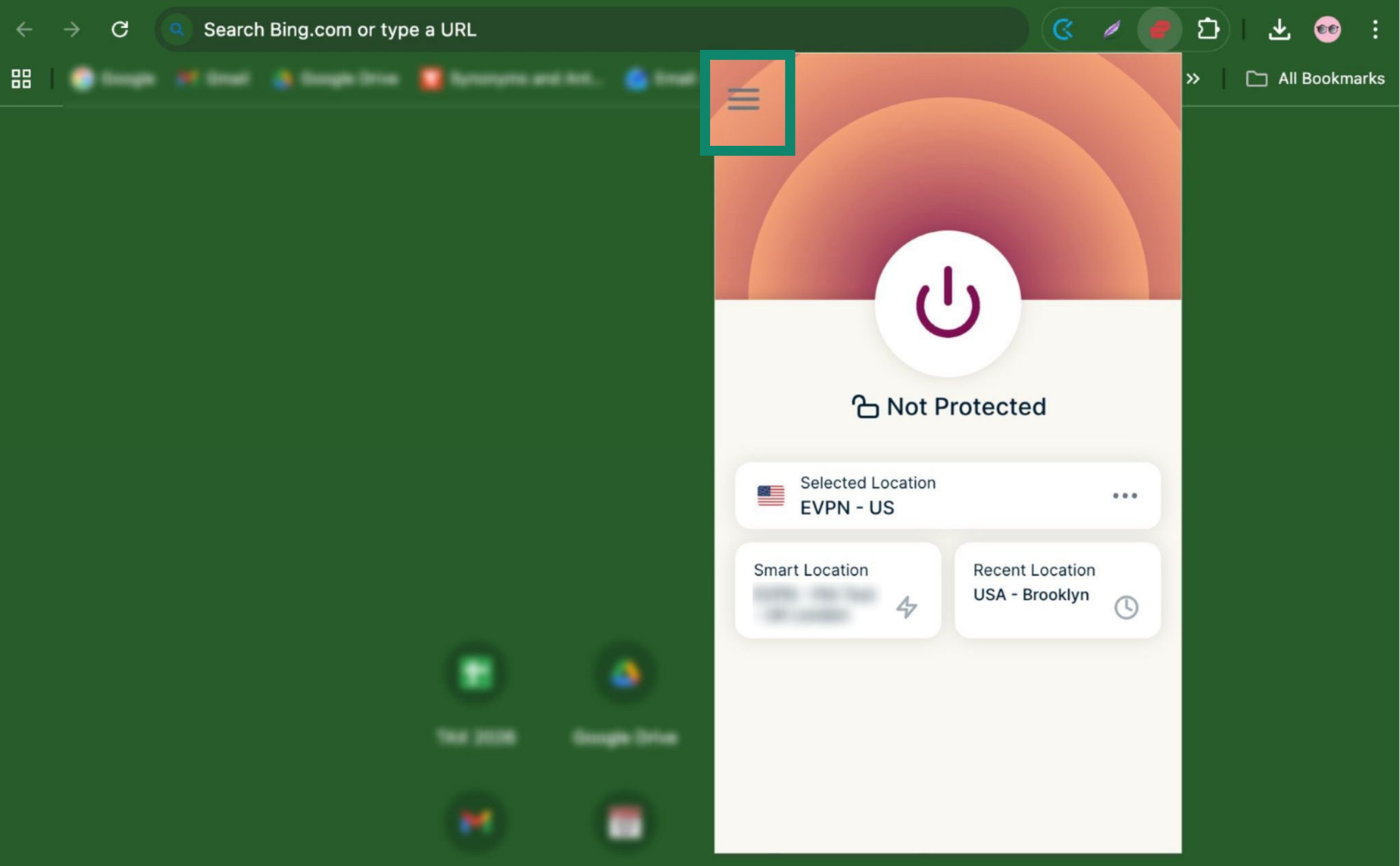
- Click the hamburger menu (

 ).
).

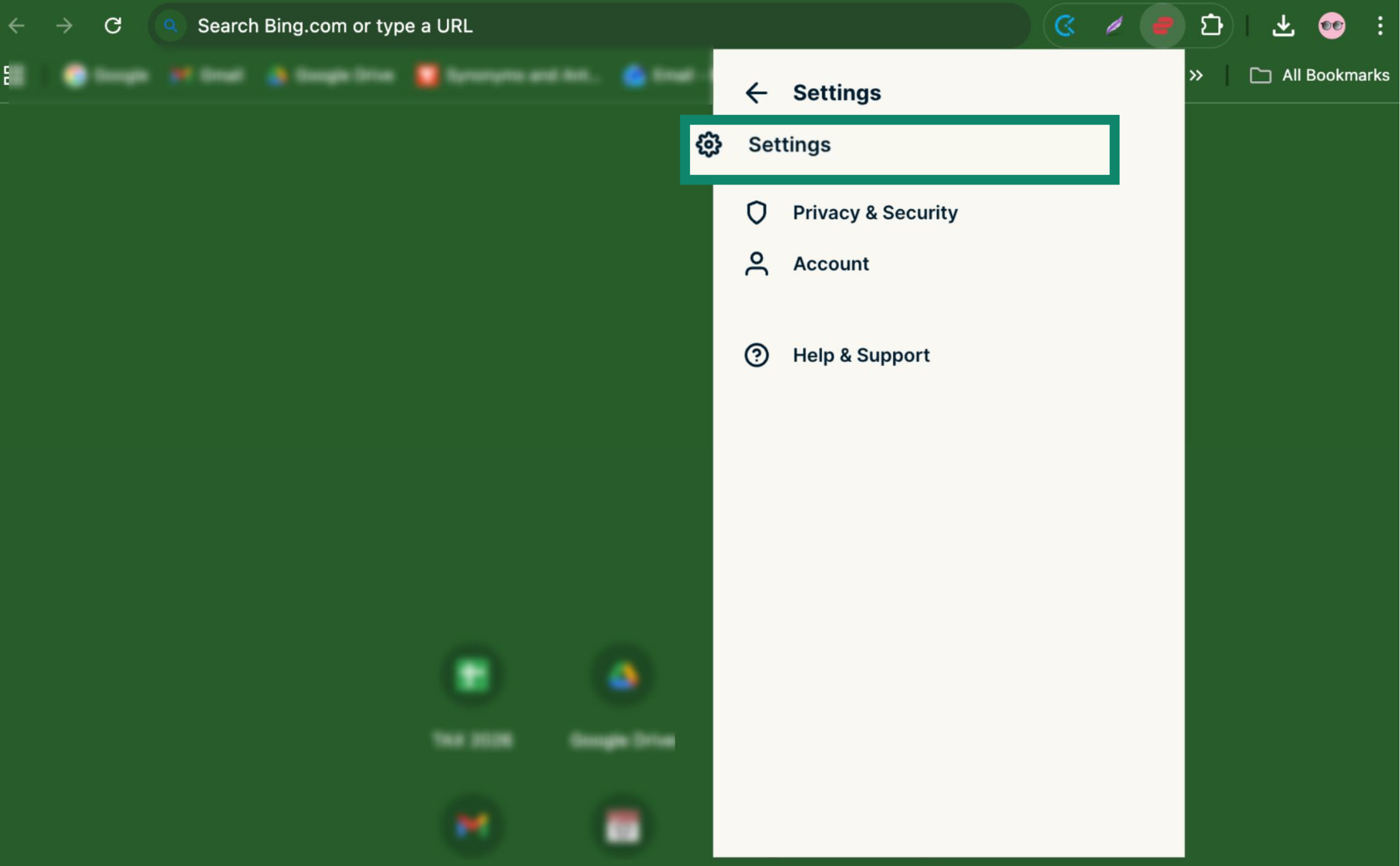
- Click Settings.

- Click Browser extension mode.


- Select Proxy Mode.

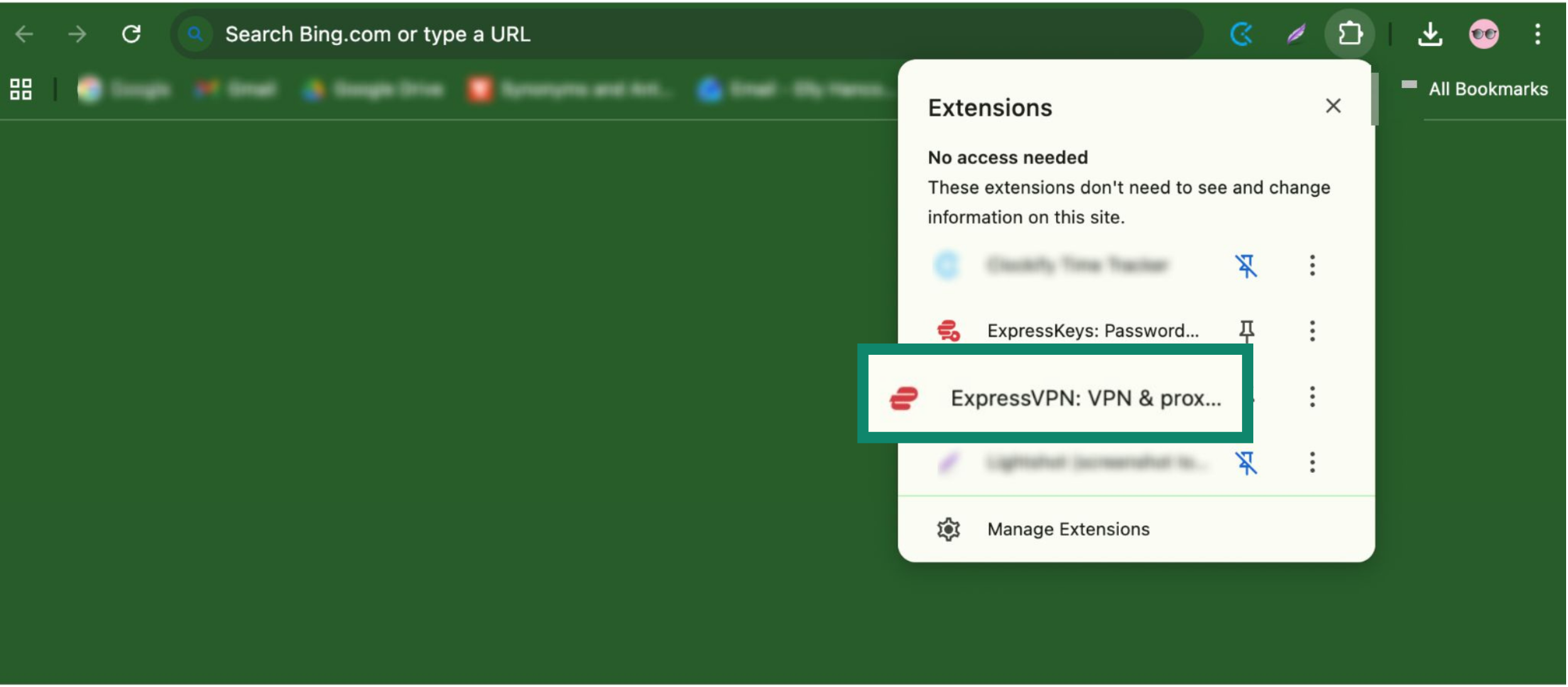
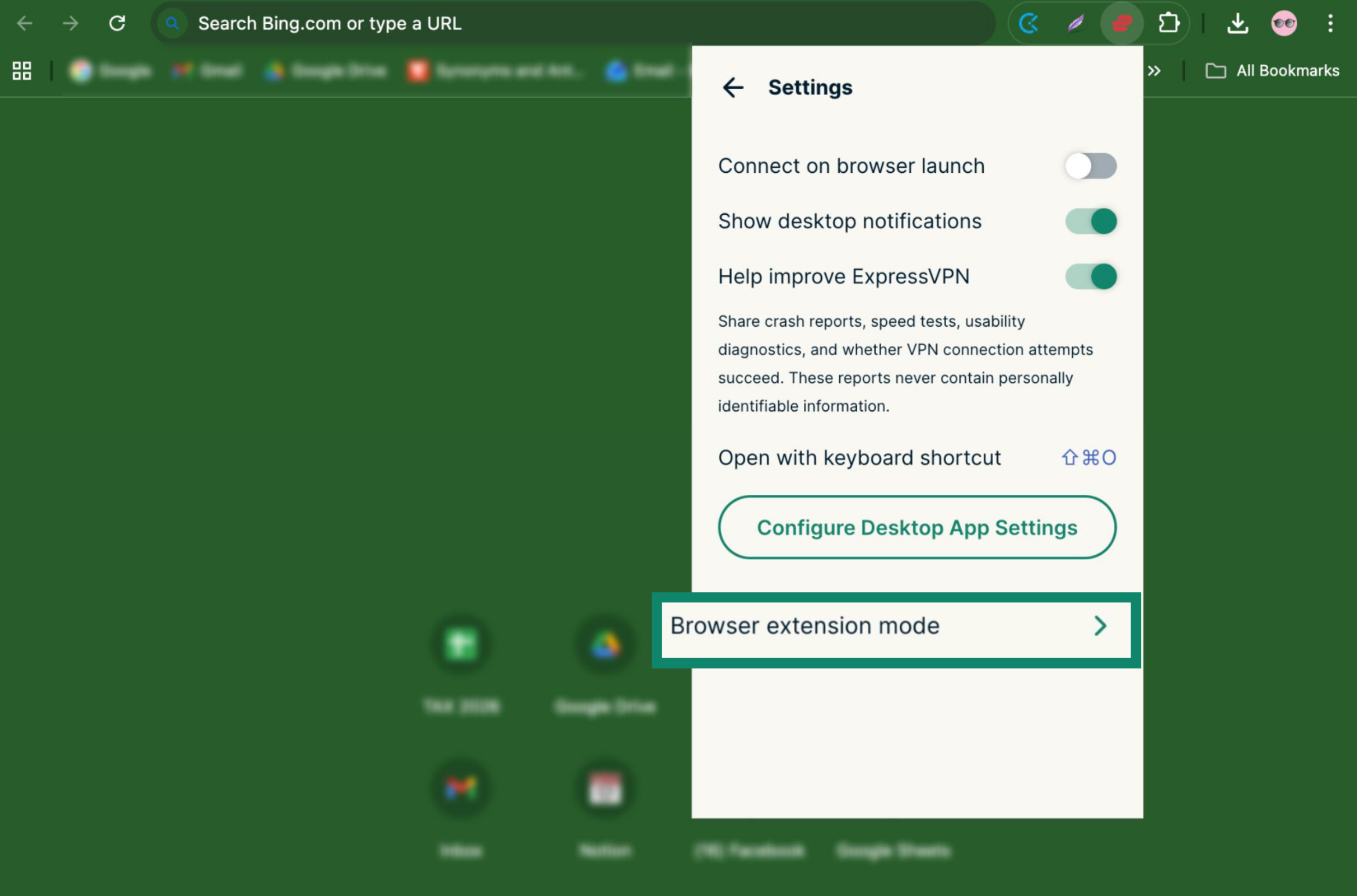
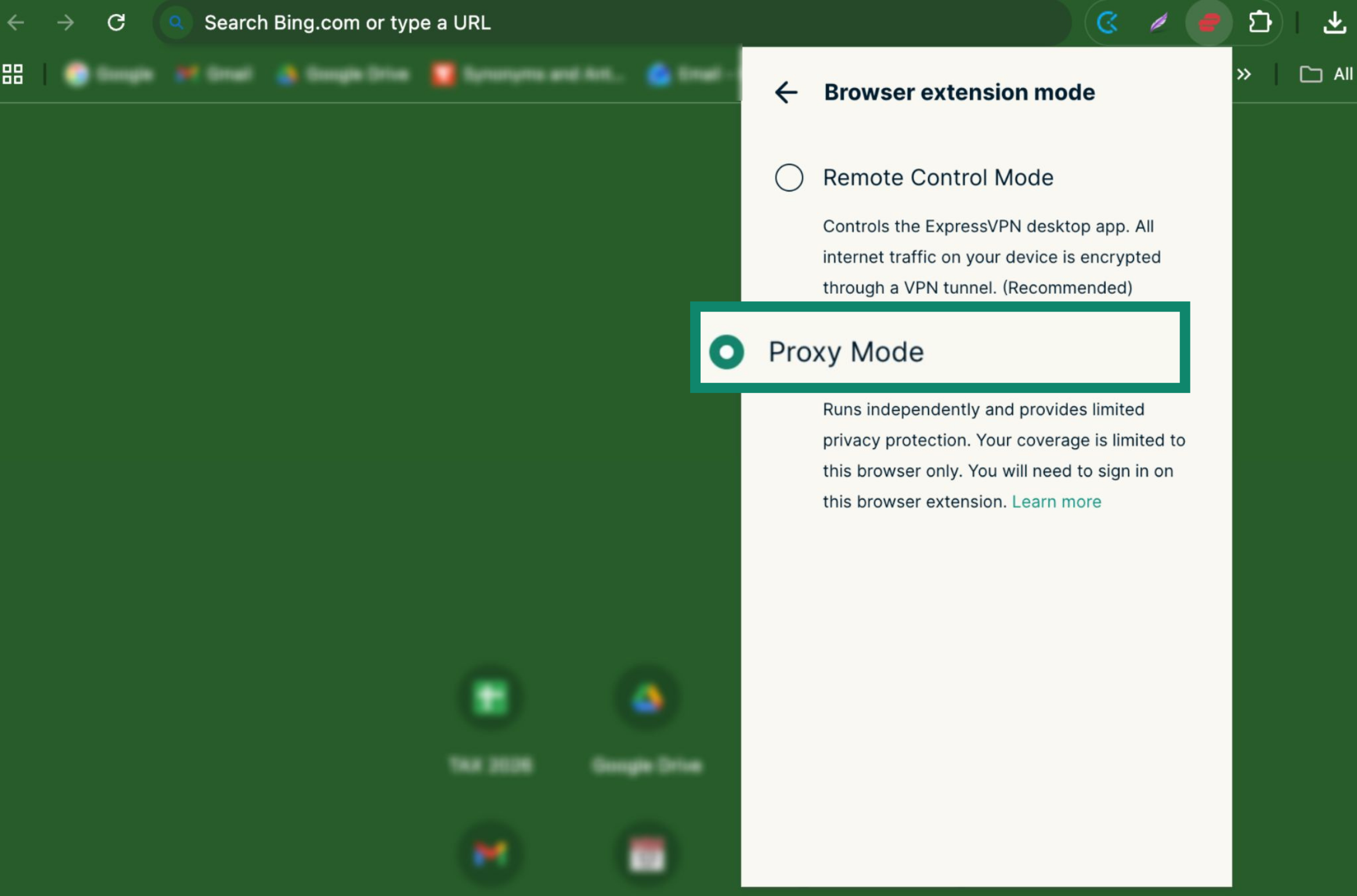
You will need to sign in again to activate Proxy Mode the first time you use it. Afterward, you can simply switch between Proxy Mode and Remote Control Mode.
How to set up a Smart Routing rule
To set up a Smart Routing rule:
- In the toolbar, open Extensions (jigsaw icon) and click ExpressVPN.

- Click the hamburger menu ().

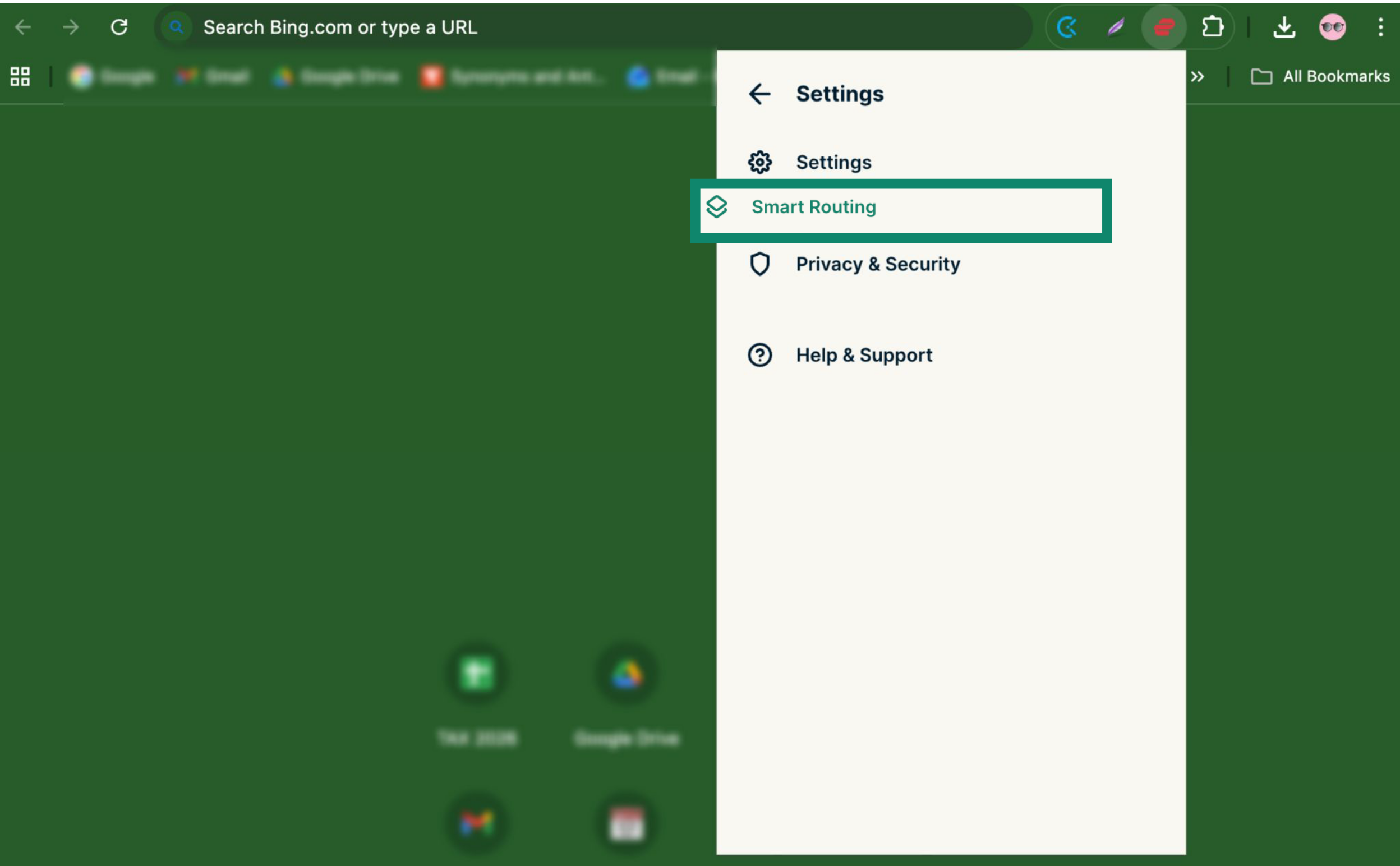
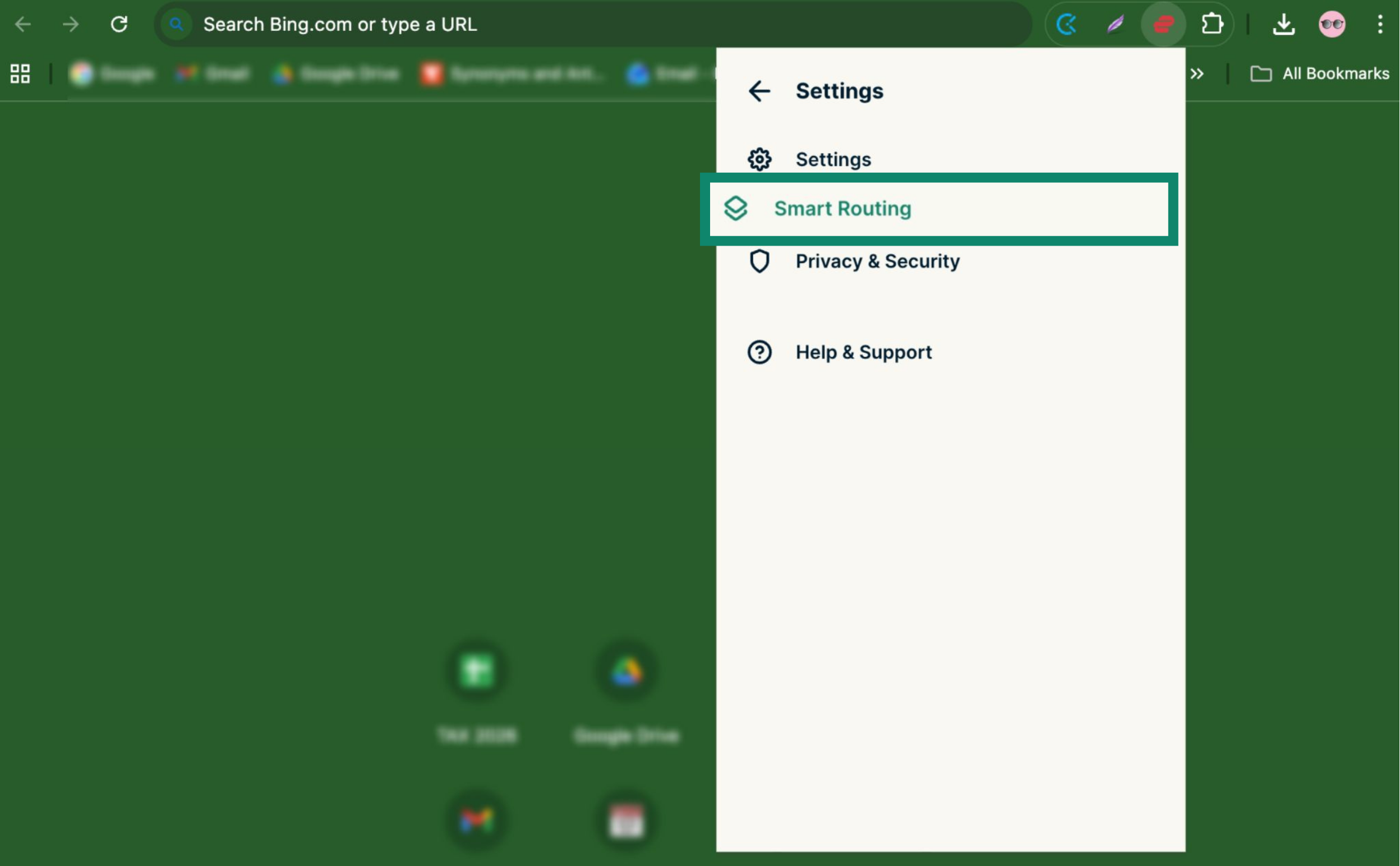
- Click Smart Routing.

- Click + ADD RULE.

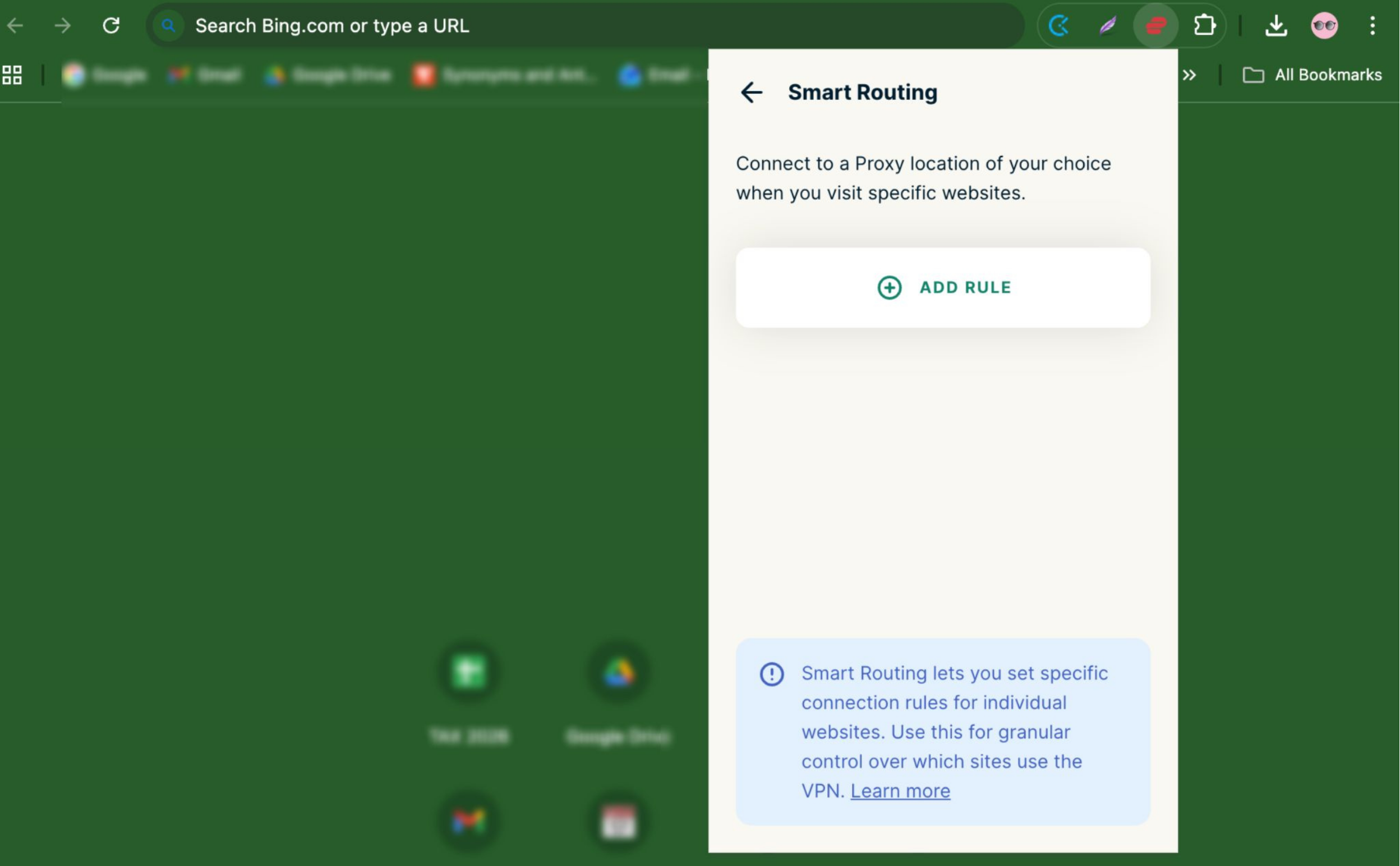
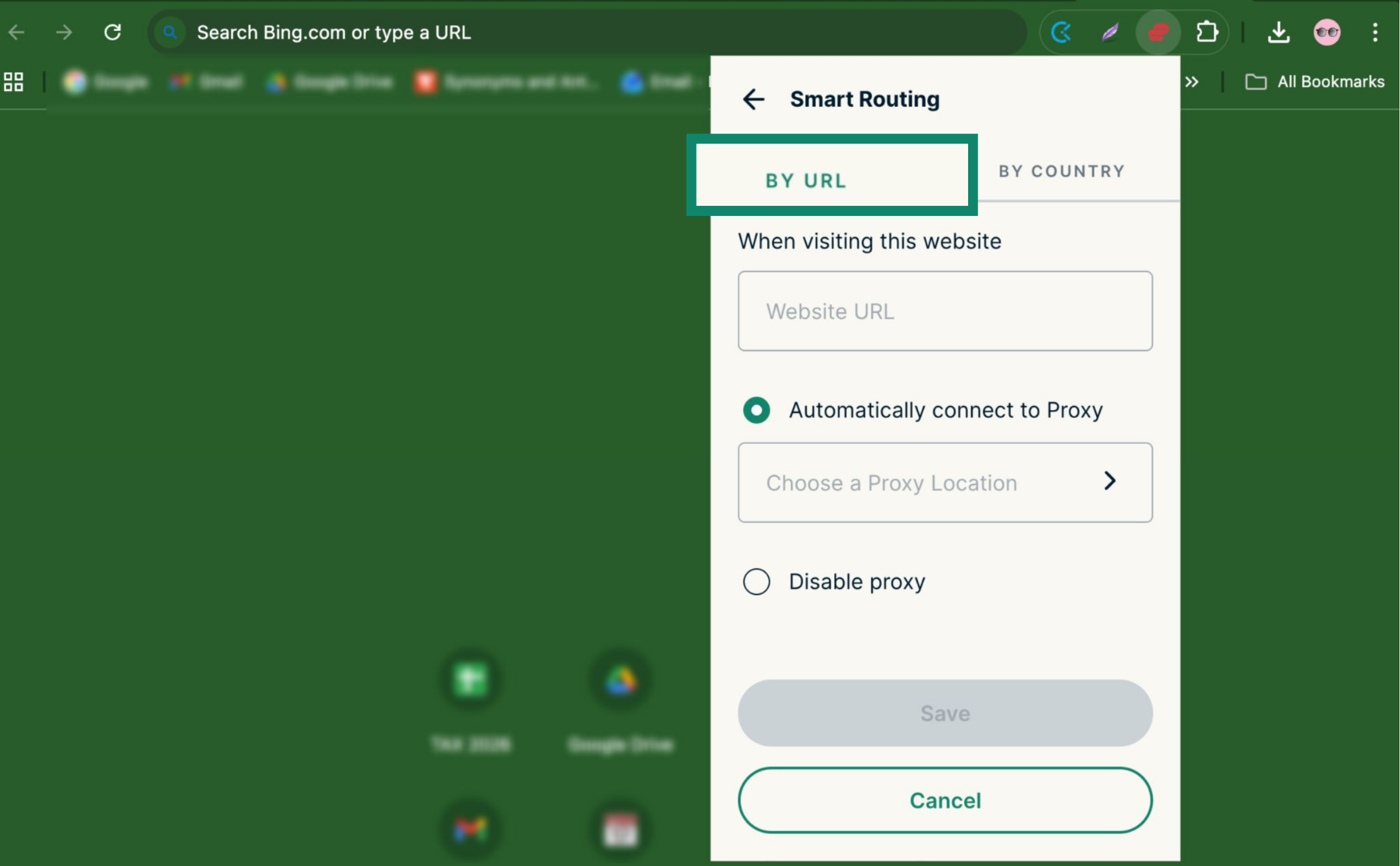
From here, you can set up a smart routing rule either by URL or by country:
By URL
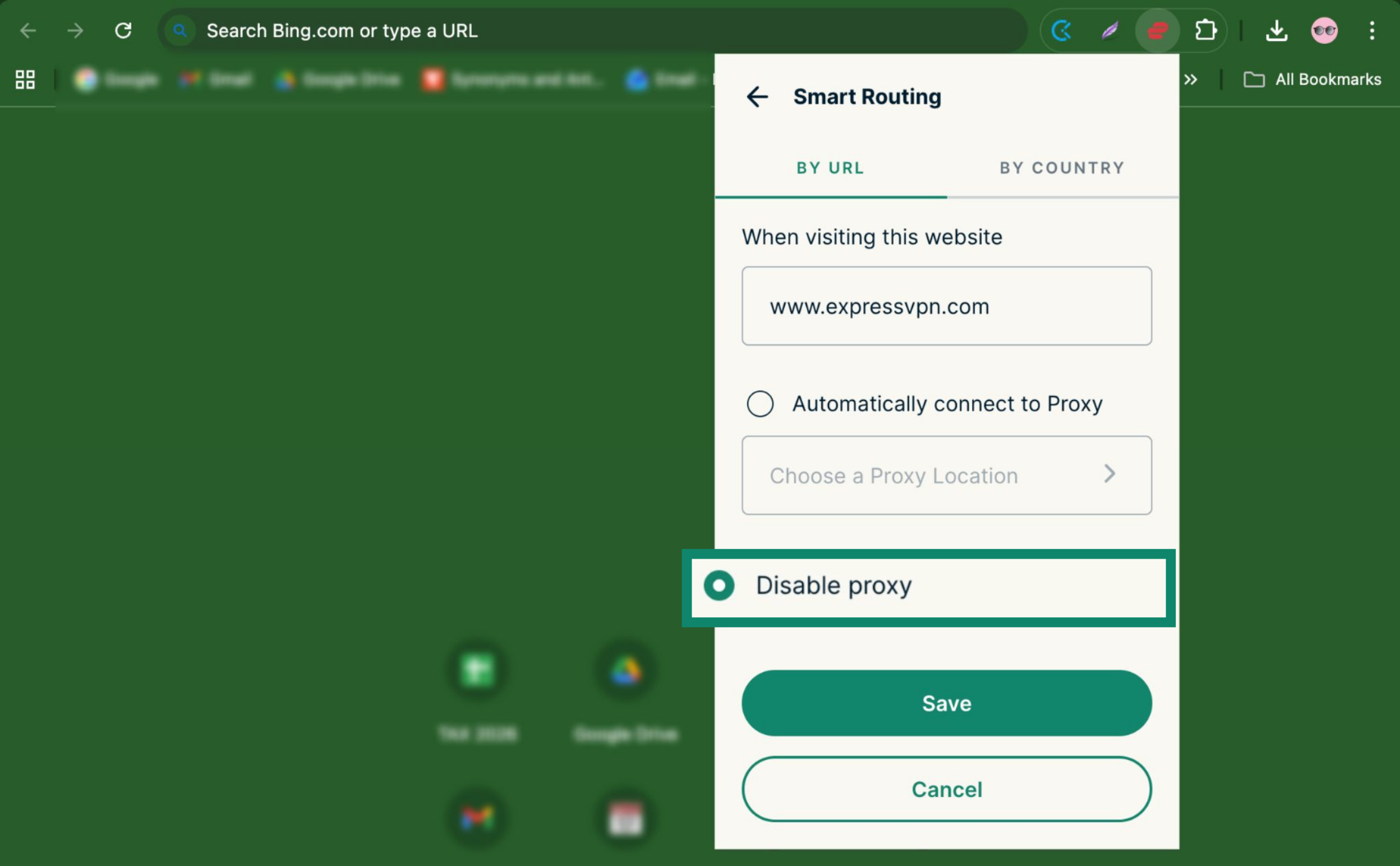
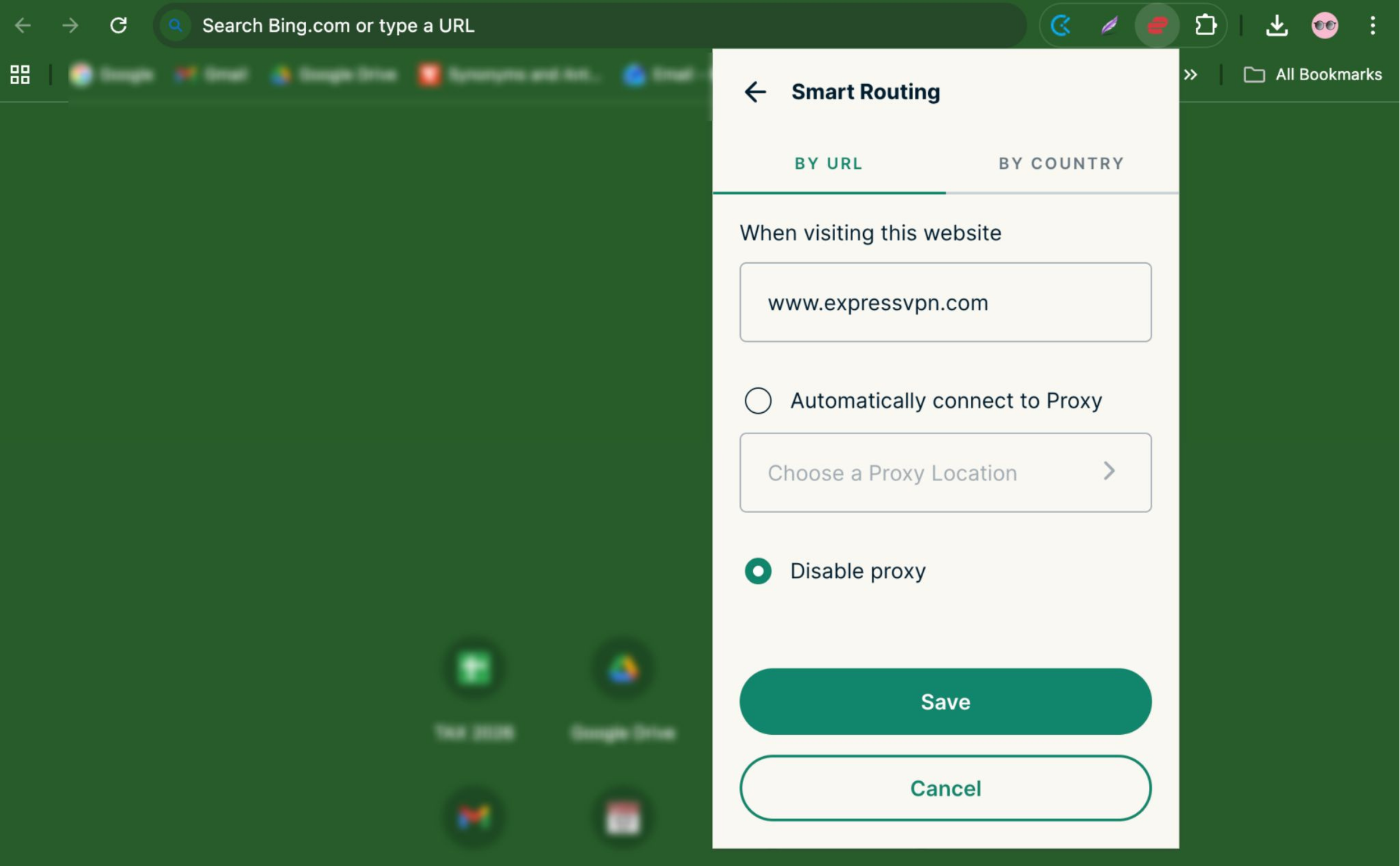
- Click BY URL.

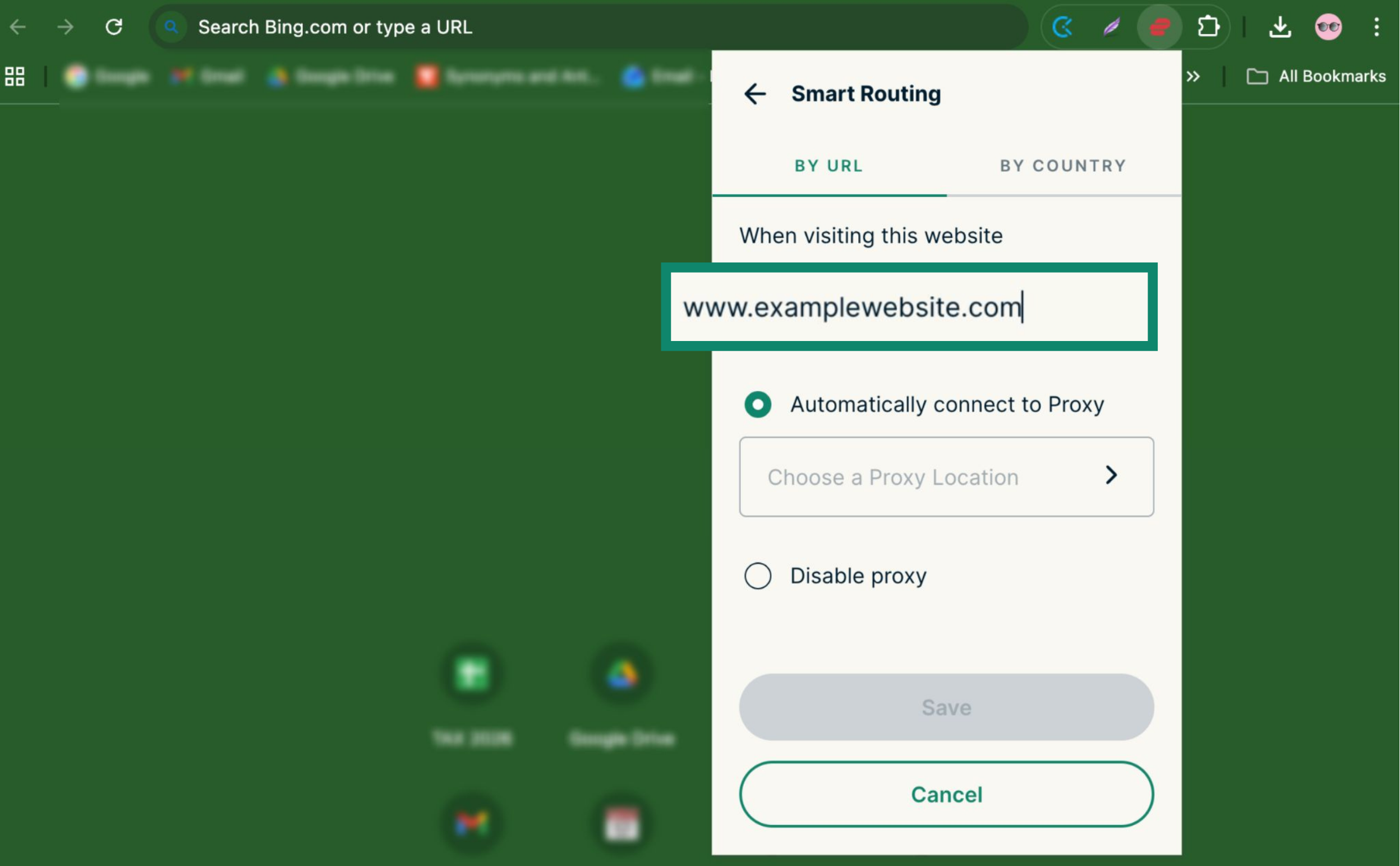
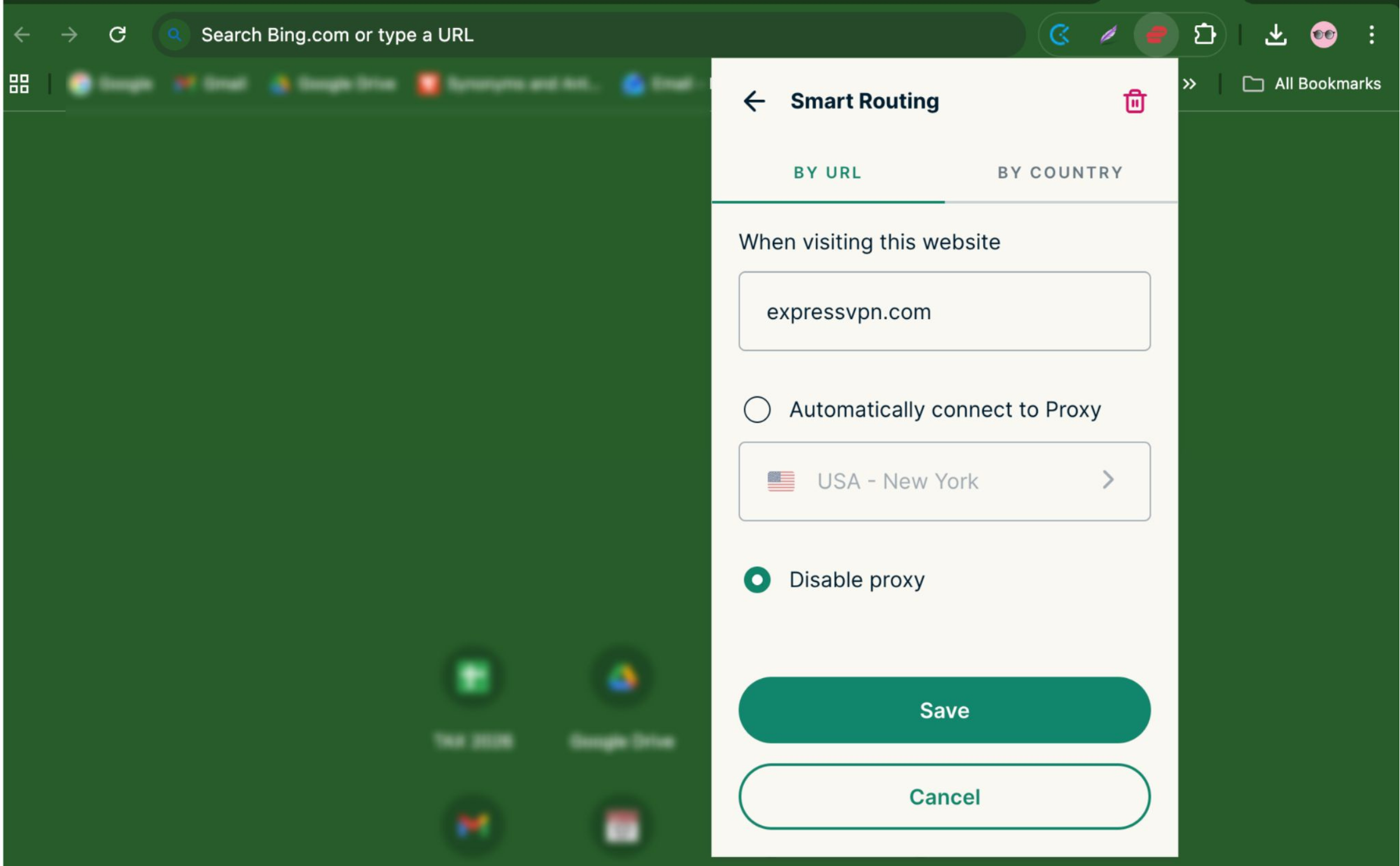
- In the Website URL field, enter the website URL you want to apply the rule to.

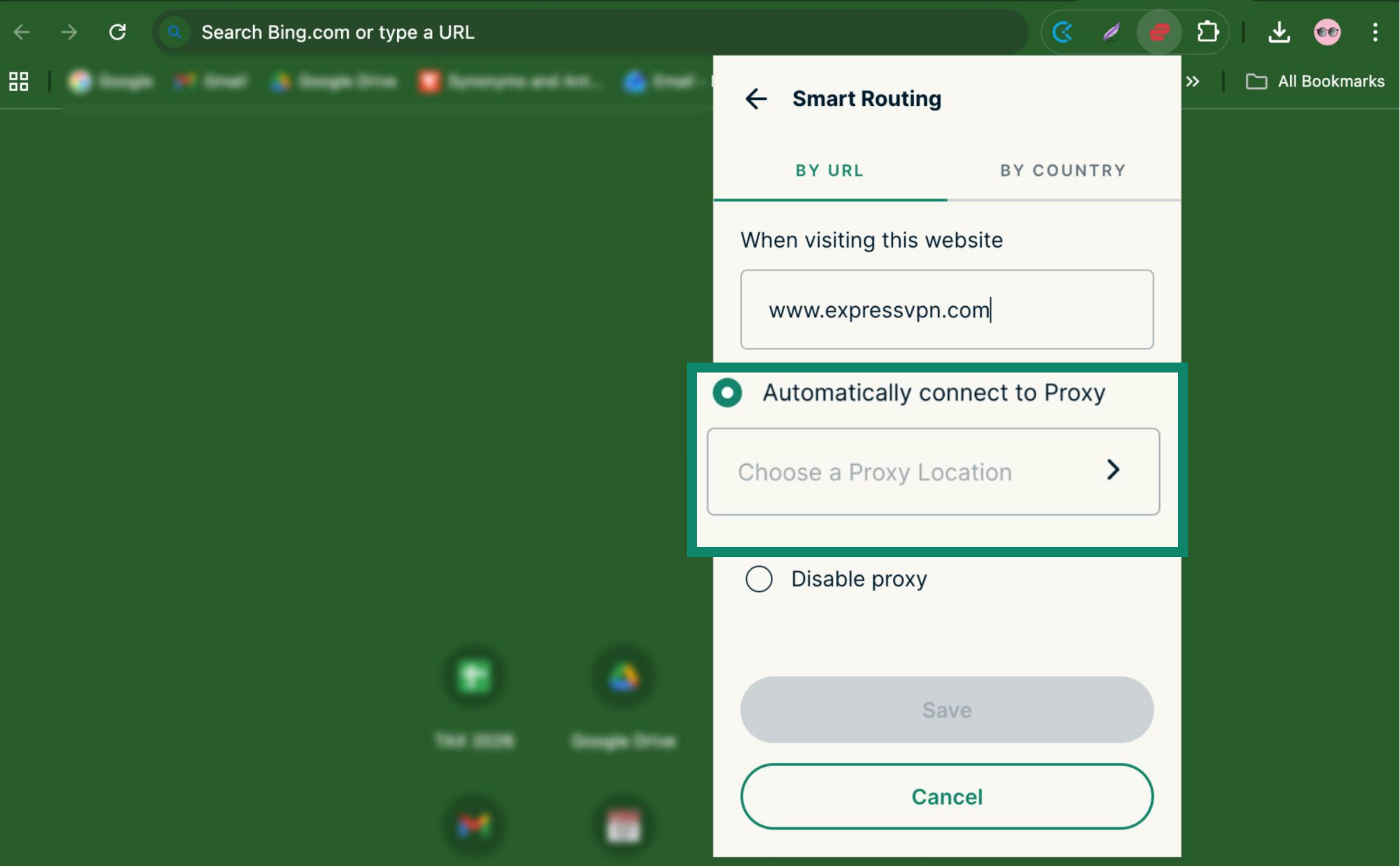
- Choose how you want the VPN to behave for that website:
- To connect automatically when visiting that website, click Automatically connect to Proxy and select a server location.

- To disable the VPN when visiting that site, click Disable Proxy.

- To connect automatically when visiting that website, click Automatically connect to Proxy and select a server location.
- Click Save.

Need help? Contact the ExpressVPN Support Team for immediate assistance.
Back to top
By country
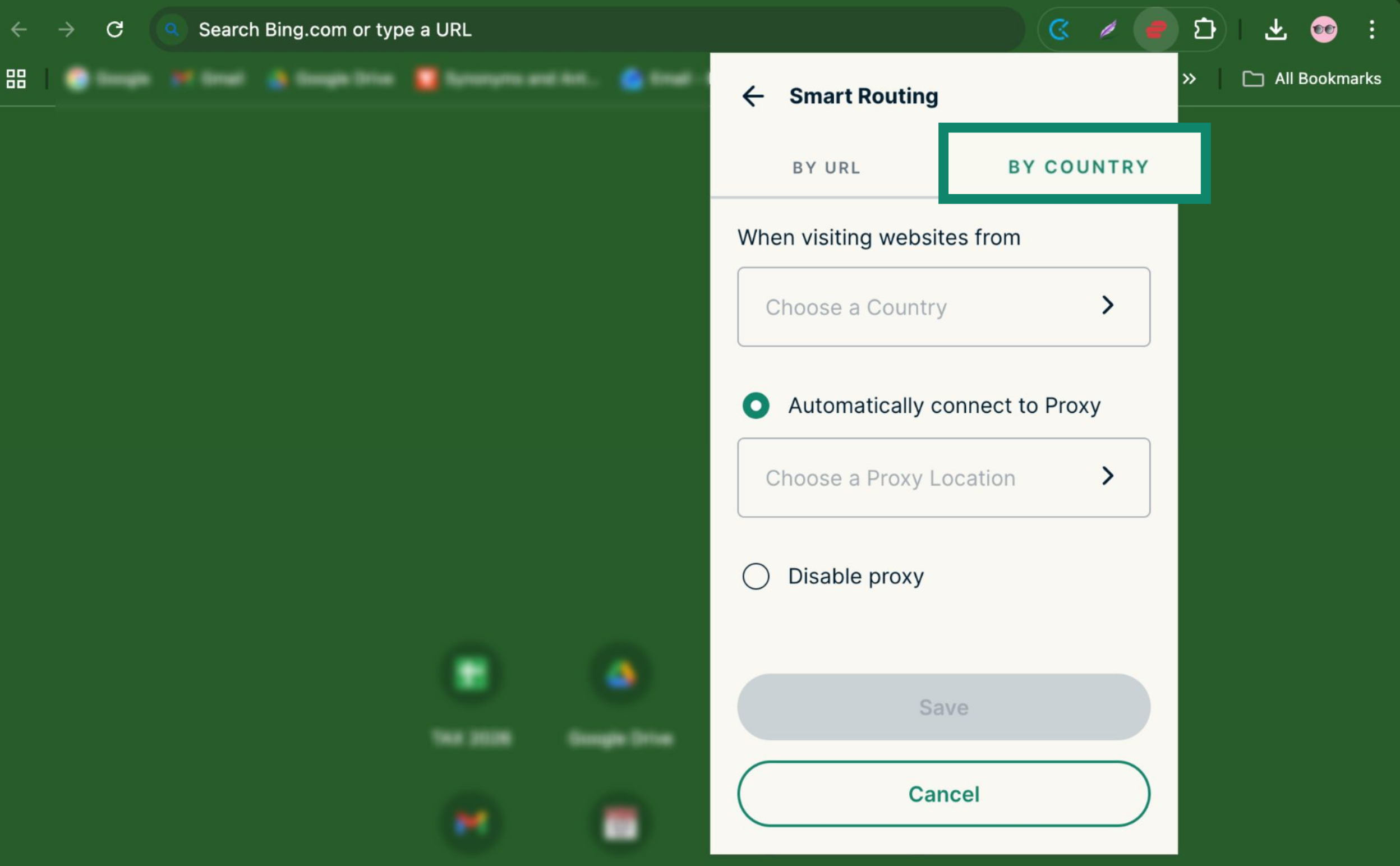
- In Smart Routing settings, click BY COUNTRY.

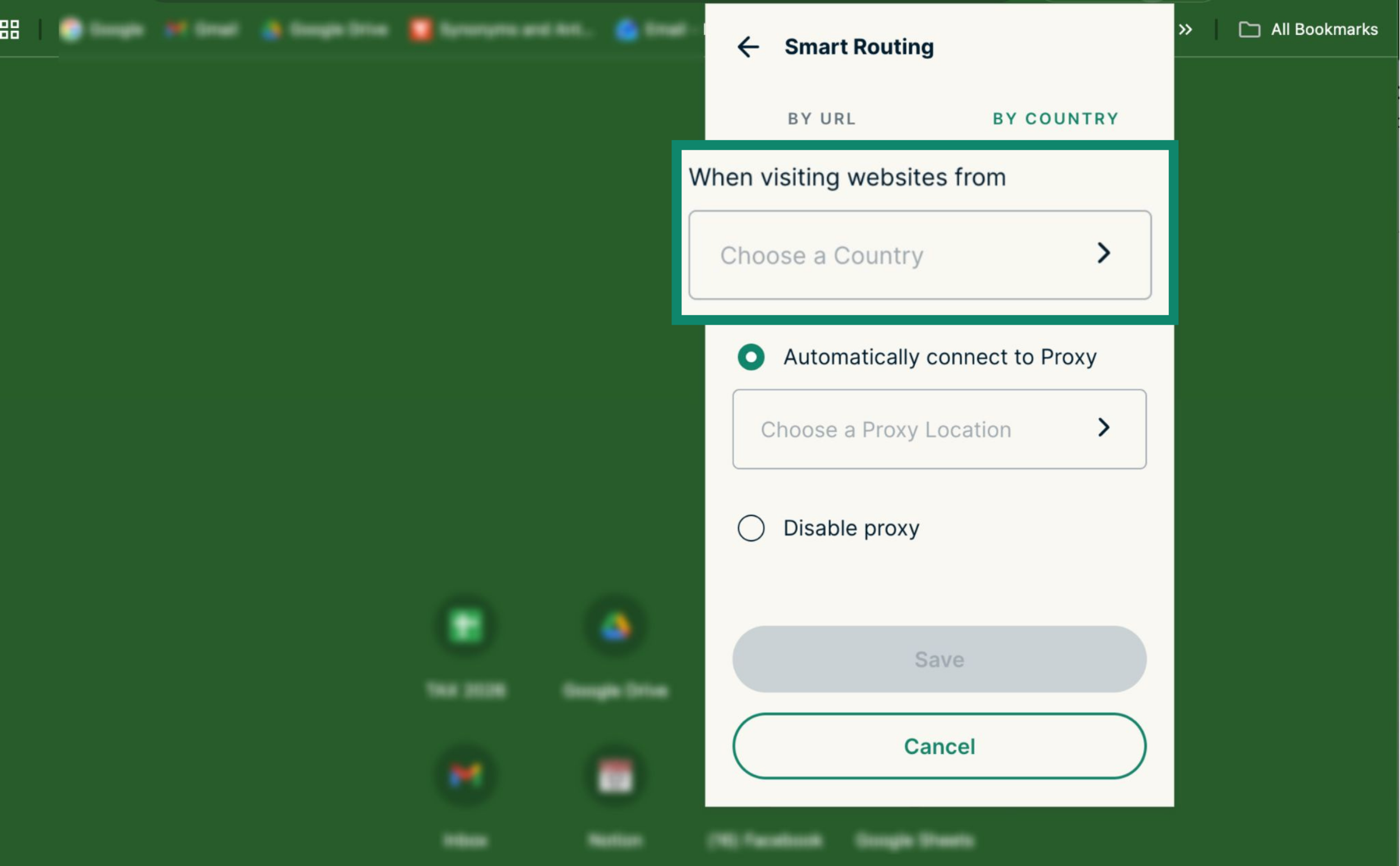
- Click When visiting websites from and select a country.

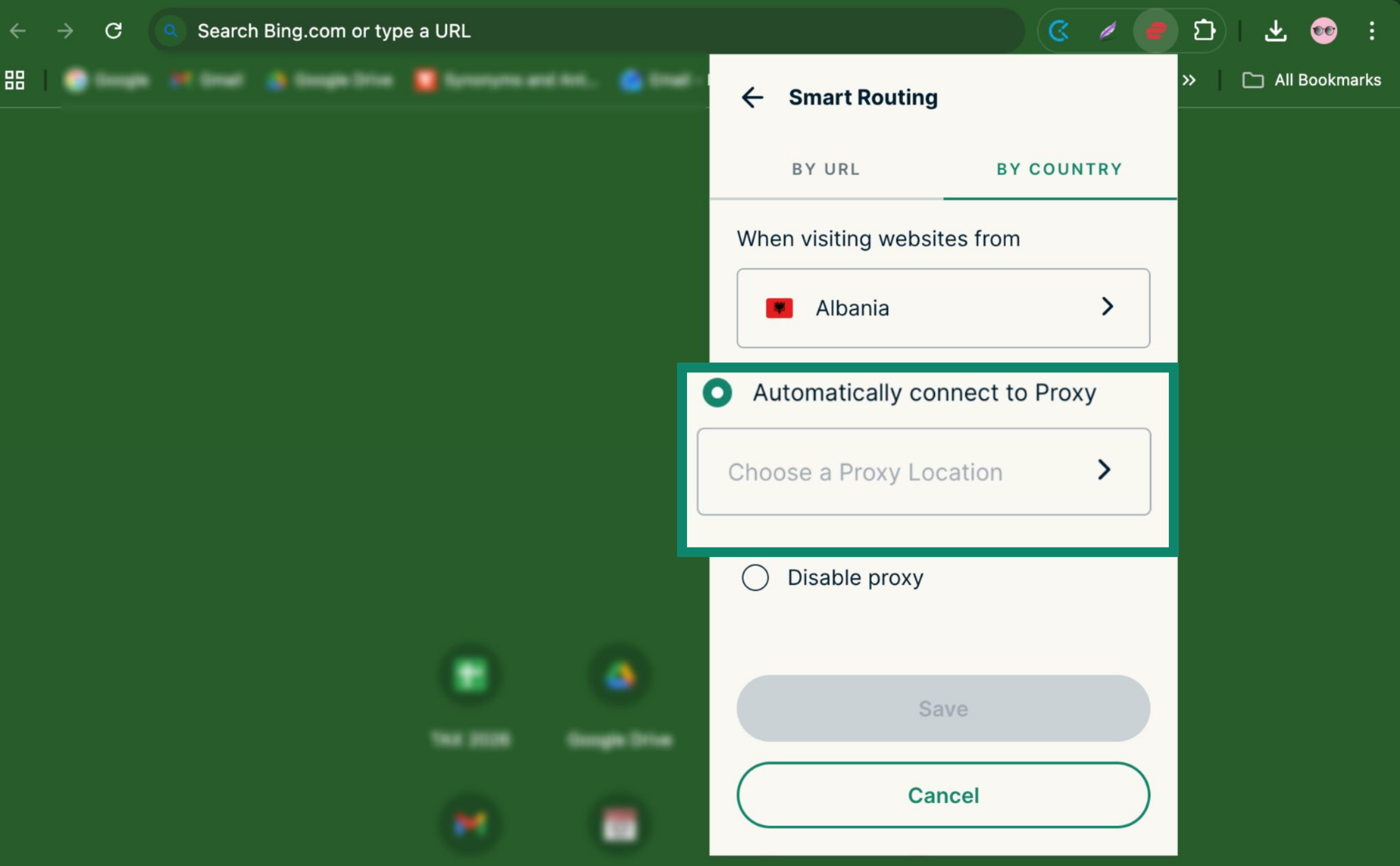
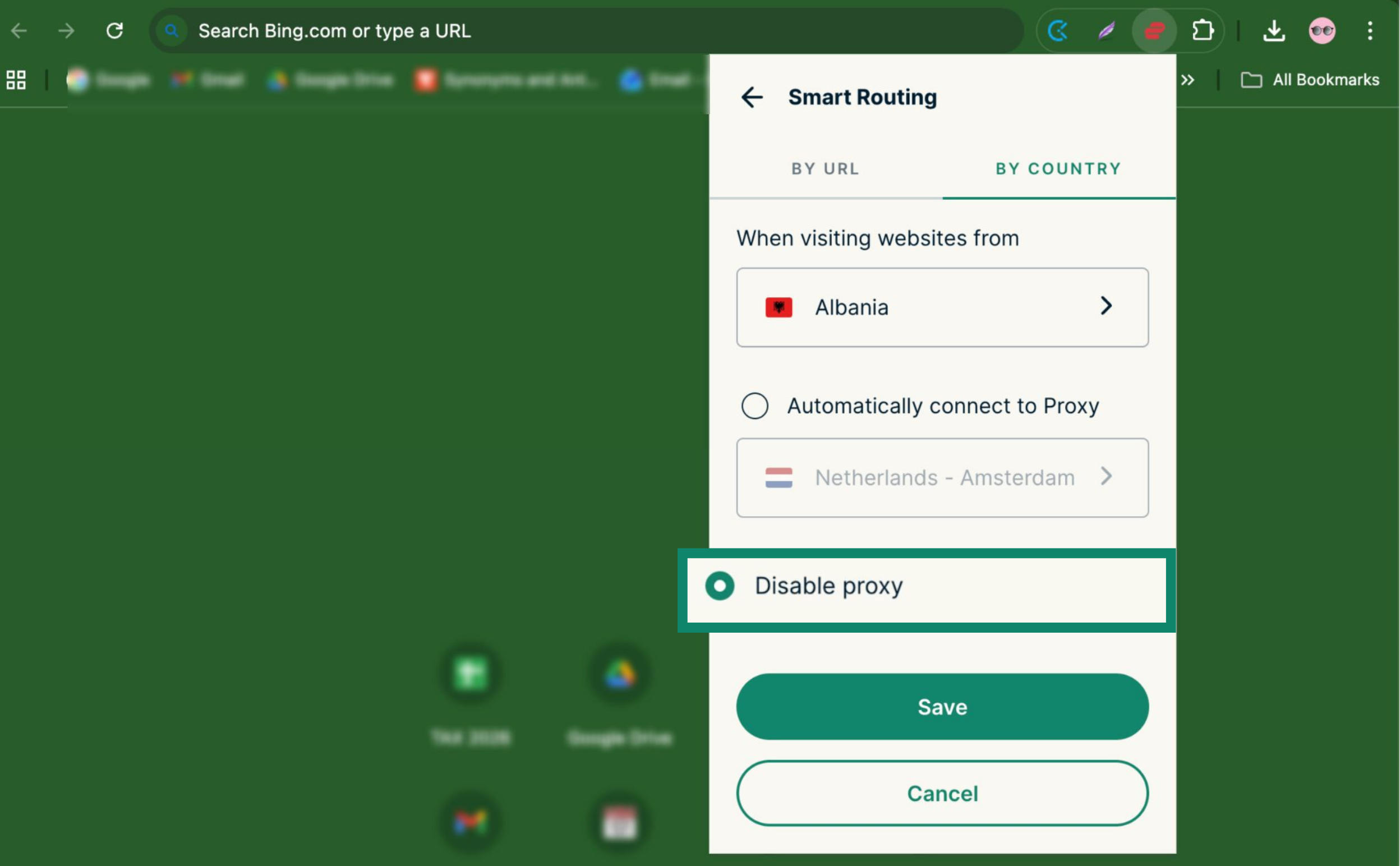
- Choose how you want the VPN to behave for that country:
- To connect automatically, click Automatically connect to Proxy and select a server location.

- To disable the VPN when visiting websites from that country, click Disable Proxy.

- To connect automatically, click Automatically connect to Proxy and select a server location.
- Click Save.

Need help? Contact the ExpressVPN Support Team for immediate assistance.
Back to top
How to modify Smart Routing rules
Once you have set up a Smart Routing rule, you can manage it in the following ways:
Editing a Smart Routing rule
To edit an existing rule:
- Click the hamburger menu ().

- Click Smart Routing.

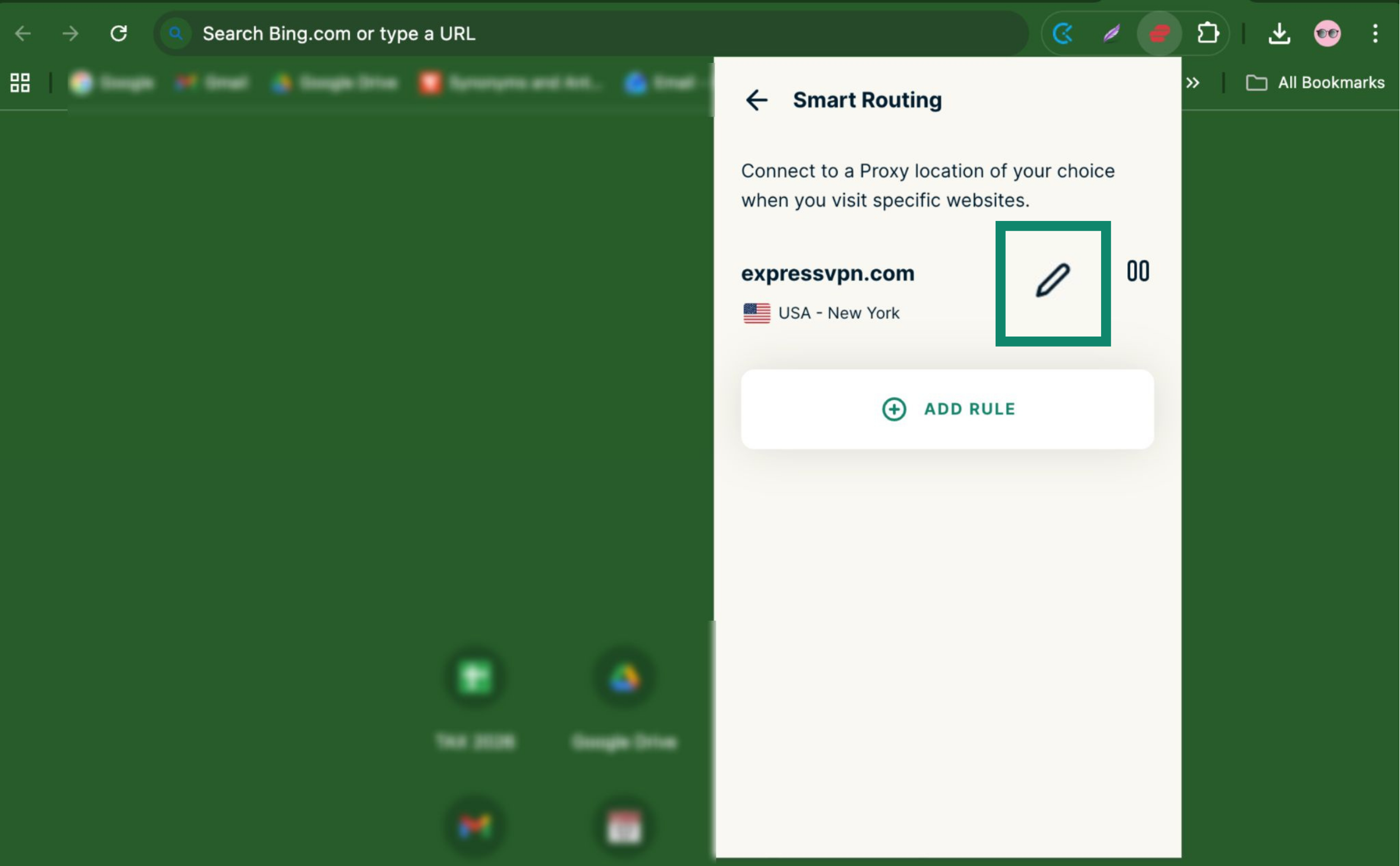
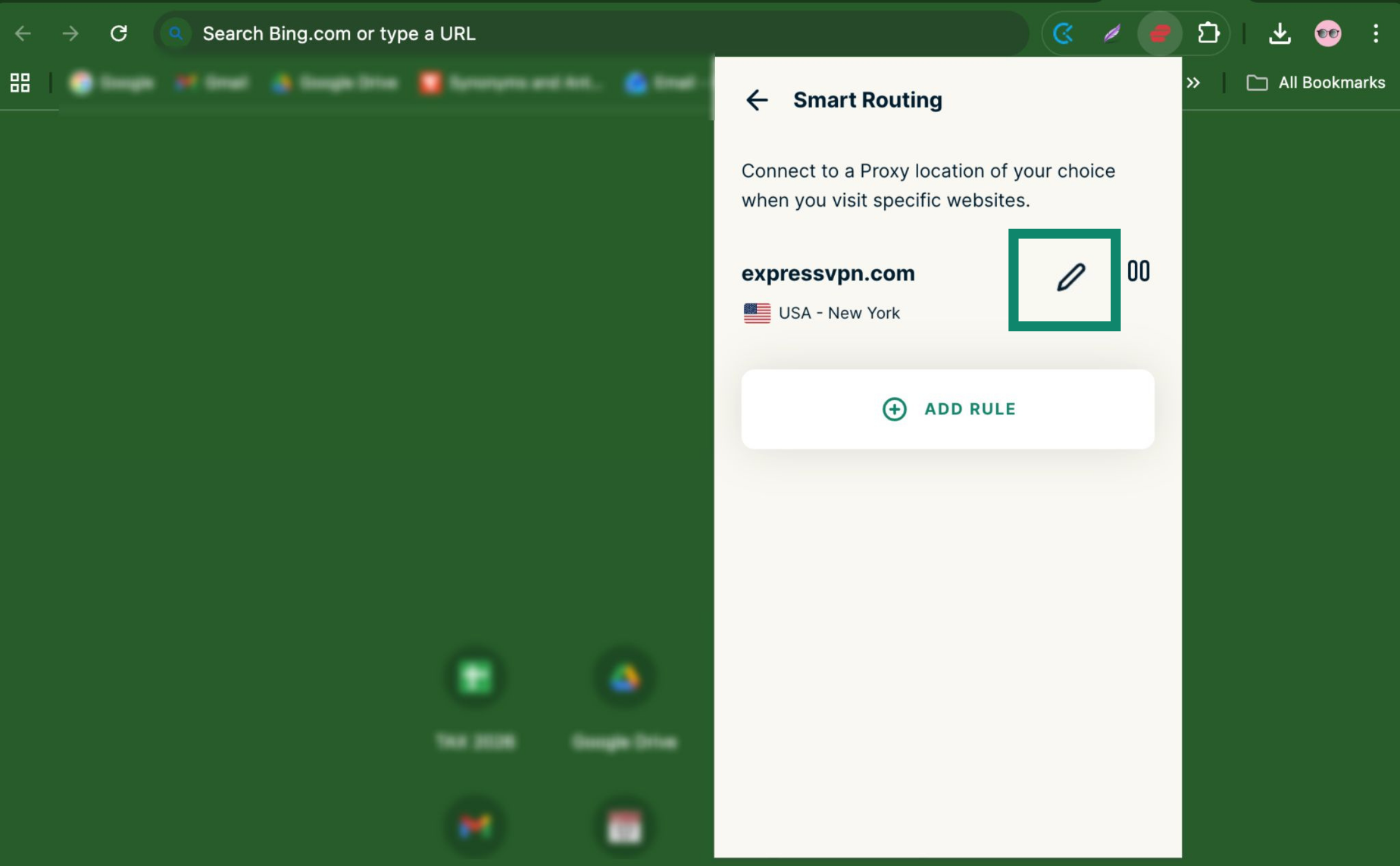
- Click the Pen icon next to the rule you want to edit.

- Edit your rule, then click Save.

Need help? Contact the ExpressVPN Support Team for immediate assistance.
Pausing a Smart Routing rule
Pausing a Smart Routing rule will disable it without deleting it entirely. To pause a rule:
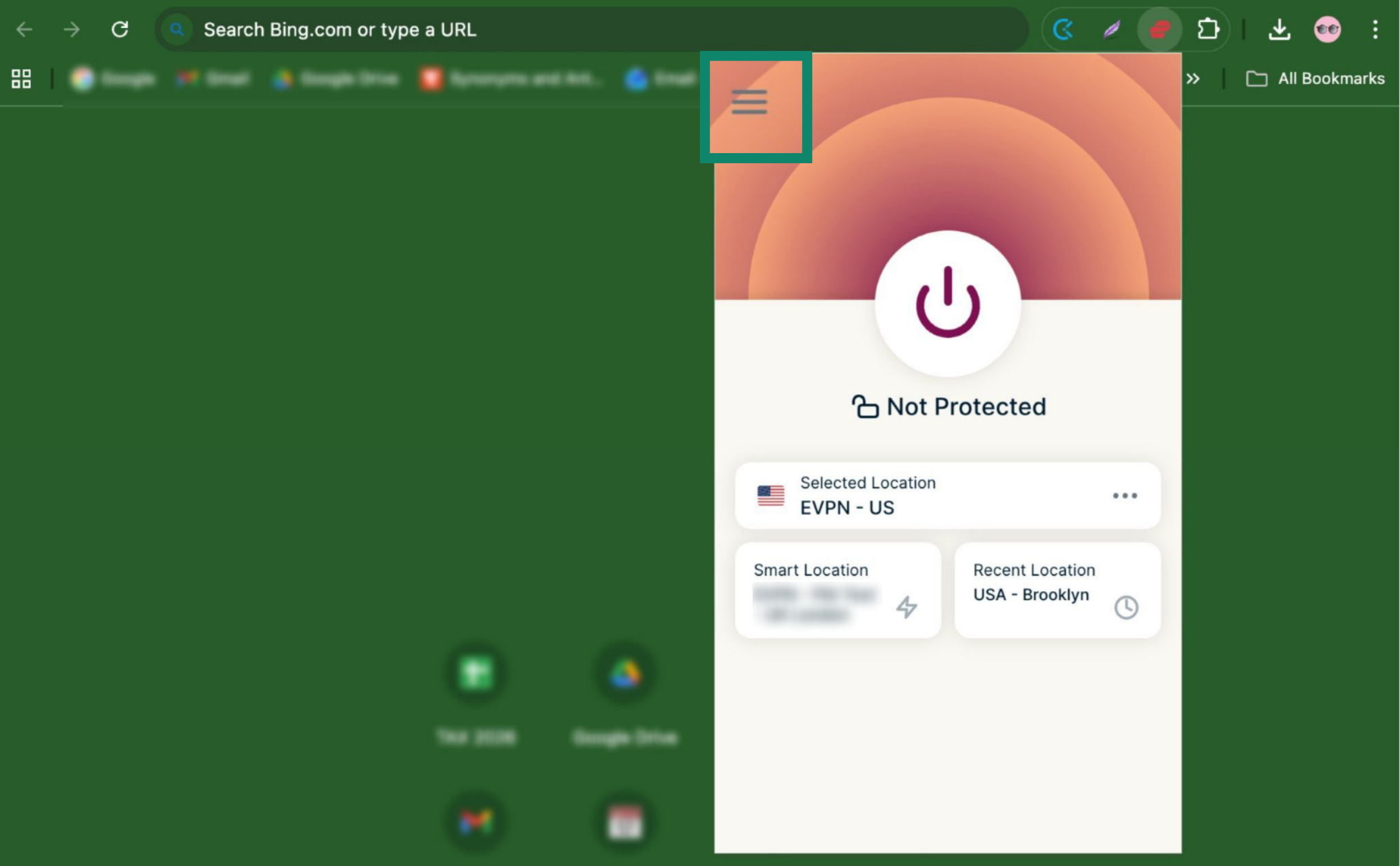
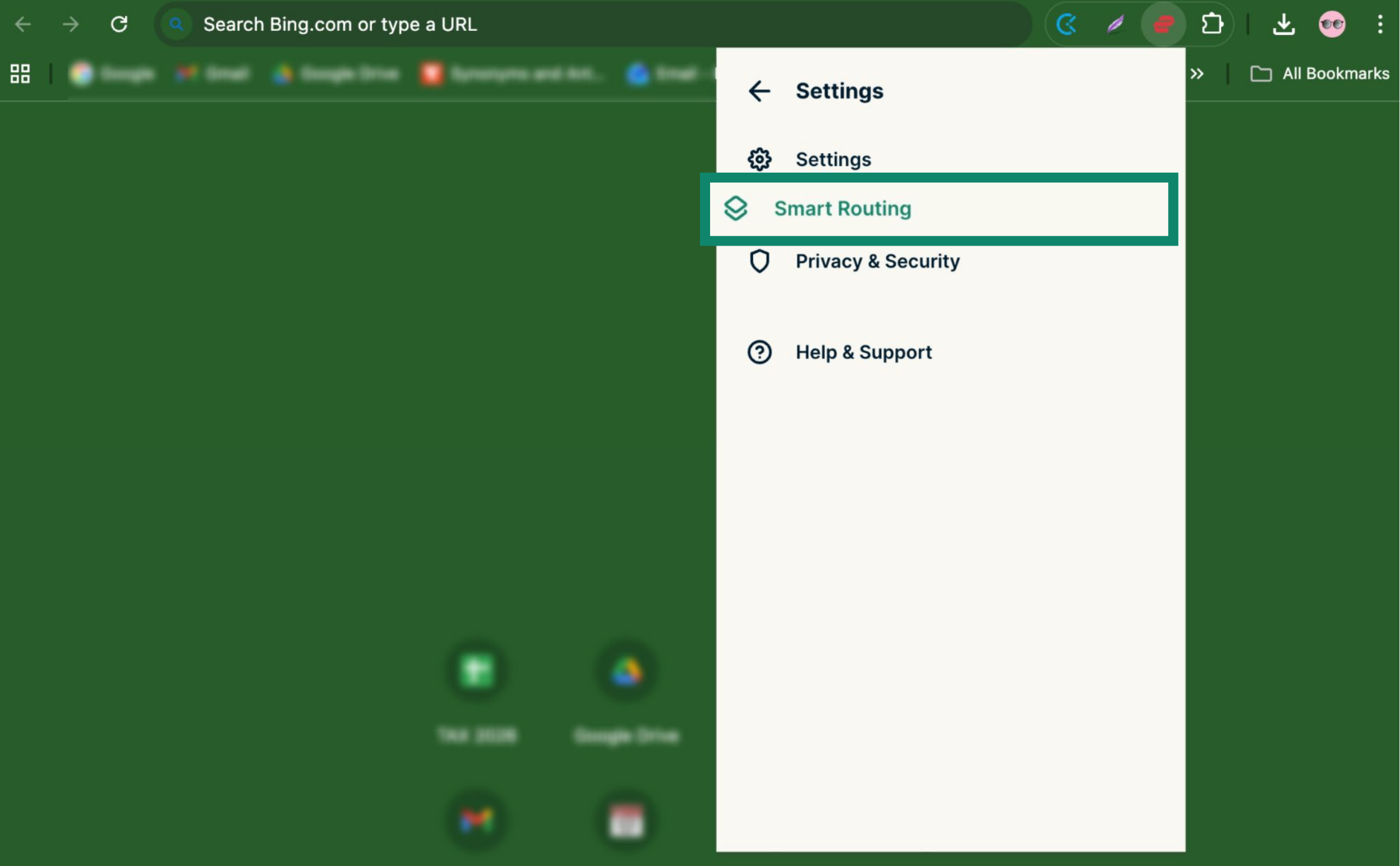
- Click the hamburger menu ().

- Click Smart Routing.

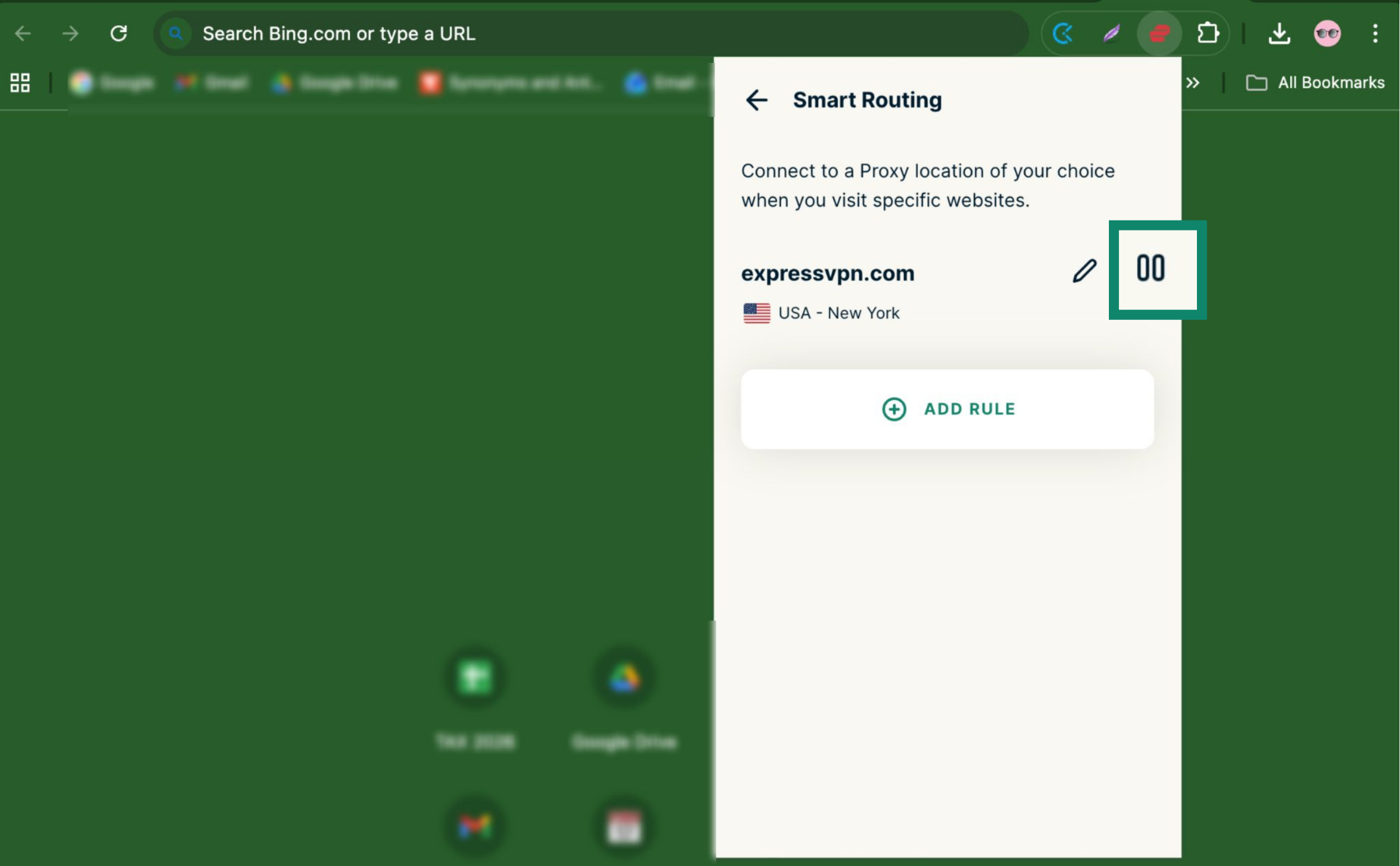
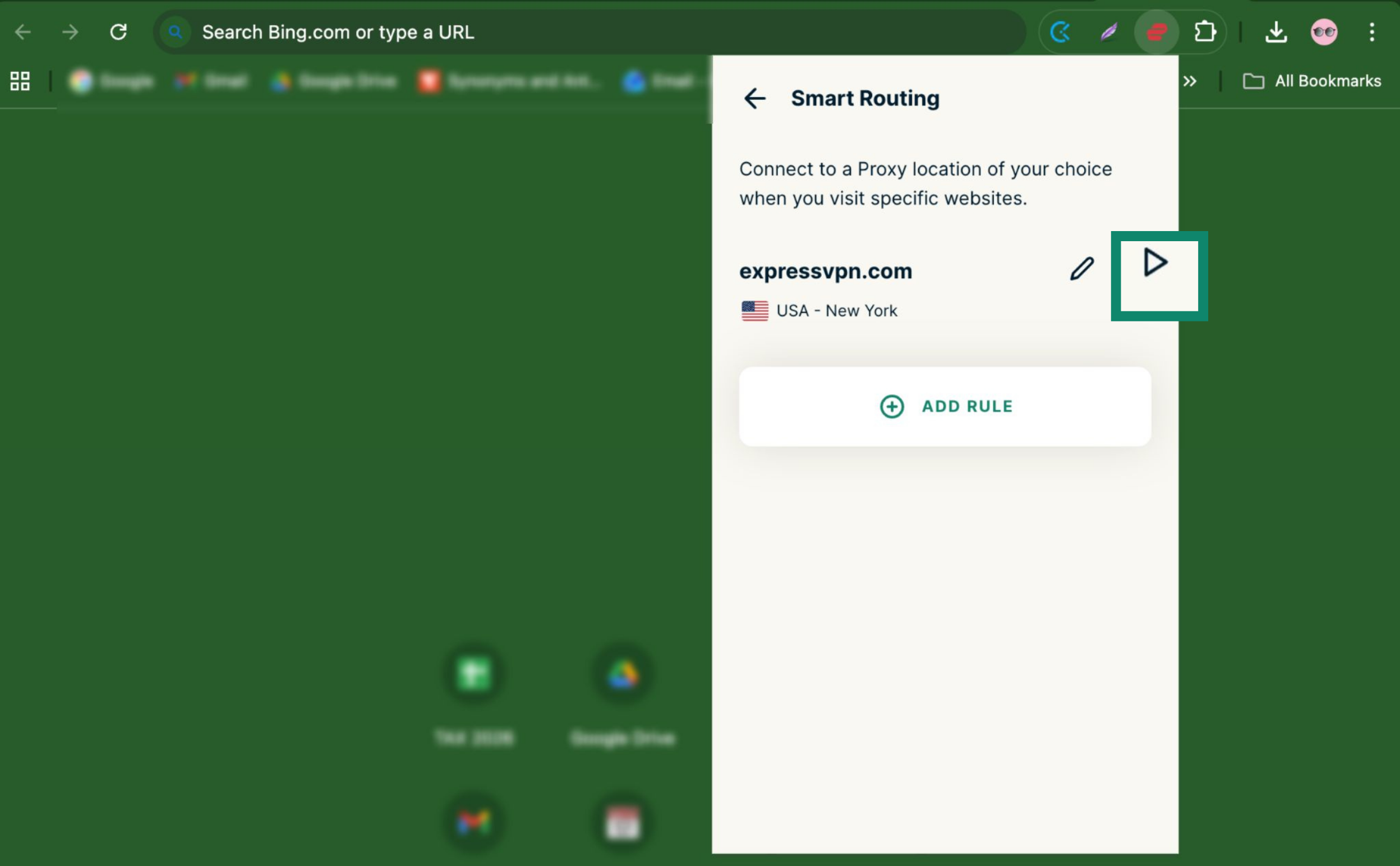
- Click the Pause icon next to the rule you want to pause.

- To re-enable the rule, click the Play icon next to the rule.

Need help? Contact the ExpressVPN Support Team for immediate assistance.
Back to top
Deleting a Smart Routing rule
To delete a Smart Routing rule:
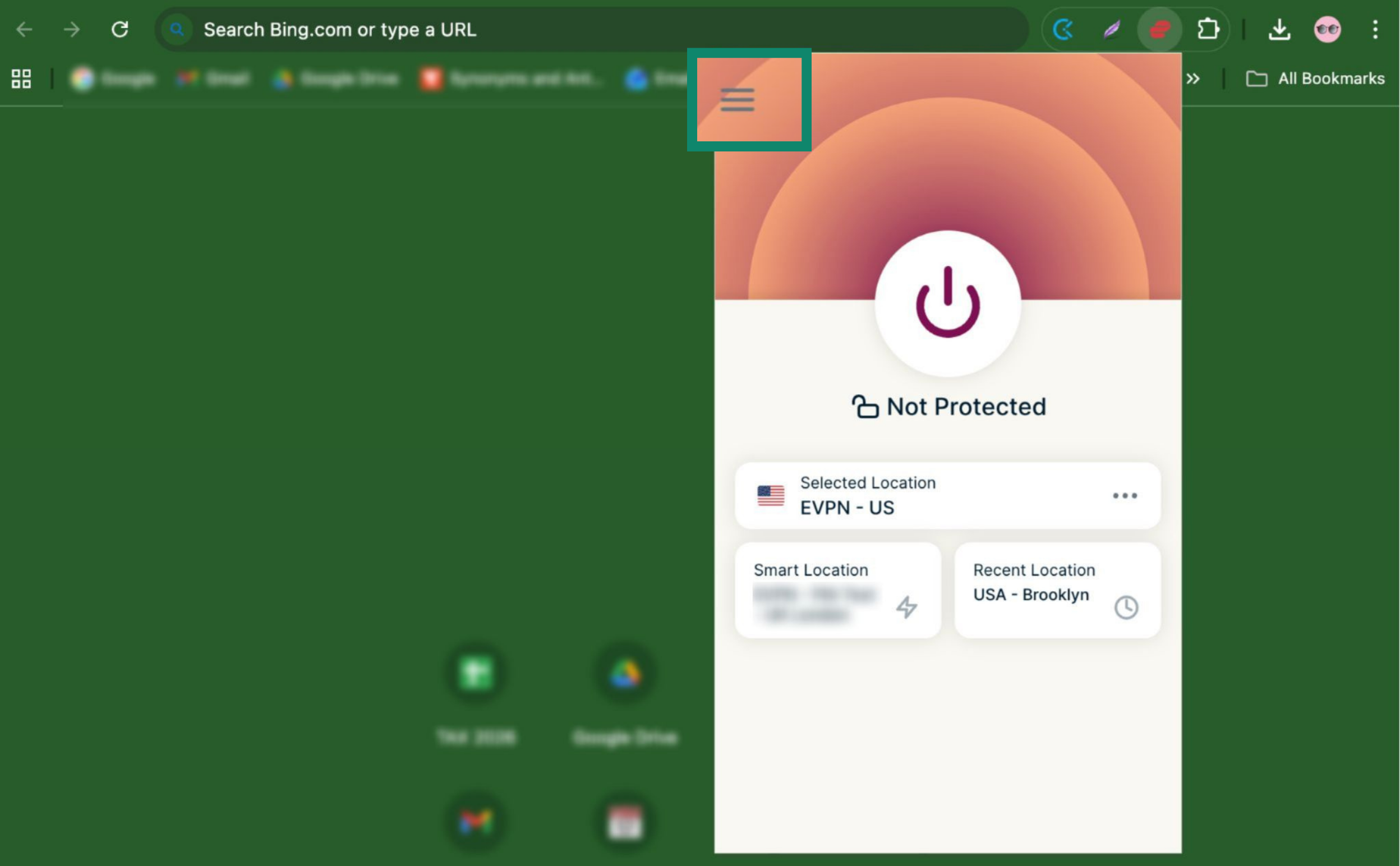
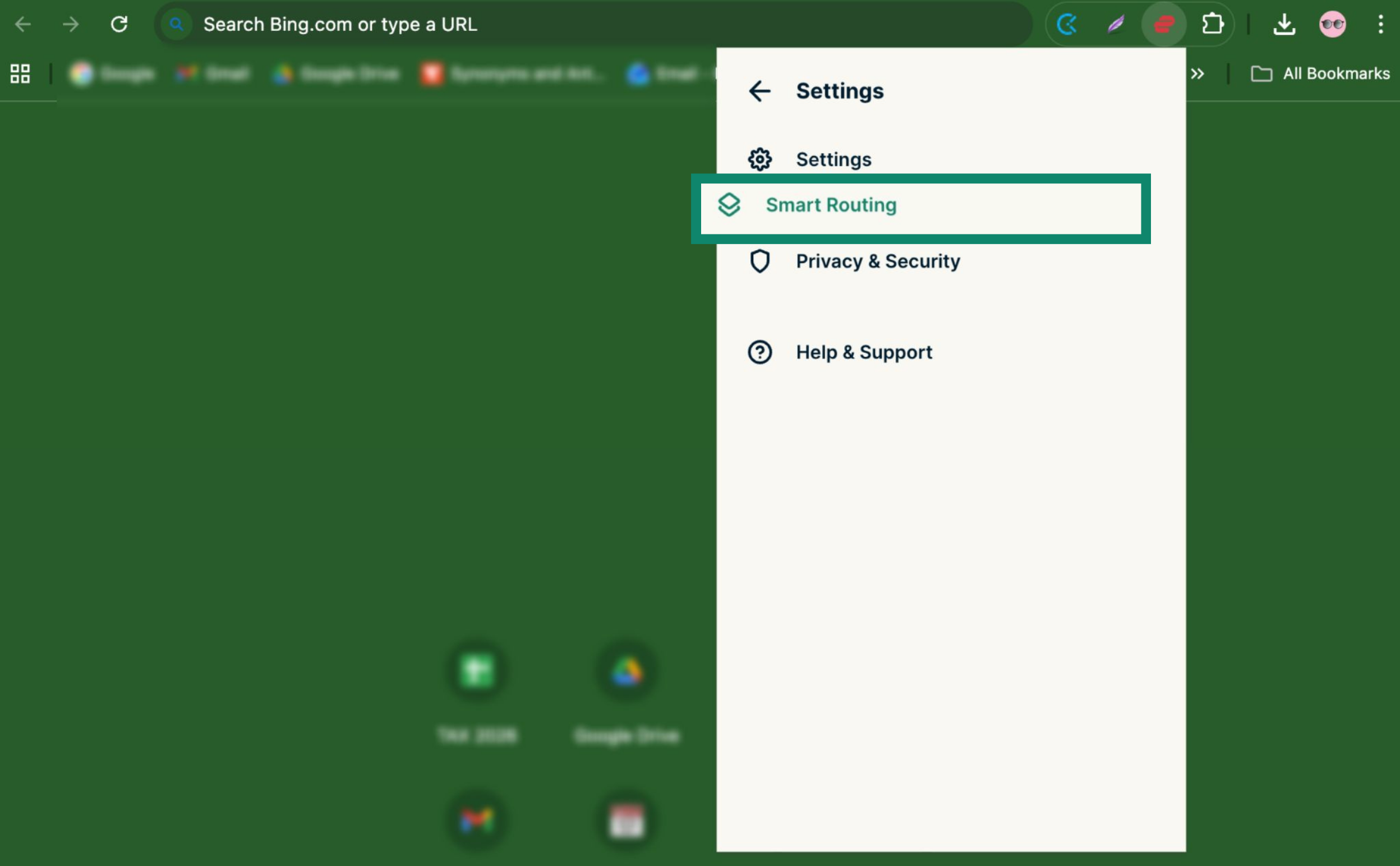
- Click the hamburger menu ().

- Click Smart Routing.

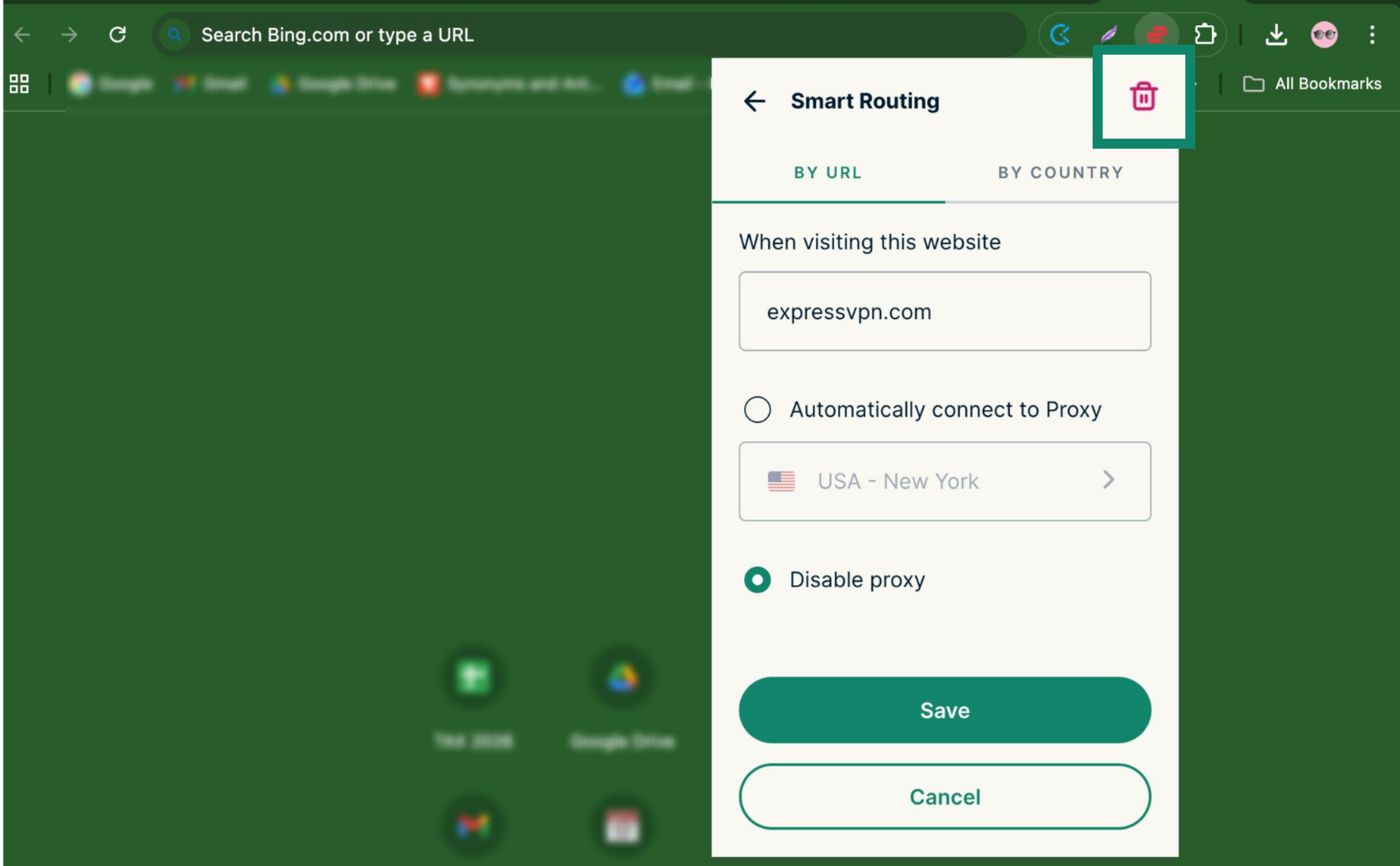
- Click the Pen icon next to the rule you want to edit.

- Click the Trash icon to delete the rule.

Need help? Contact the ExpressVPN Support Team for immediate assistance.