



The ExpressVPN integration on the Fortify (GL-MT6000) router comes with a kill switch. This is a security feature that disables internet access on your local network if the VPN disconnects unexpectedly.
When enabled, the kill switch automatically blocks all traffic that attempts to bypass the VPN tunnel. This provides additional protection against traffic leaks that may reveal sensitive information while the VPN reconnects.
The steps below show you how to configure kill switch options across VPN tunnels and modify global kill switch settings.
Jump to…
All VPN tunnels
Individual VPN tunnels
Additional tunnel options
Open the ExpressVPN dashboard
- In your browser, enter 192.168.8.1 to access the Fortify router admin panel. Log in if prompted.
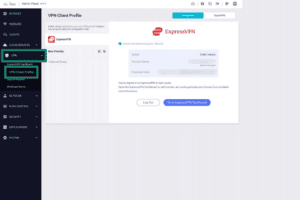
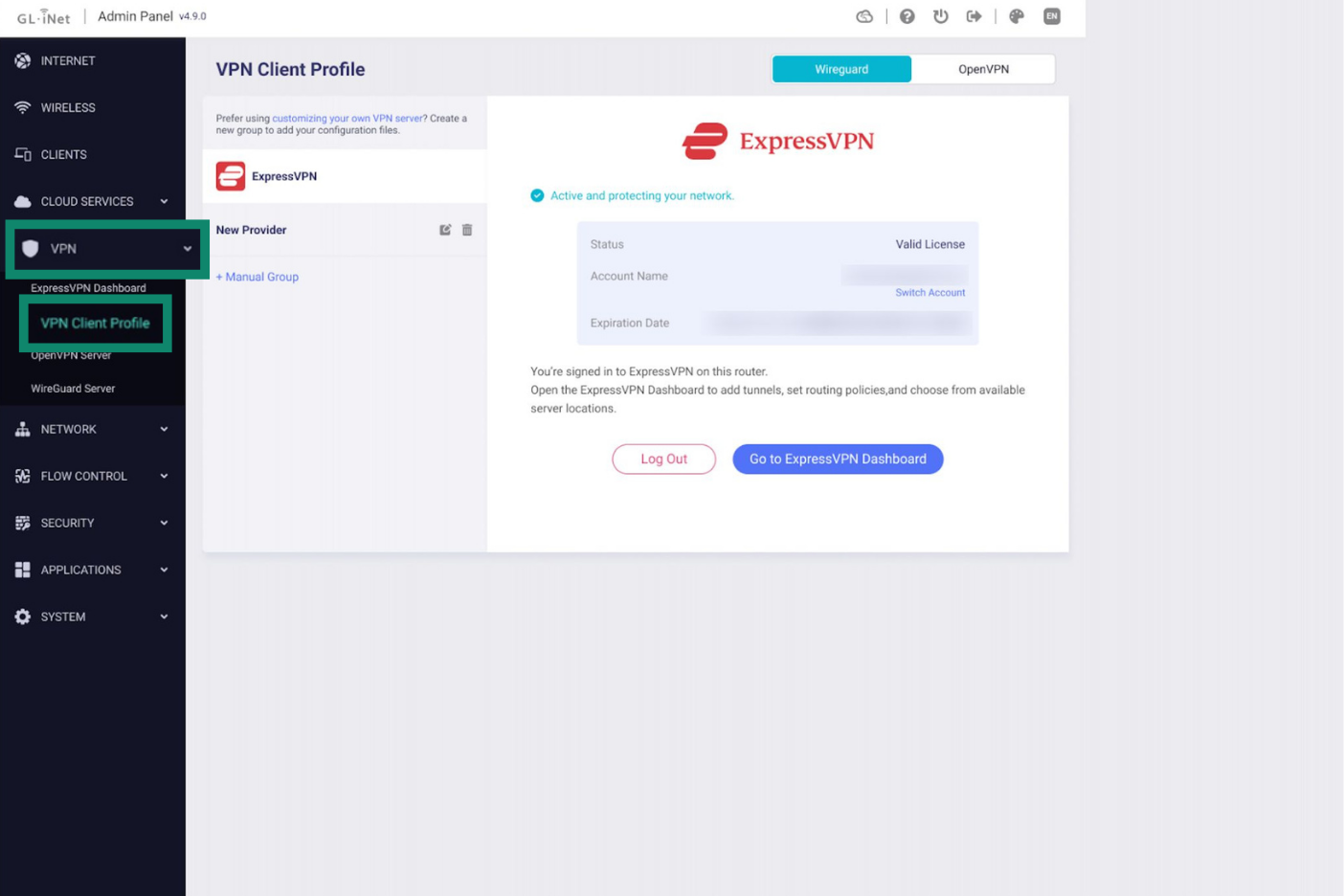
- Navigate to VPN > VPN Client Profile.

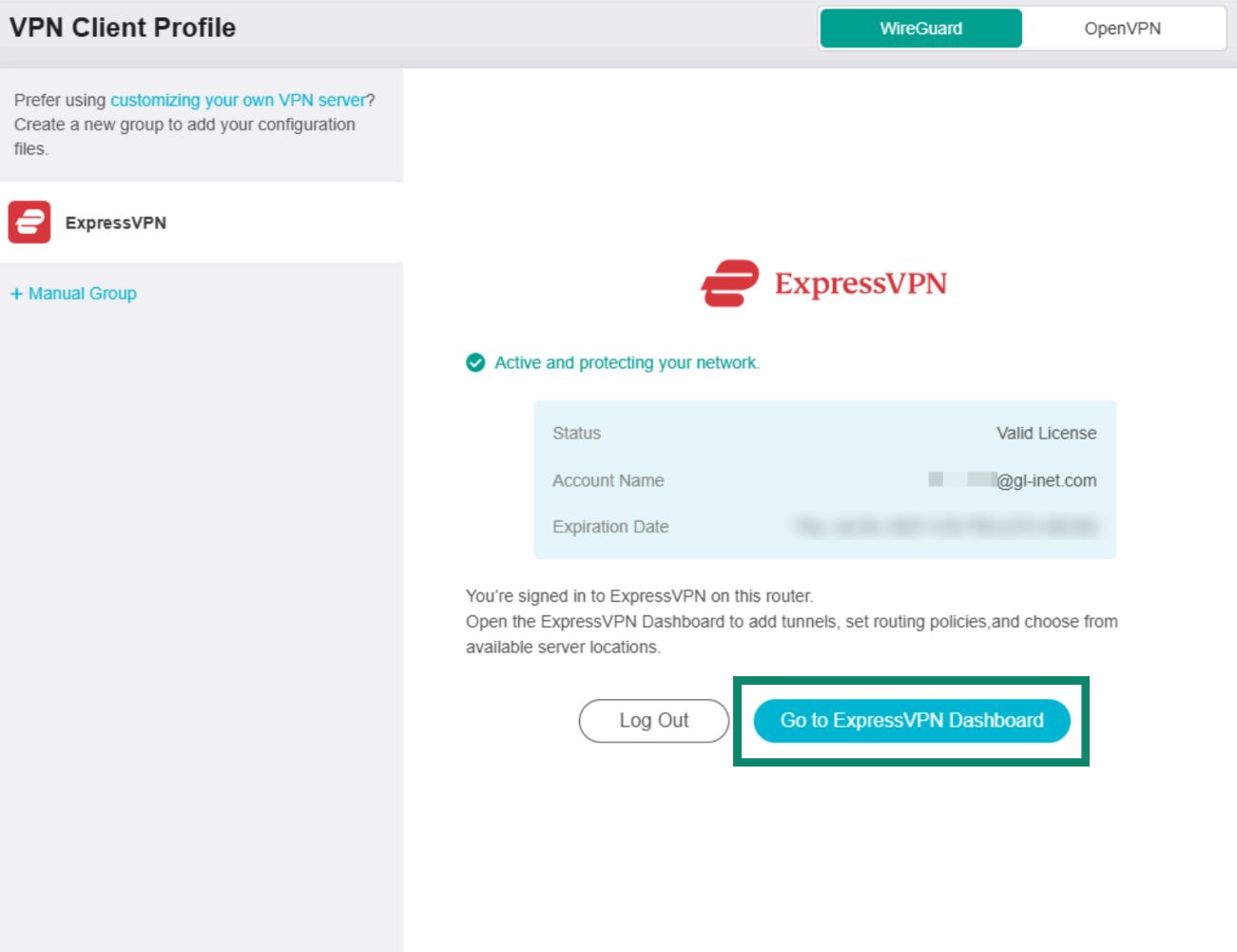
- Click Go to ExpressVPN Dashboard.
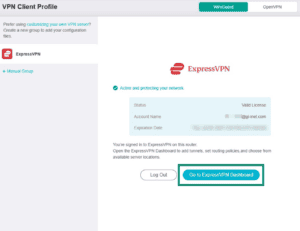

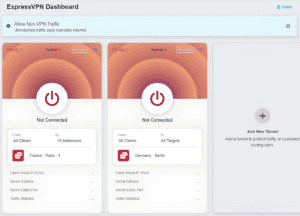
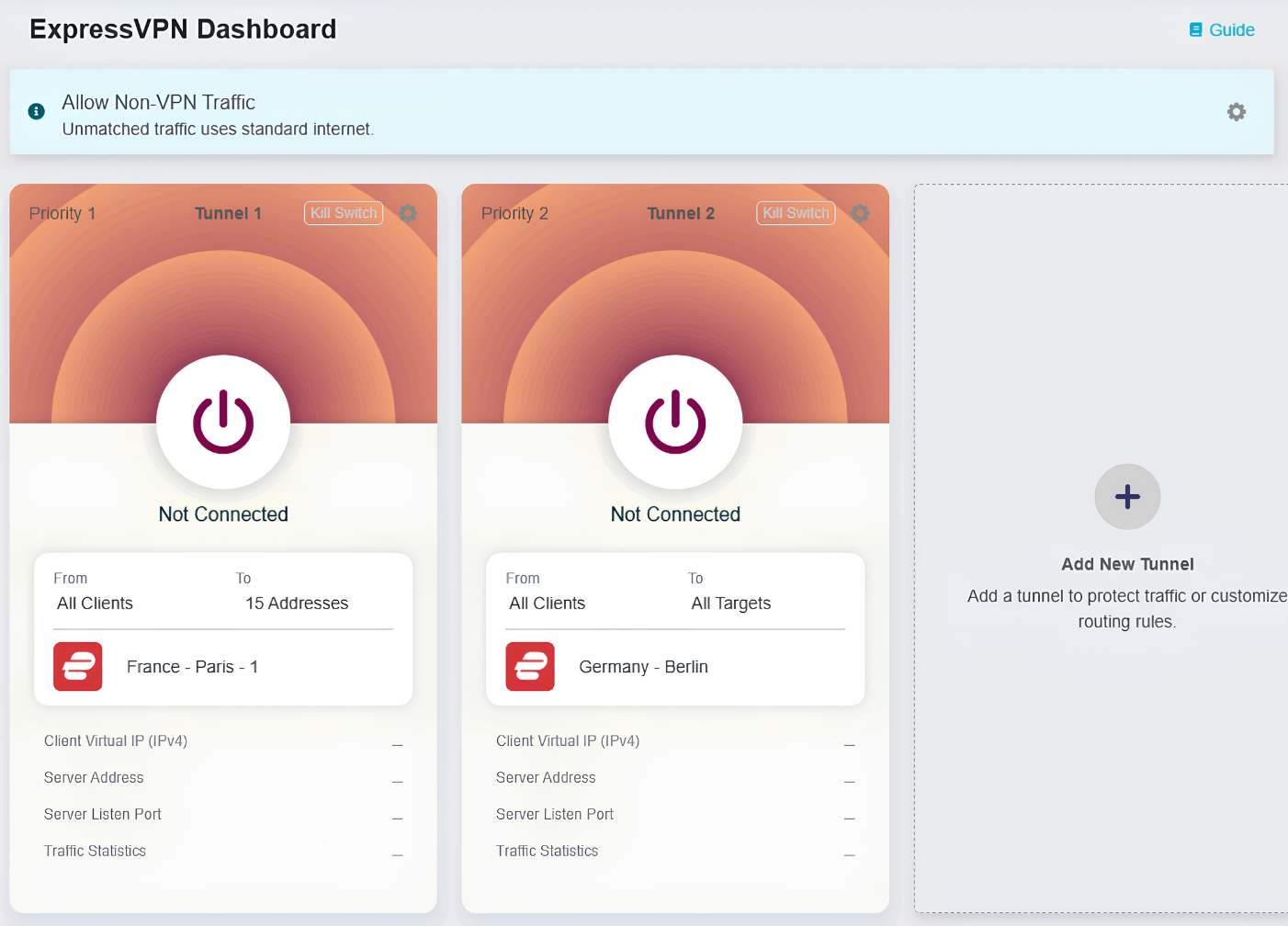
- You will be redirected to the ExpressVPN dashboard, where you can manage your VPN tunnels and settings.

Need help? Contact the ExpressVPN Support Team for immediate assistance.
Configure the kill switch
The Fortify router lets you configure kill switch settings for all VPN connections or individual VPN tunnels. If you have not set up any VPN tunnels yet, visit this guide to configure VPN tunnels with Fortify.
All VPN tunnels
Kill switch settings for global VPN connections apply to all VPN tunnels and also affect how non-VPN traffic passes through the router’s network.
To configure global kill switch settings, click the gear icon in the banner above the VPN tunnels.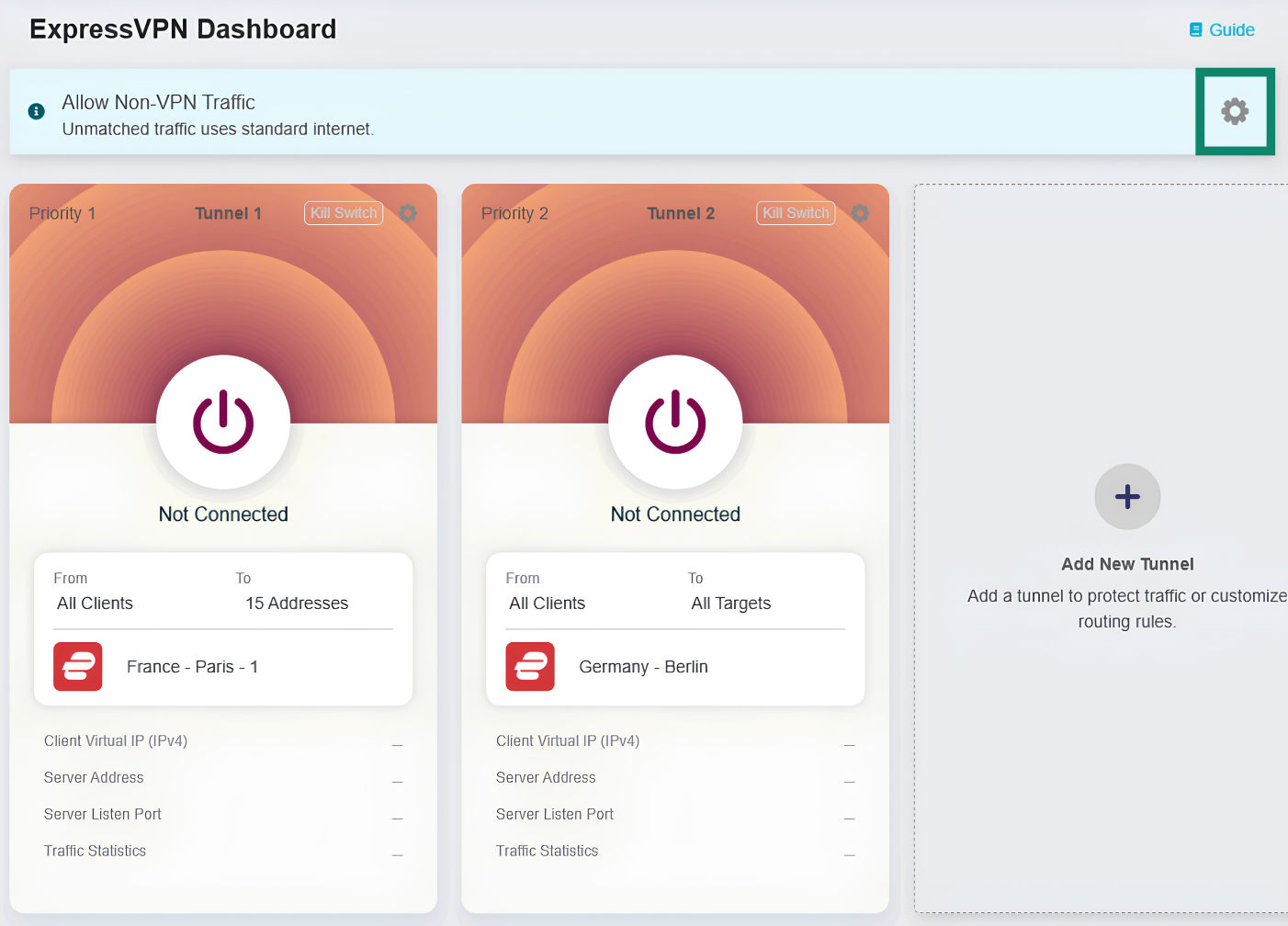
The All Other Traffic Policy page will open. On this page, you can select whether internet traffic that does not match your VPN tunnel rules can access the internet or not. Available options include:
- Allow Non-VPN Traffic: Traffic that does not match your VPN tunnels will use your local internet connection. This setting is selected by default to ensure normal internet access for non-VPN traffic.
- Enhanced Kill Switch: Forces all devices connected to the router’s network to access the internet through the VPN. Traffic that does not match your VPN tunnels is automatically blocked. This means that, if no VPN tunnels are active, your devices will not connect to the internet. This setting does not override the kill switch configurations for individual VPN tunnels.
Select your desired global kill switch setting, then click Apply.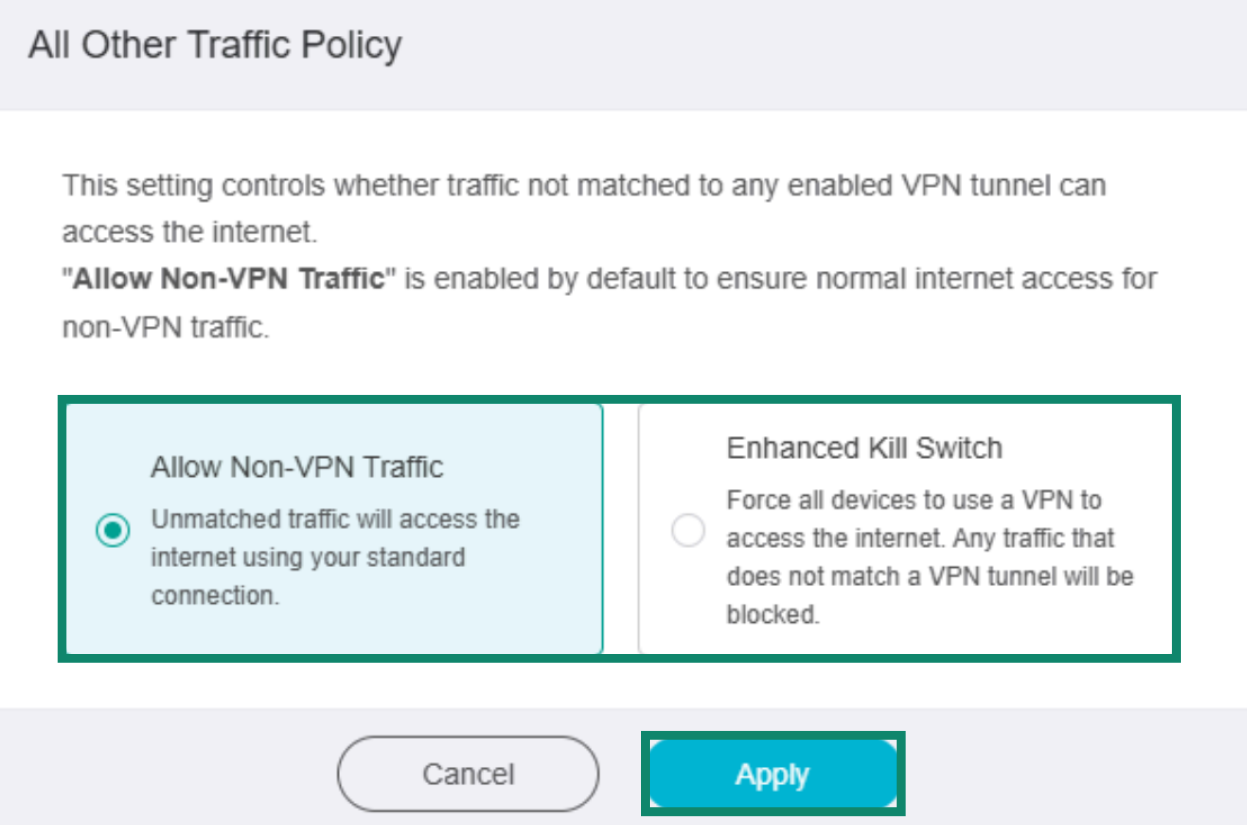
Individual VPN tunnels
If you enable the kill switch for an individual VPN tunnel, network traffic that should use the VPN according to that tunnel’s rules will be automatically blocked if the VPN unexpectedly disconnects. Normal internet access will resume after the VPN tunnel reconnects.
To configure kill switch settings for individual VPN tunnels:
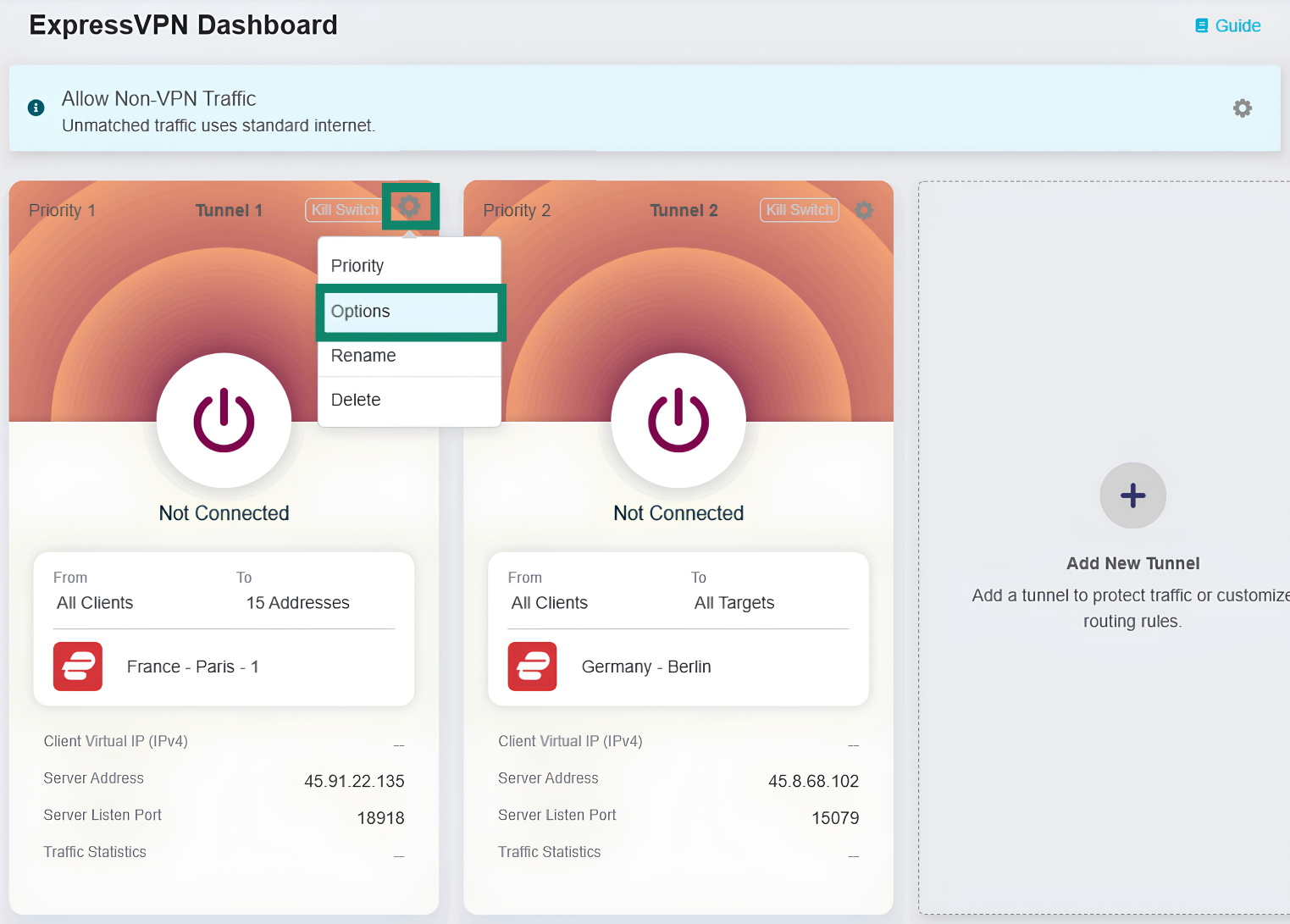
- Click the gear icon for a VPN tunnel group, then select Options.
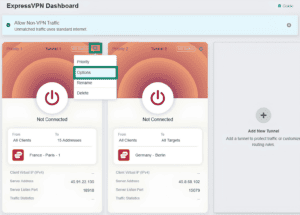

- On the tunnel options page, toggle the Kill Switch setting on or off.
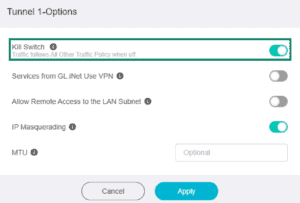

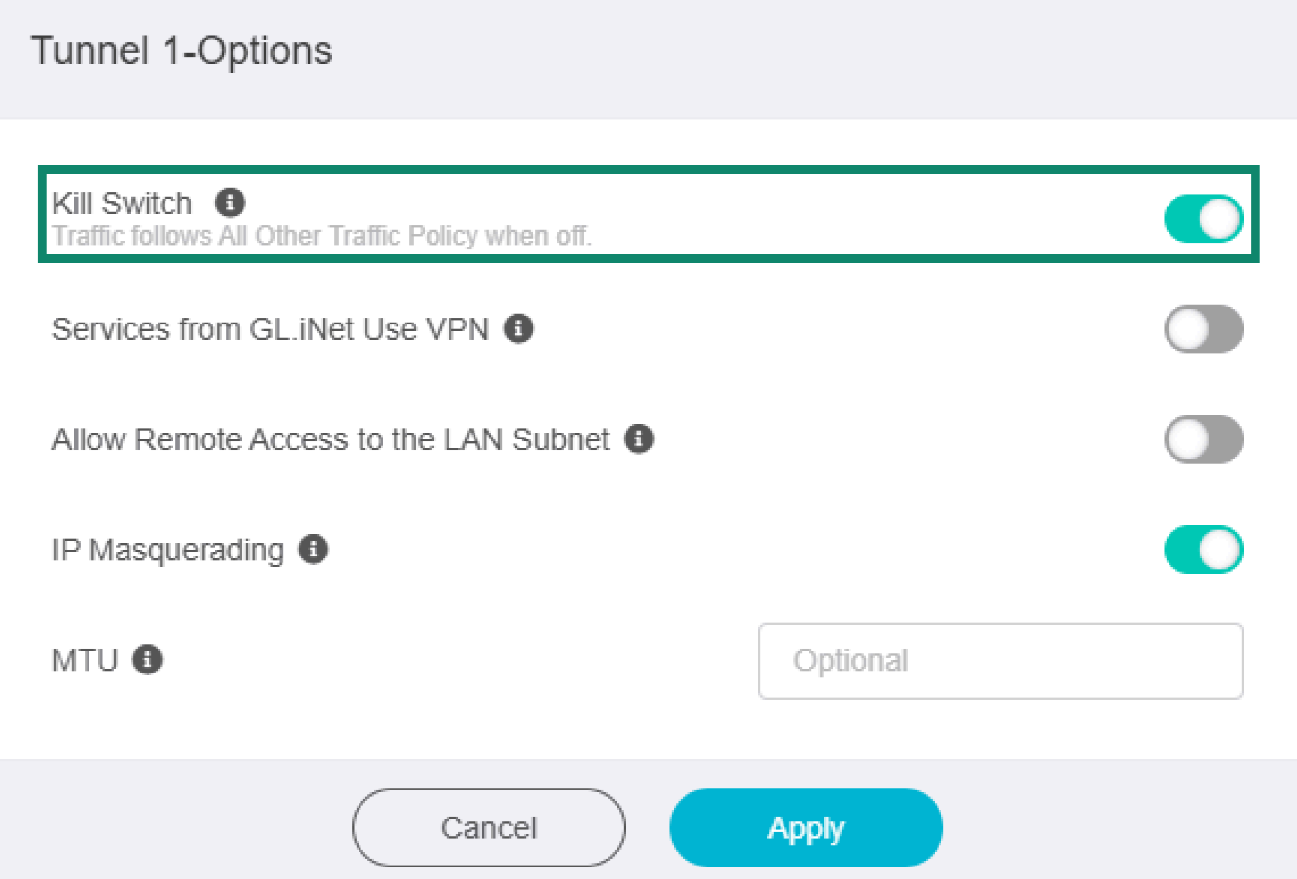
Note: If the Kill Switch setting is toggled off, traffic will follow the rules you chose on the All Other Traffic Policy page.
Additional tunnel options
In addition to the kill switch, you can also configure the following settings for individual VPN tunnels:
- Services from GL.iNet use VPN: Allows certain services provided by GL.iNet to send data through VPN tunnels. This setting is turned off by default because these services normally require the device’s real IP address to work well.
- Allow Remote Access to the LAN Subnet: Allows remote access through the VPN tunnel to your Fortify router and its LAN devices.
- IP Masquerading: Rewrites the source IP address of LAN clients to the router’s VPN tunnel IP. You should only disable this setting for site-to-site setups where the remote peer knows your LAN subnets.
- MTU: Changing MTU settings may sometimes help resolve connectivity or performance issues. The MTU value you set for the VPN tunnel will override the MTU settings specified in the server configuration file.
Configure tunnel settings as you see fit, then click Apply.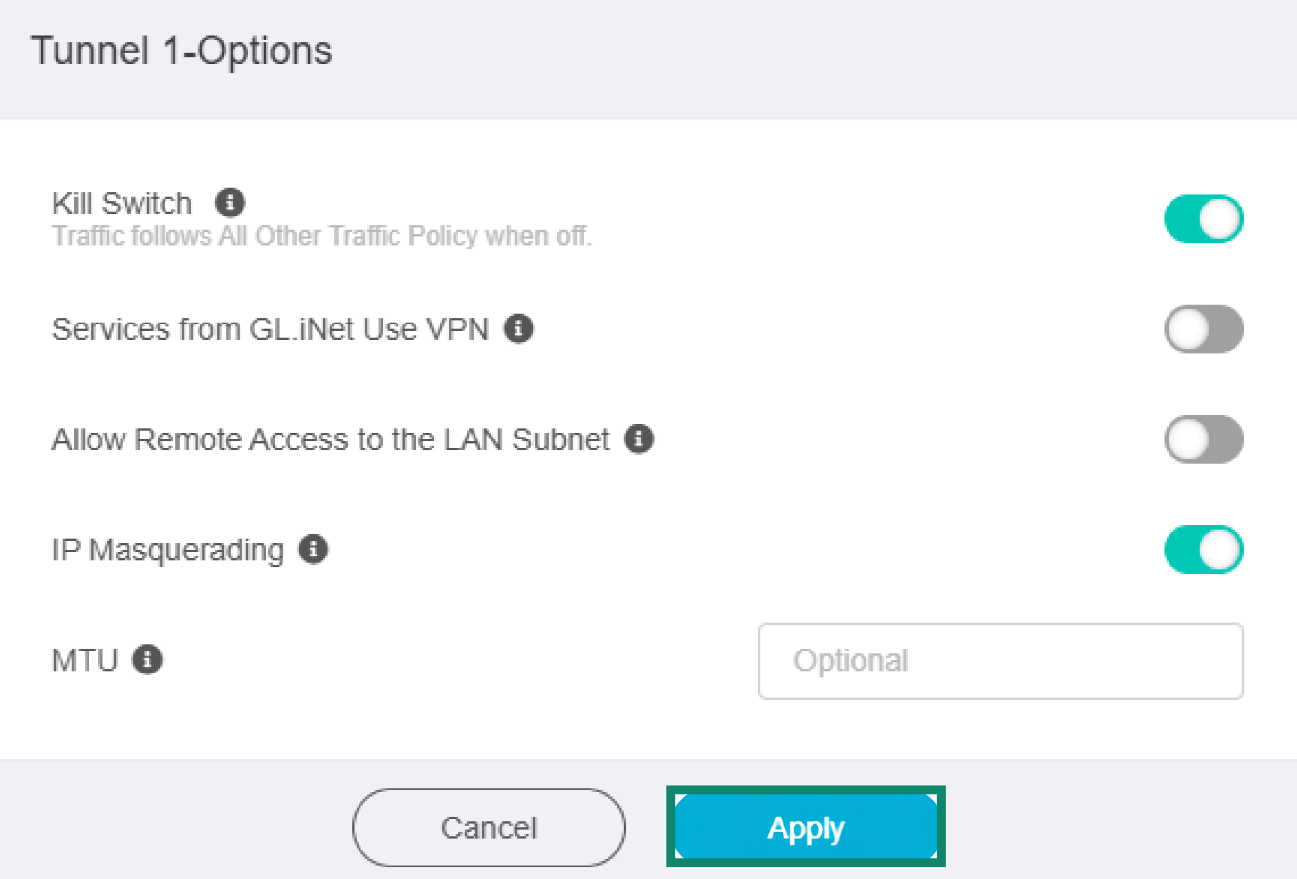
Need help? Contact the ExpressVPN Support Team for immediate assistance.