



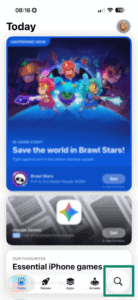
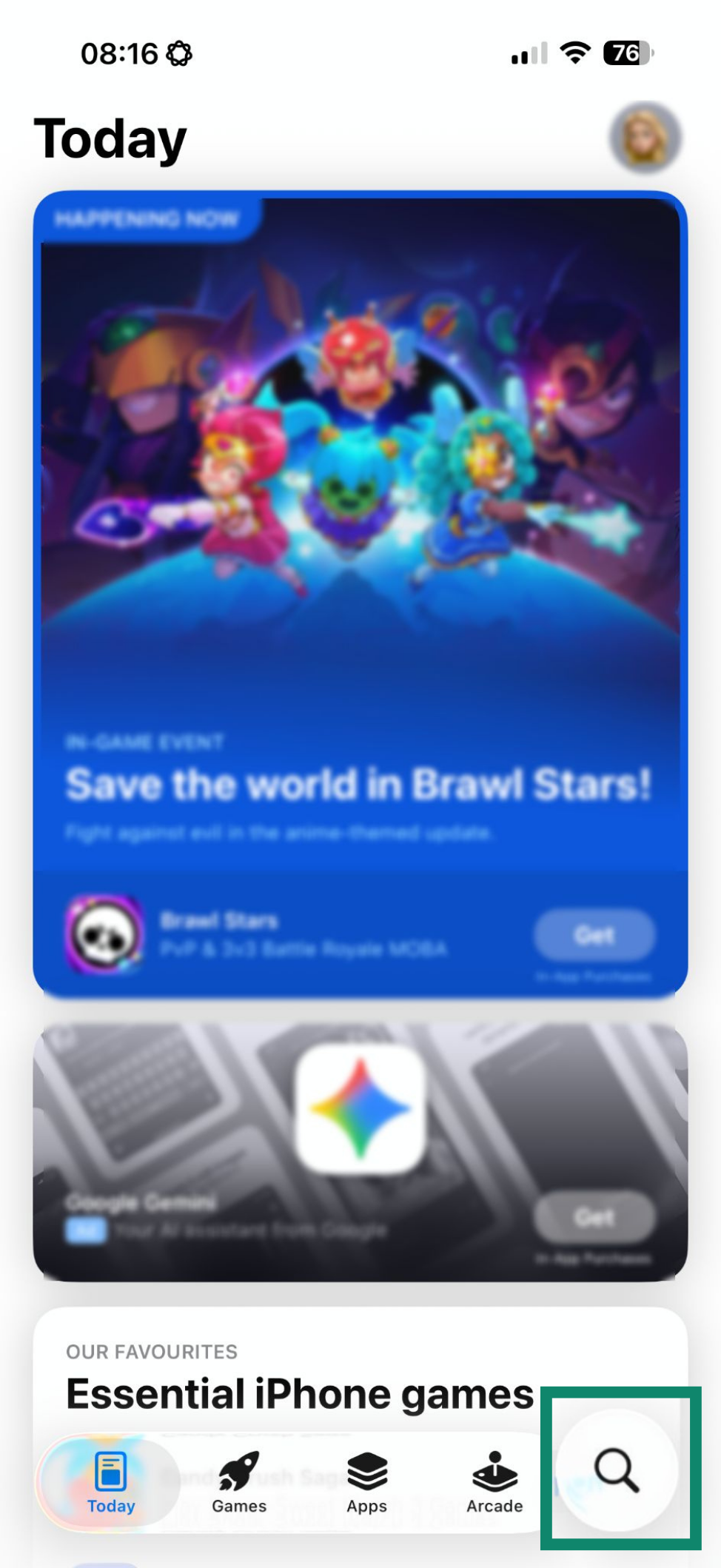
- Open the App Store and search “ExpressKeys.”

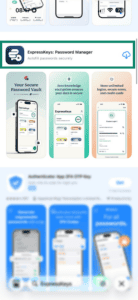
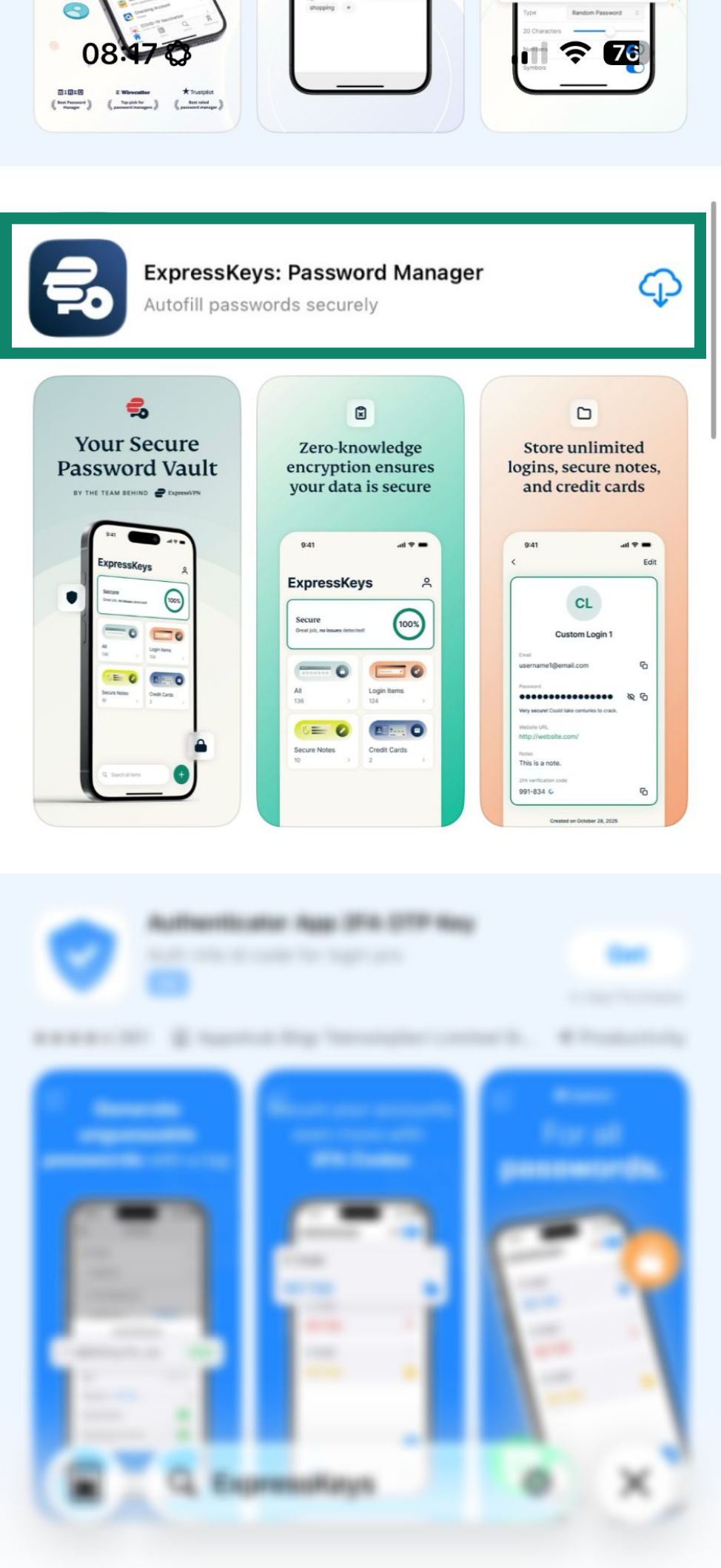
- Tap Get or the cloud icon to download the app to your device.
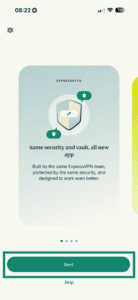
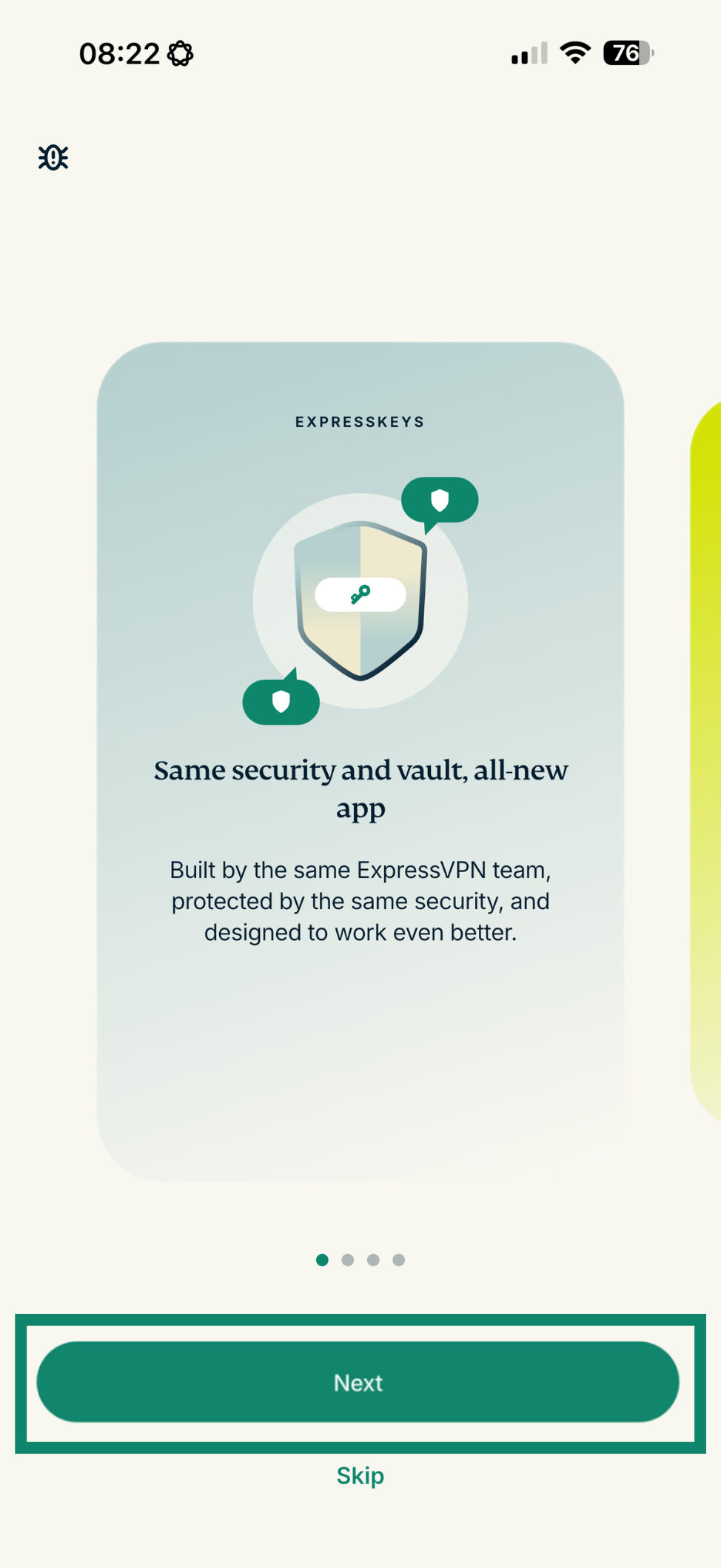
- Open ExpressKeys and tap Next (or swipe) on each of the three screens.
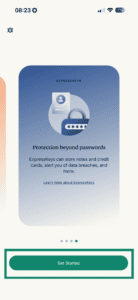
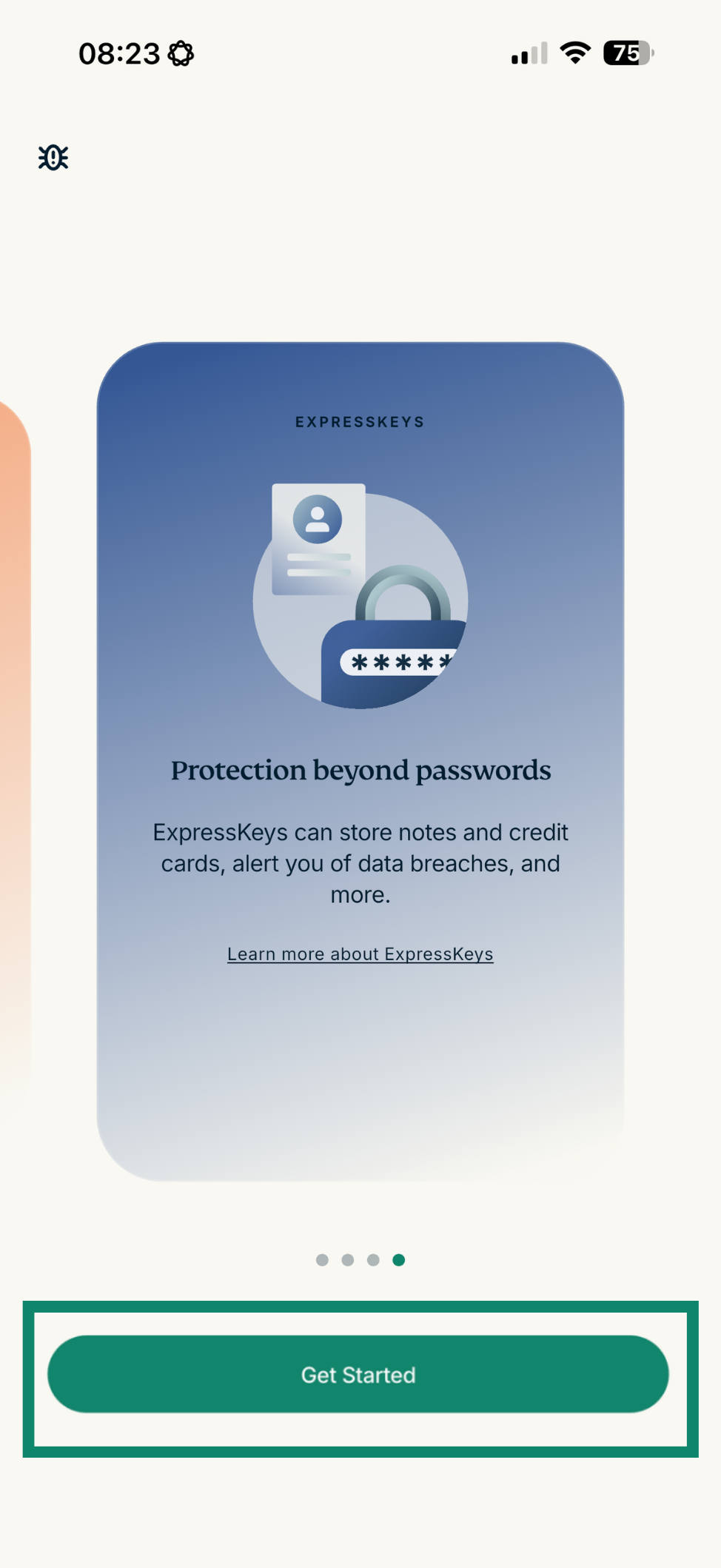
- On the final screen, tap Get Started.
- Tap Sign in.
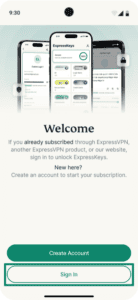
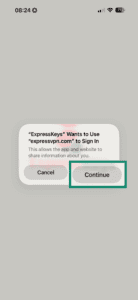
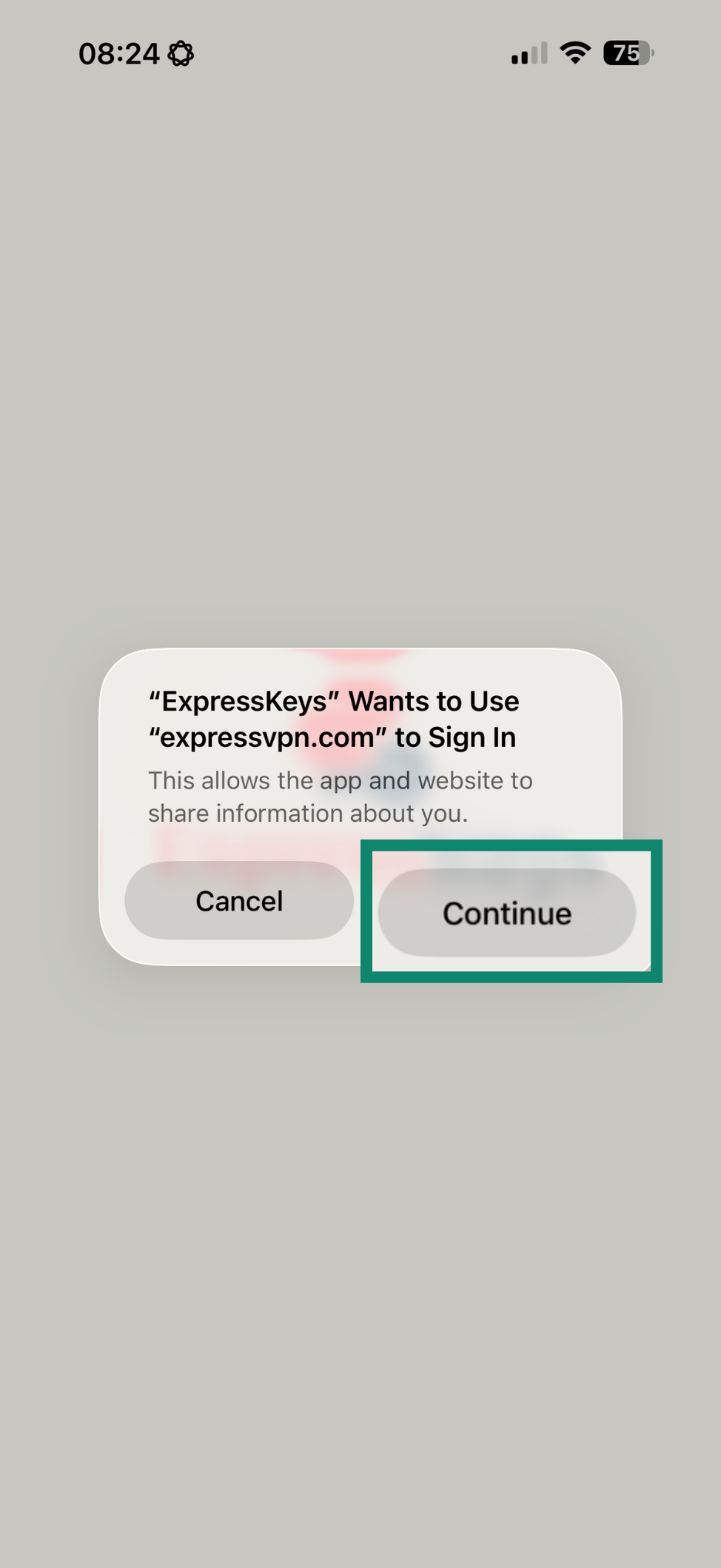
Note: If you don’t have an ExpressVPN account yet and want to purchase your subscription now from the App Store, follow our guide to in-app purchases in ExpressKeys. - You’ll see a pop-up saying “ExpressKeys” Wants to Use “expressvpn.com” to Sign In. Tap Continue.
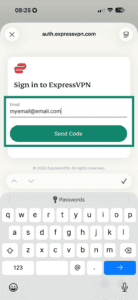
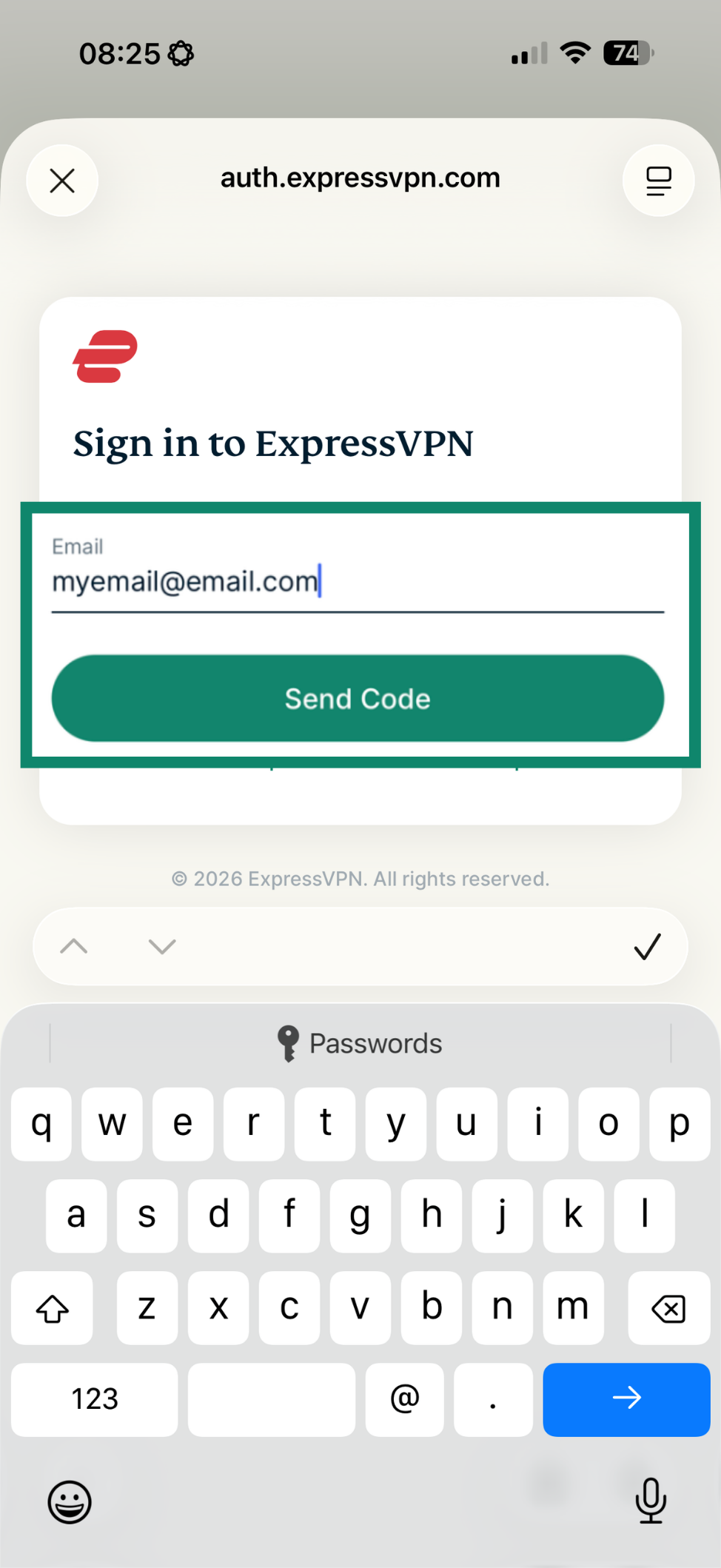
- Enter your email and tap Send Code.
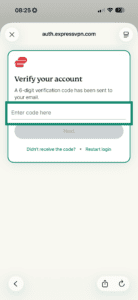
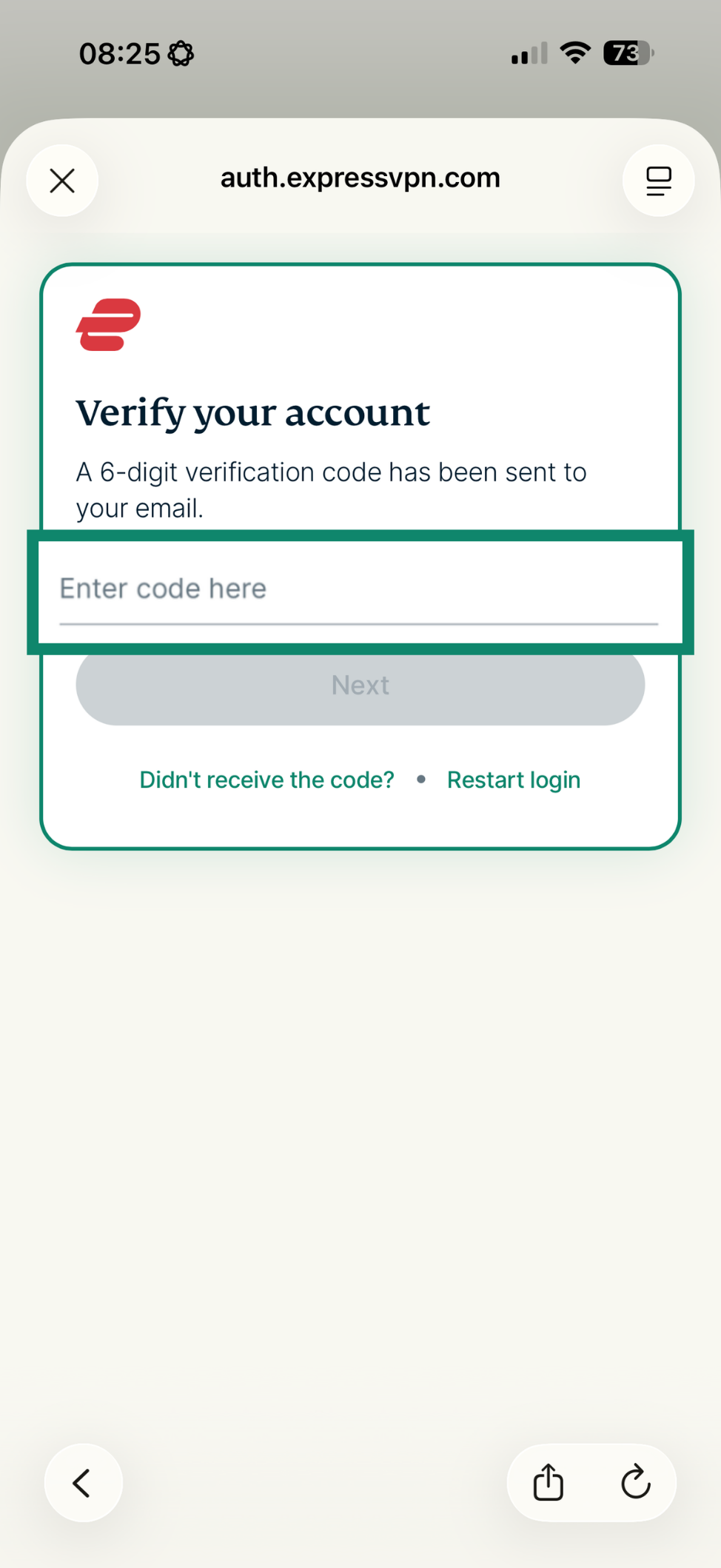
- Enter the verification code sent to your email and tap Next.
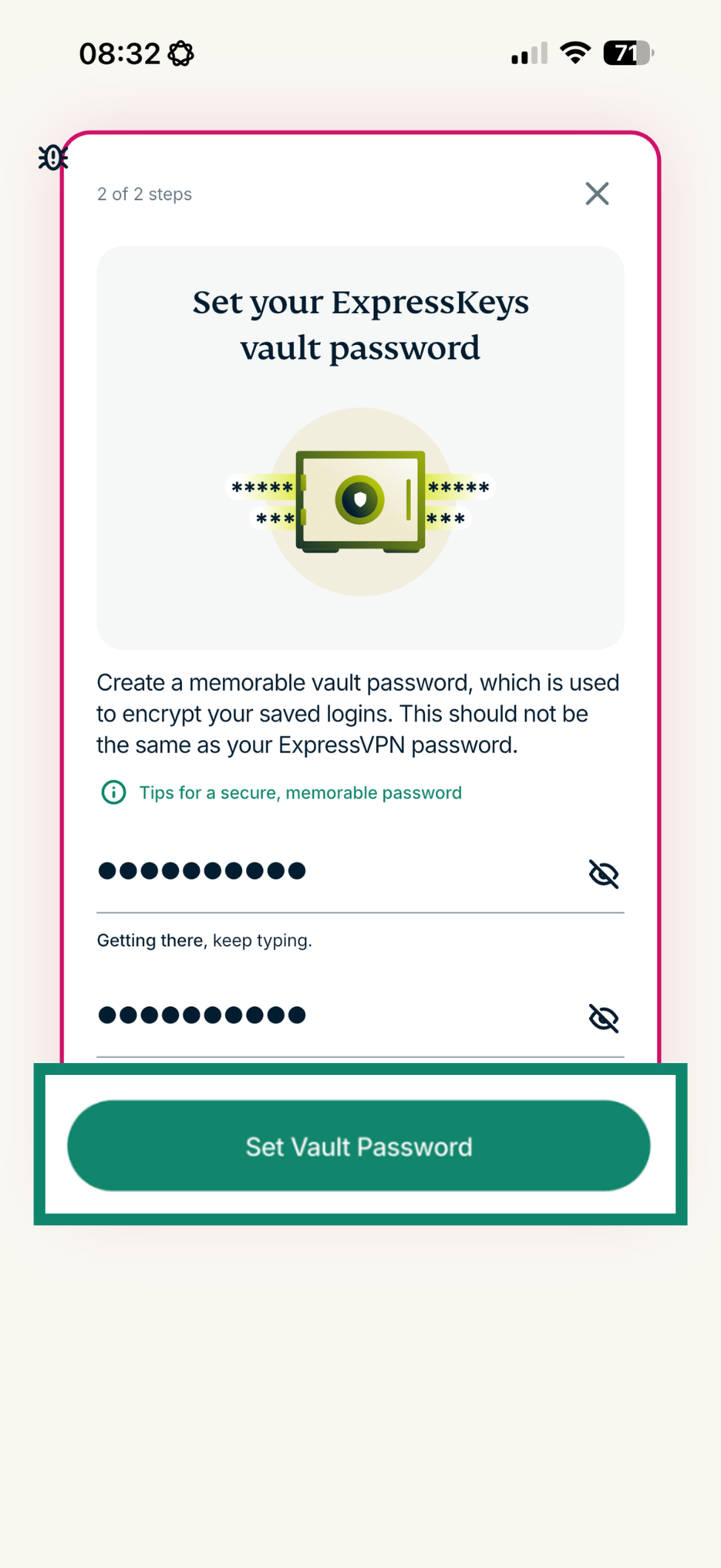
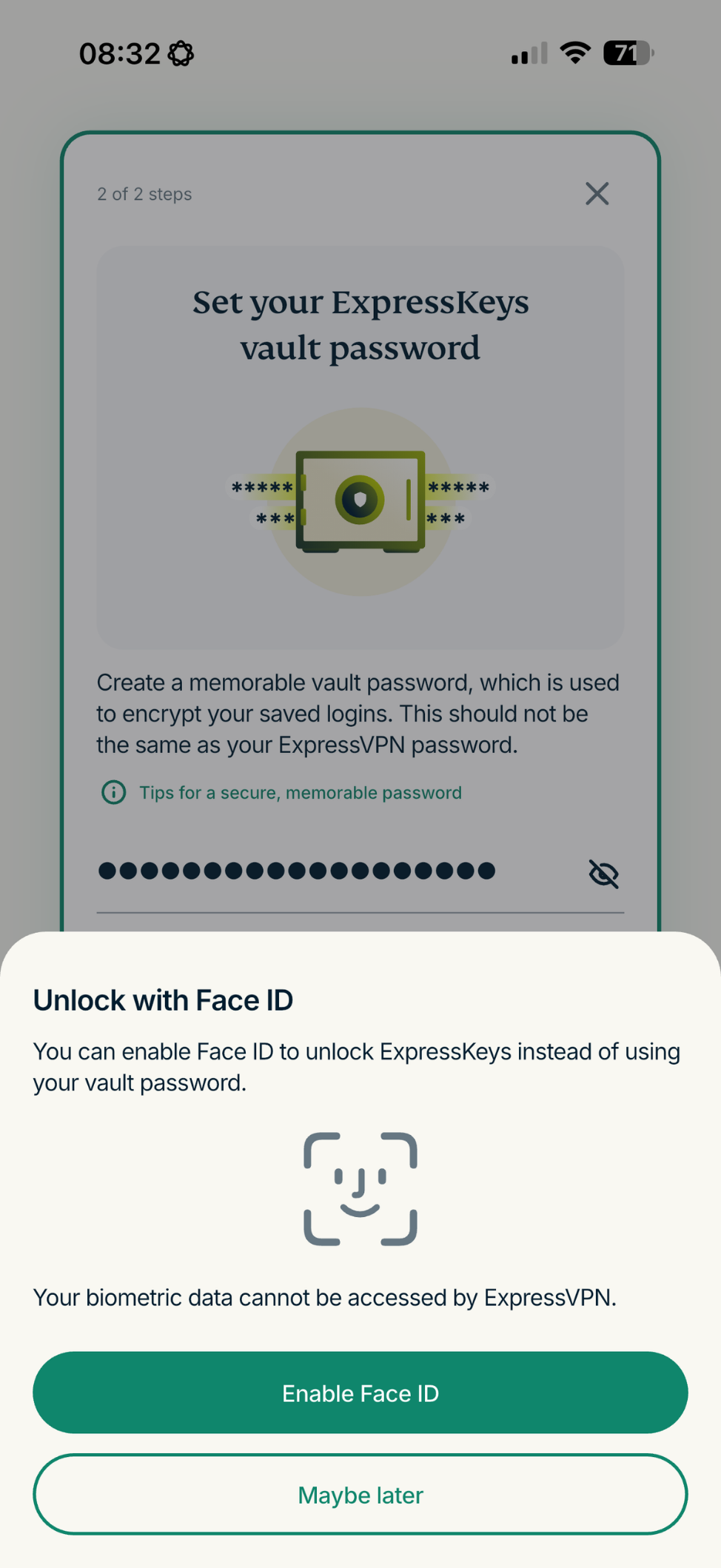
- Enter a password and tap Set Vault Password.
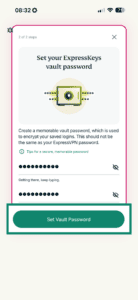
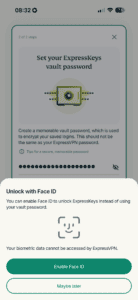
- You’ll see a pop-up asking if you want to enable Face ID. Select your preference to continue.
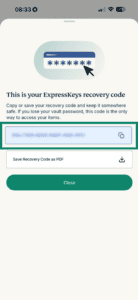
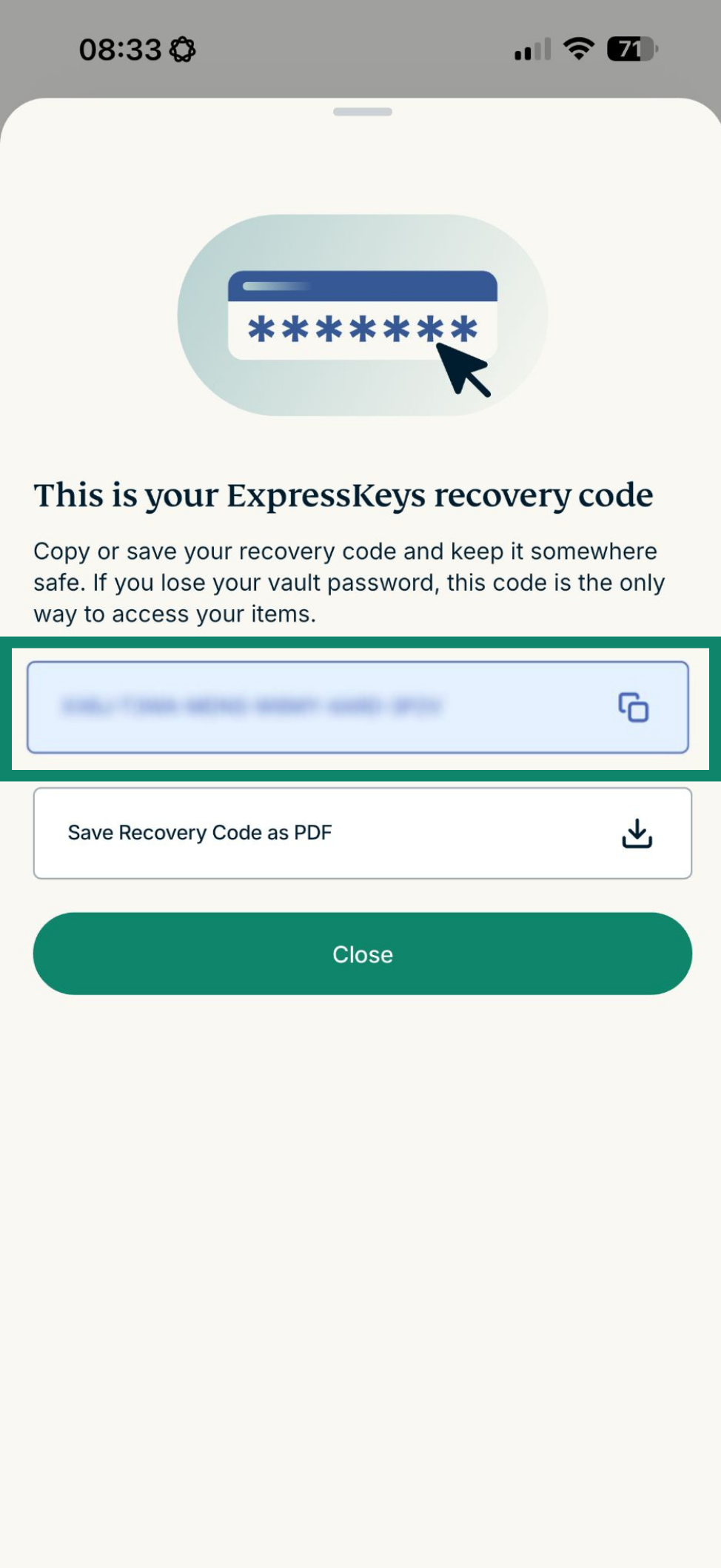
- Next, you’ll see a recovery code for your account. Keep this in a safe place, as you’ll need it to unlock the app if you forget your password.
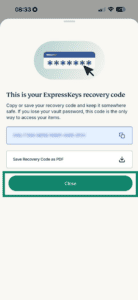
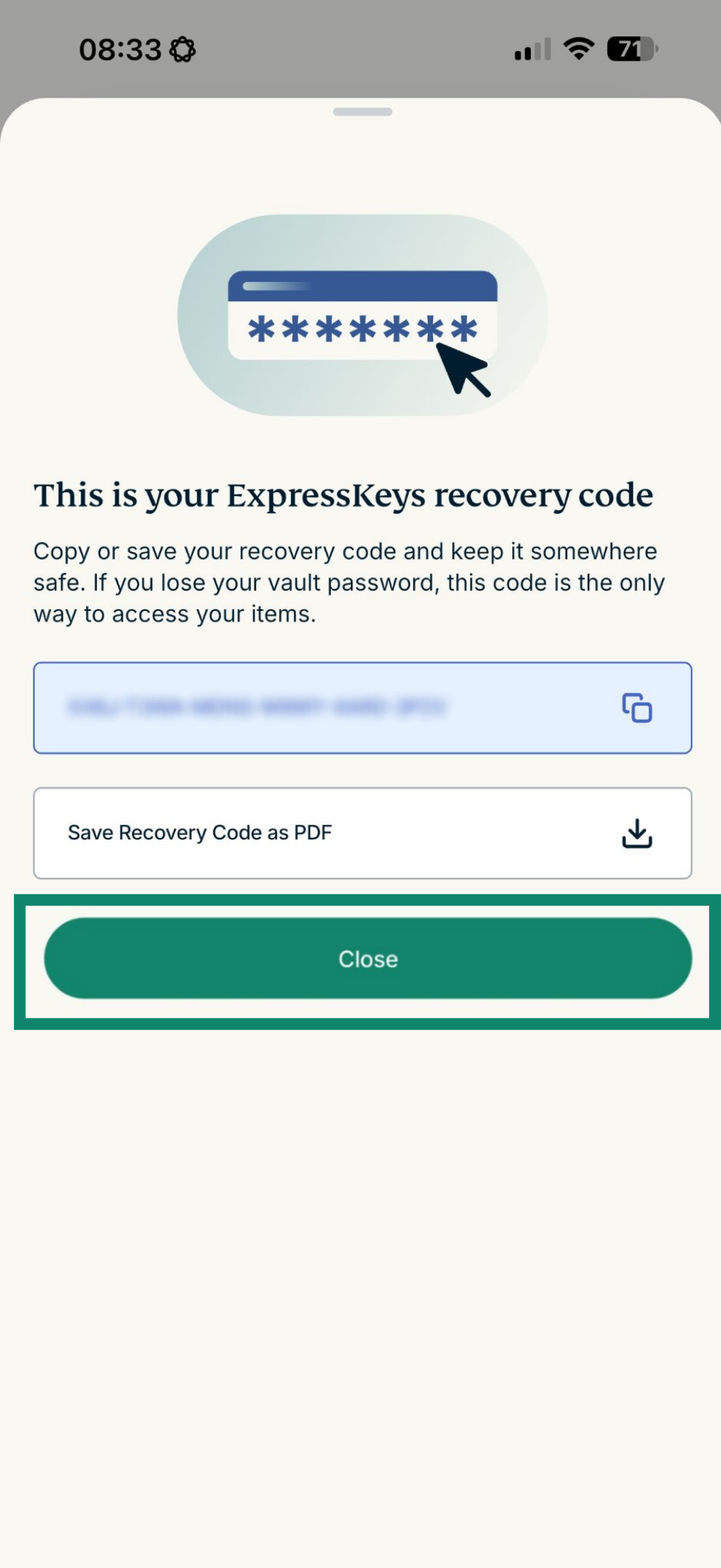
- Tap Close.
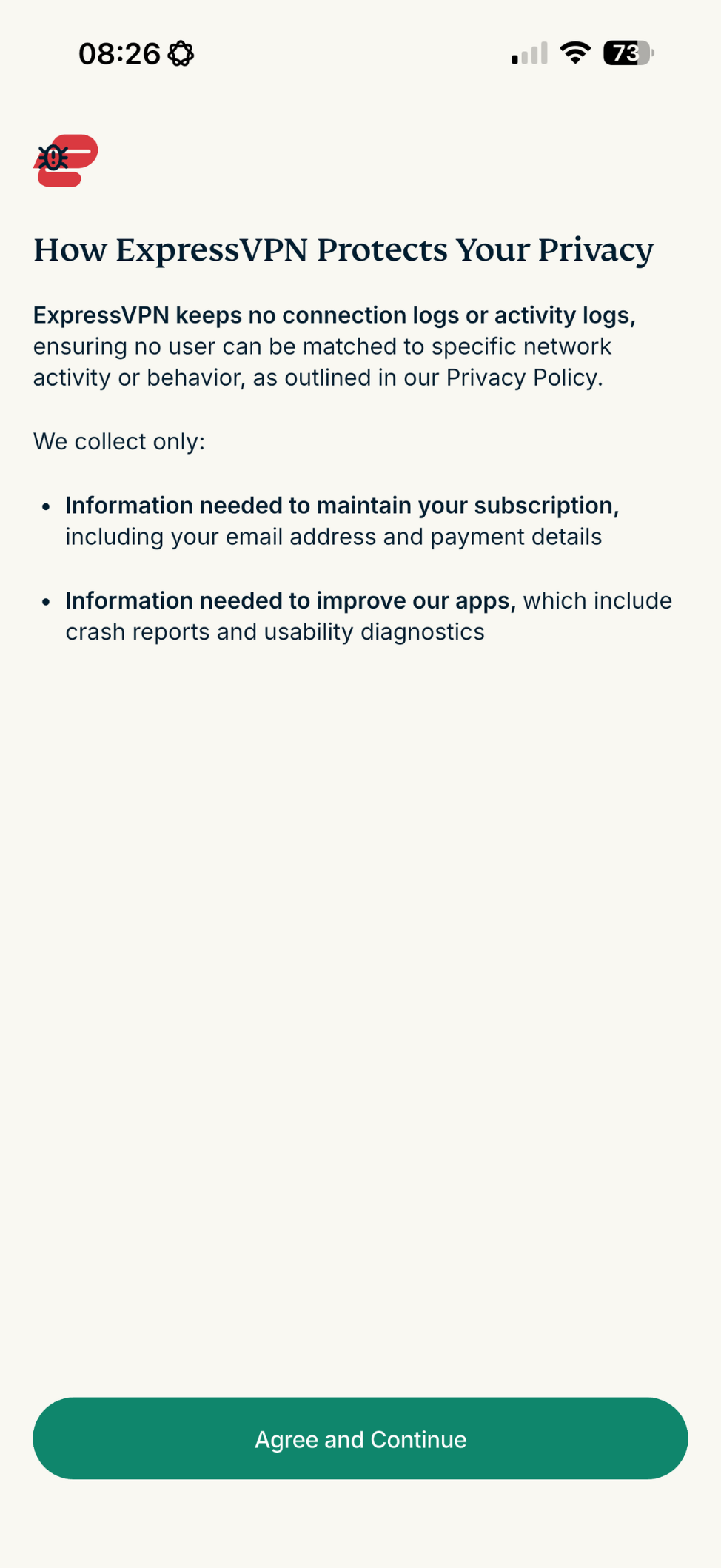
- On the privacy screen, tap Agree and Continue.

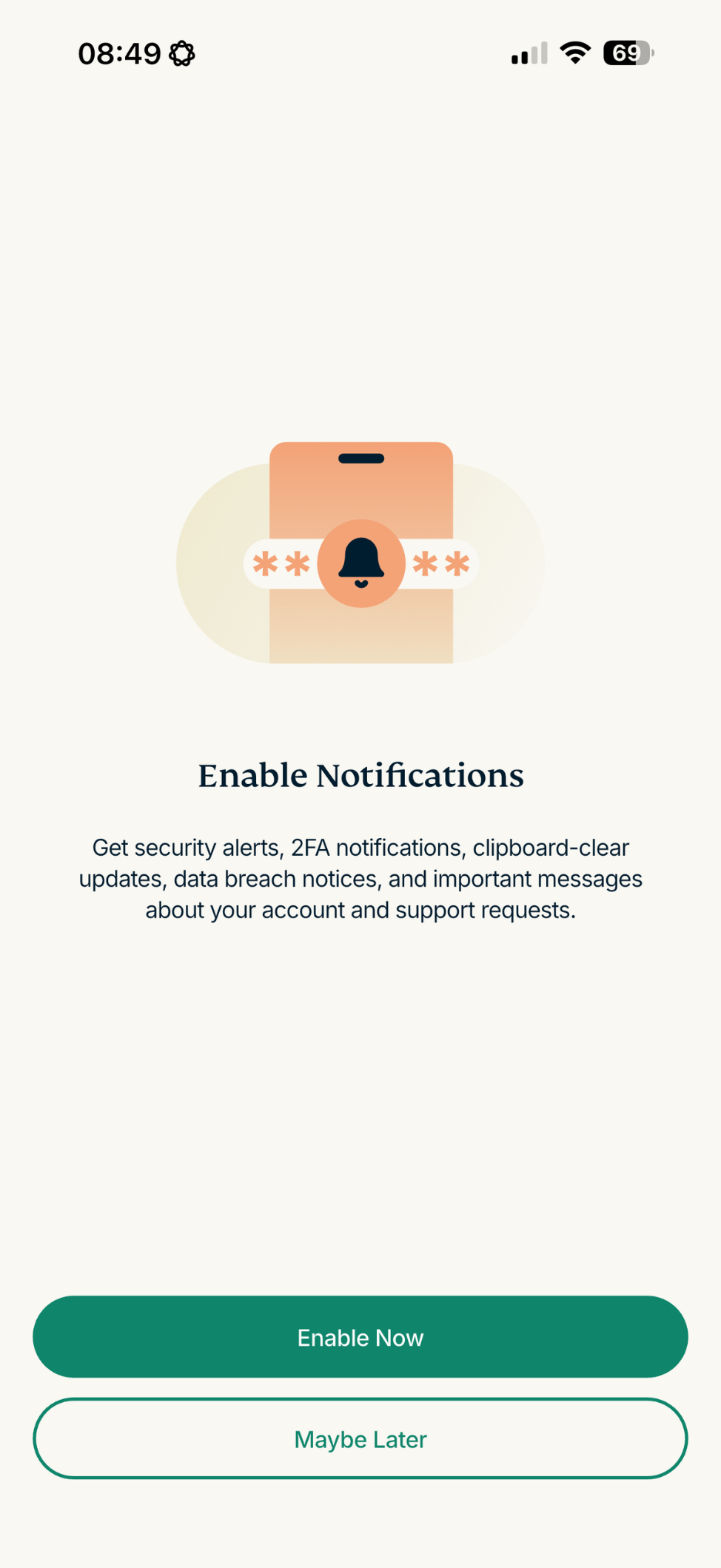
- Decide whether to enable notifications for the app.

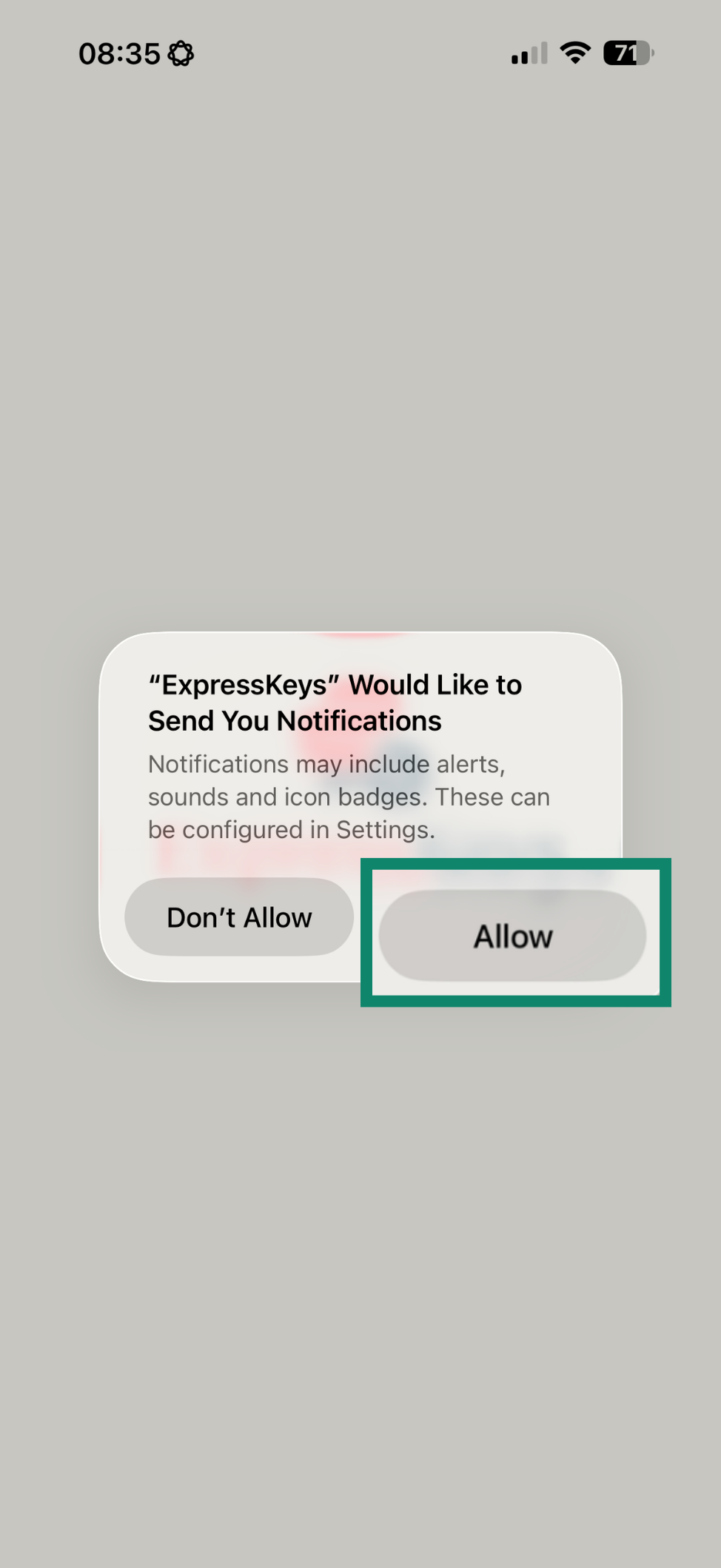
- If you tap Enable Now, tap Allow on the notifications pop-up.


You have successfully set up the ExpressKeys app for iOS.
To make the most of your account, learn how to import your existing logins and save your first login. You can also enable autofill so ExpressKeys automatically fills in your information when you sign in to apps and websites.
Need help? Contact the ExpressVPN Support Team for immediate assistance.