



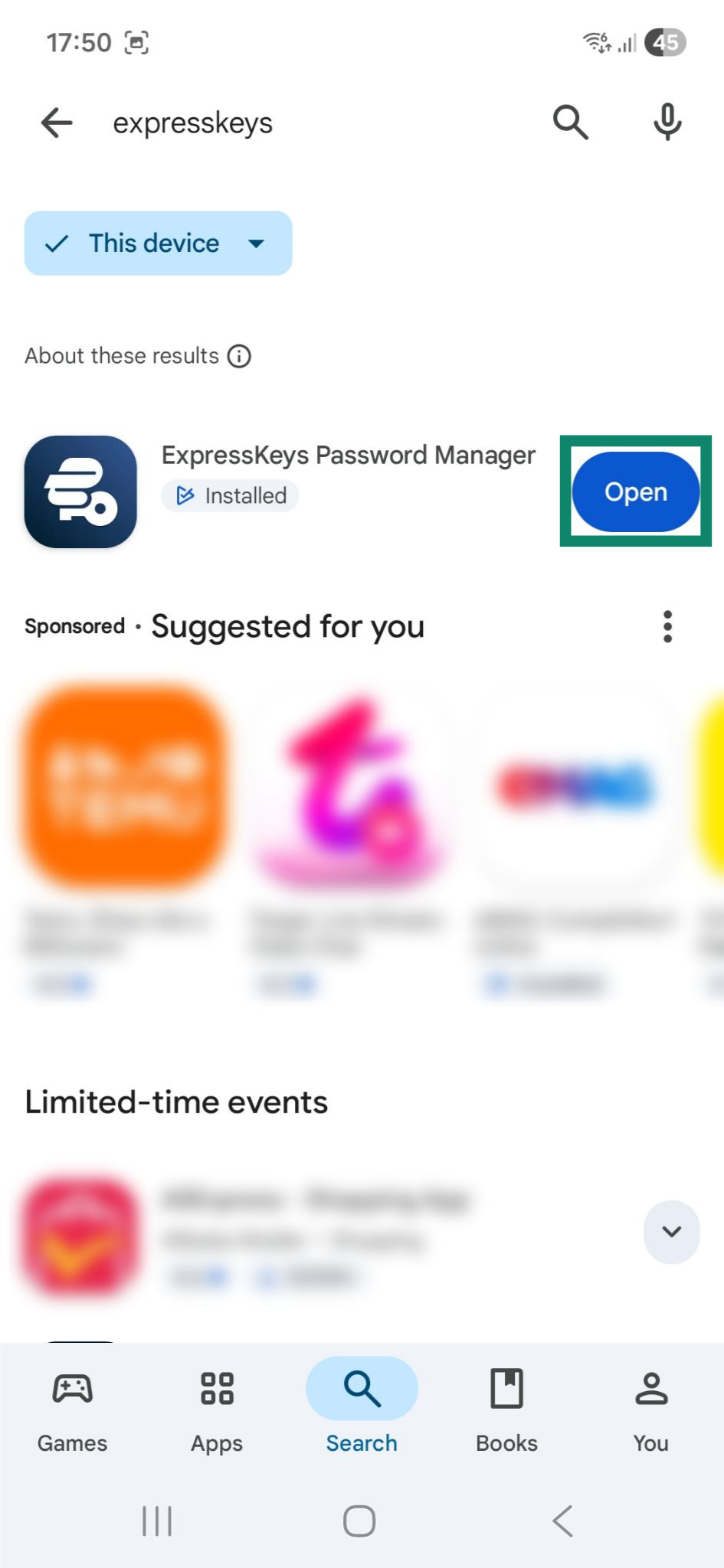
- Open Google Play.
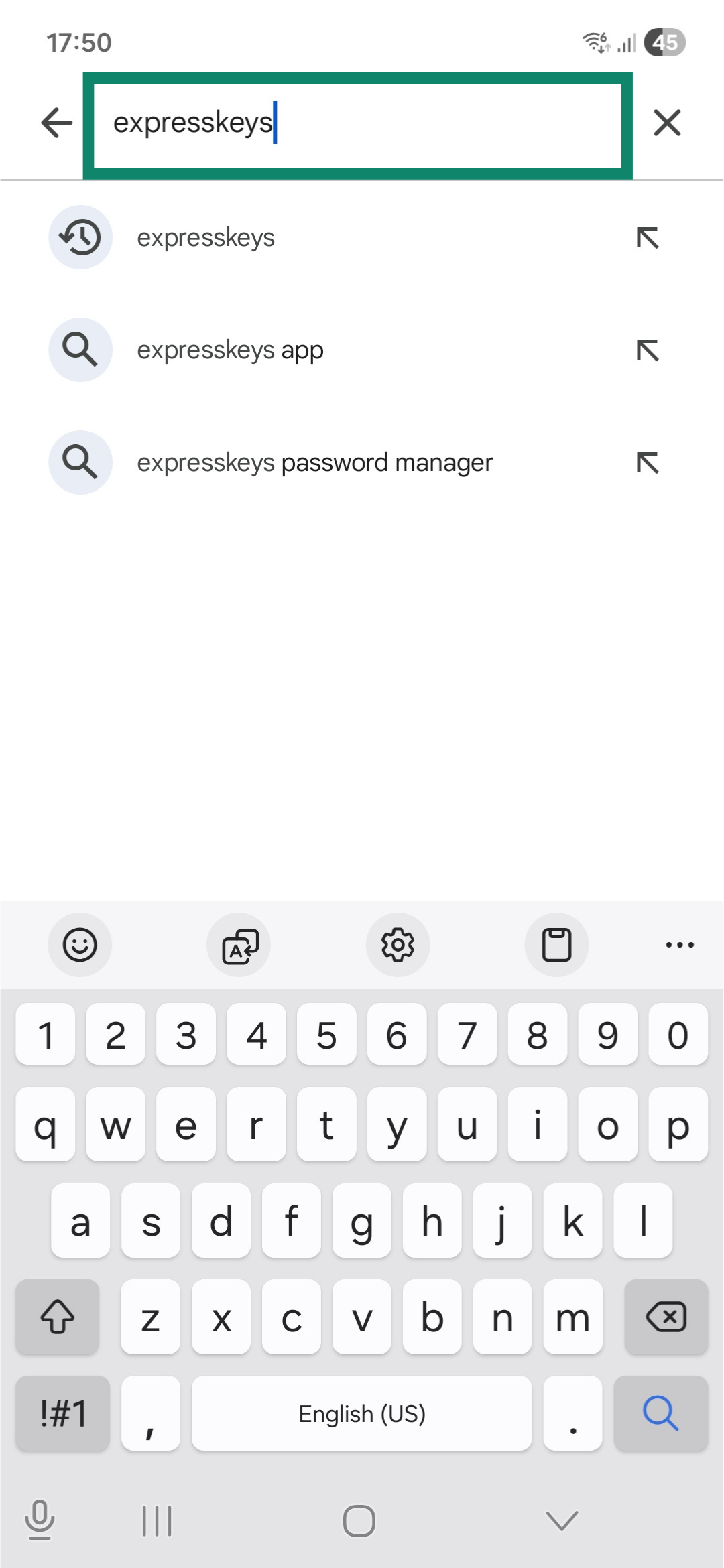
- Search for ExpressKeys.
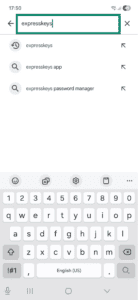

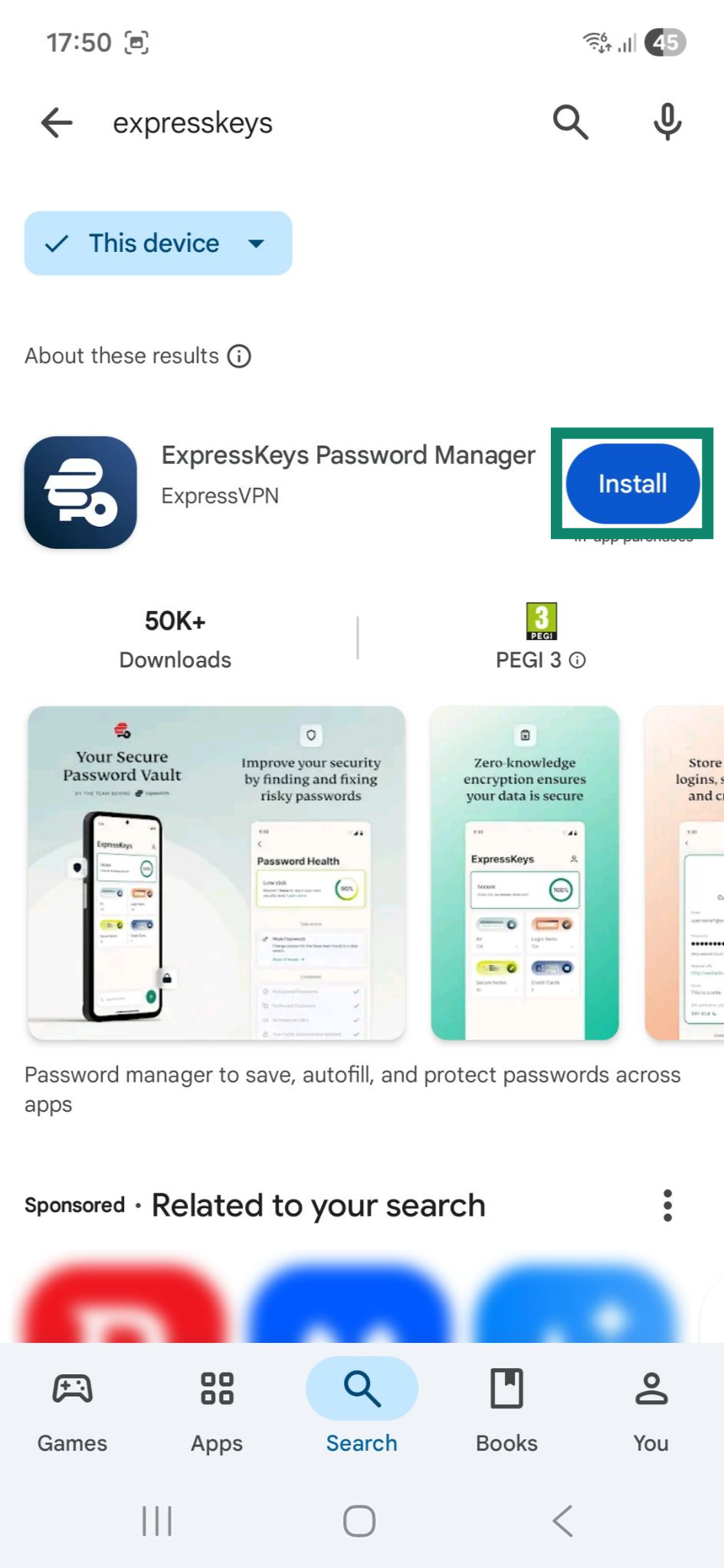
- Tap Install.

- Once installed, tap Open.

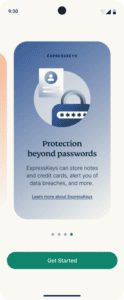
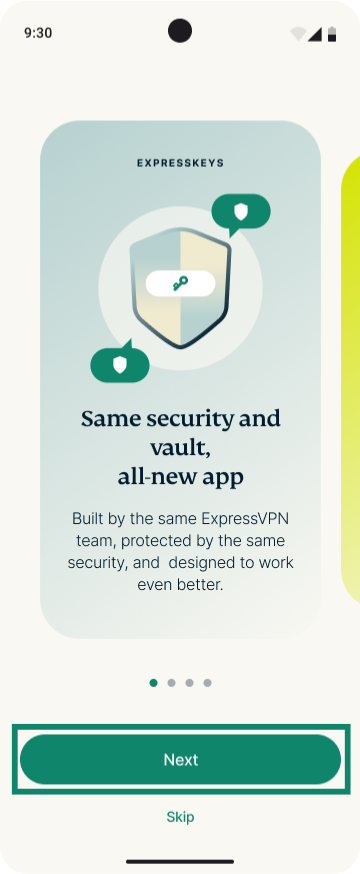
- Keep tapping Next.


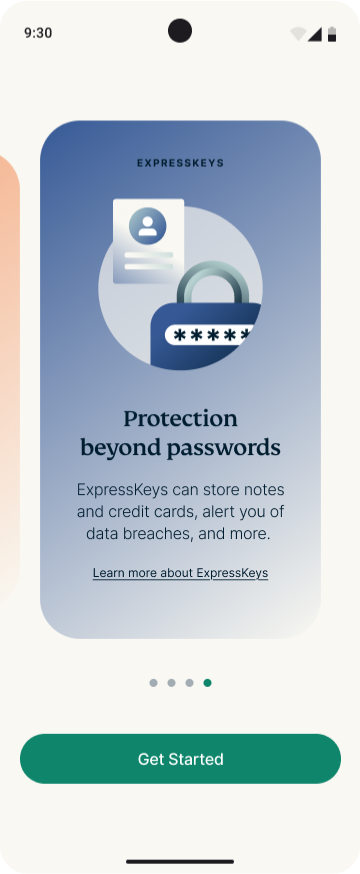
- Tap Get Started.
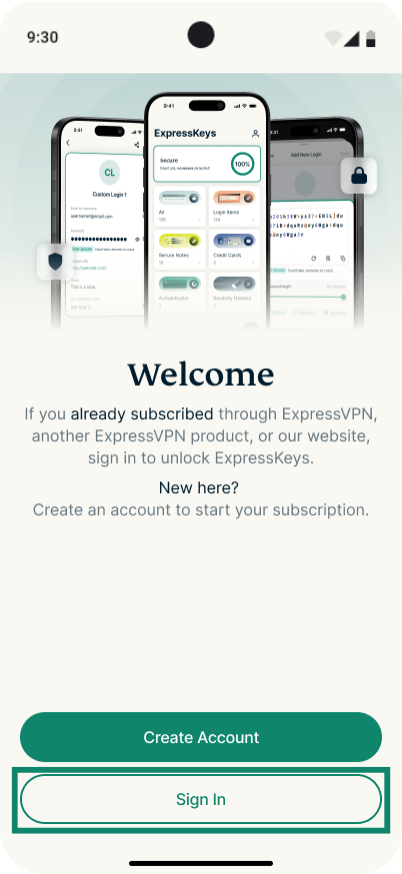
- Tap Sign In.
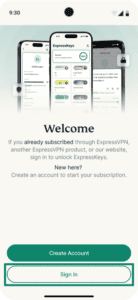
 Note: If you don’t have an ExpressVPN account yet and want to purchase your subscription now from the Google Play Store, follow our guide to in-app purchases in ExpressKeys.
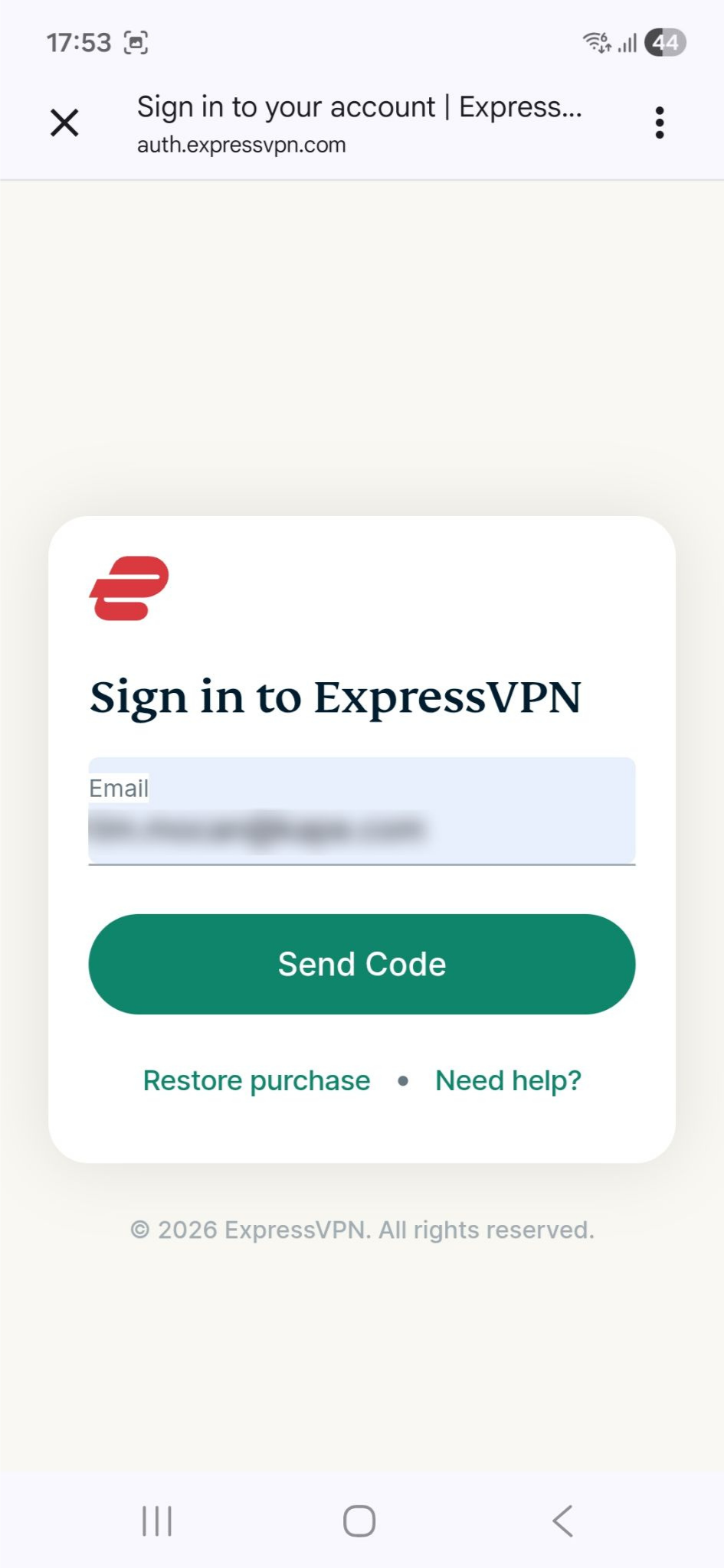
 - Enter the email address linked to your ExpressVPN account, then tap Send Code.
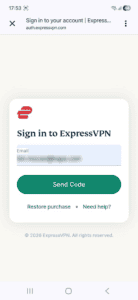 Note: If you previously purchased your ExpressVPN subscription through the Google Play Store, tap Restore purchase instead.
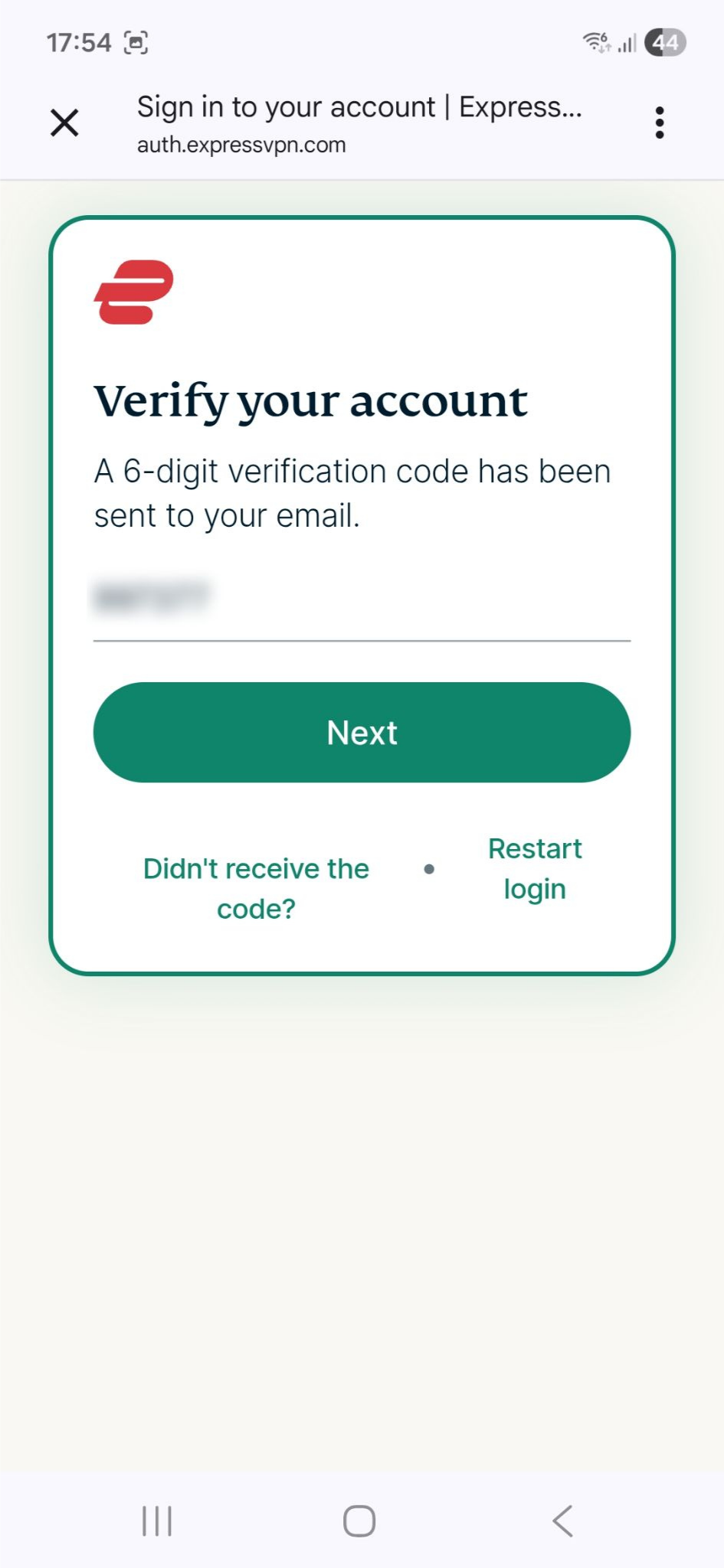
 - Enter the verification code sent to your email, then tap Next.
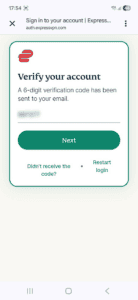
- Review the provided information about data privacy. If you agree, tap Agree and Continue.
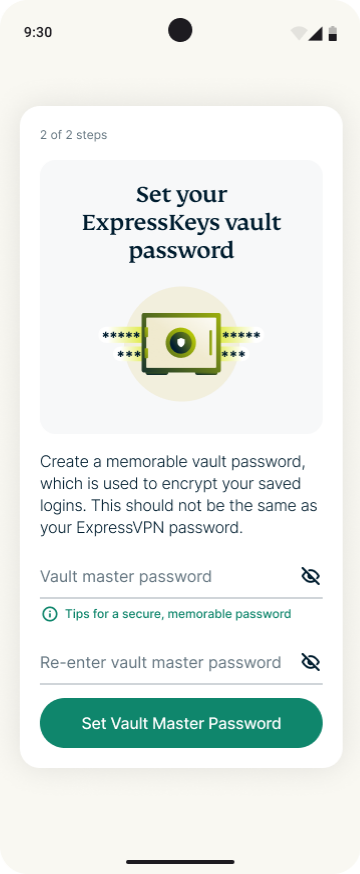
- Follow the on-screen instructions to create a vault password. Once ready, tap Set Vault Master Password.
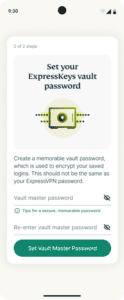
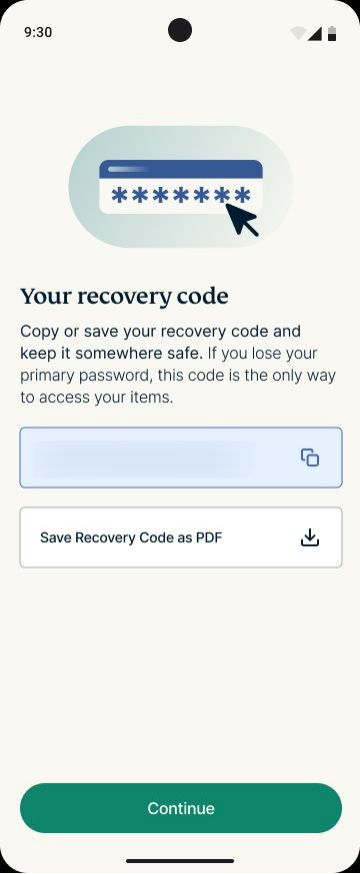
- Save the recovery code in a safe place. You will need it to access your password manager if you lose the vault password. Tap Continue.

- Enter your vault master password, then tap Unlock to unlock and start using ExpressKeys.

You have successfully set up the ExpressKeys app for Android. To learn how to use ExpressKeys for Android, refer to the following guides:
Need help? Contact the ExpressVPN Support Team for immediate assistance.