



With ExpressKeys, you can store secure notes and confidential documents (such as your passport or medical information) and sync them across your devices for safe and convenient access.
Secure notes are protected by your vault password, so only you can access them. Using ExpressKeys’ secure notes provides additional security over regular note-taking apps.
Jump to…
How to add secure notes
How to edit or delete secure notes
How to import secure notes
How to add secure notes
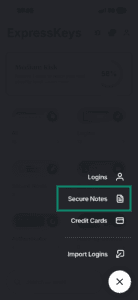
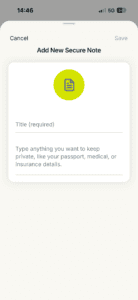
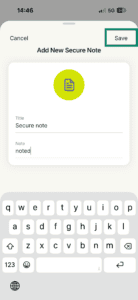
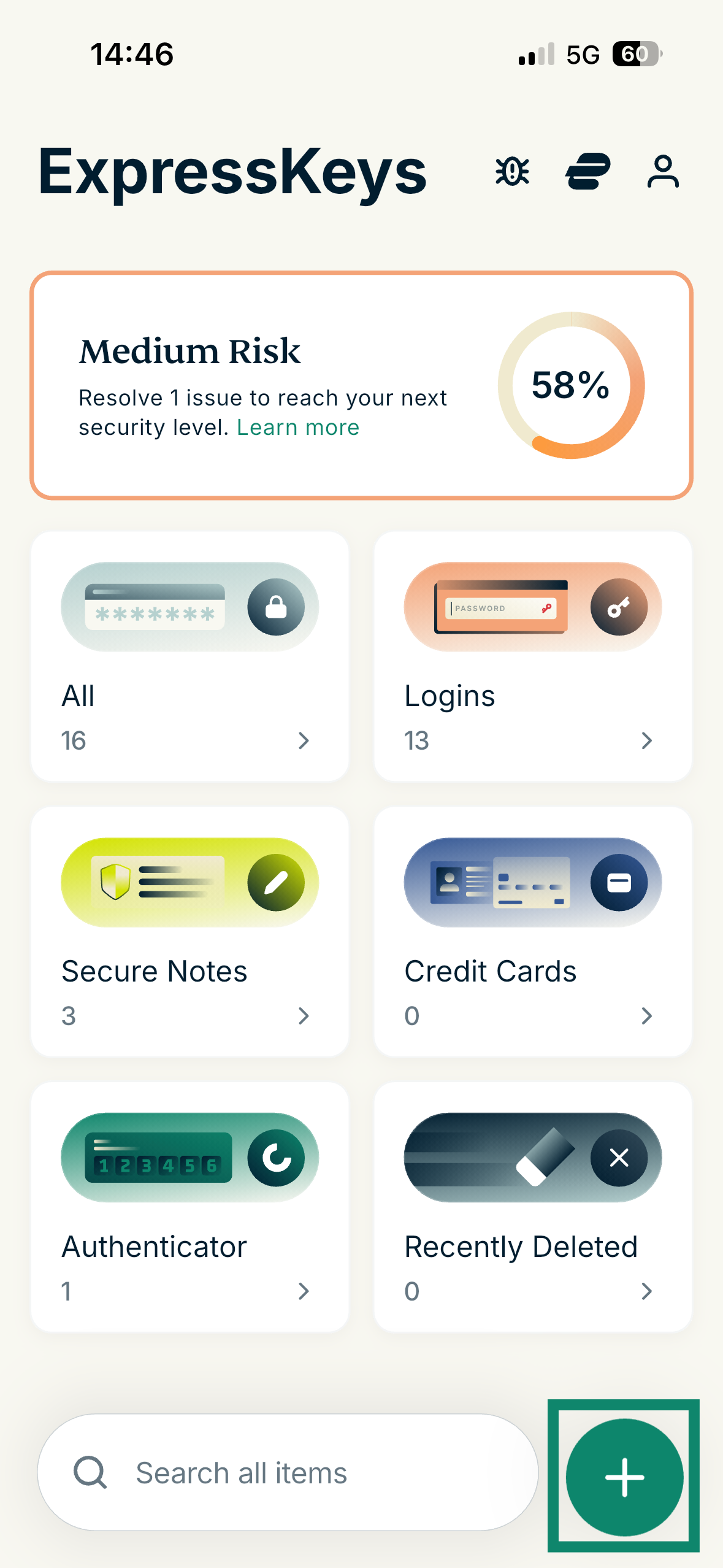
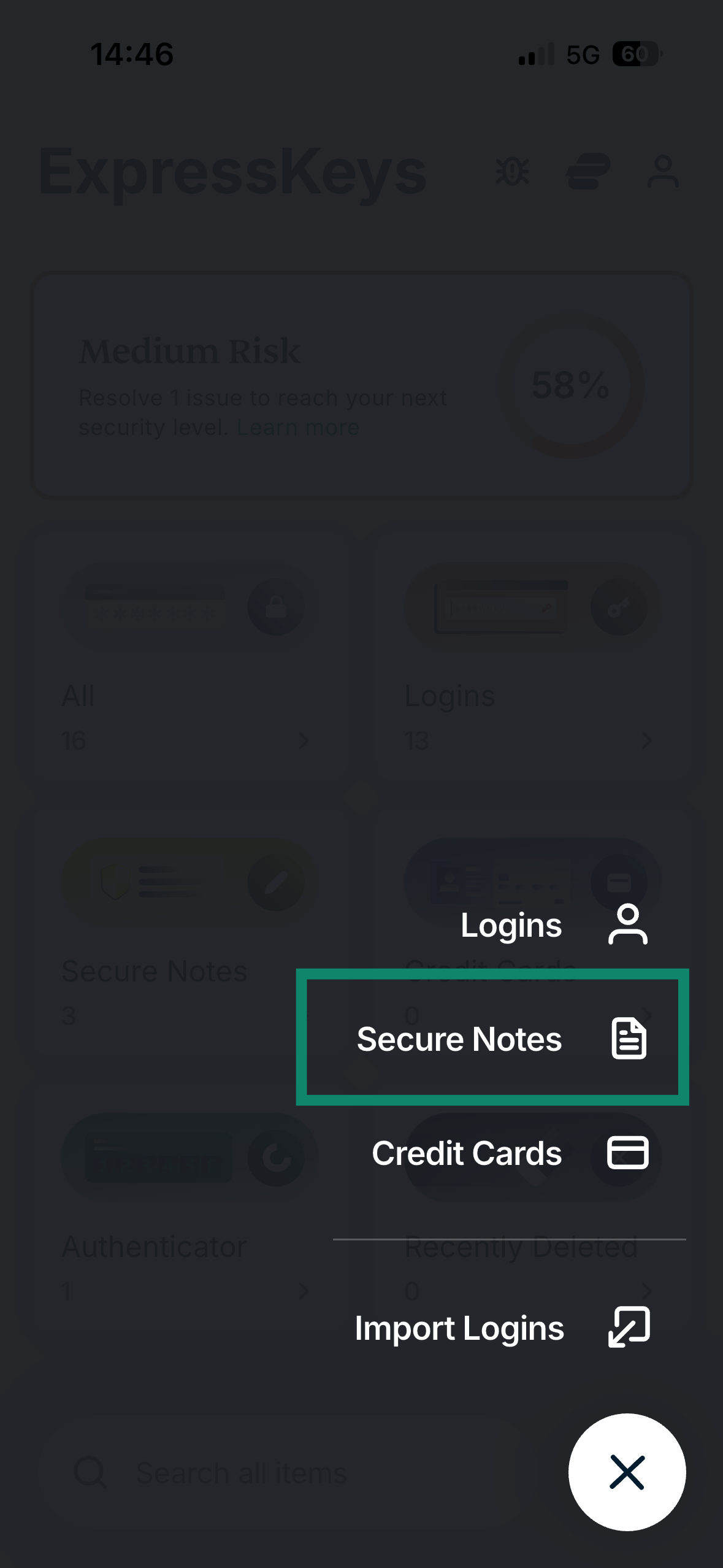
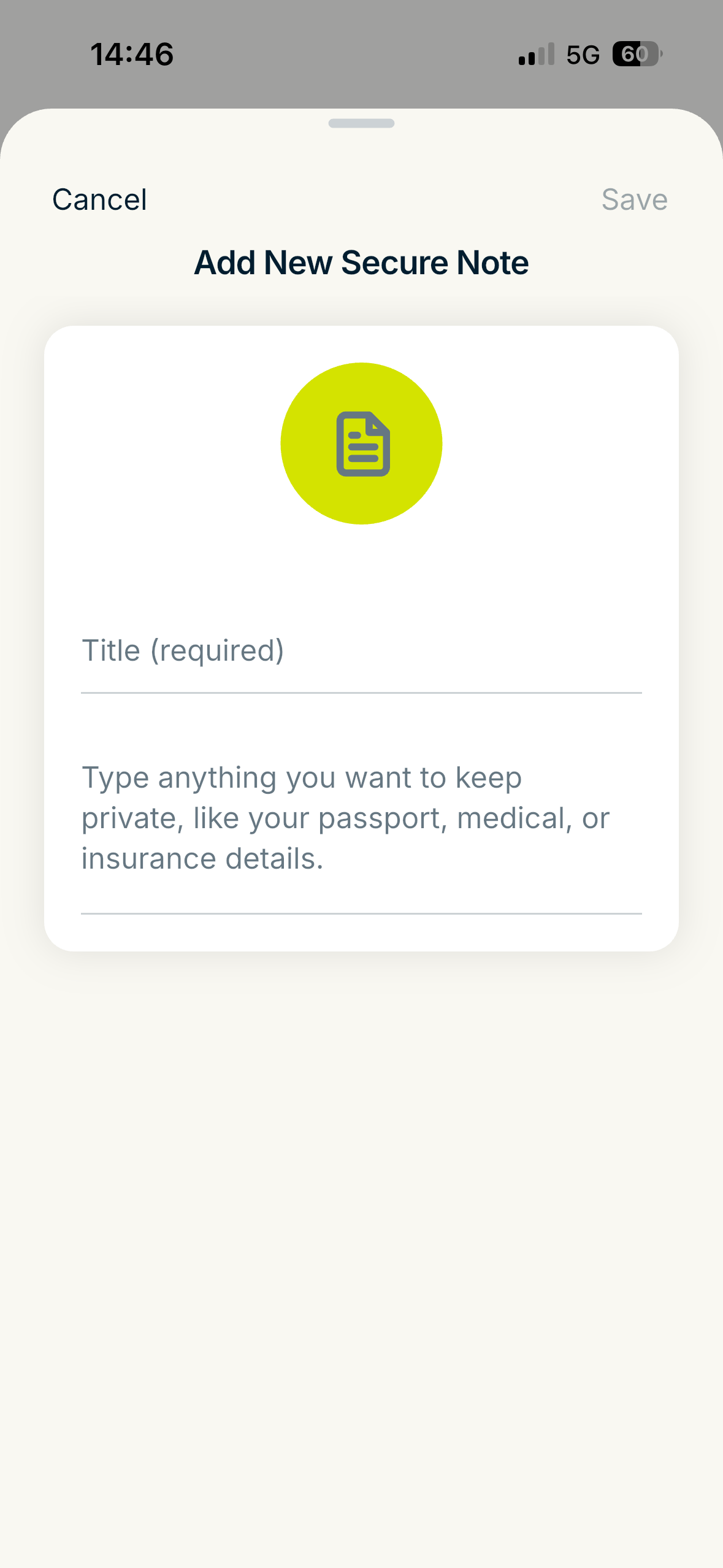
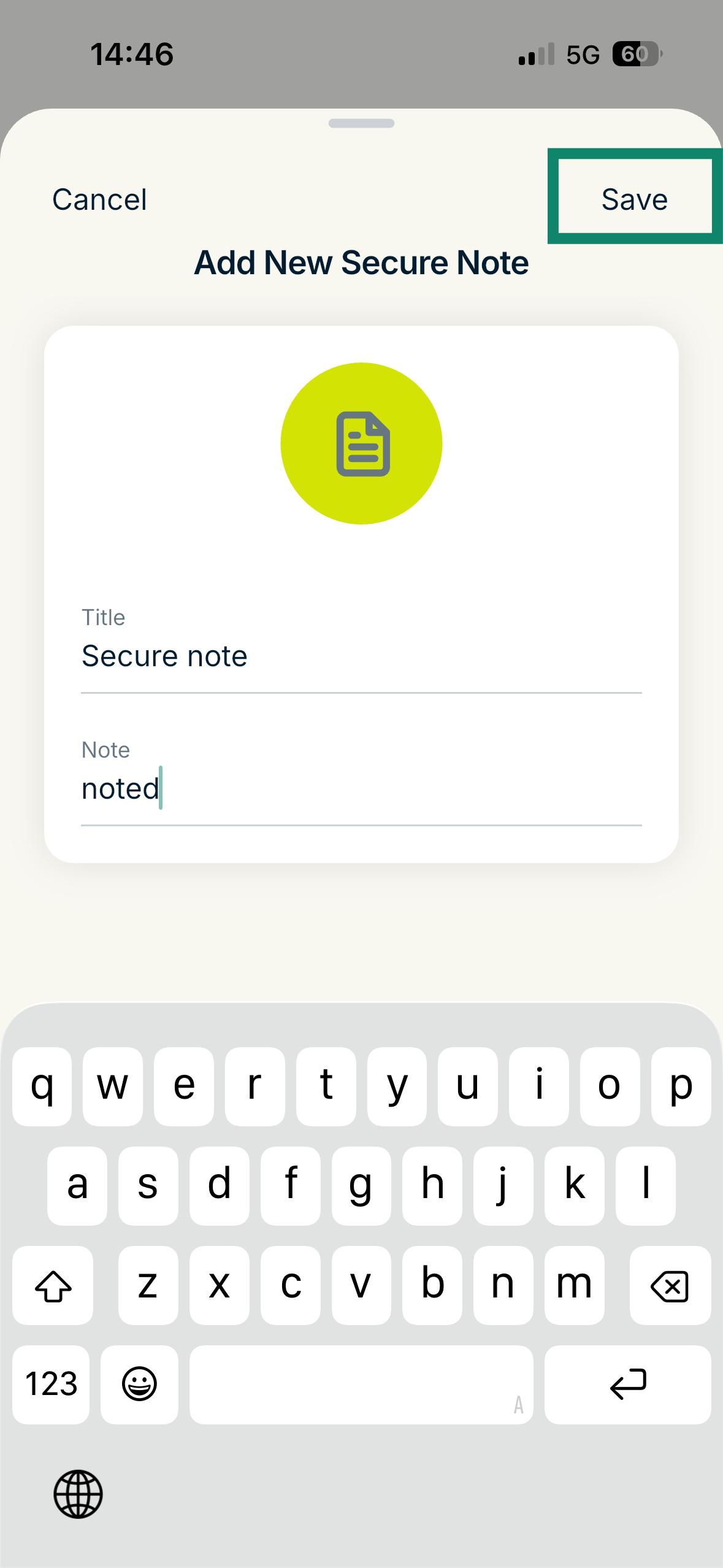
To add a secure note in the ExpressKeys on Android or iOS, follow these steps:
- In the ExpressKeys app, tap the

 icon.
icon.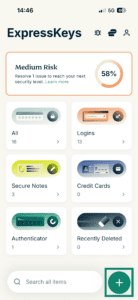

- Tap Secure Notes.
- Fill in the fields.
- Tap Save.
Need help? Contact our Support Team for immediate assistance.
How to edit or delete secure notes
In the ExpressKeys app for Android
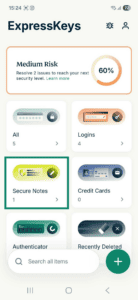
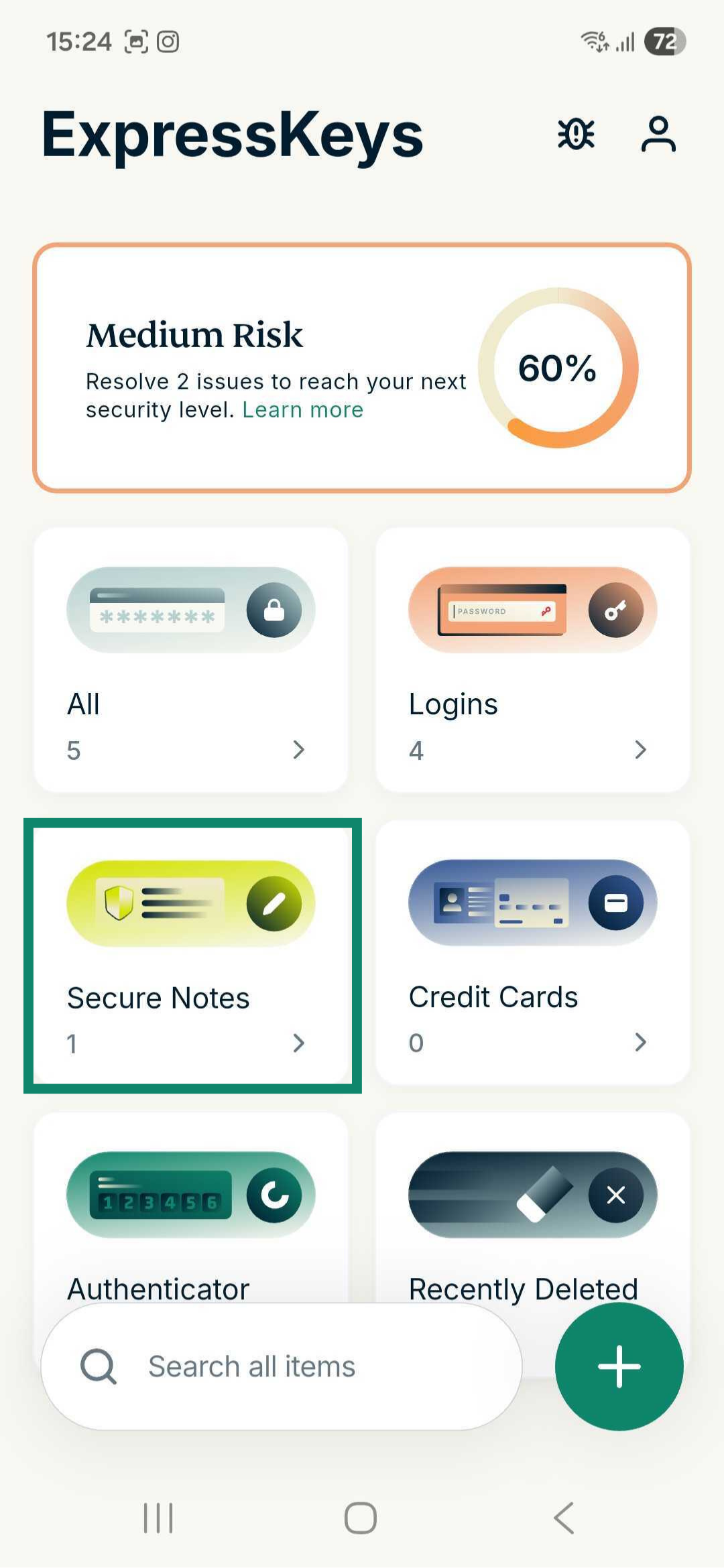
- Tap the Secure Notes widget in the ExpressKeys app.
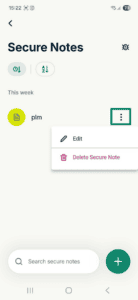
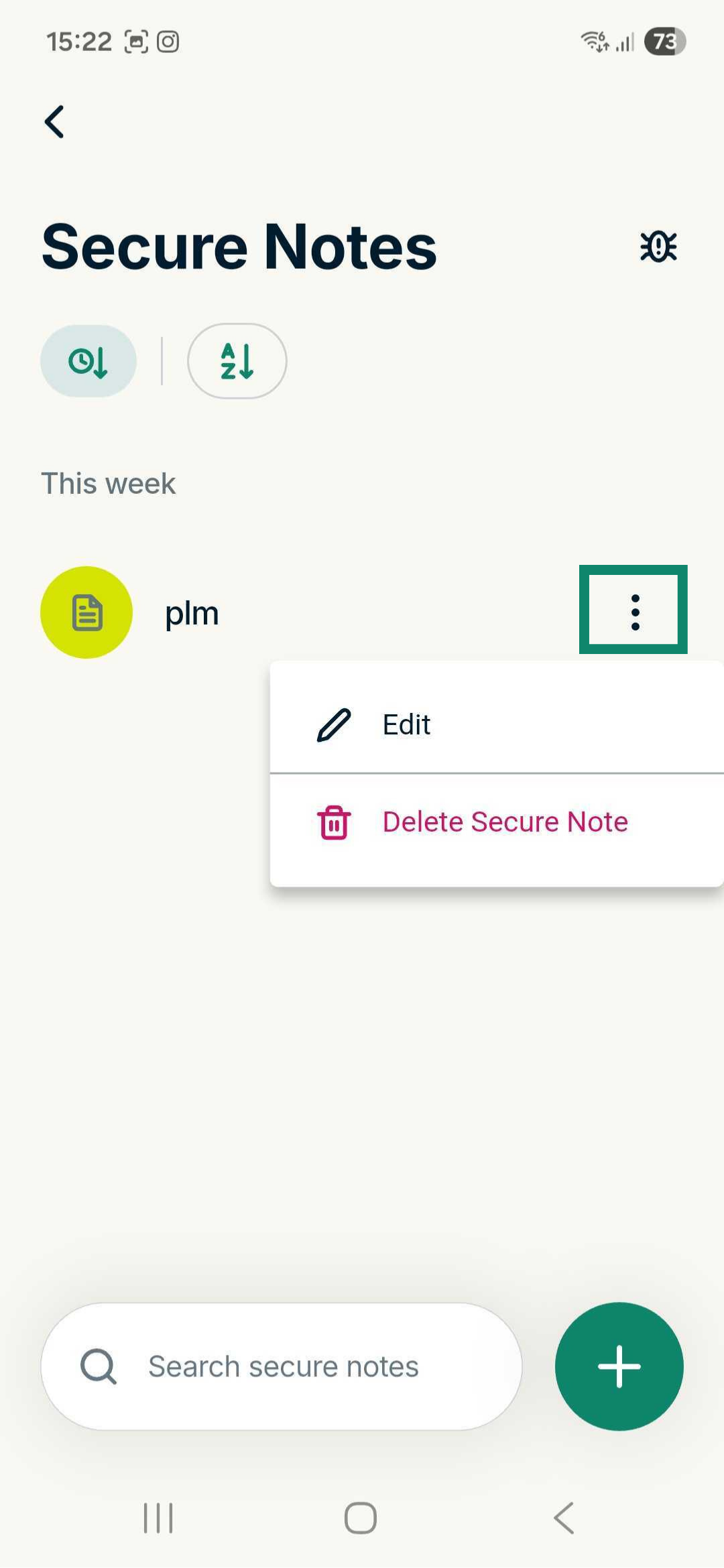
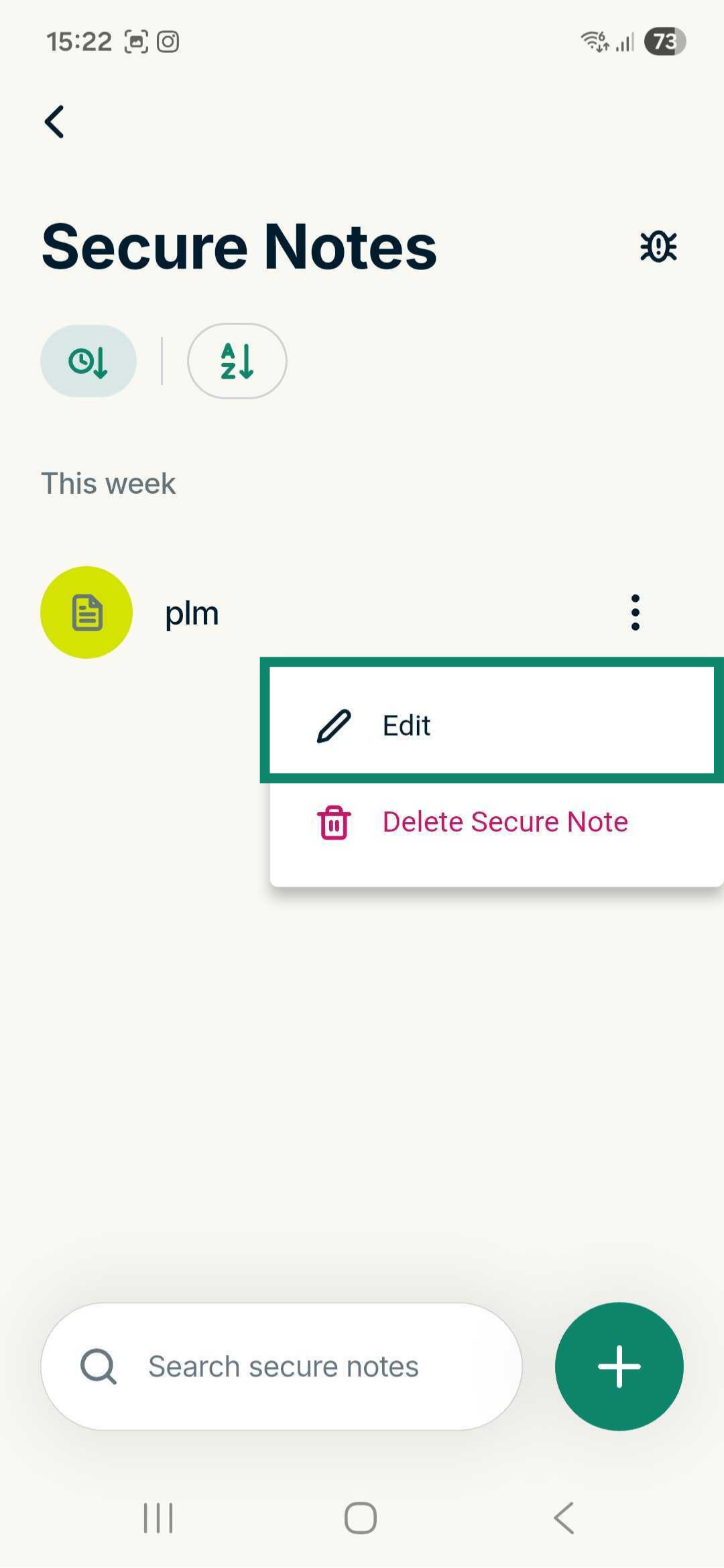
- Find the secure note you want to edit or delete and tap the three-dot menu icon.
To edit a secure note
- Tap Edit.
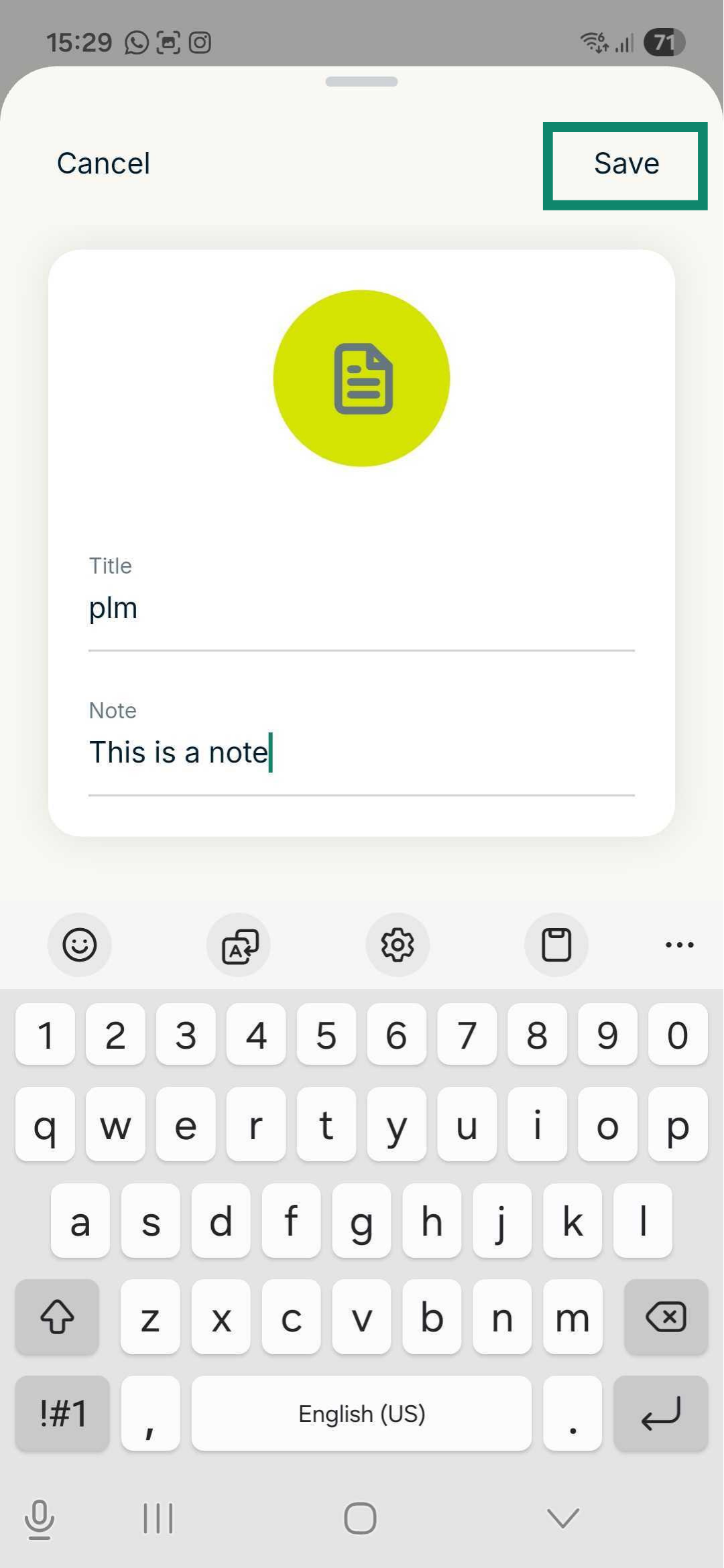
- Make the changes you want and tap Save.
To delete a secure note
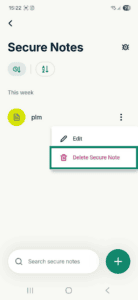
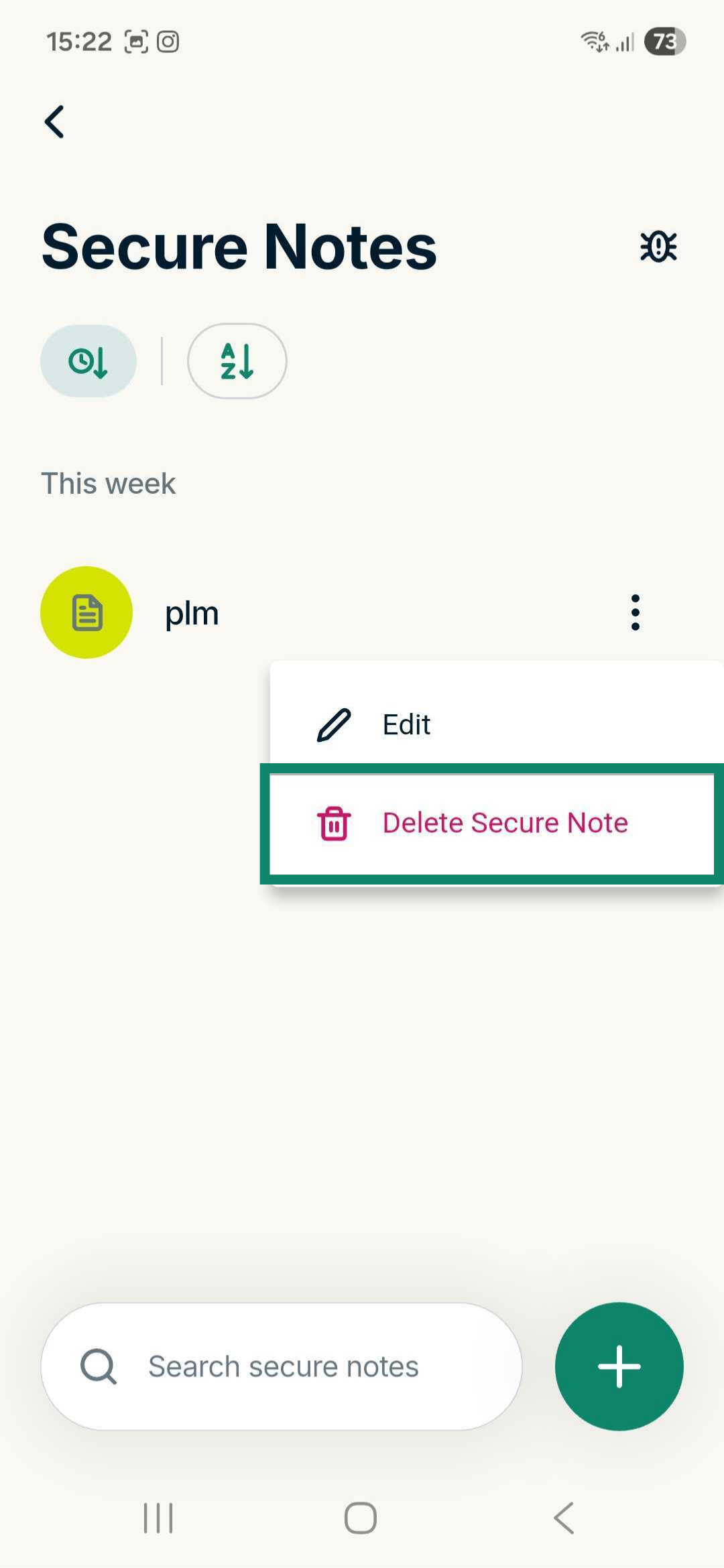
- Select Delete Secure Note.
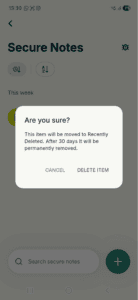
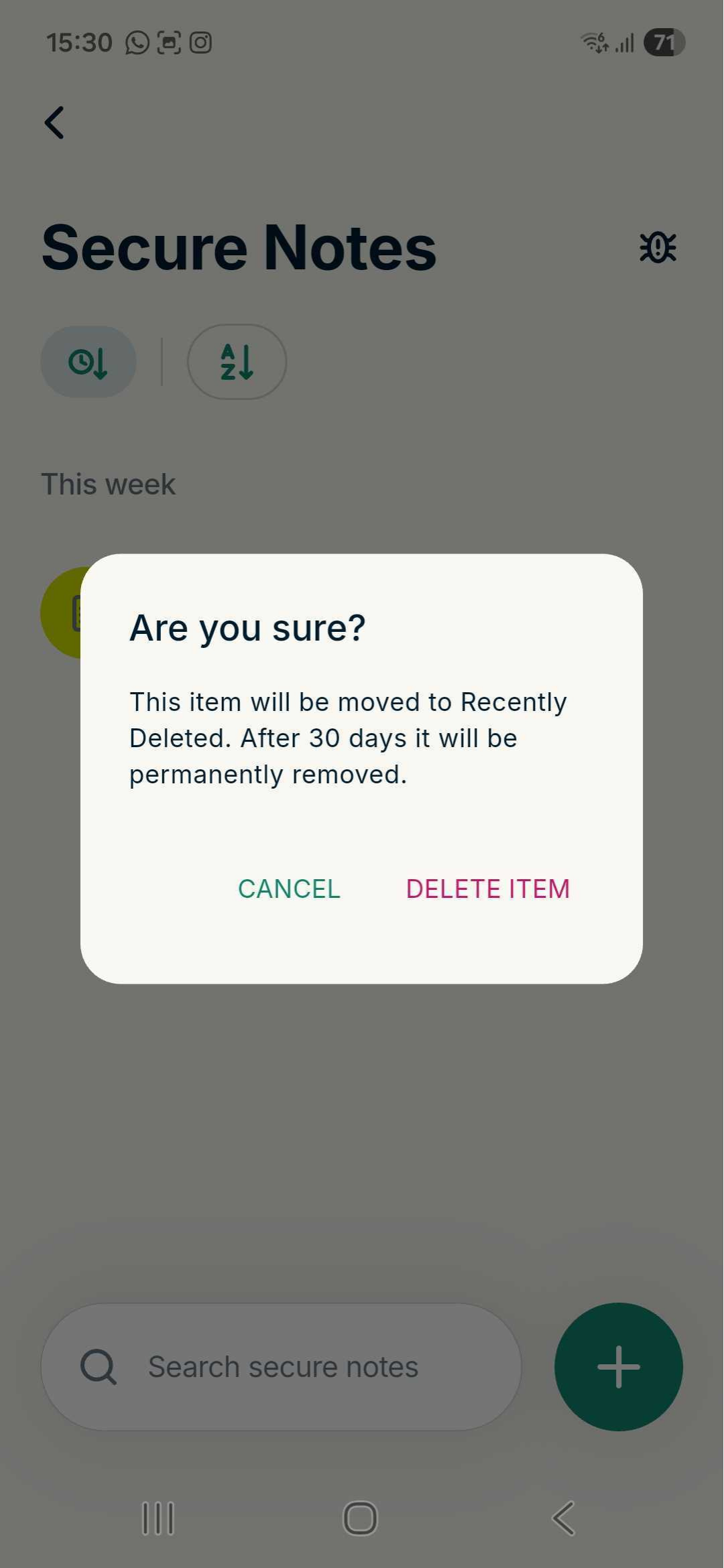
- Tap Delete item to confirm.
In the ExpressKeys app for iOS
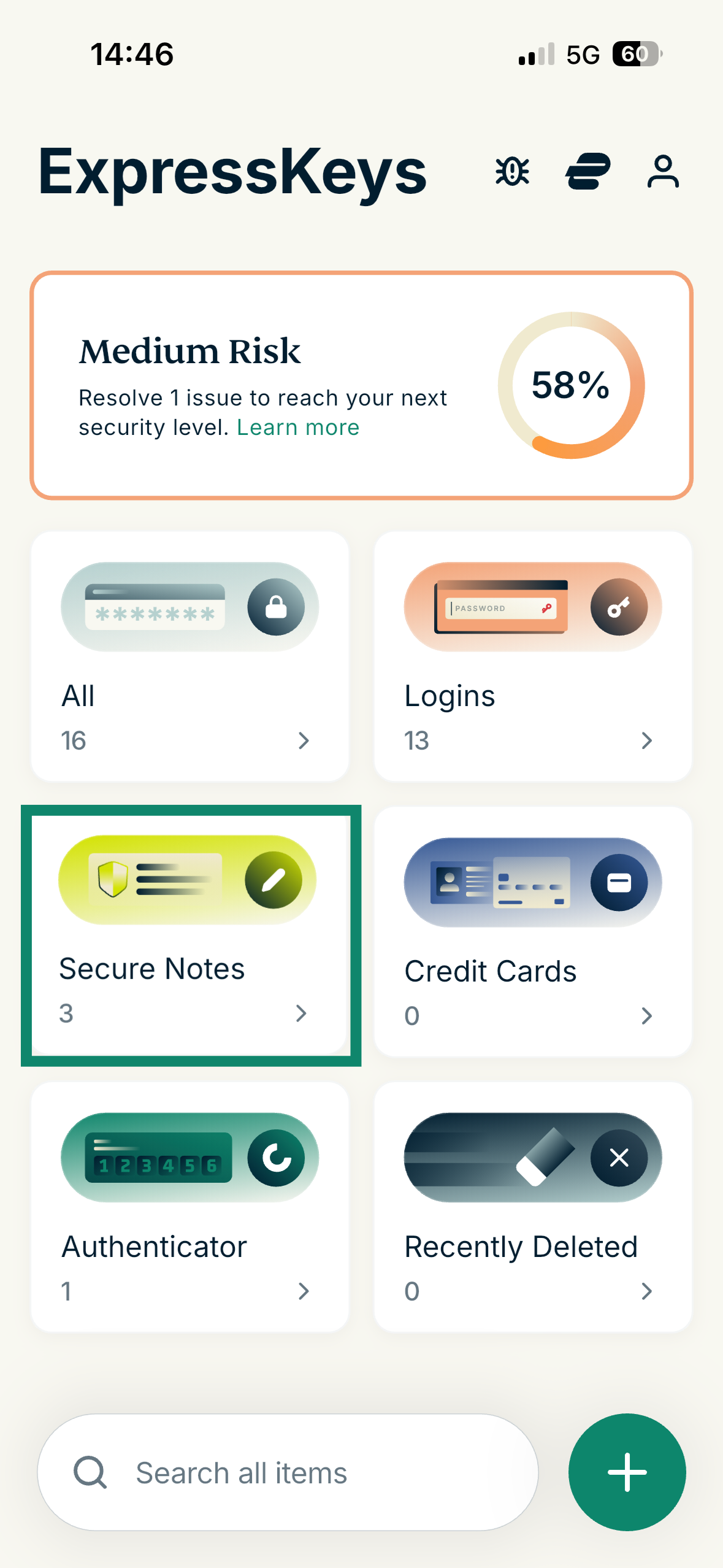
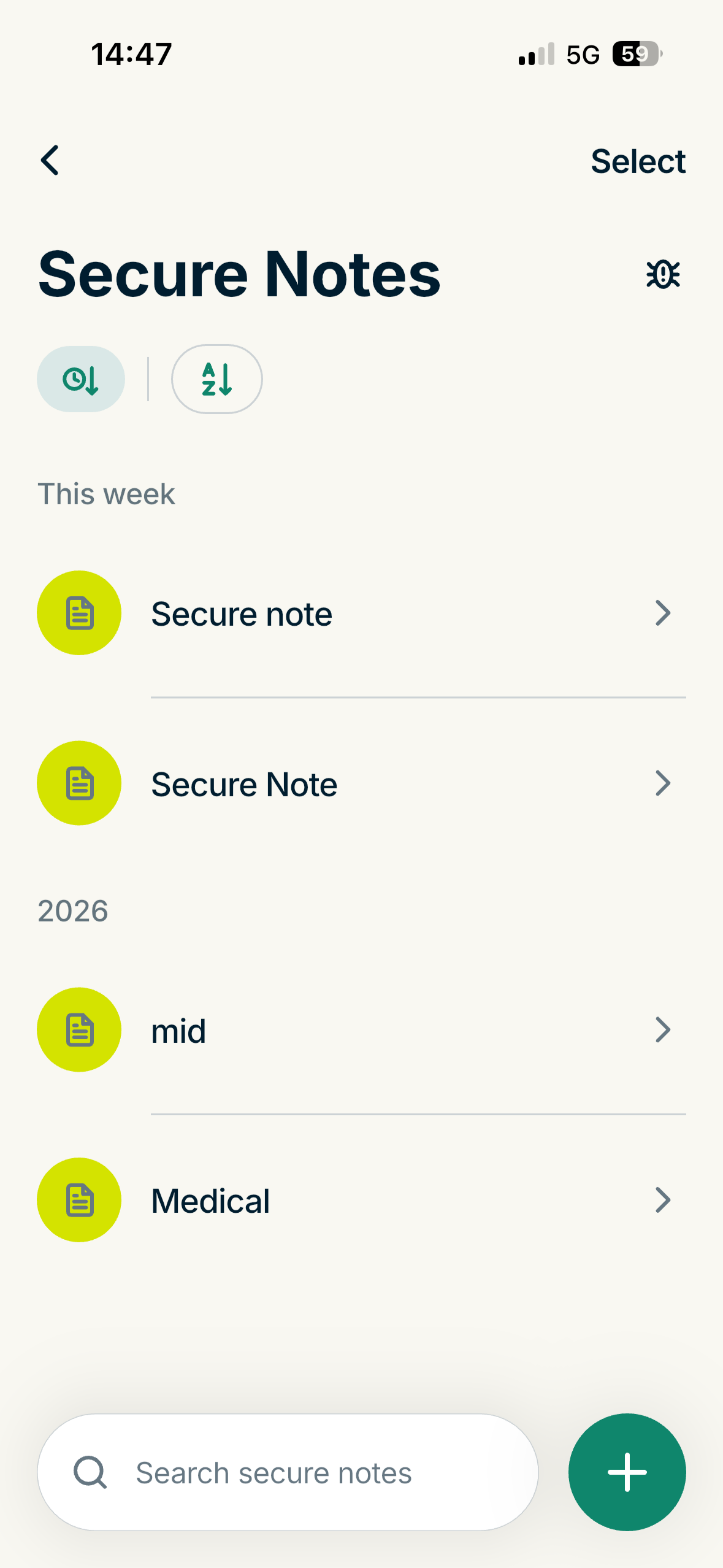
- Tap the Secure Notes widget in the ExpressKeys app.
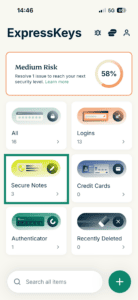
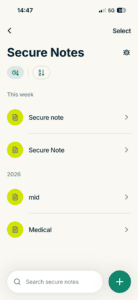
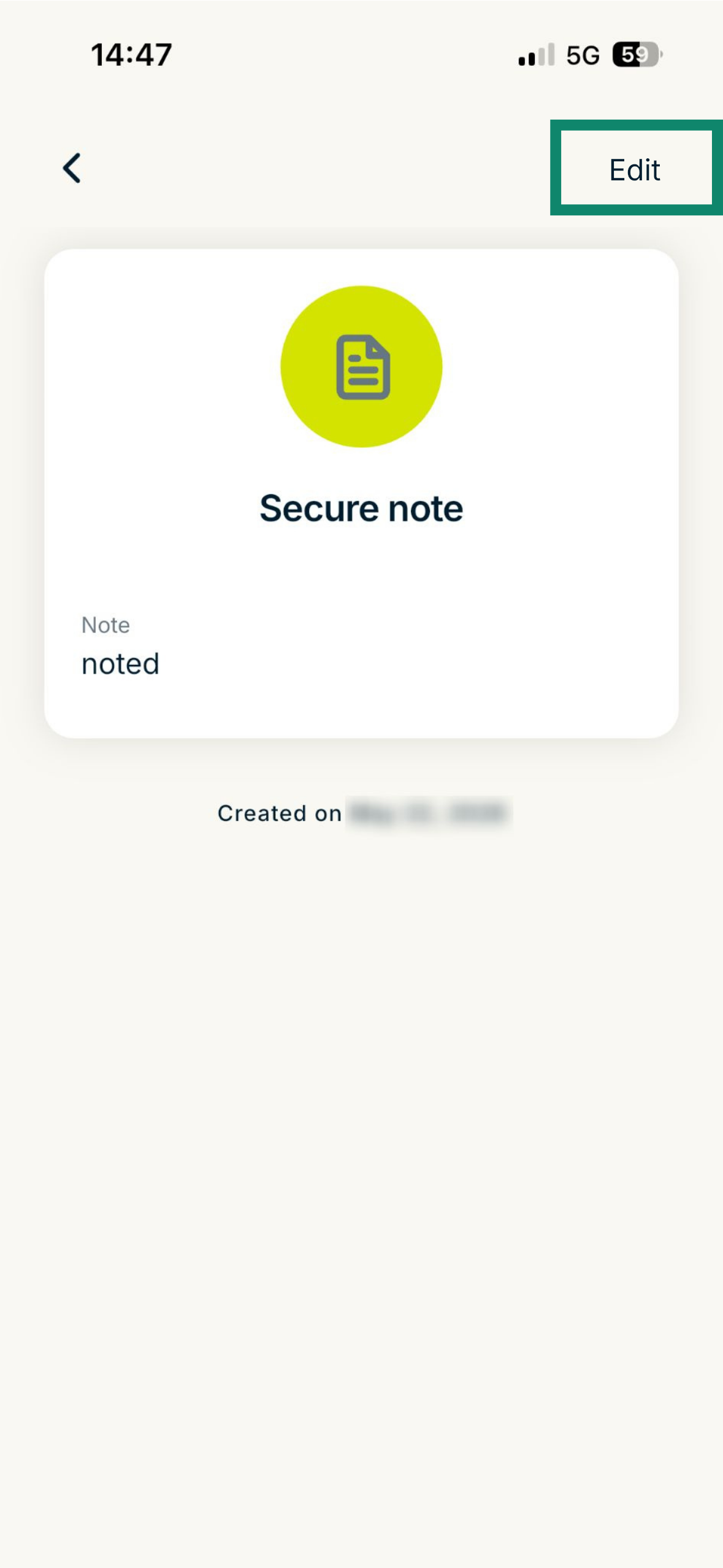
- Find and tap the secure note you want to edit or delete.
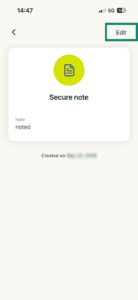
- Tap Edit.
To edit a secure note
Adjust your information, then tap Save.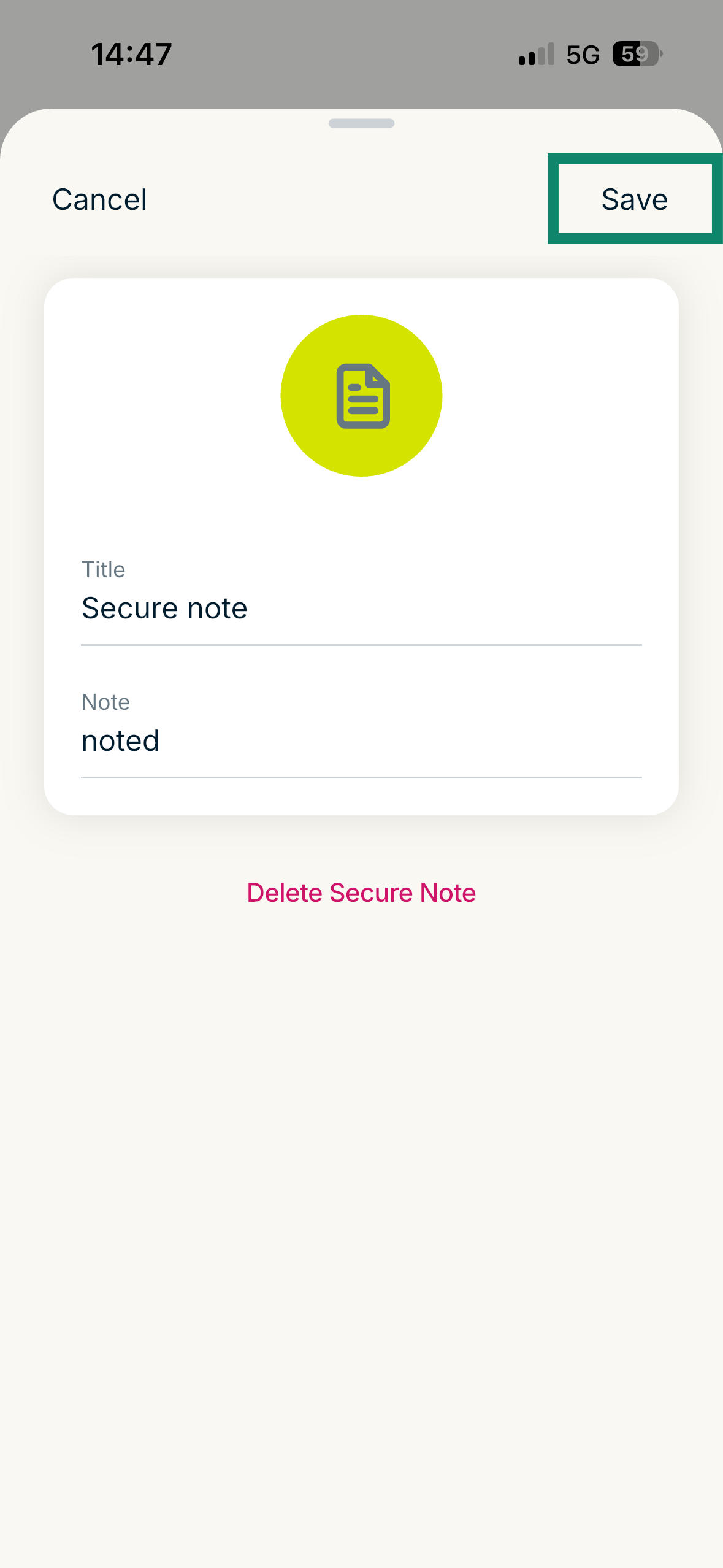
To delete a secure note
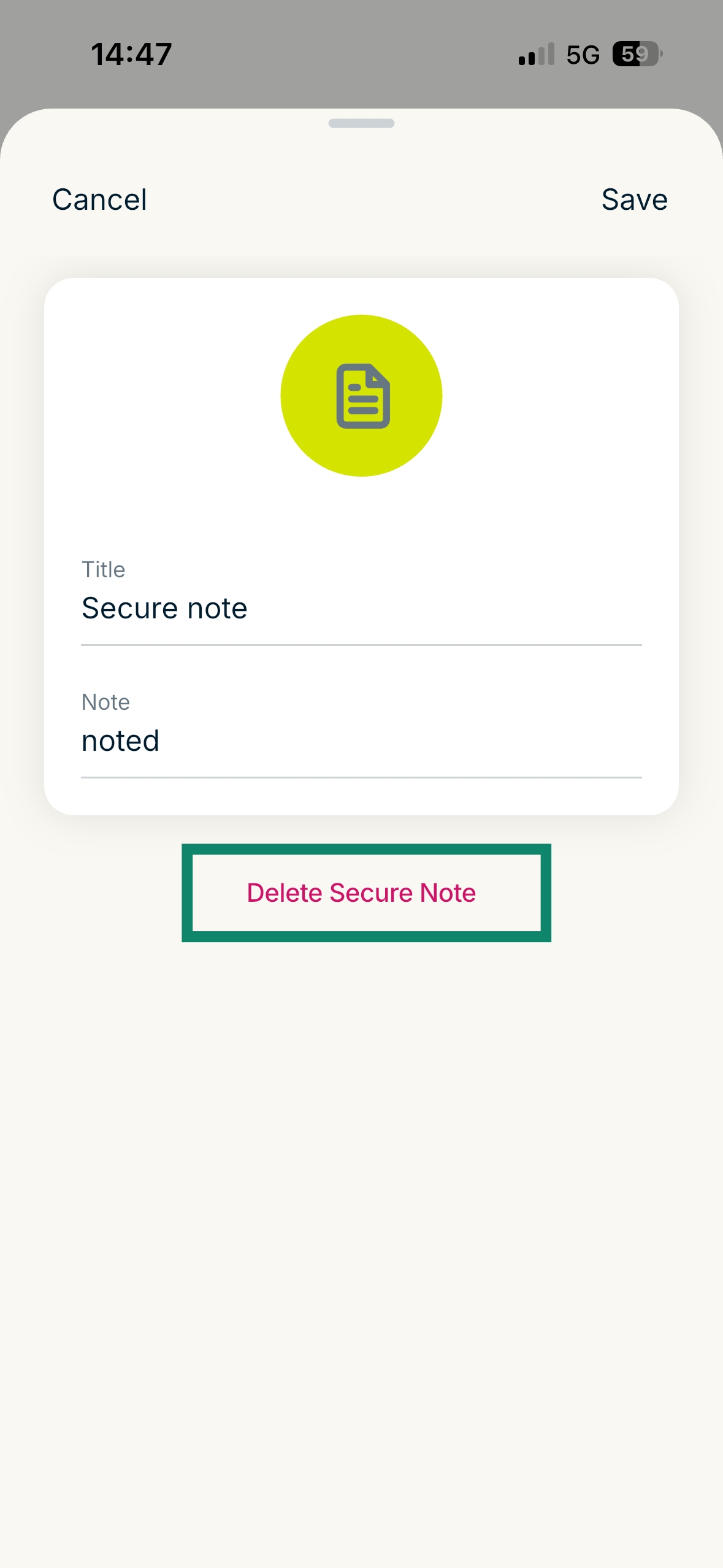
- Tap Delete Secure Note.
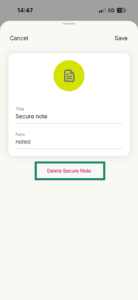
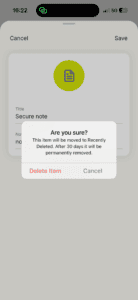
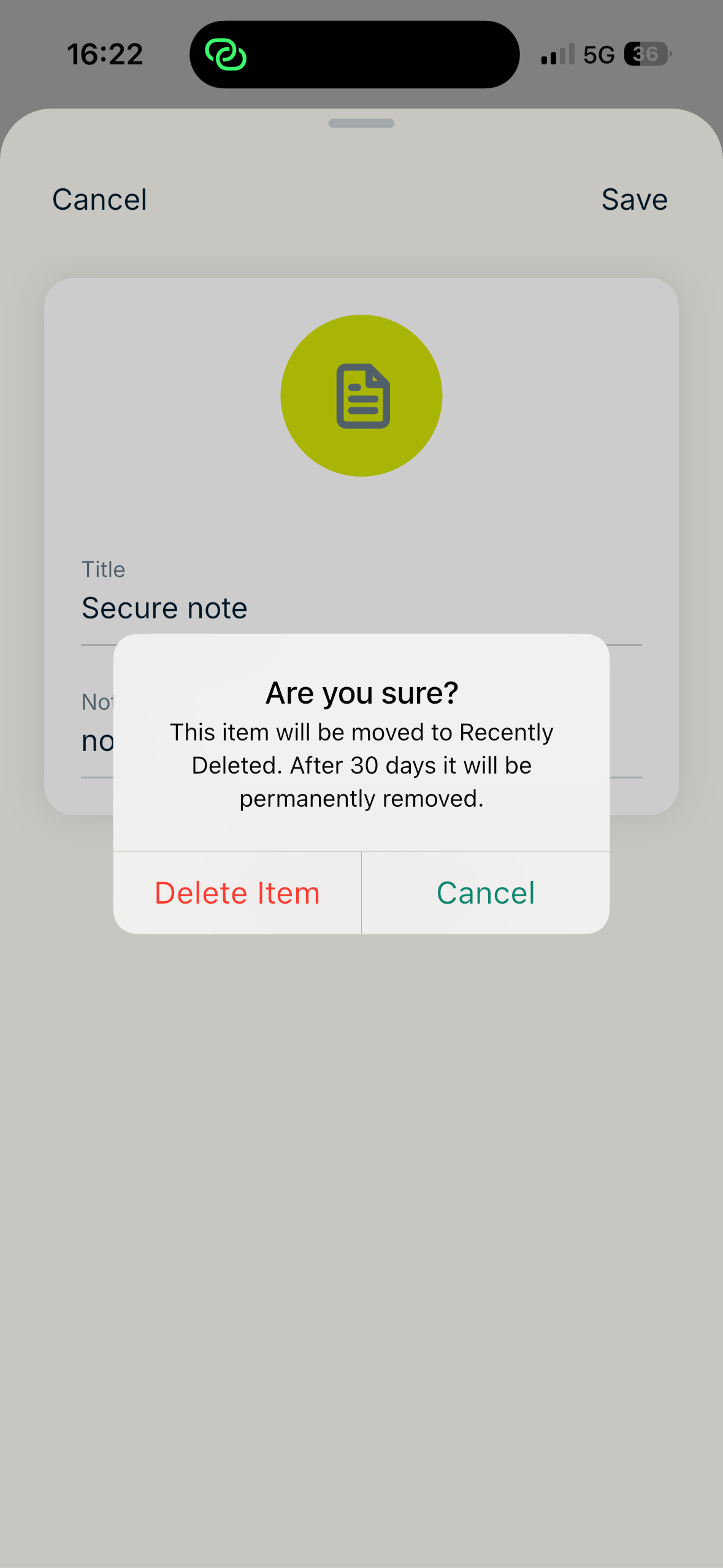
- Tap Delete item in the pop-up to confirm.
Need help? Contact our Support Team for immediate assistance.
How to import secure notes
You can import your secure notes into ExpressKeys from 1Password, Dashlane, LastPass, Bitwarden, and the Passwords app for iOS devices. Follow these instructions.
Need help? Contact our Support Team for immediate assistance.