



With ExpressKeys, you can store your credit or debit card details alongside your logins and secure notes. It also lets you autofill them on websites for faster, more convenient payments.
Jump to…
How to store card details in ExpressKeys on iOS
How to store card details in ExpressKeys on Android
Edit or delete saved card details on iOS or Android
Import your credit or debit card details
Autofill your credit or debit card details
How to store card details in ExpressKeys on iOS
Scan your card using iPhone camera
You can use your iPhone camera to quickly add your card details. You need to allow camera access to do this.
- Open the ExpressKeys app and tap

 .
.

- Tap Credit Cards.

- Tap Scan Card.

- Tap Allow (if prompted).

- Scan your card.
- Review the details, then tap Save.

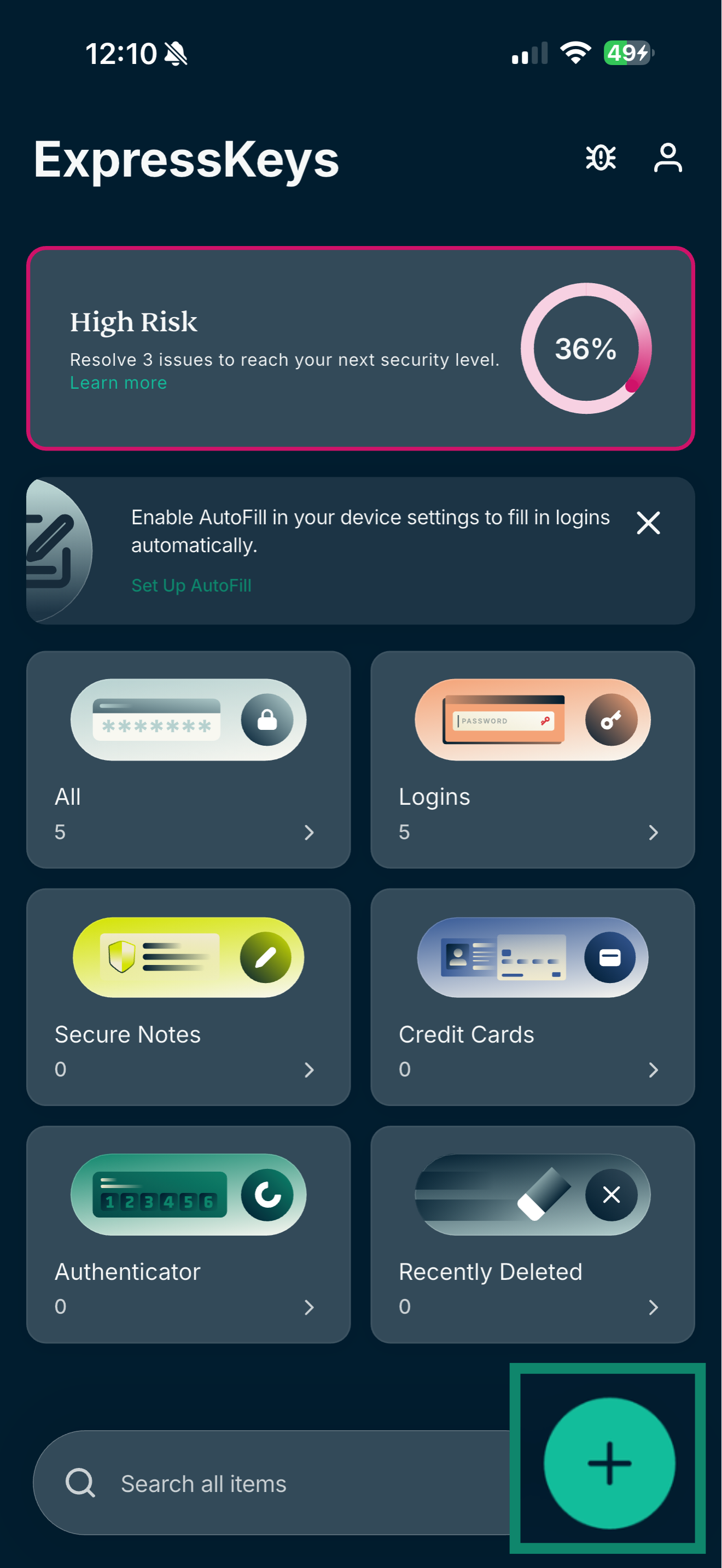
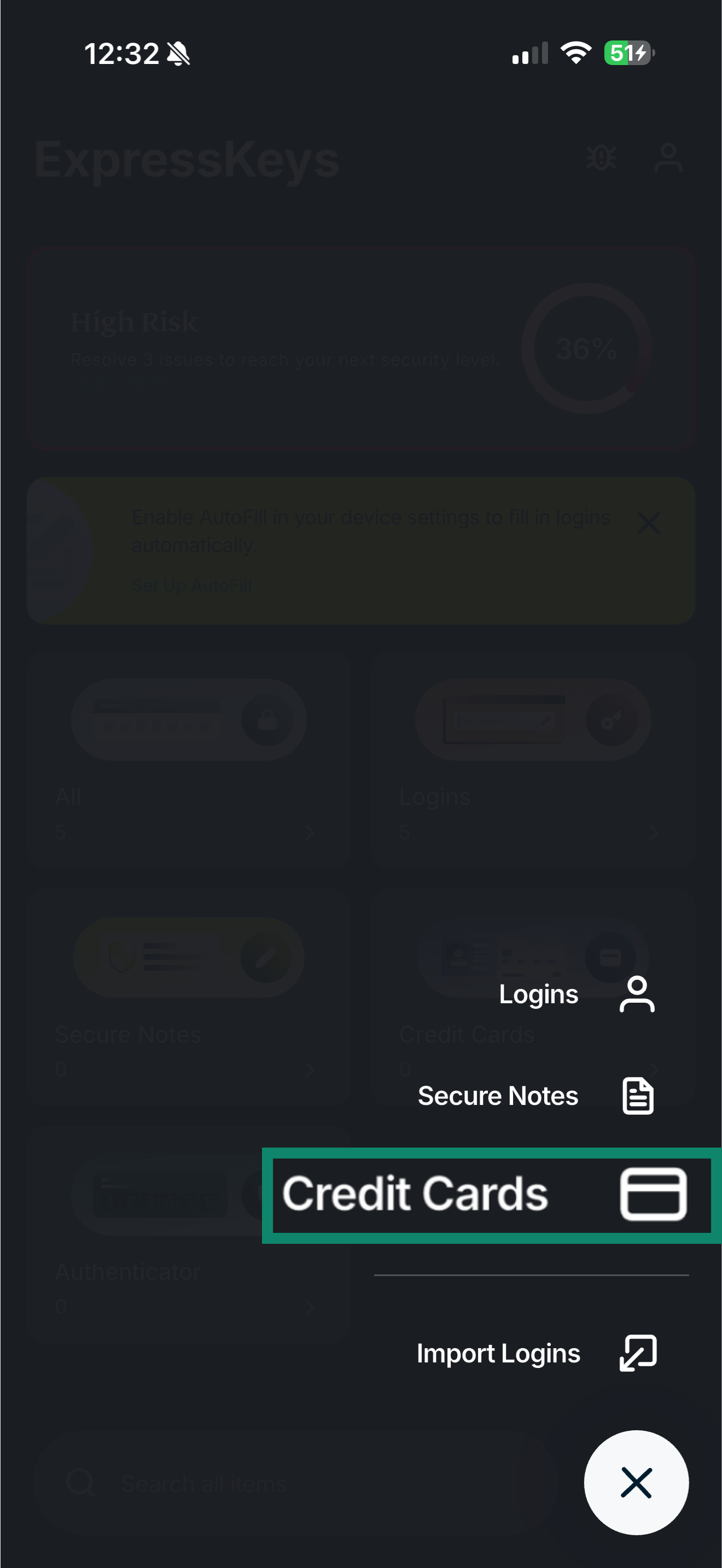
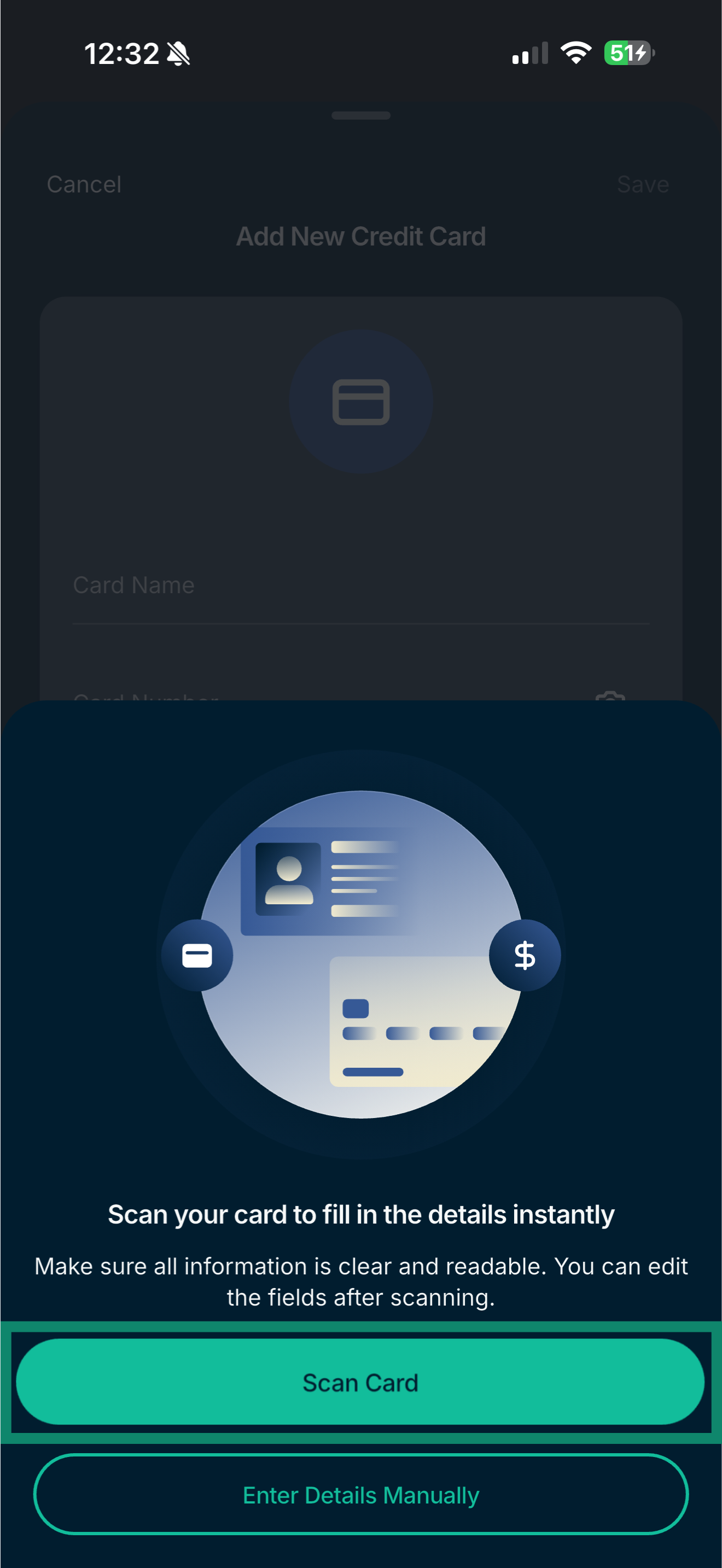
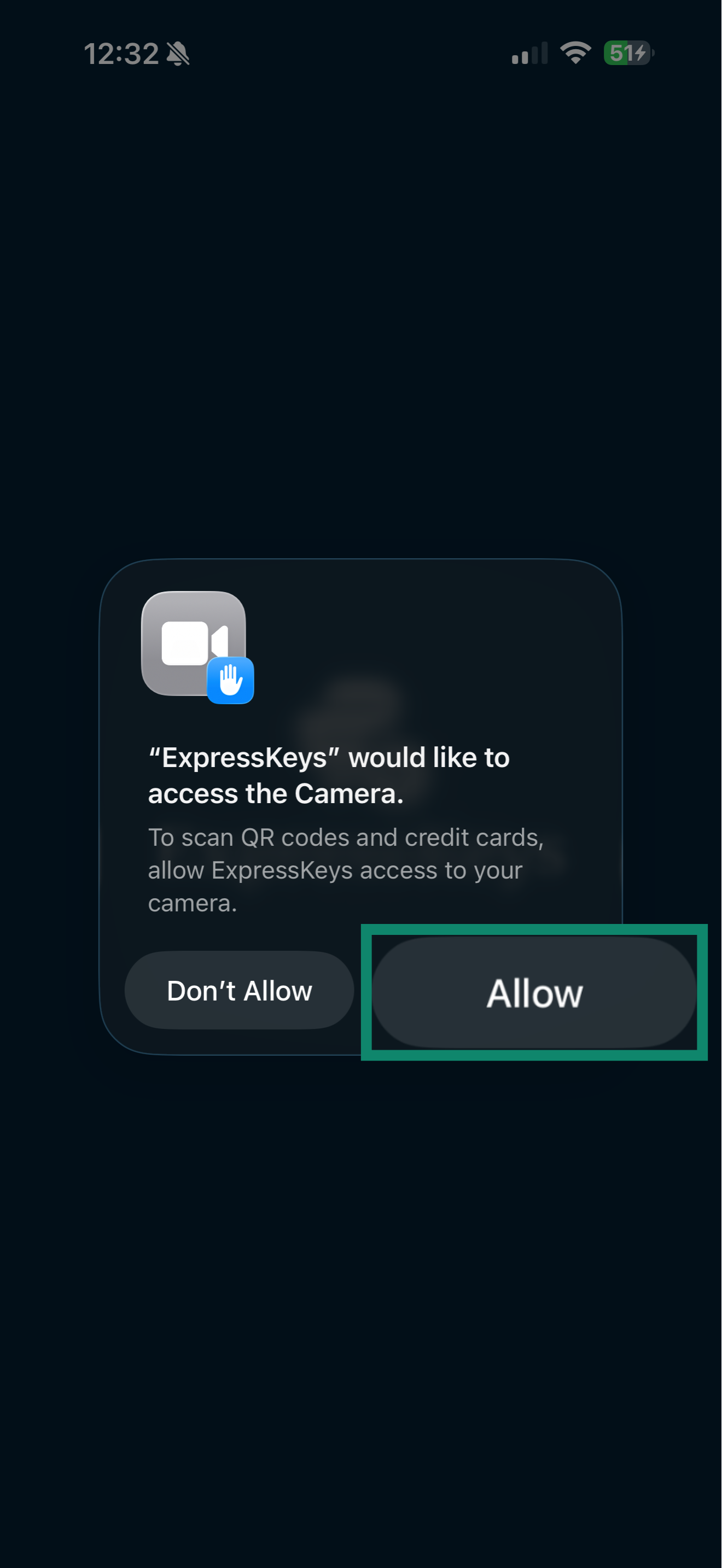
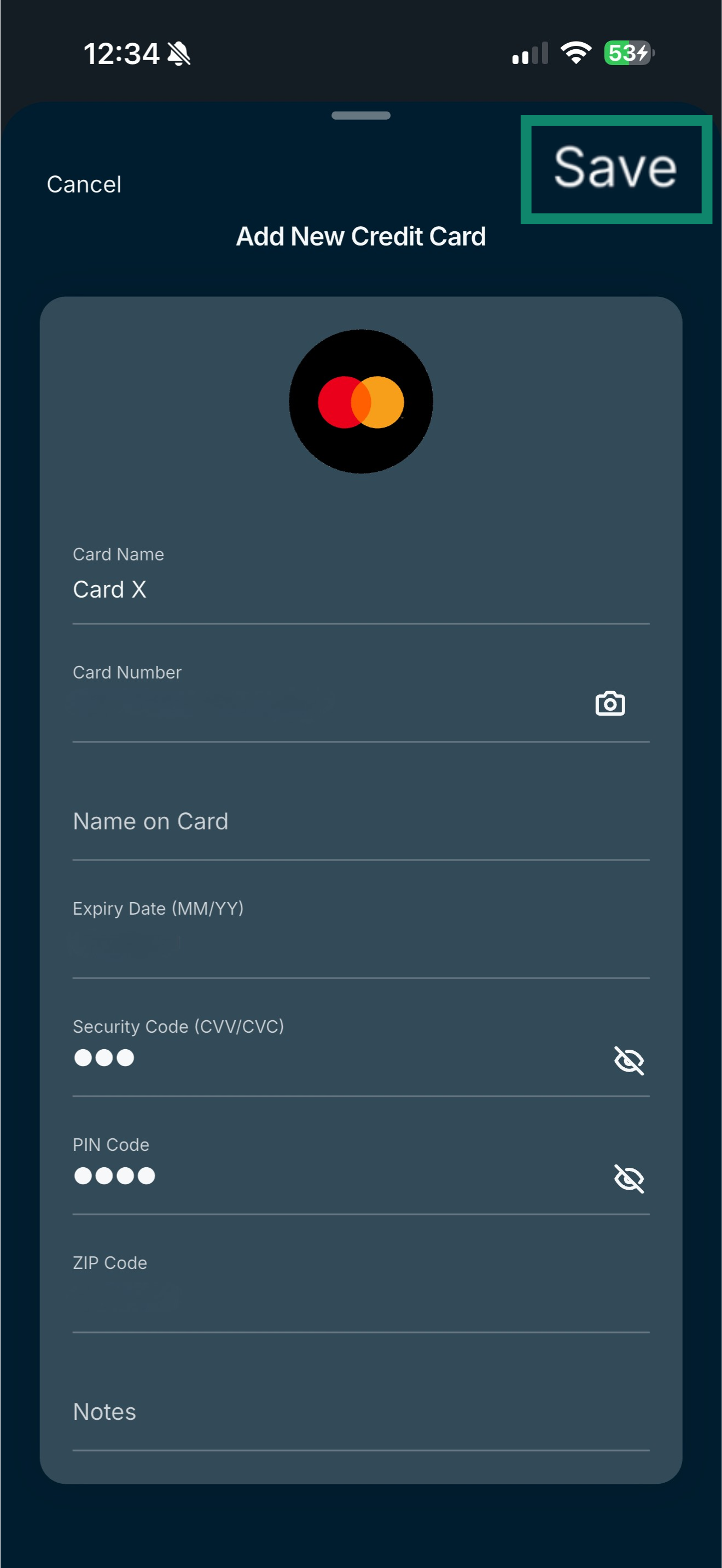 > Credit Cards. You can choose Scan Card or Enter Details Manually.
Add card details manually on iOS
If you prefer, you can enter your card details manually.
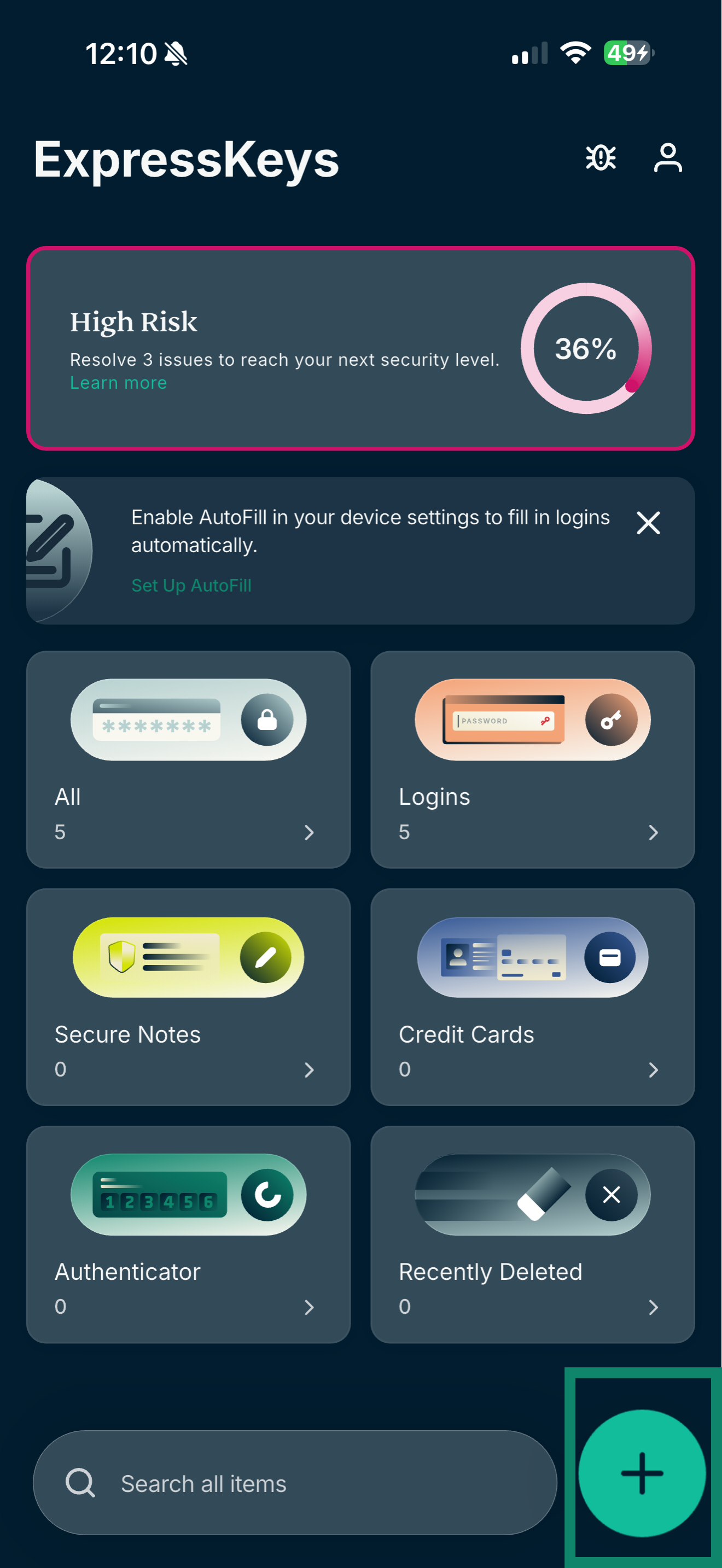
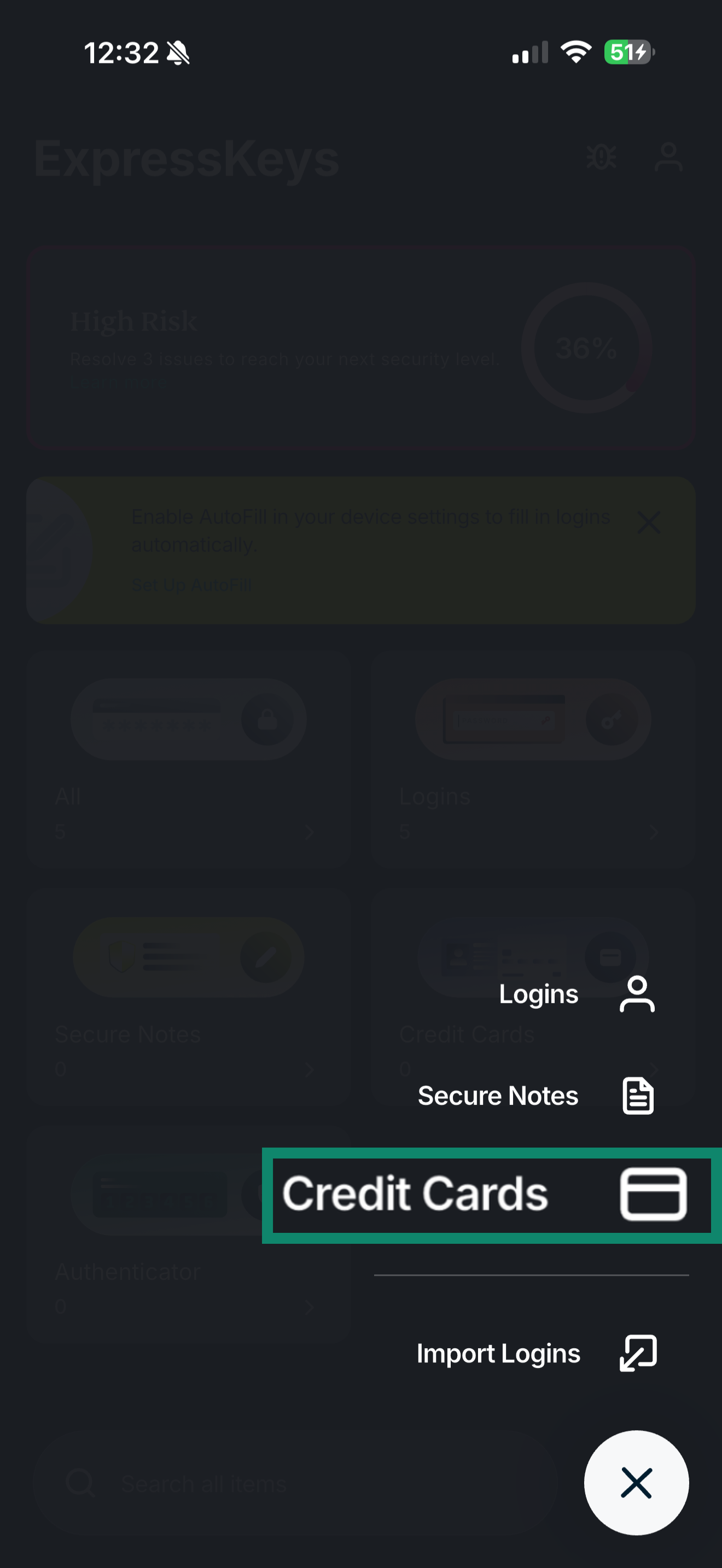
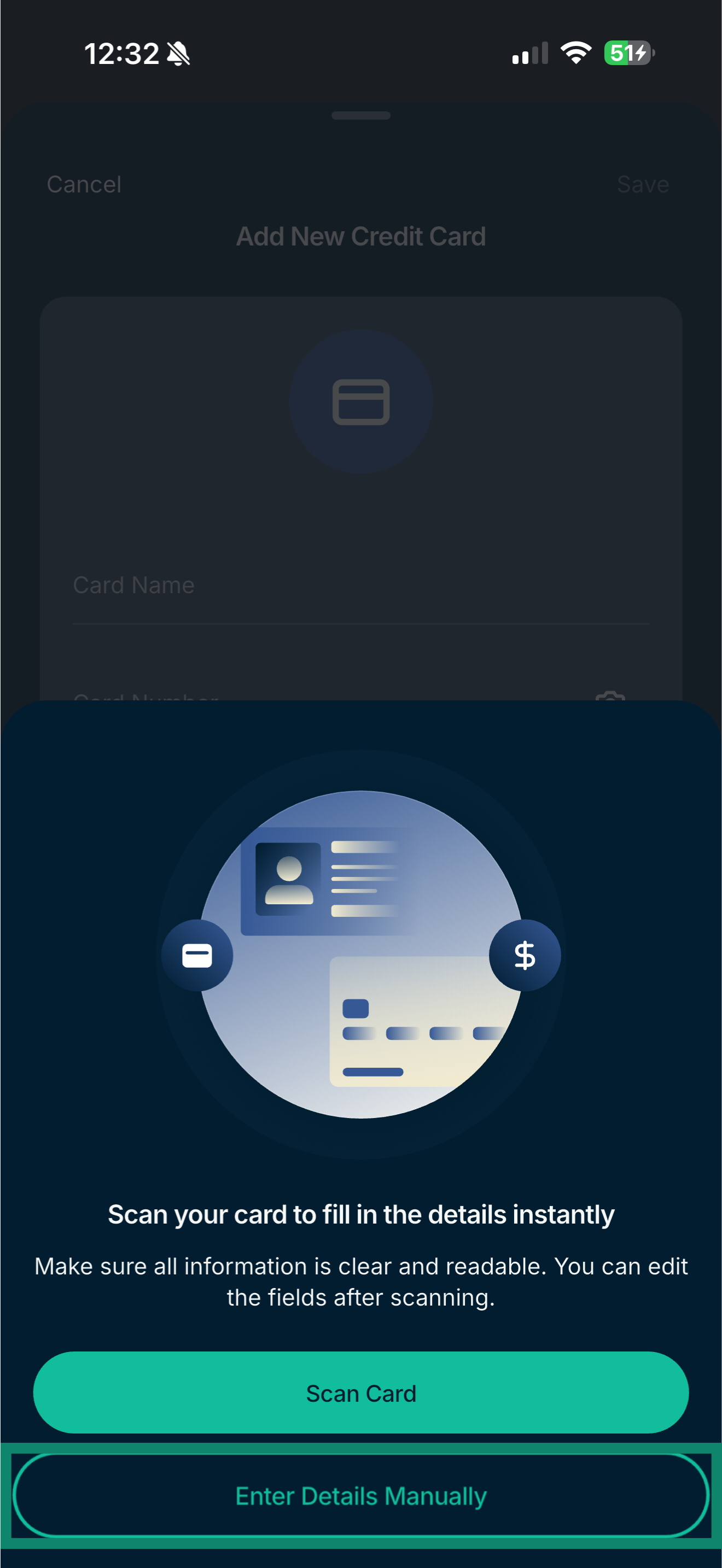
- Open the ExpressKeys app and tap .

- Tap Credit Cards.

- Tap Enter Details Manually.

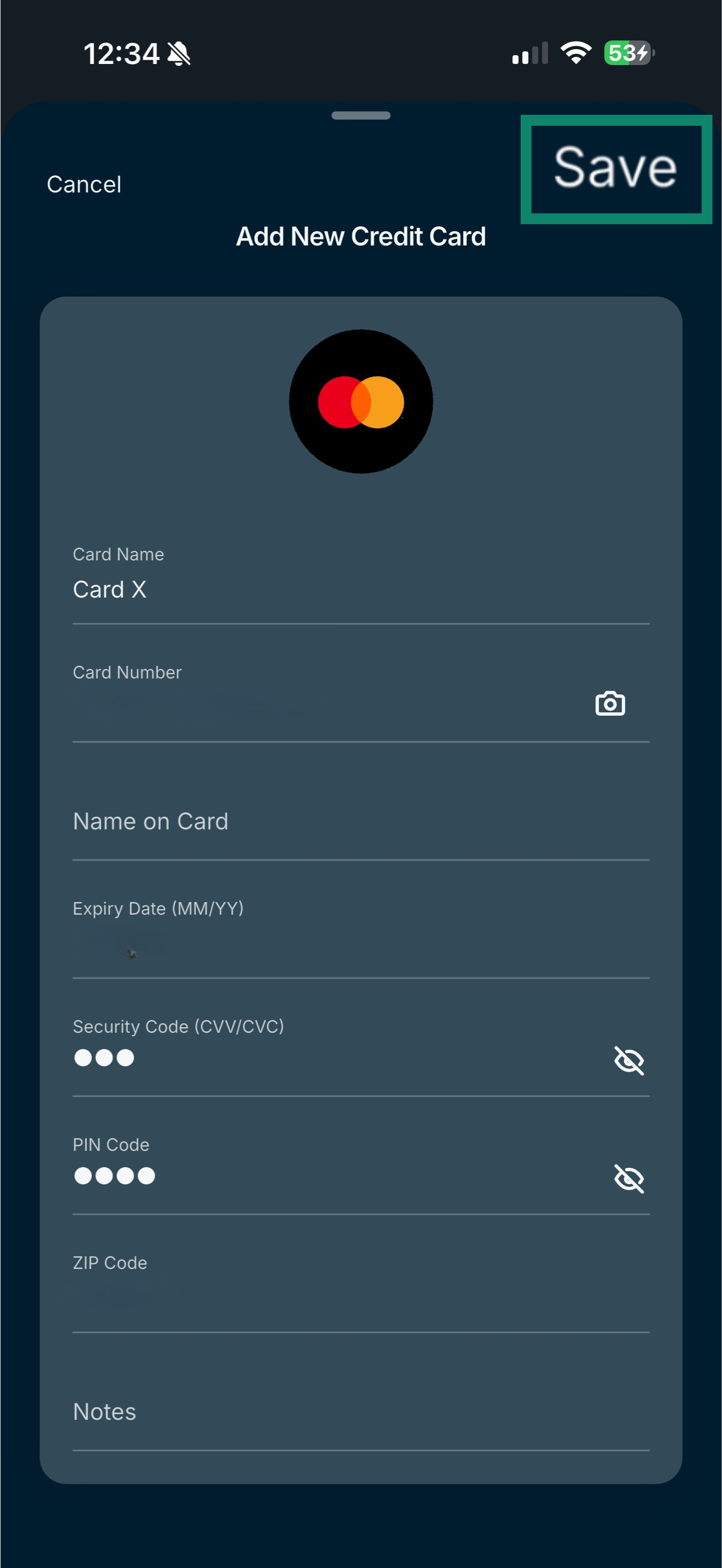
- Enter your card details and tap Save.

Need help? Contact the ExpressVPN Support Team for immediate assistance.
How to store card details in ExpressKeys on Android
Add card details manually on Android
Currently, the only available option for adding card details on Android is to enter them manually.
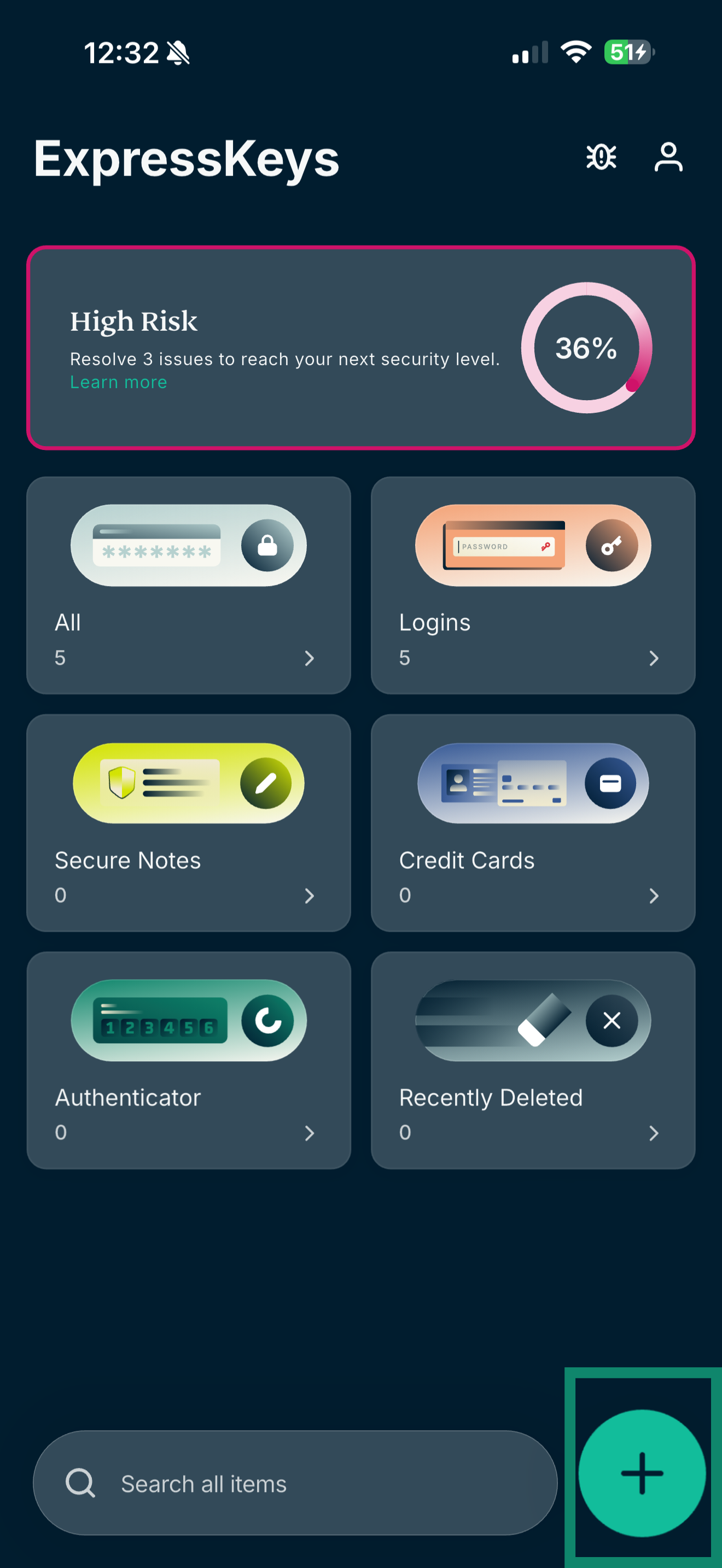
- Open the ExpressKeys app and tap .

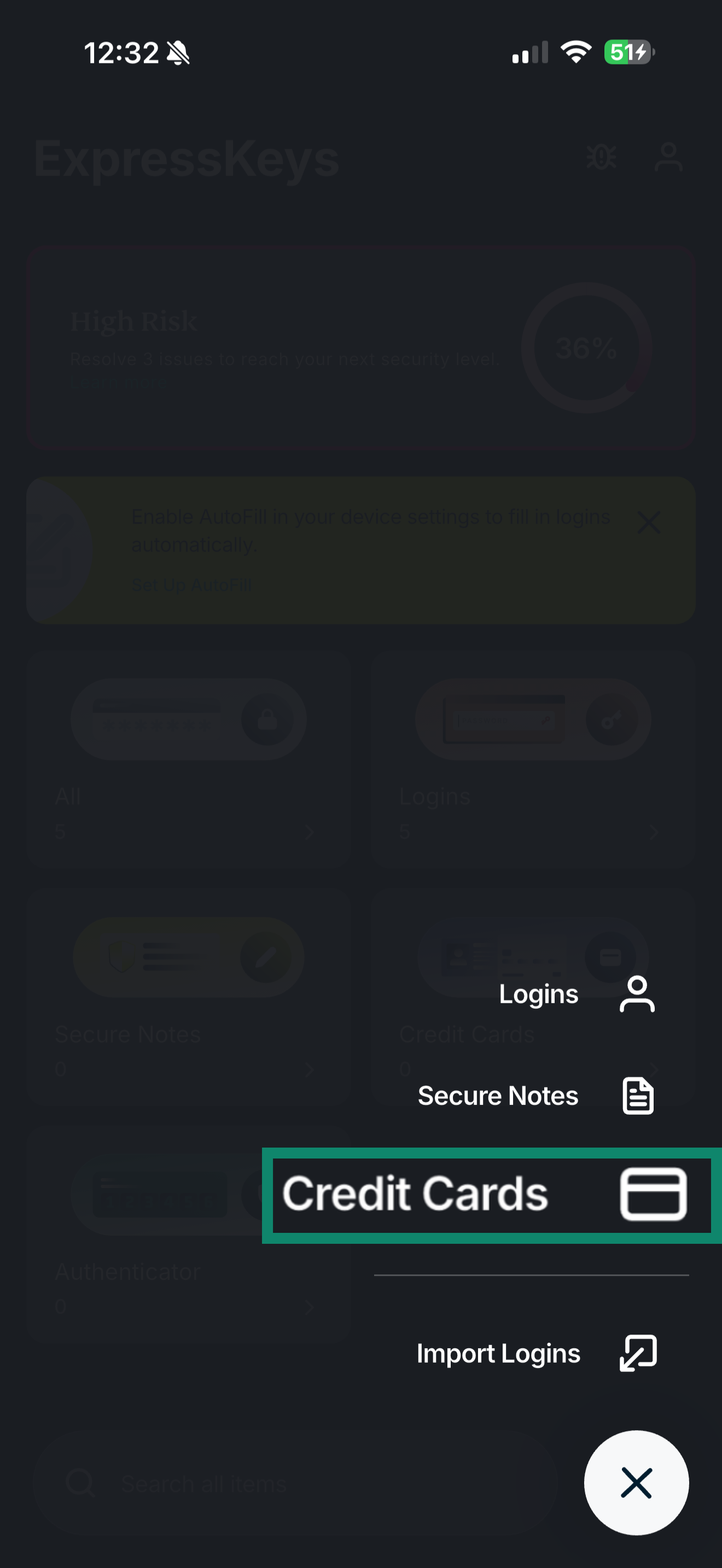
- Tap Credit Cards.

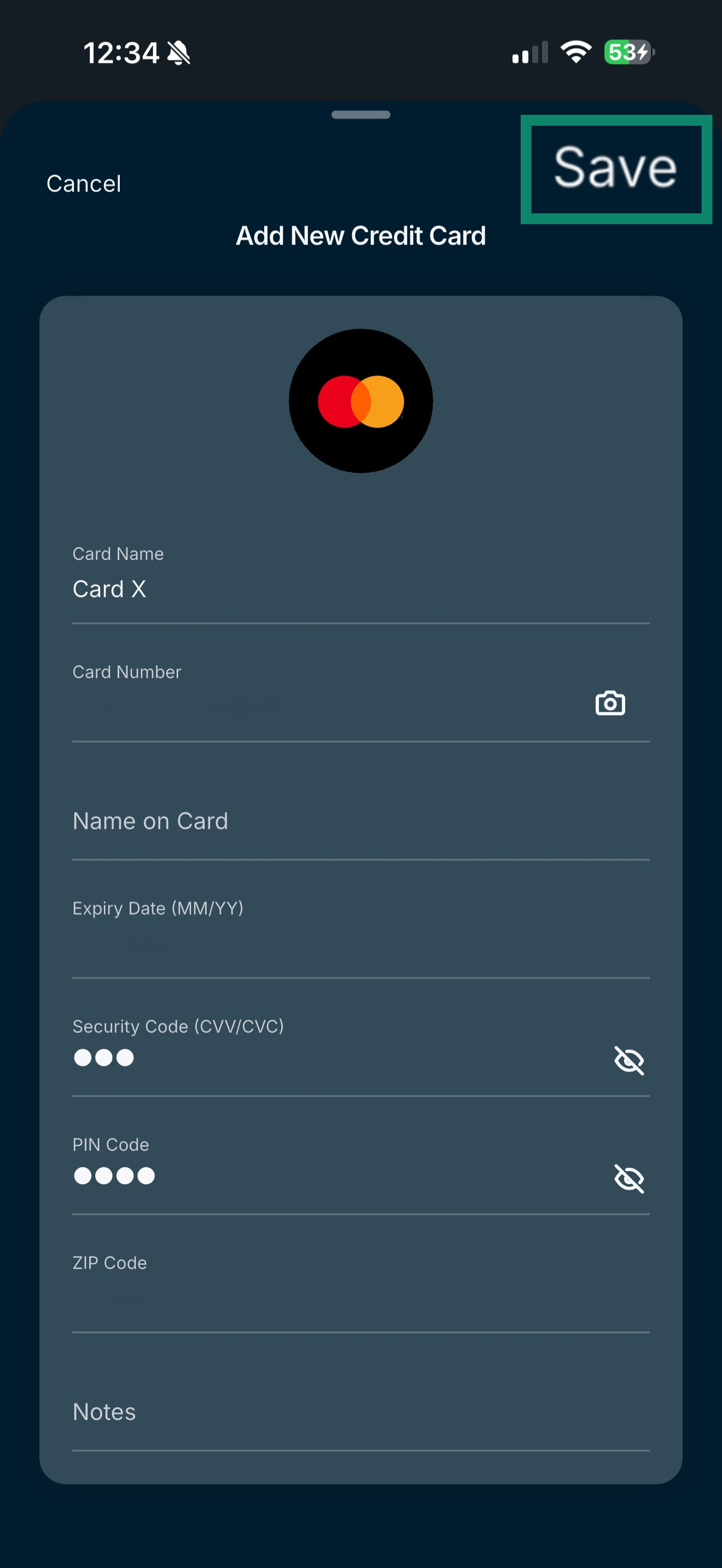
- Enter your card details and tap Save.

Need help? Contact the ExpressVPN Support Team for immediate assistance.
Edit or delete saved card details on iOS or Android
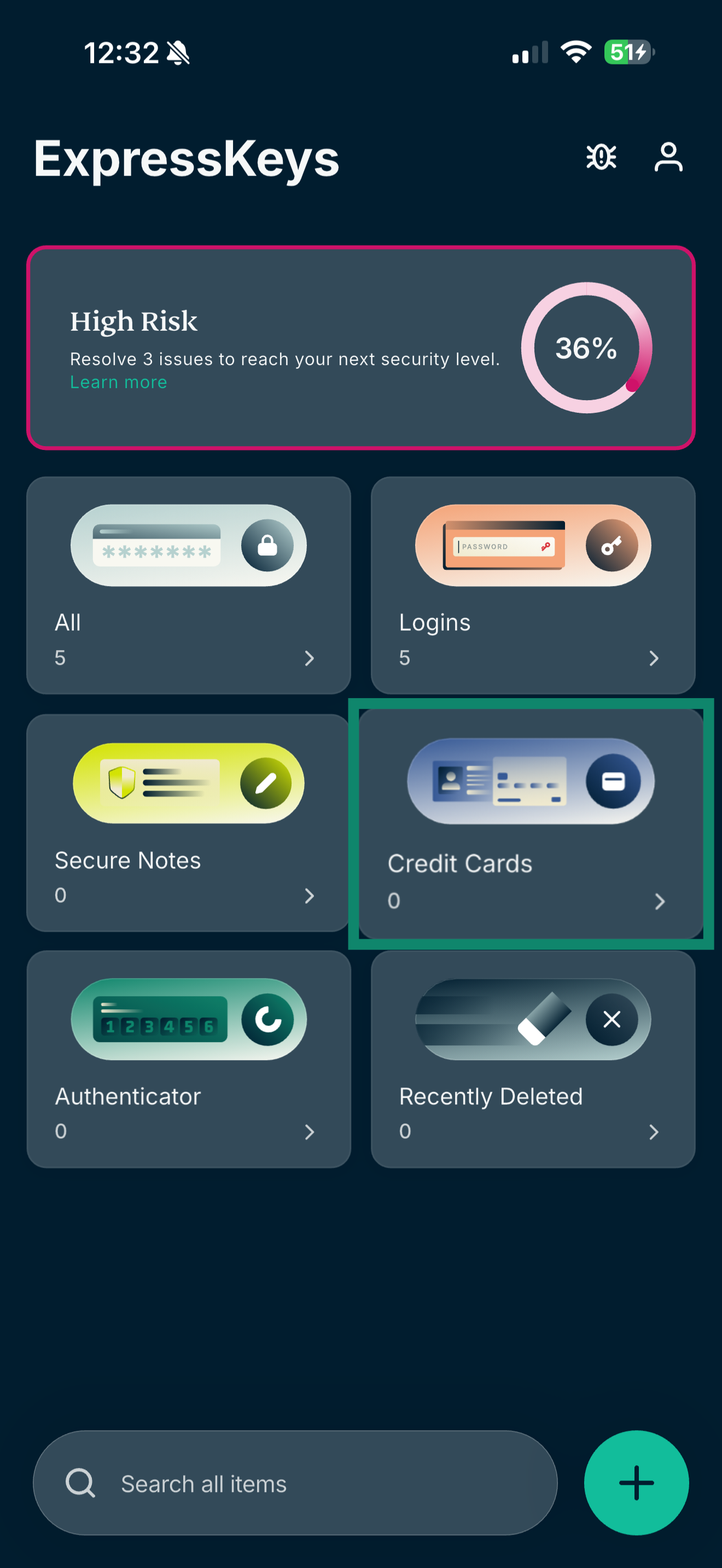
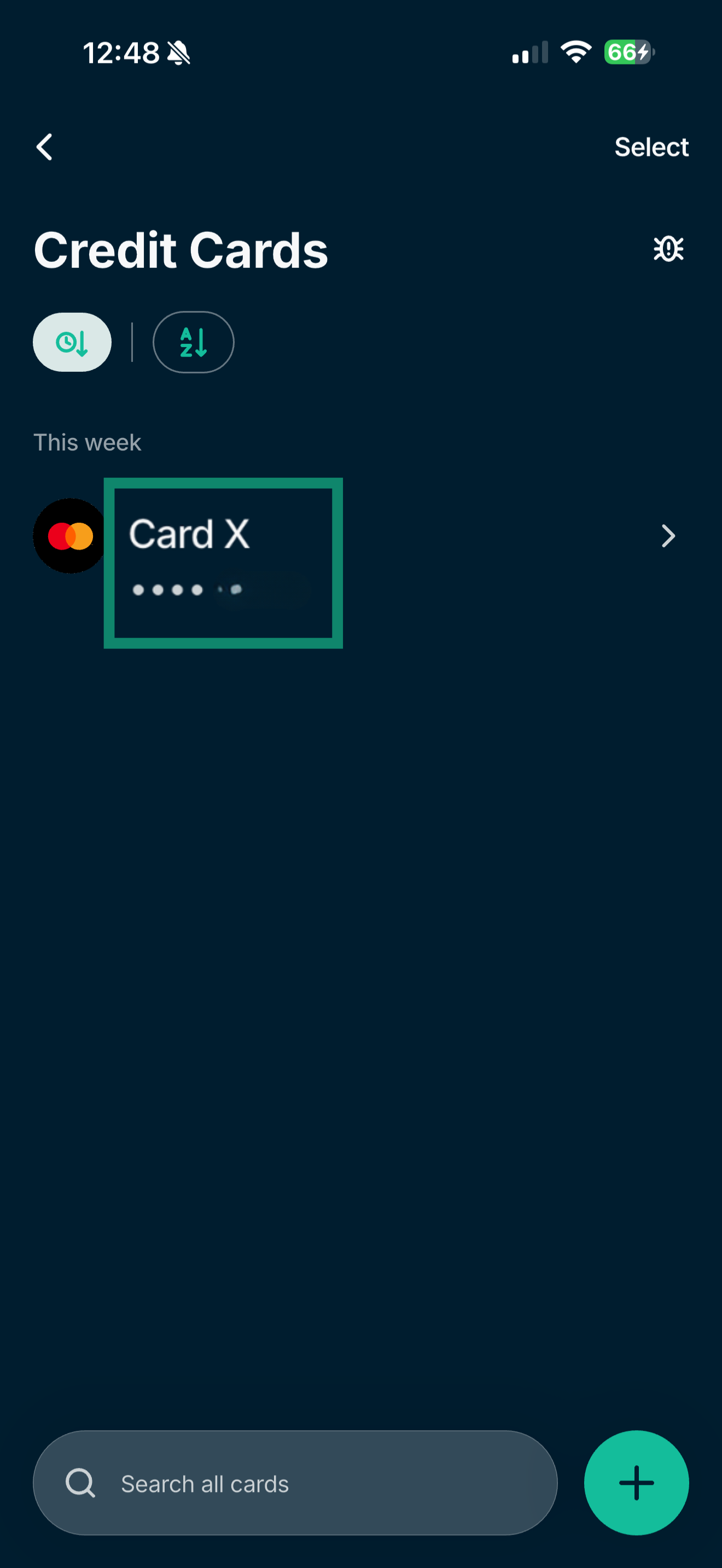
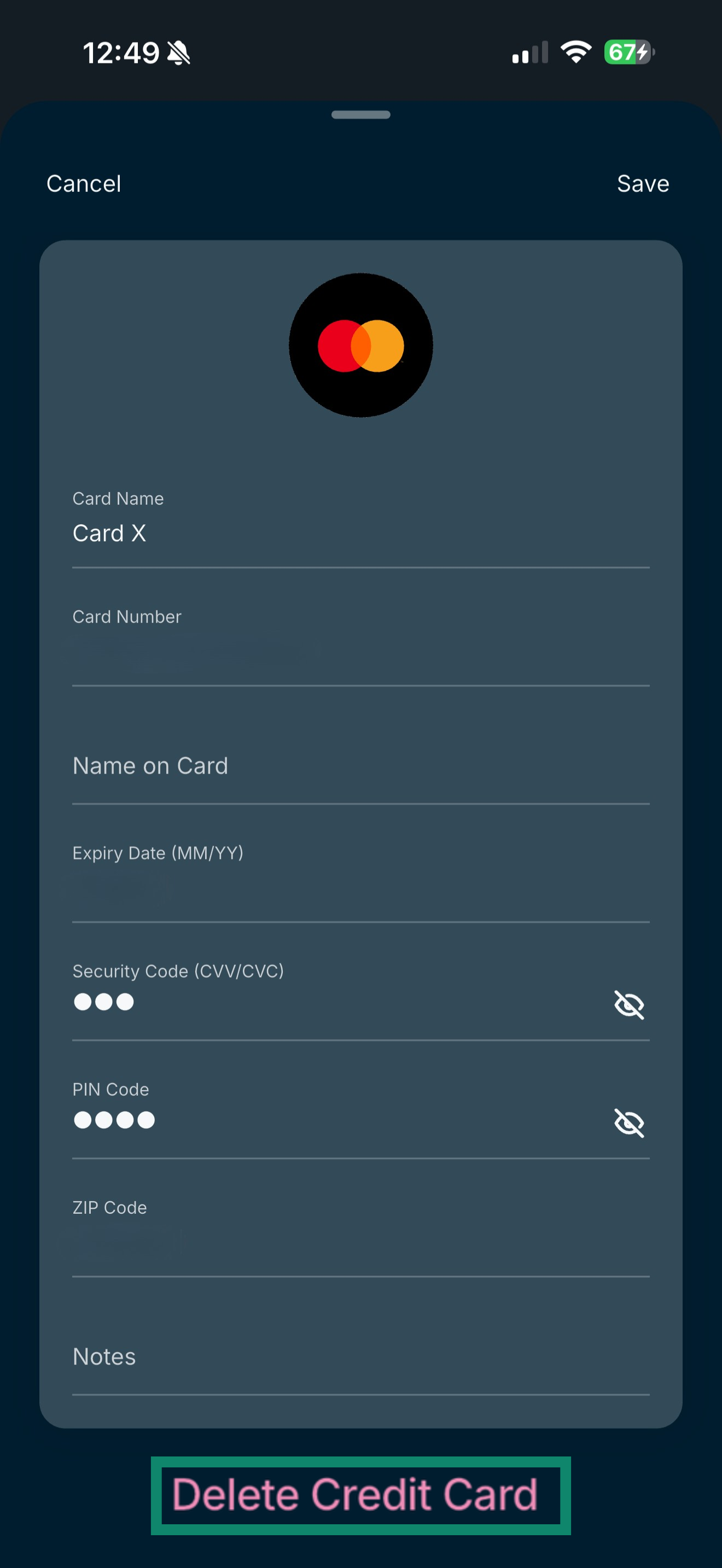
- Open the ExpressKeys app and tap Credit Cards.

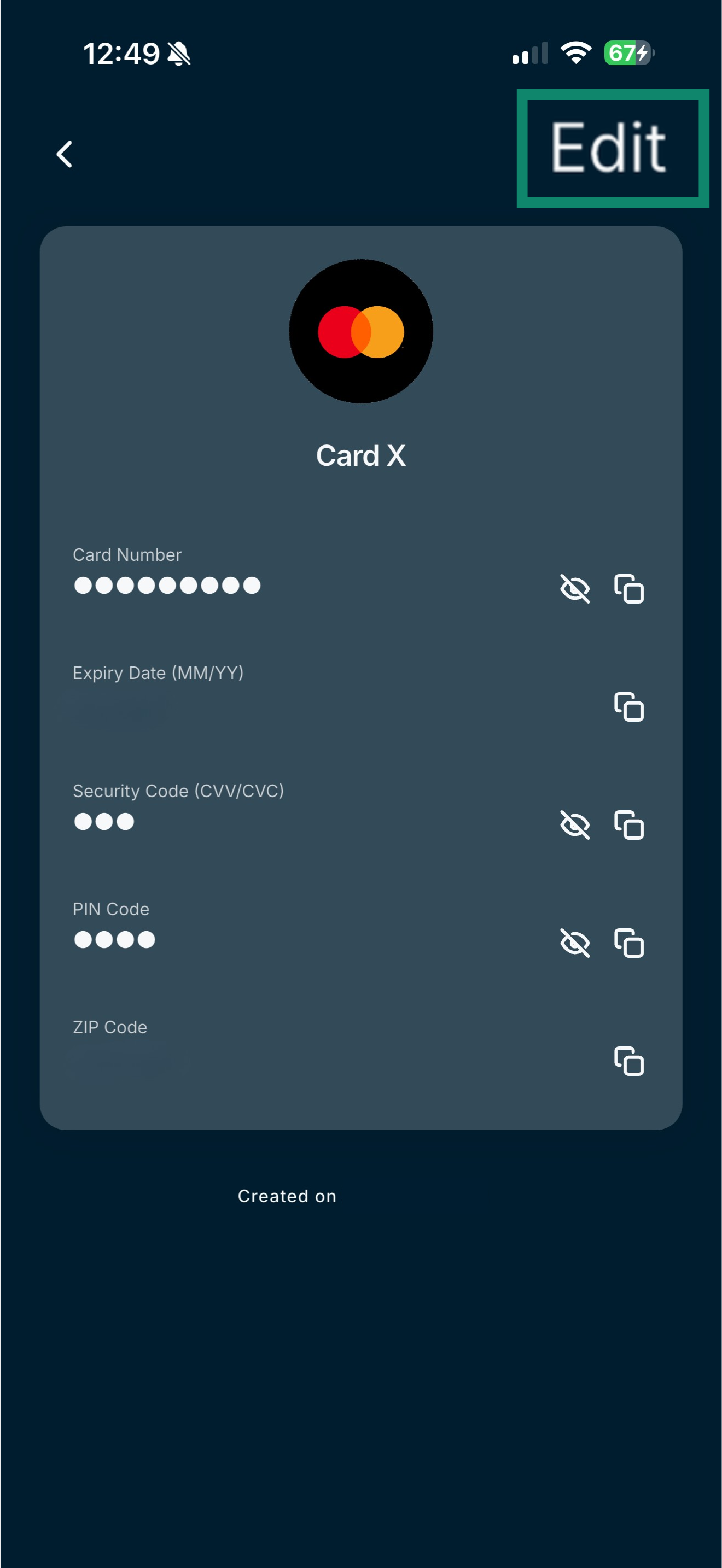
- Select the card you want to edit or delete.

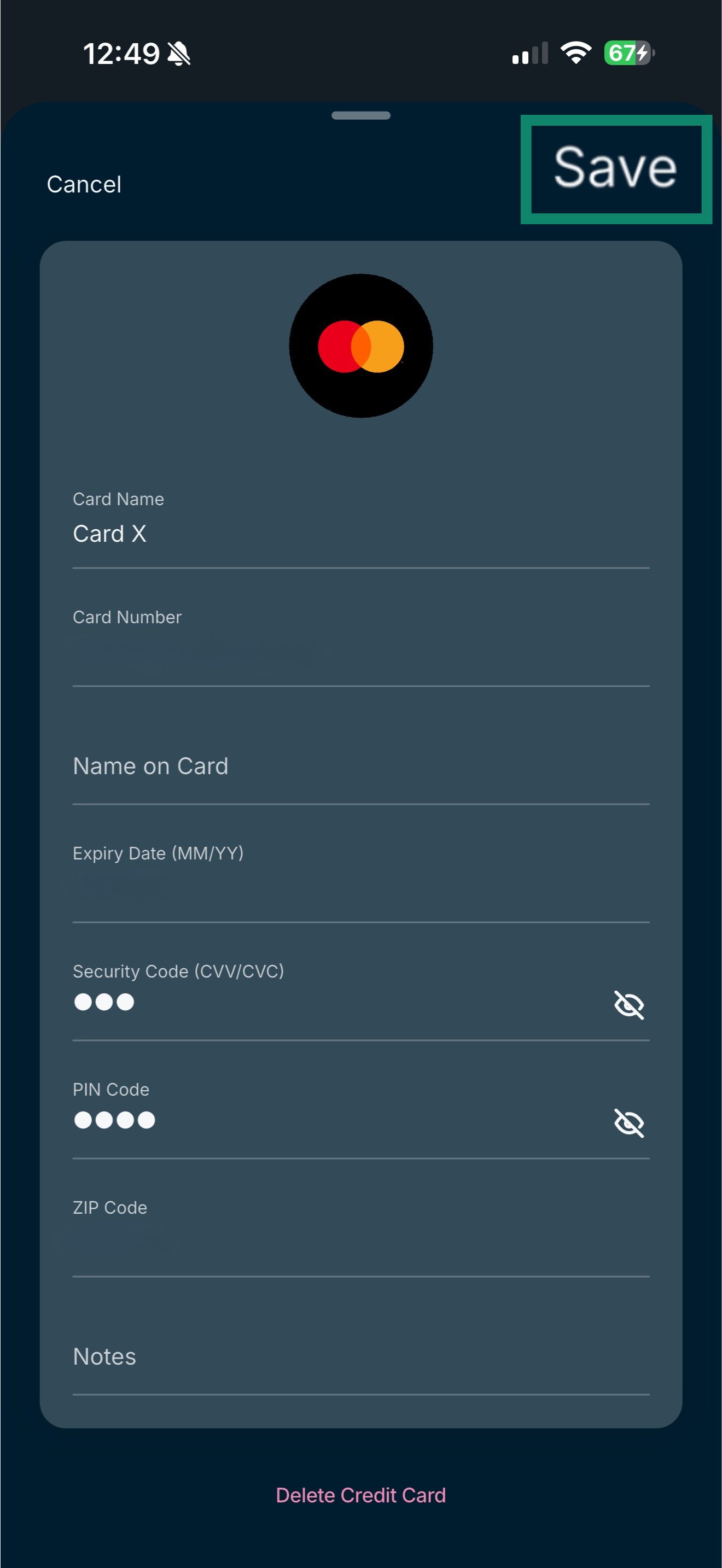
- To edit the card, click Edit and update the details.

- Tap Save.

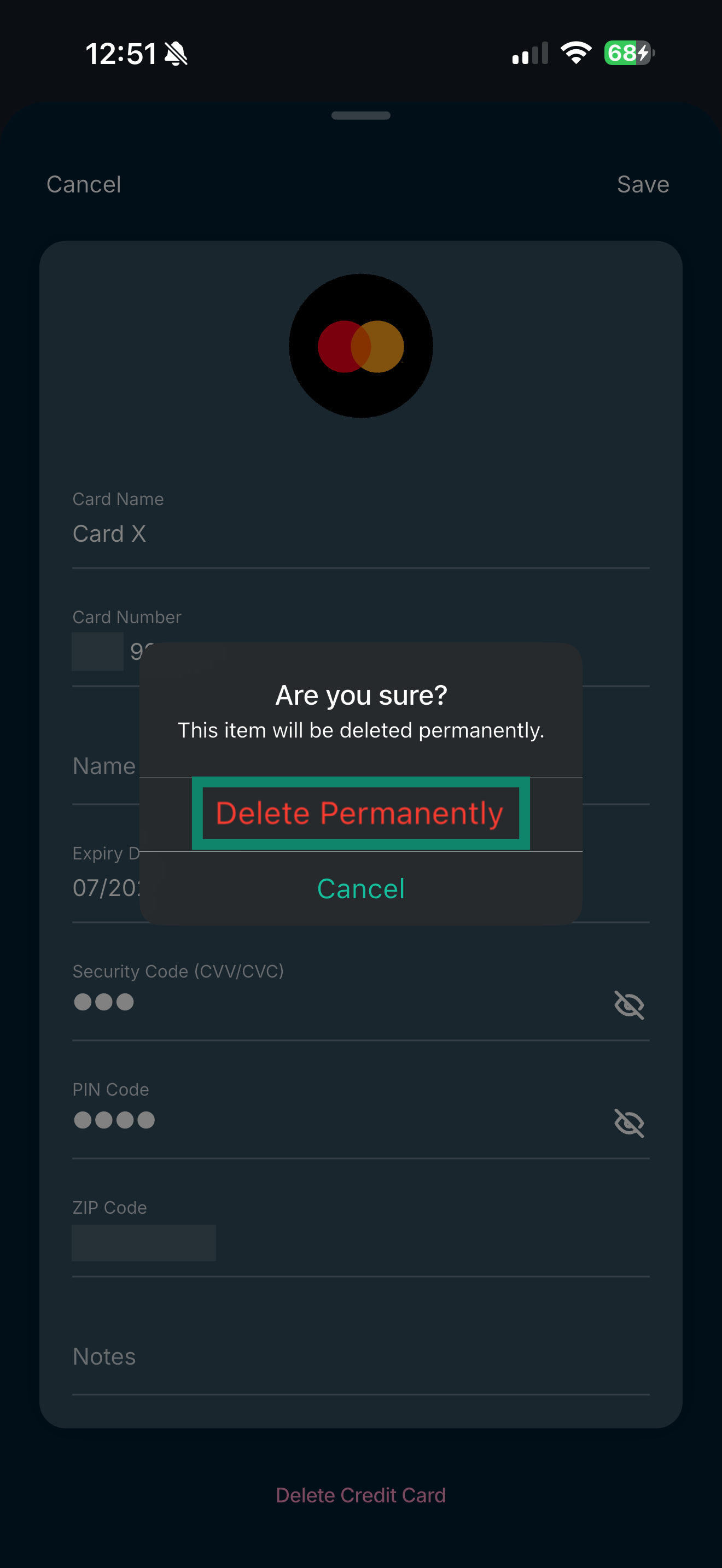
- To delete the card, tap Delete Credit Card.

- Tap Delete Permanently.

Need help? Contact the ExpressVPN Support Team for immediate assistance.
Import your credit or debit card details
You can import your credit card details into ExpressKeys from several different apps, including 1Password, Dashlane, LastPass, and Bitwarden. Follow these instructions.
Need help? Contact the ExpressVPN Support Team for immediate assistance.
Autofill your credit or debit card details
ExpressKeys can autofill your credit or debit card details on websites, so you can complete payments quickly and securely. Follow these instructions.
Need help? Contact the ExpressVPN Support Team for immediate assistance.