



This guide will show you how to export data stored in ExpressKeys.
You can export your data stored in ExpressKeys (and import it into another ExpressVPN account or password manager service) using the ExpressKeys app for Android or iOS, or the ExpressKeys Chrome extension.
Jump to…
Android and iOS
On Android and iOS, your login items are exported as a CSV file inside an encrypted ZIP file. The ZIP is protected with a password that you create, meaning no one can open it or access your data without that password. This keeps your passwords and logins secure during the export process.
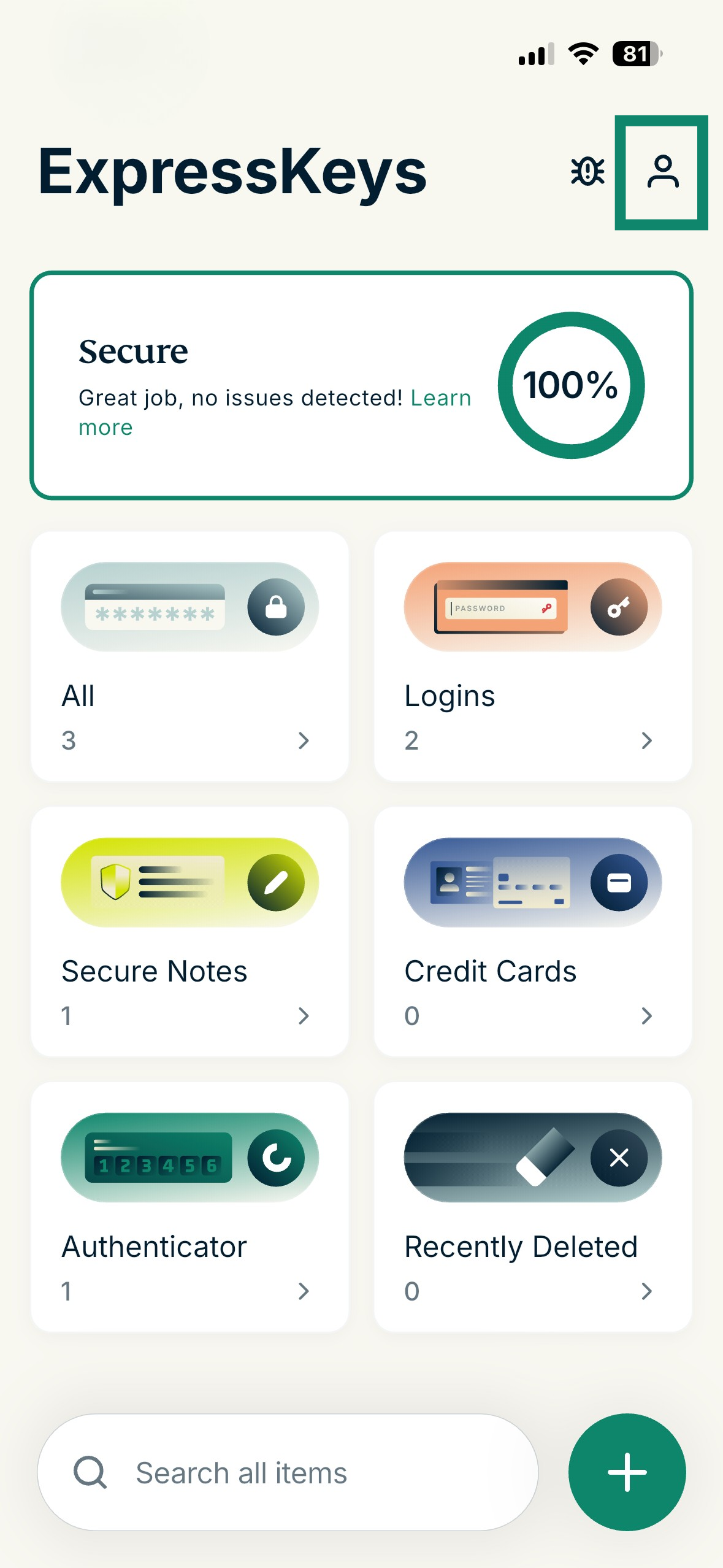
- Open the ExpressKeys app for Android or iOS, and tap

 in the top-right.

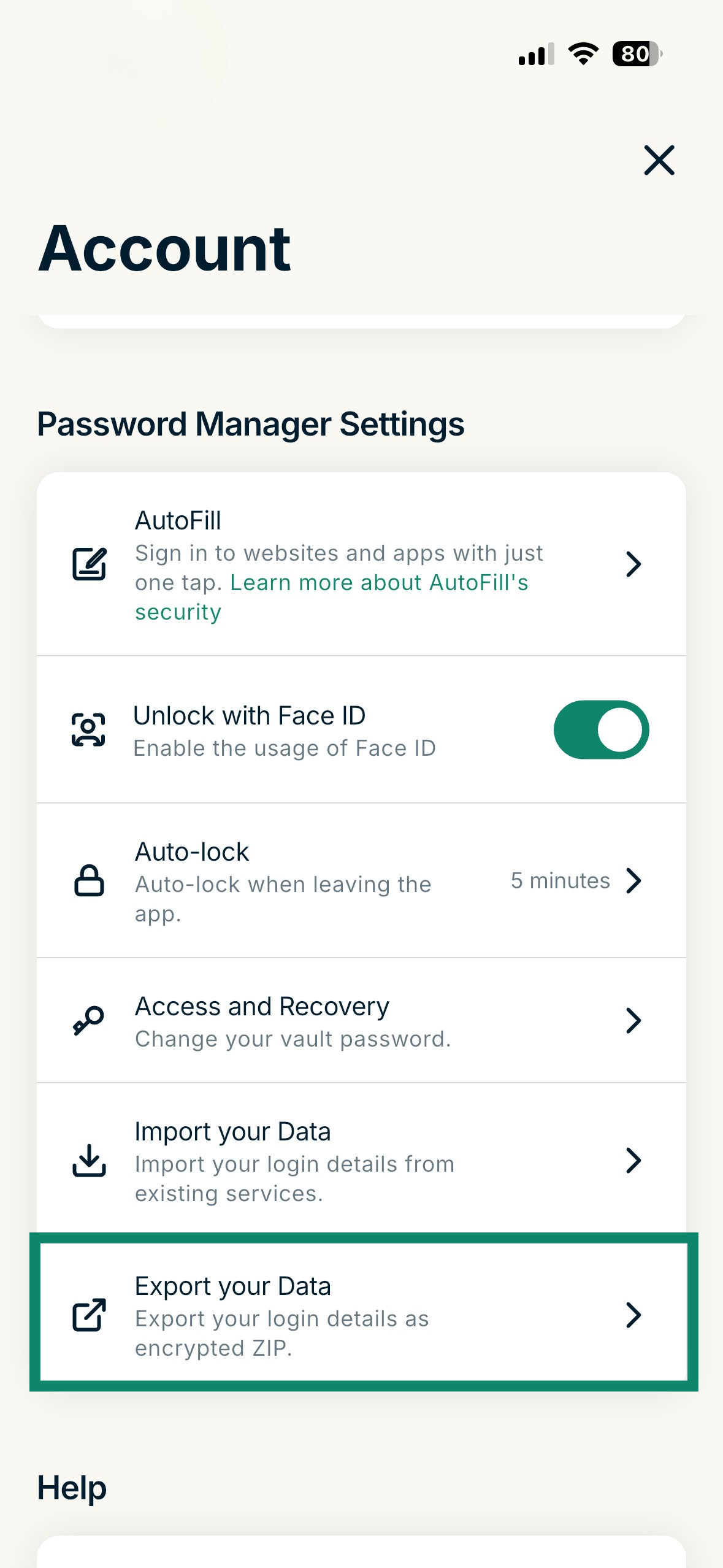
- Scroll down to Password Manager Settings and tap Export Your Data.

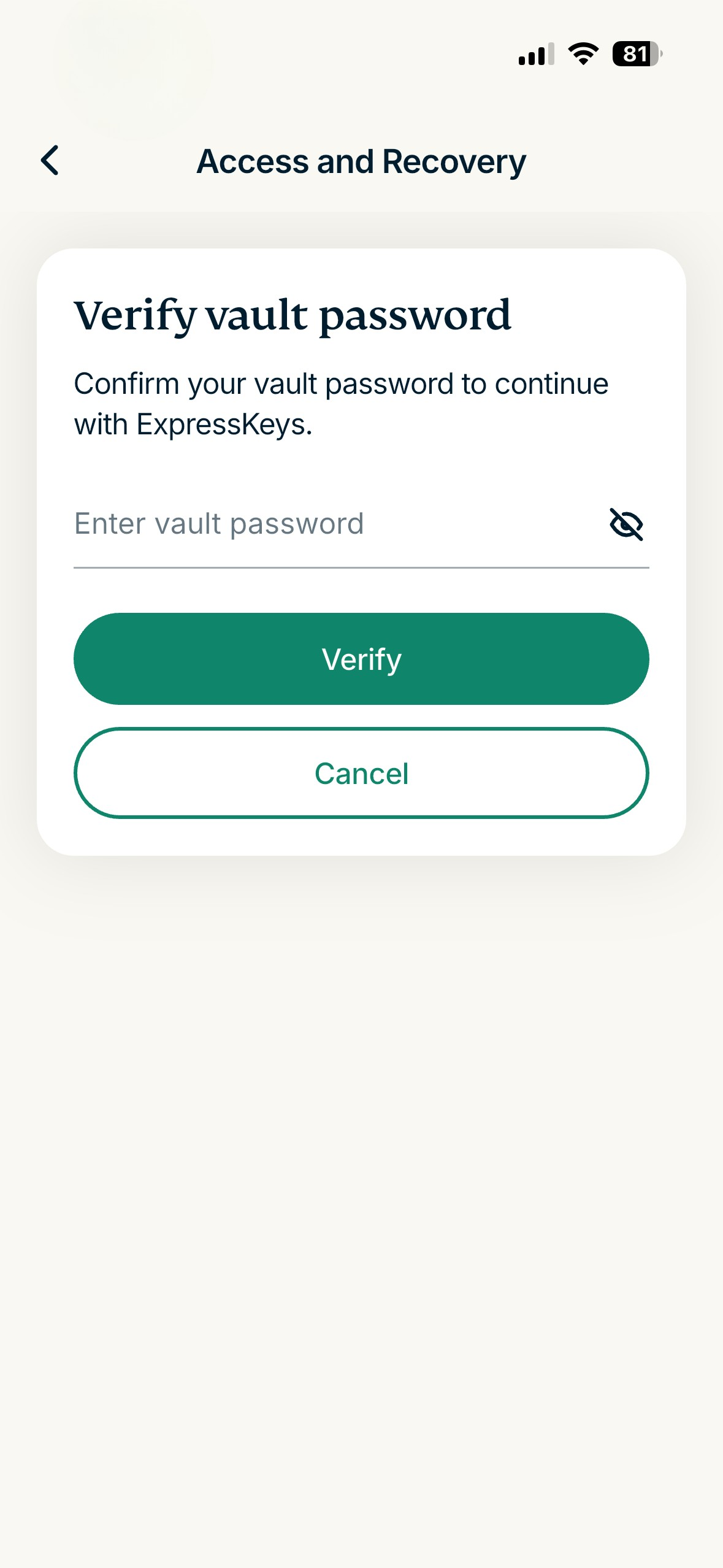
- Enter your vault password and tap Verify.

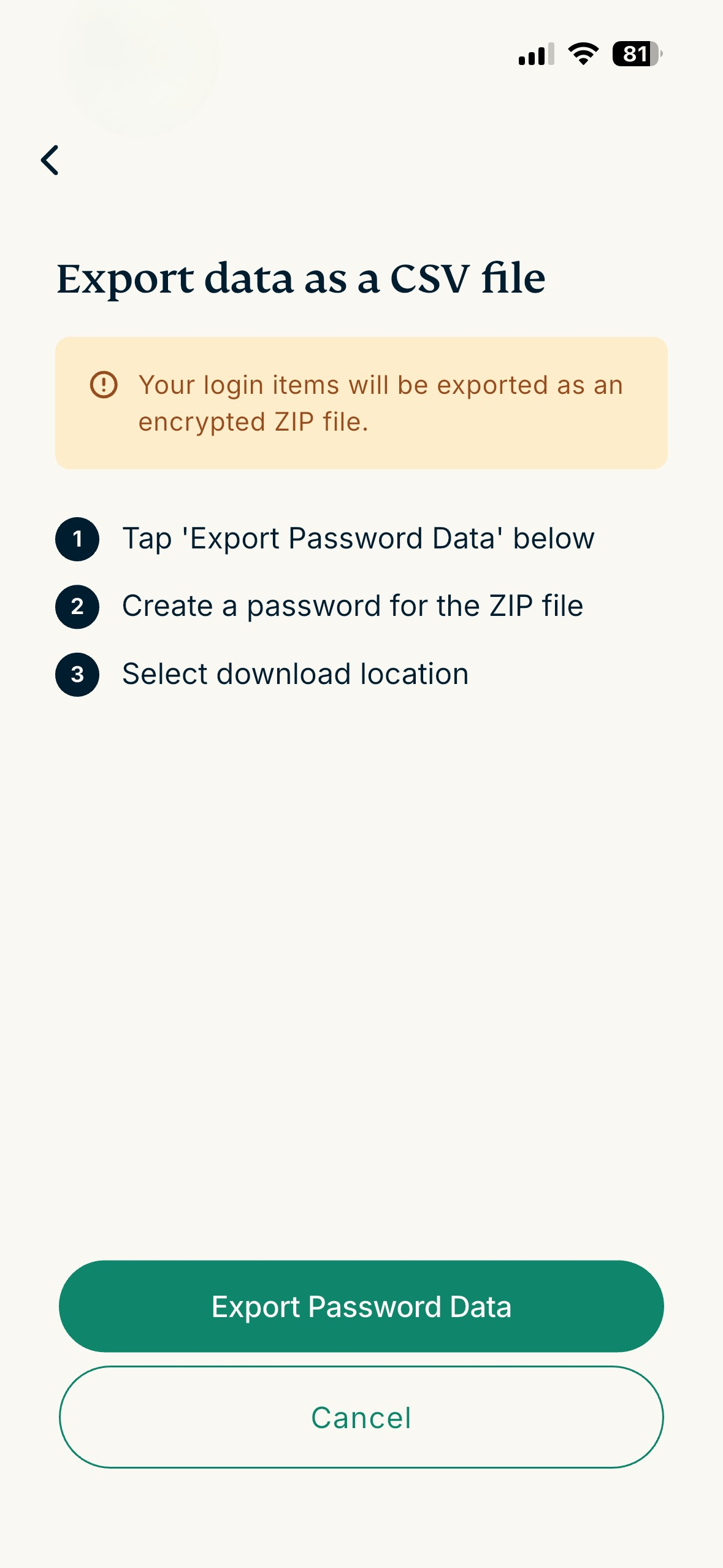
- Tap Export Password Data.

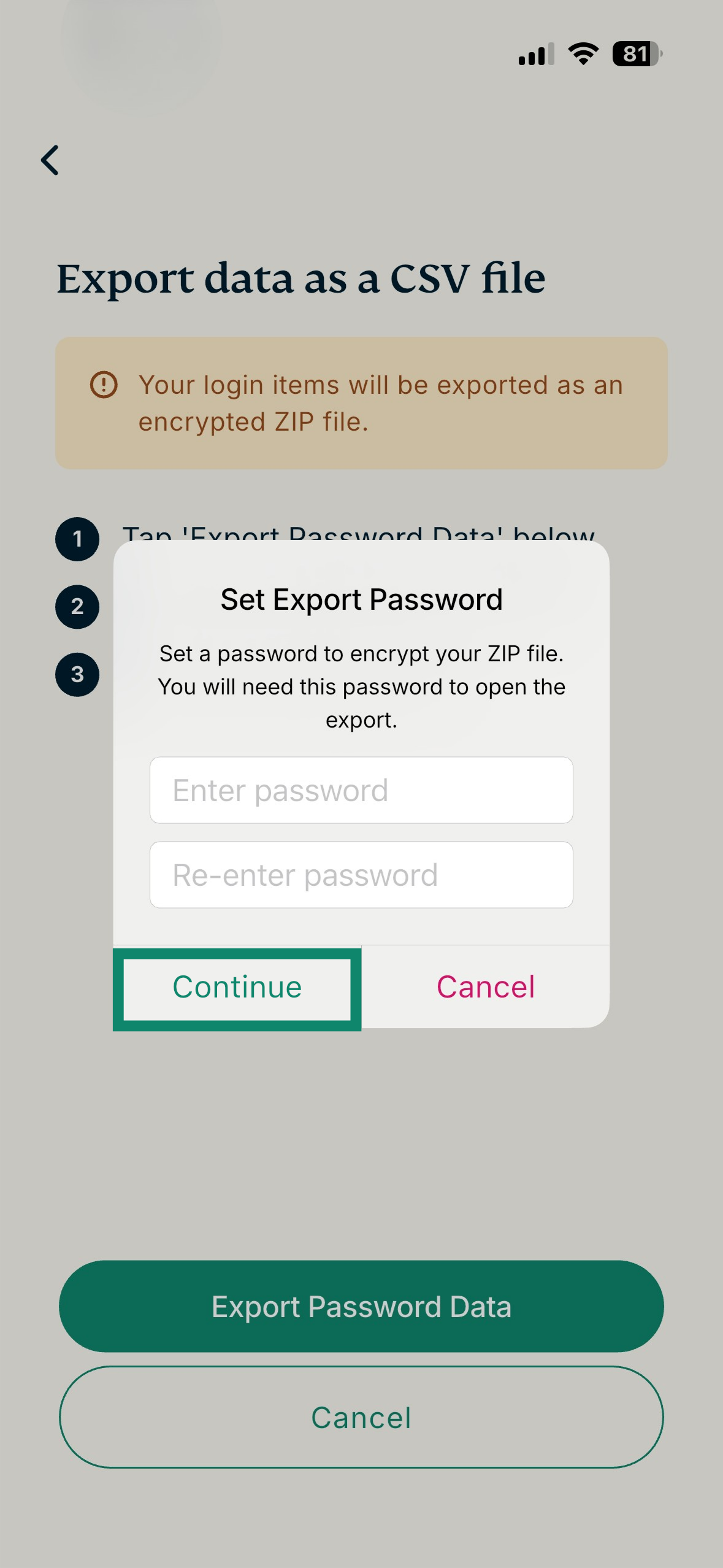
- Set a password for the encrypted ZIP file and tap Continue.

- Select where you want to save the export.
For security reasons, once the import is complete, delete the CSV file from your device. You can keep the encrypted ZIP file as a secure backup.
Need help? Contact our Support Team for immediate assistance.
Chrome extension
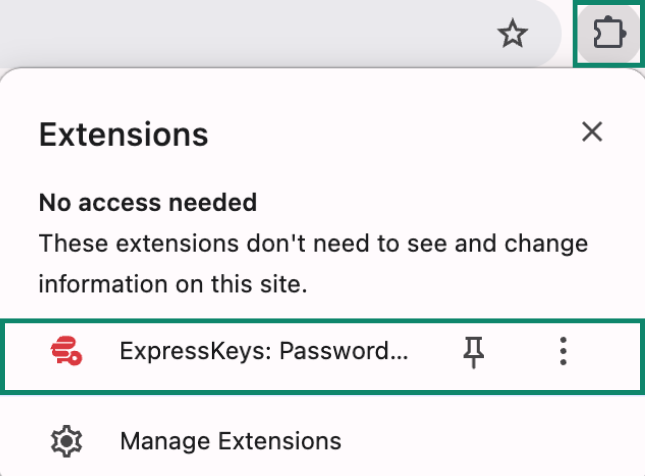
- Open the ExpressKeys Chrome extension.


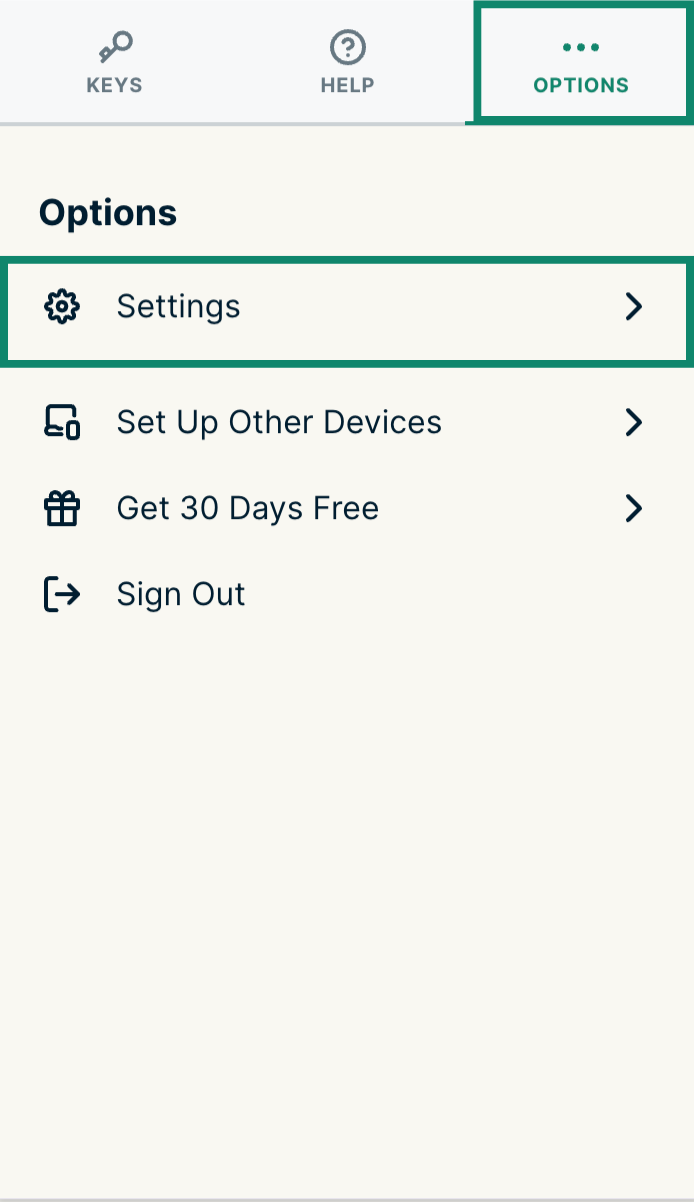
- Click the Options tab and then Settings.


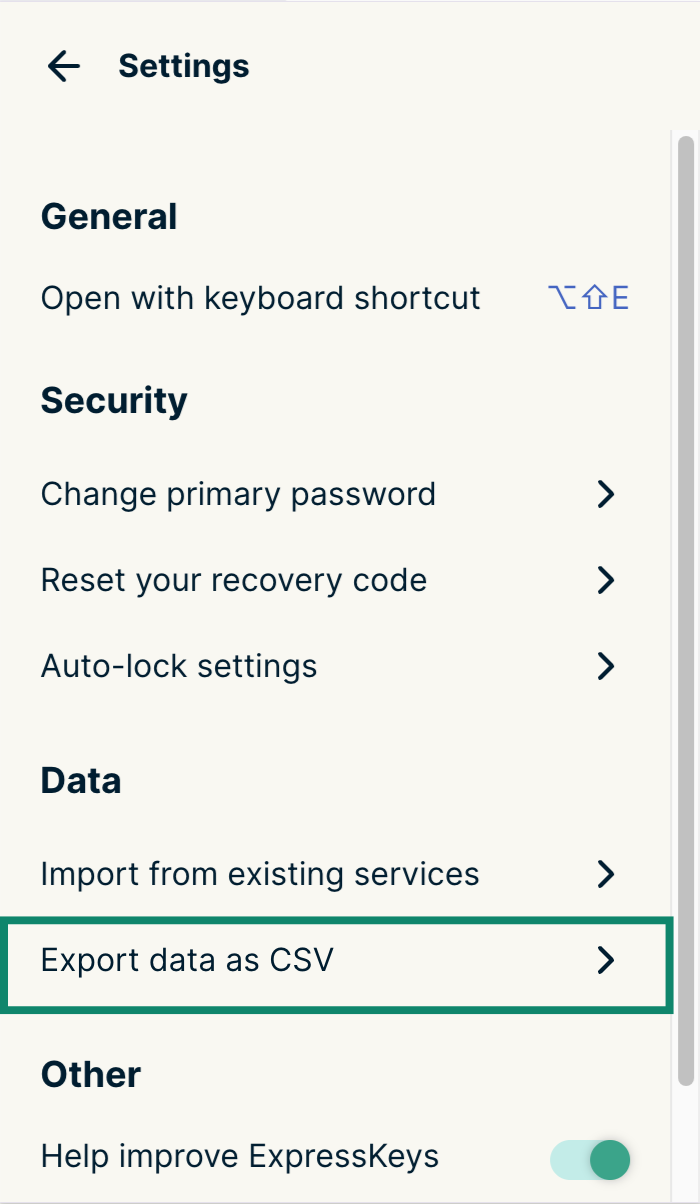
- Under Data, click Export data as CSV.


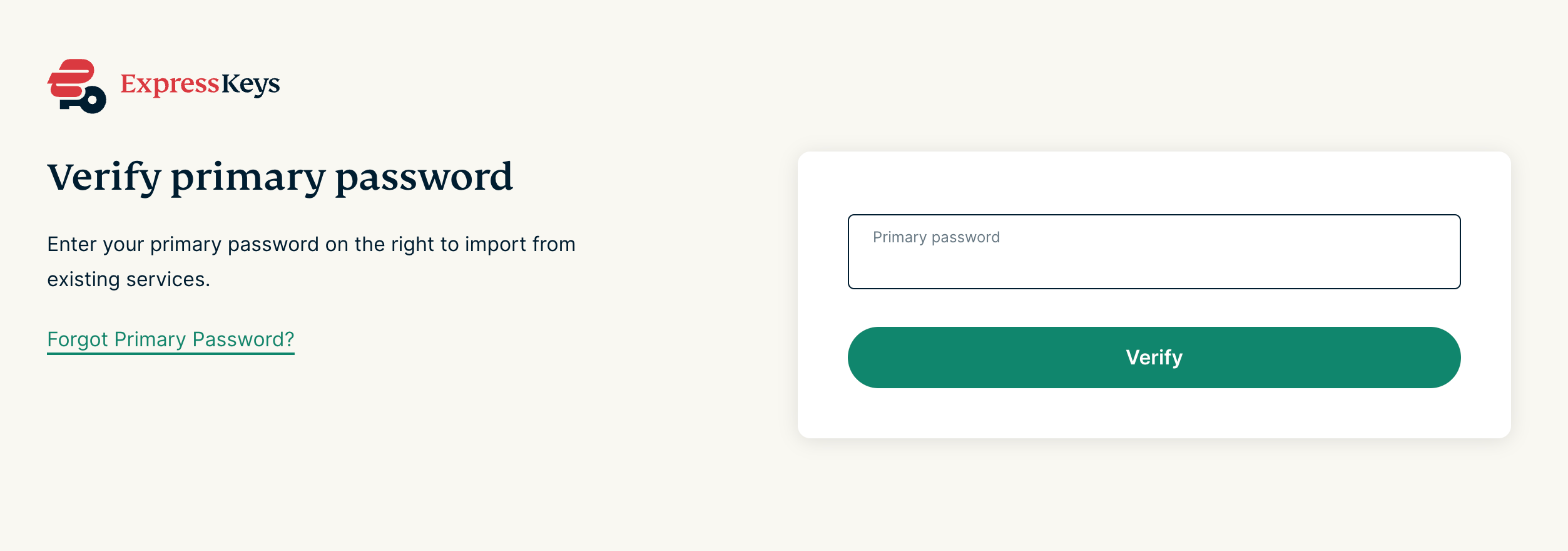
- Enter your primary password, then click Verify.


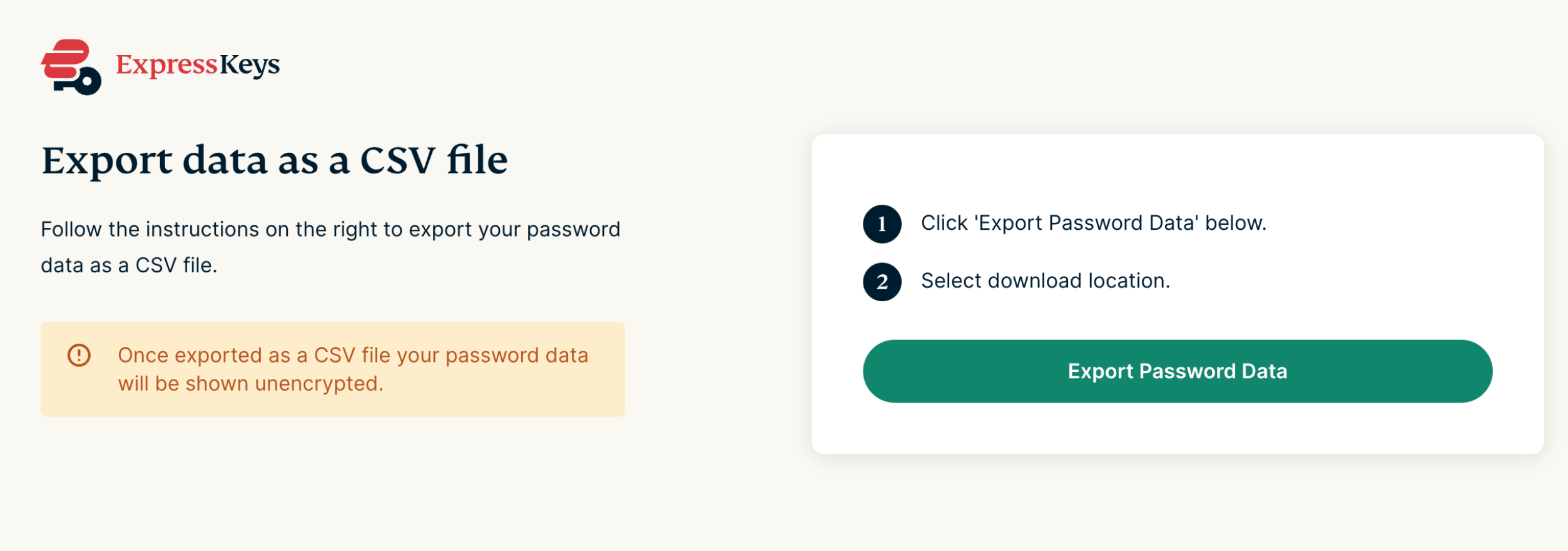
- Click Export Password Data.

- Select where you want to save the CSV file.
Need help? Contact our Support Team for immediate assistance.