



This guide will show you how to enable/disable ghost mode in ExpressAI, as well as how to adjust the time taken for all inputs and responses to disappear.
Ghost mode enables you to set chats to auto-delete after a set period of time. Ghost mode is disabled by default. You can enable/disable this feature at any time.
Note: Enabling ghost mode will lock your chat history. To access your chat history again, disable ghost mode.
Jump to…
How to enable/disable ghost mode on desktop
How to enable/disable ghost mode on mobile
How to adjust time taken for prompts to disappear
How to enable/disable ghost mode on desktop
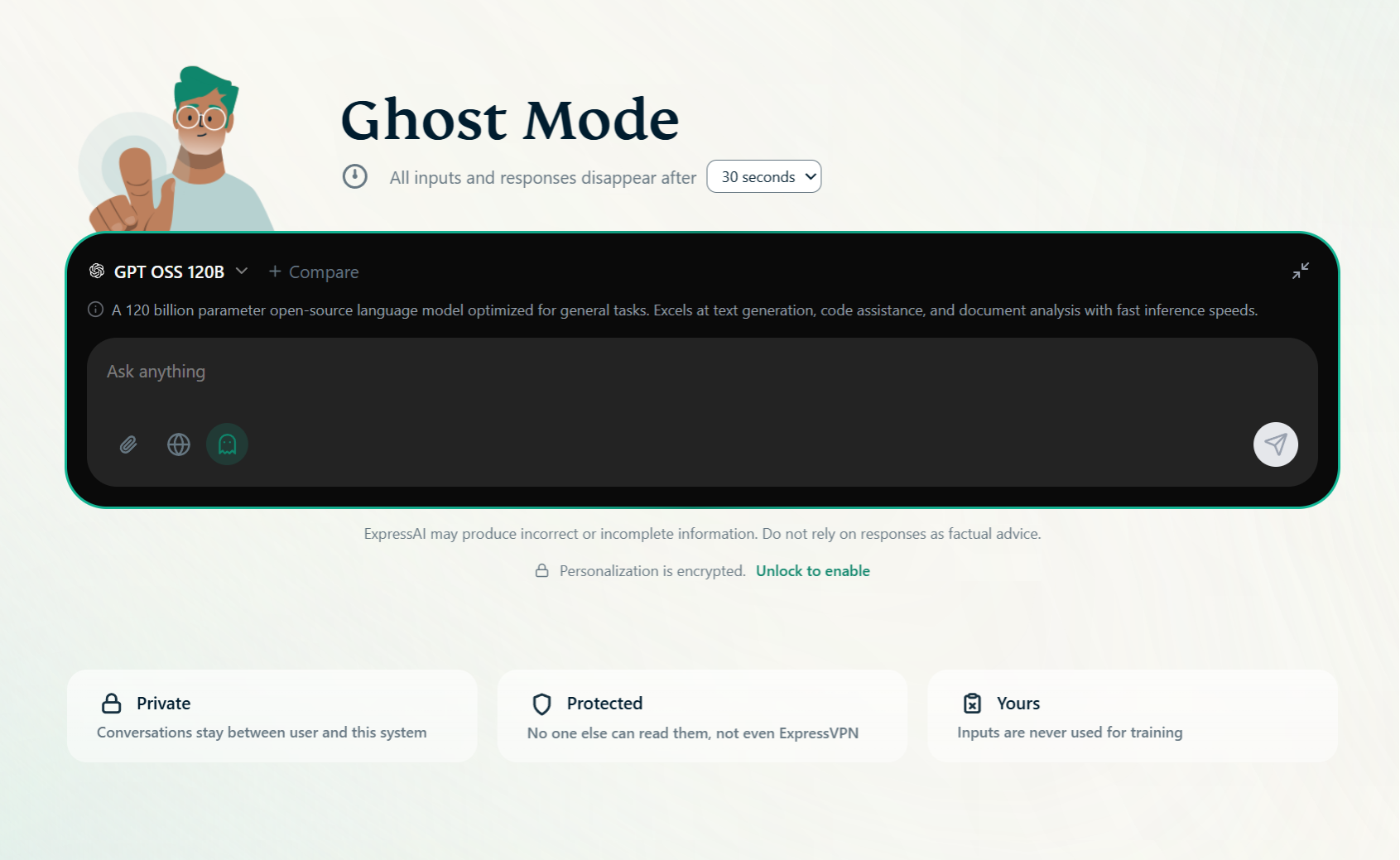
To enable ghost mode on desktop:
- Click the chat window.


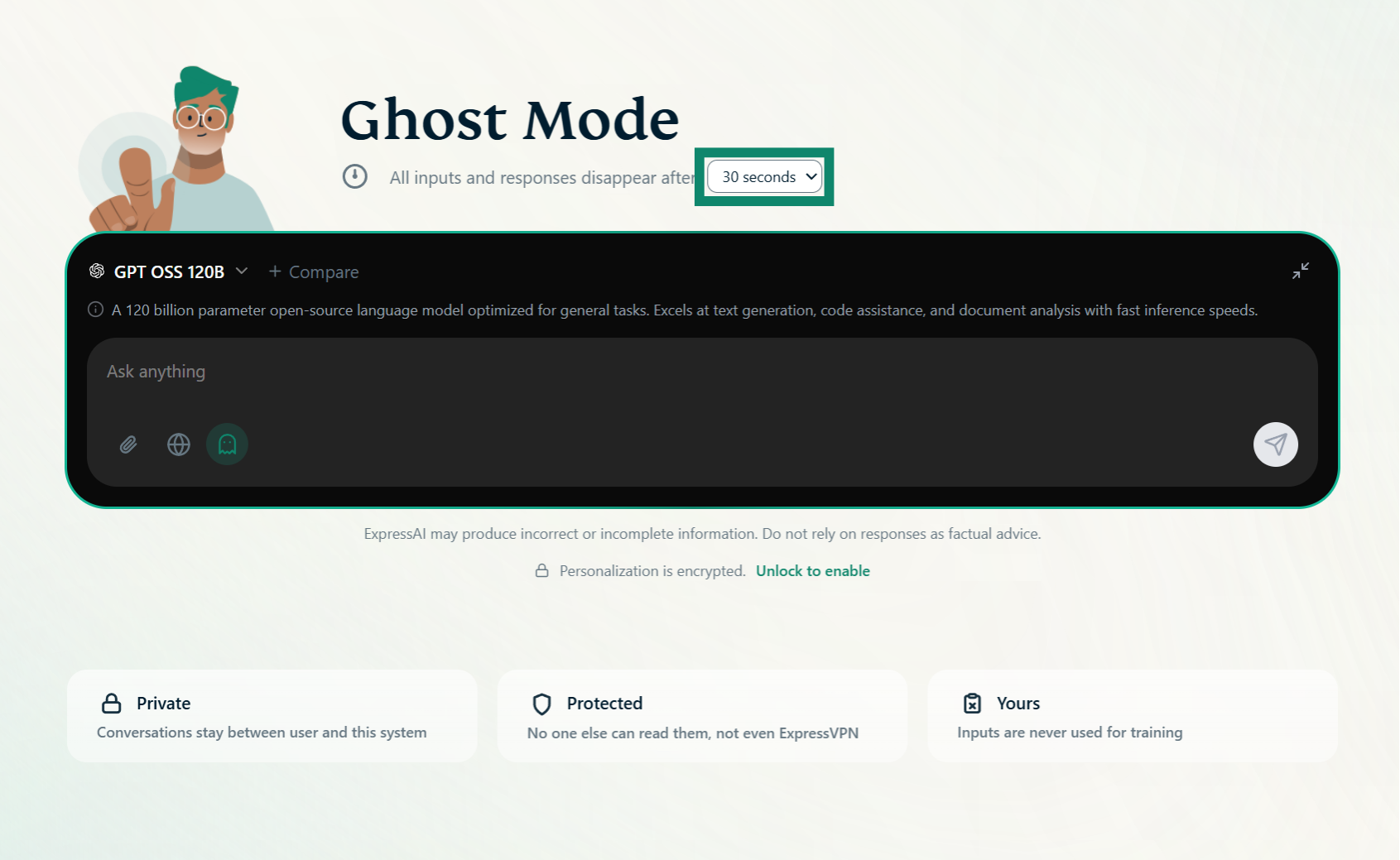
- Click the ghost mode icon.


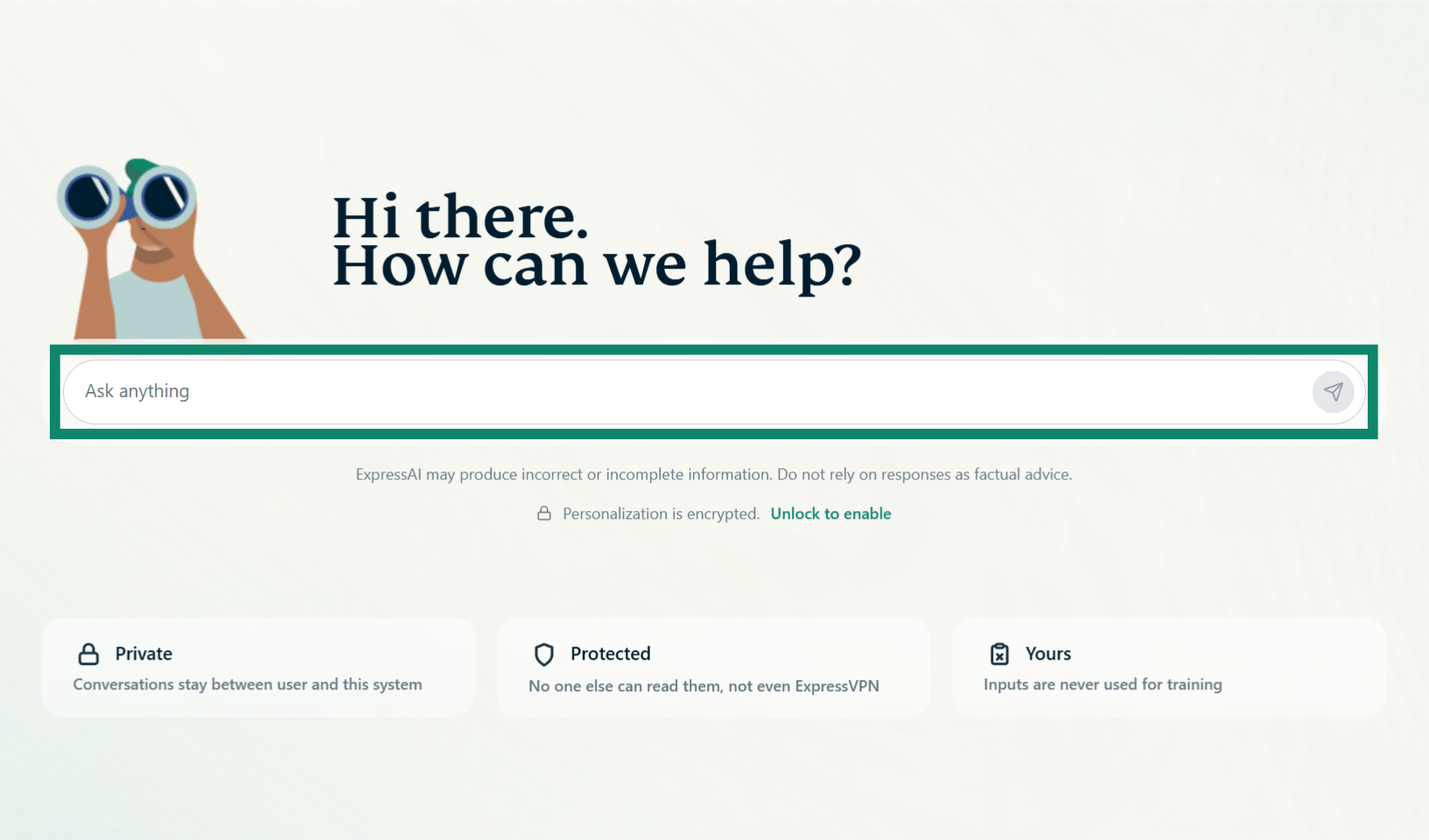

Ghost mode is now enabled.
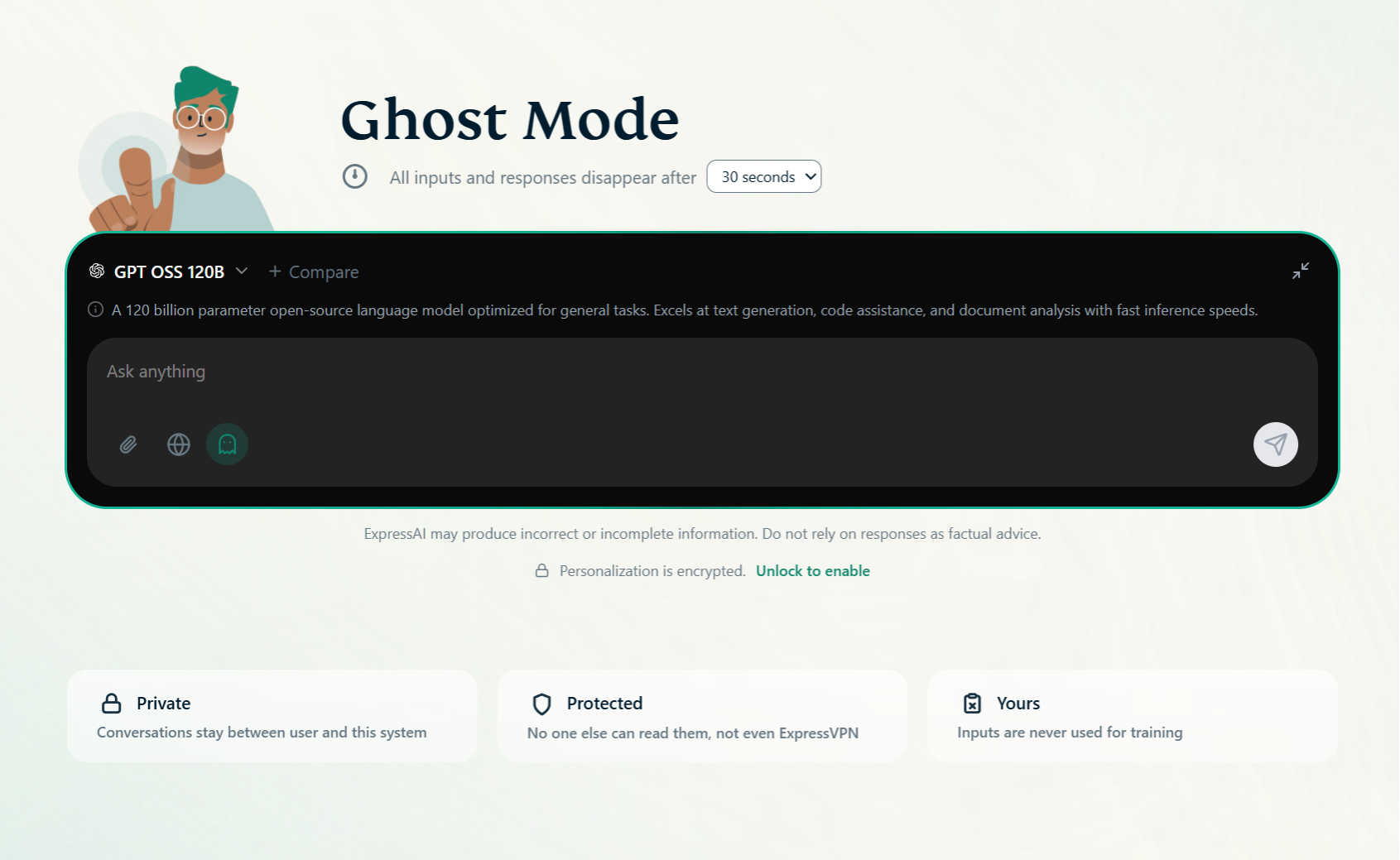
To disable ghost mode on desktop:
- Click the chat window.

- Click the ghost mode icon.


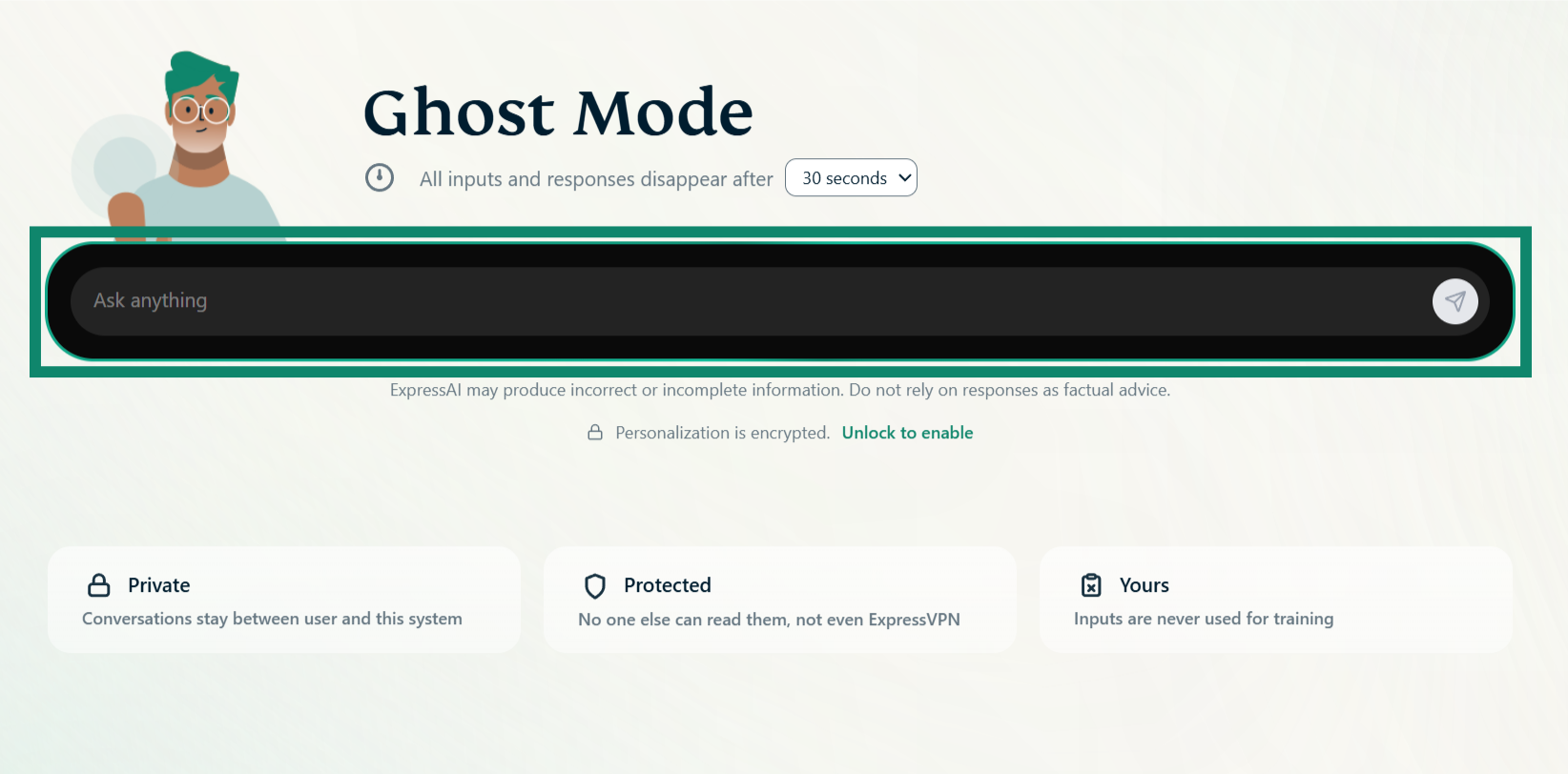
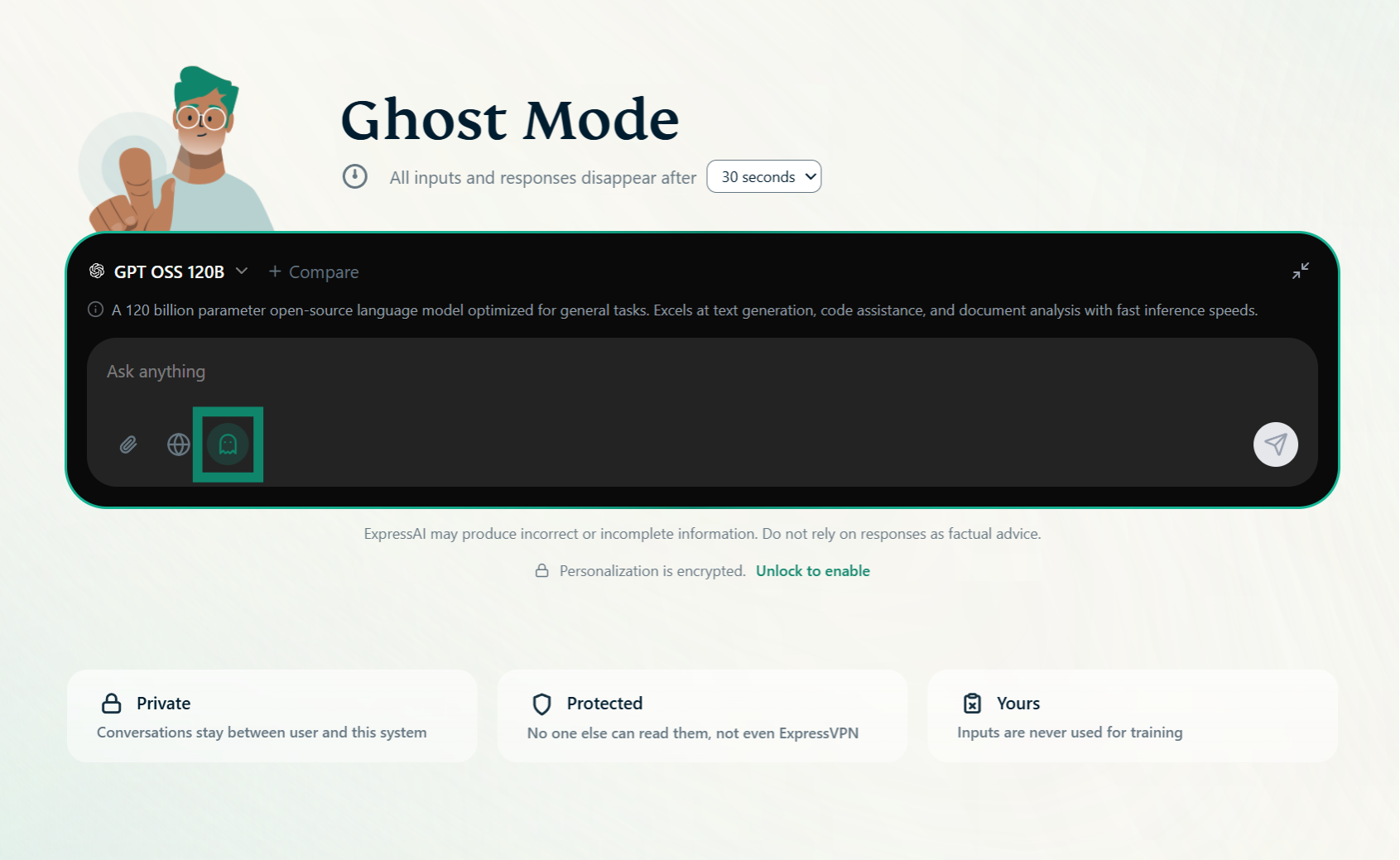
Ghost mode is now disabled.

Need help? Contact the ExpressVPN Support Team for immediate assistance.
How to enable/disable ghost mode on mobile
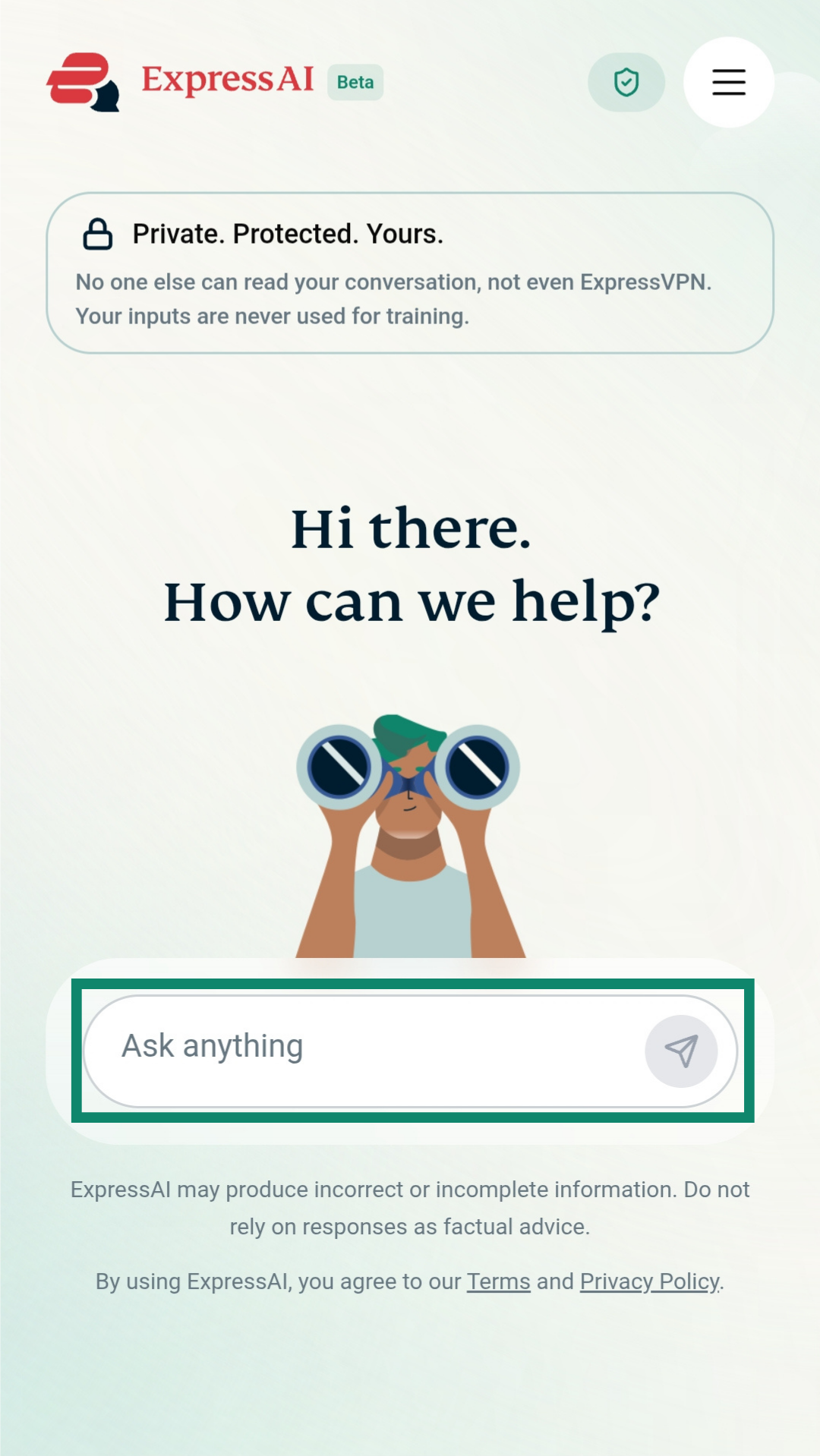
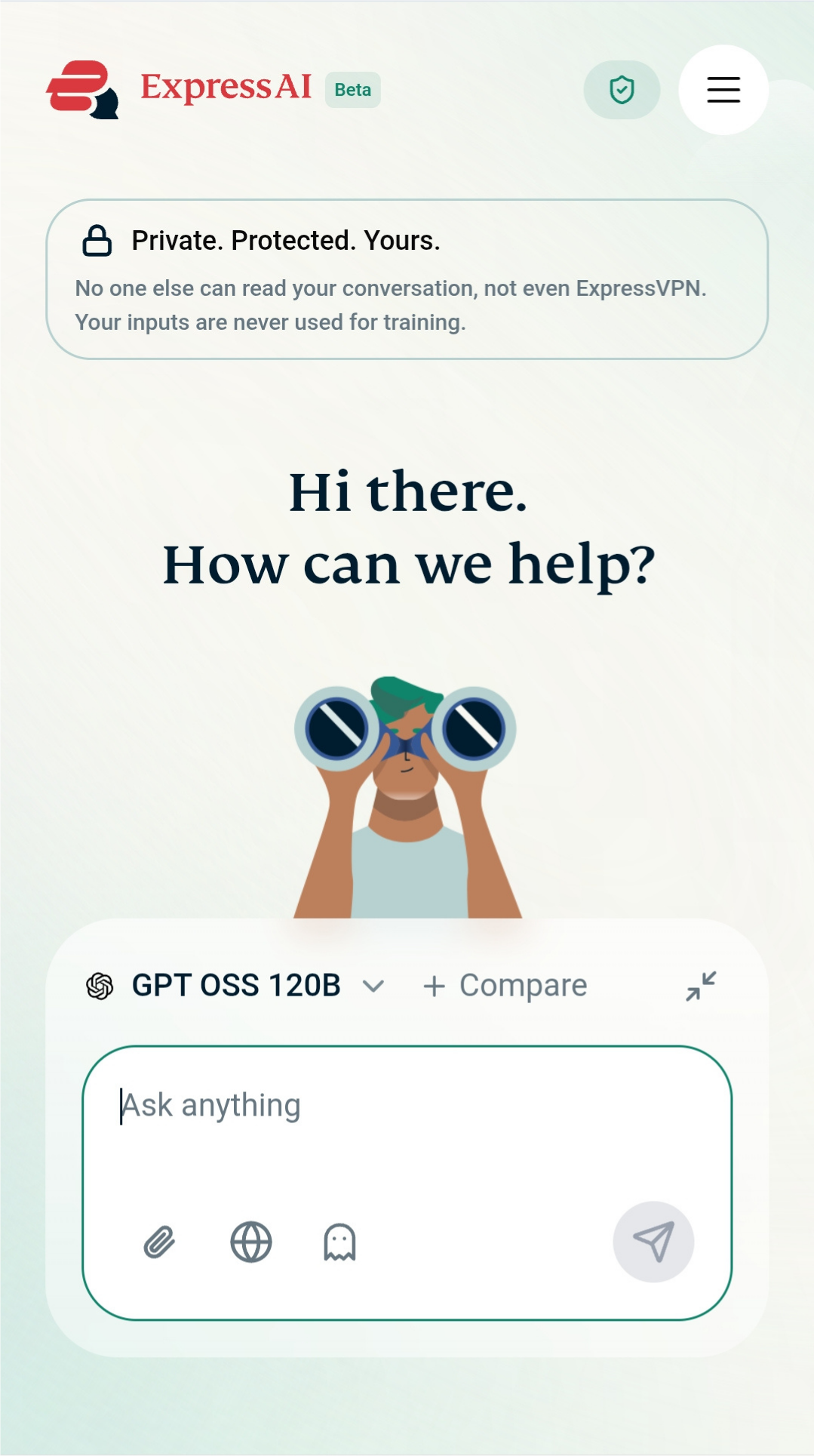
To enable ghost mode on mobile devices:
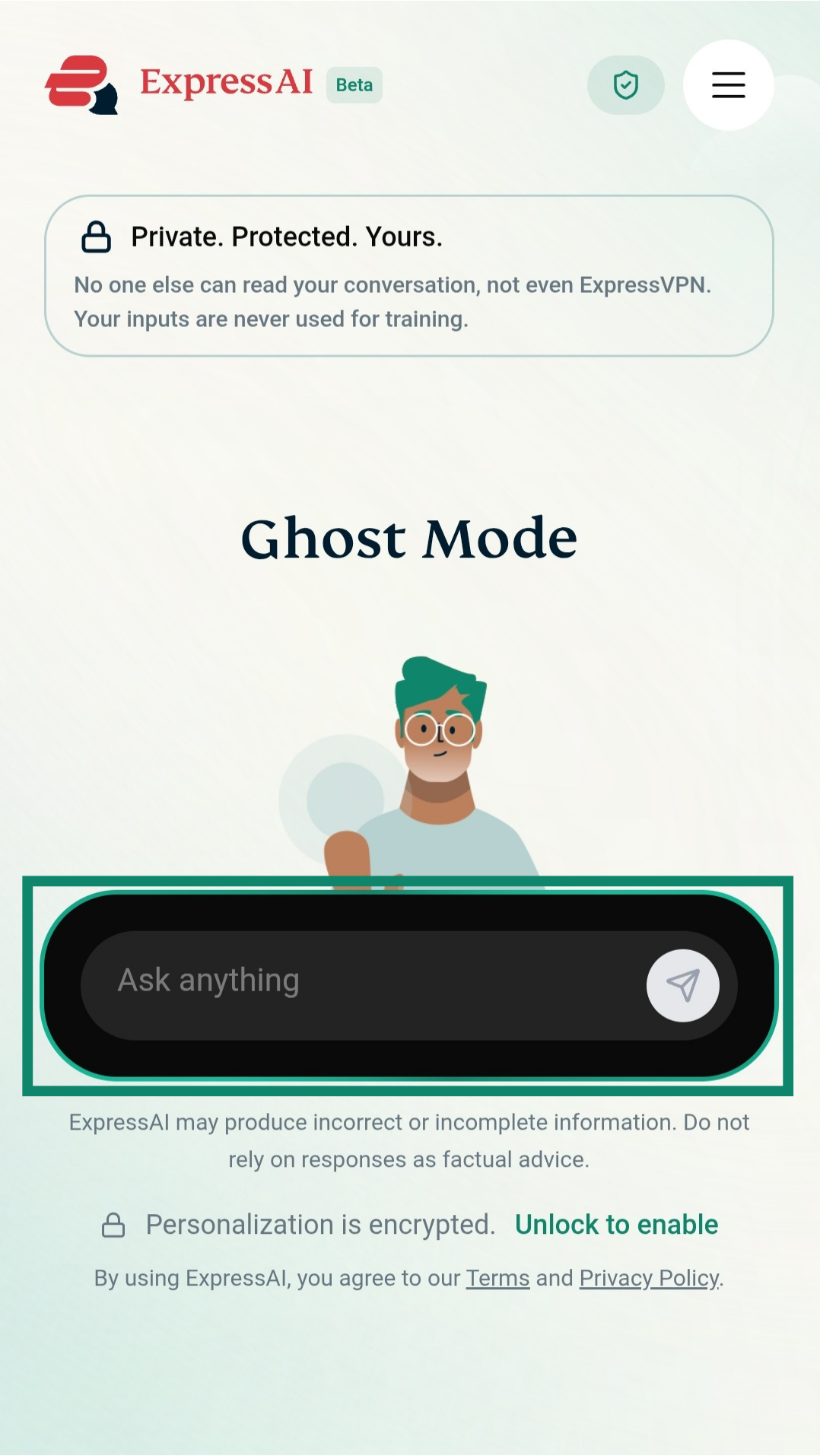
- Tap the chat window.


- Tap the ghost mode icon.


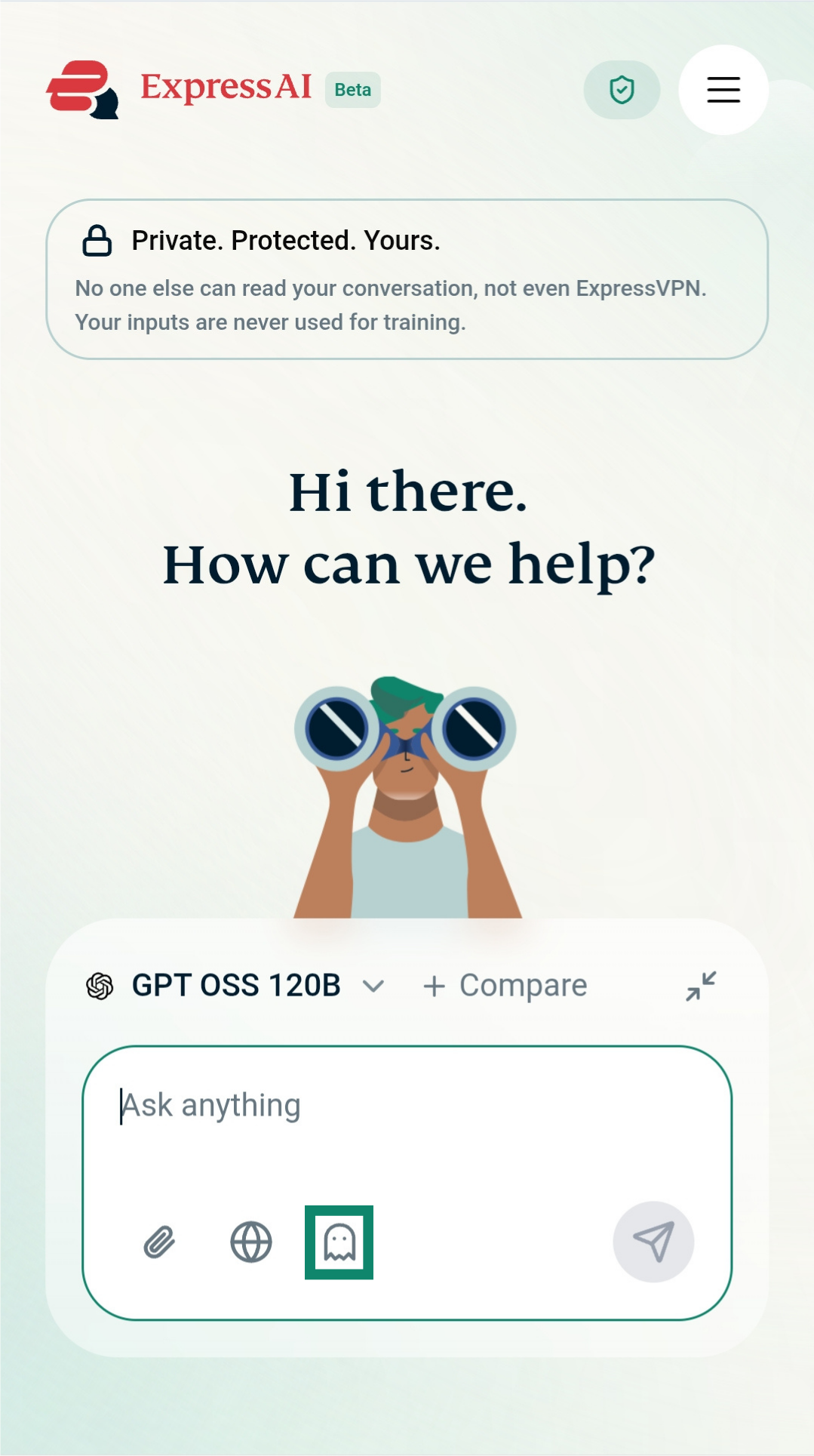
Ghost mode is now enabled.
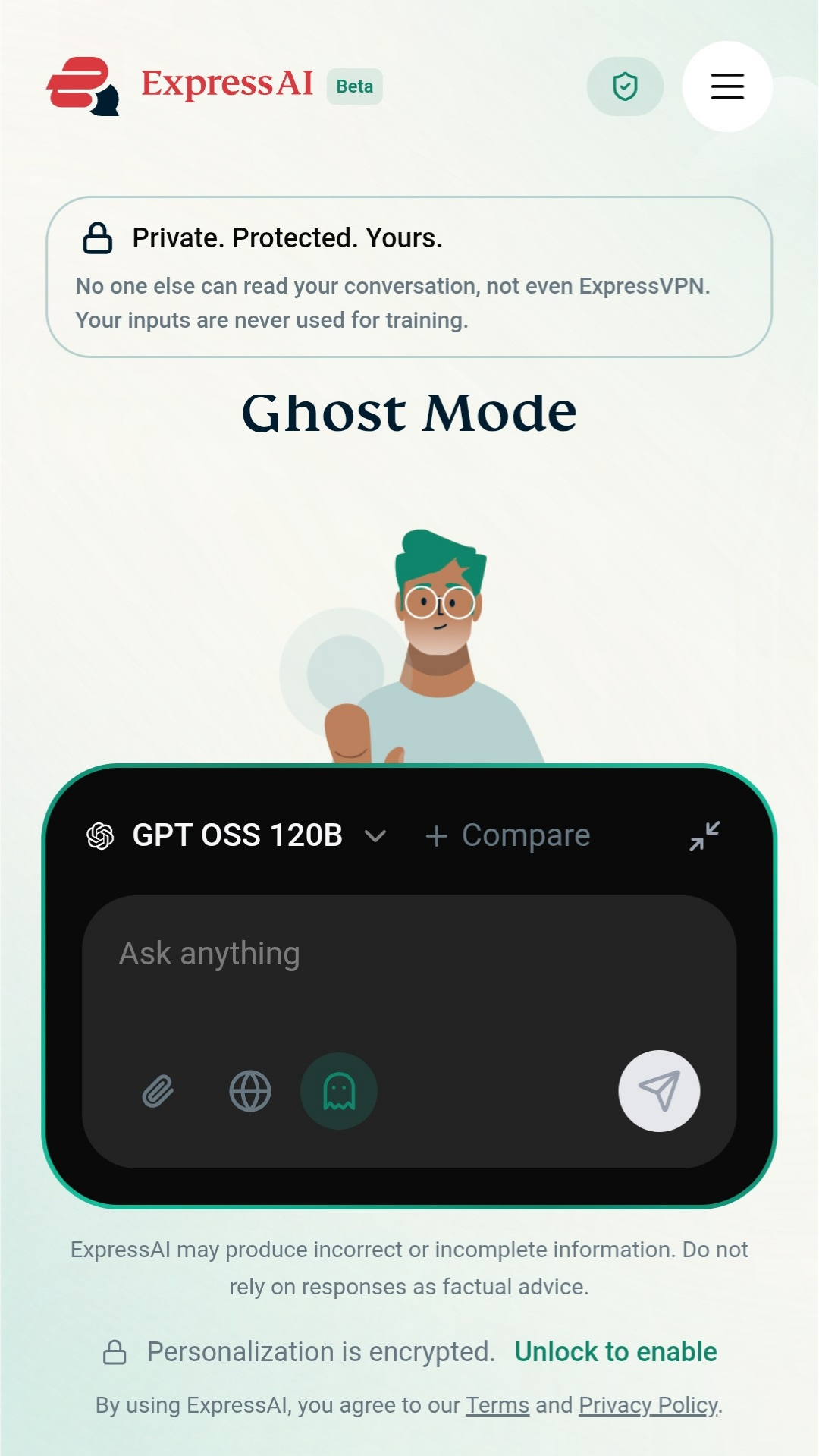
To disable ghost mode:
- Tap the chat window.
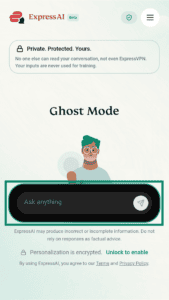
- Tap the ghost mode icon.
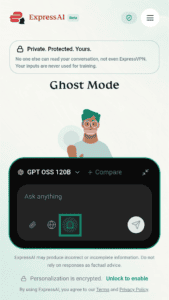
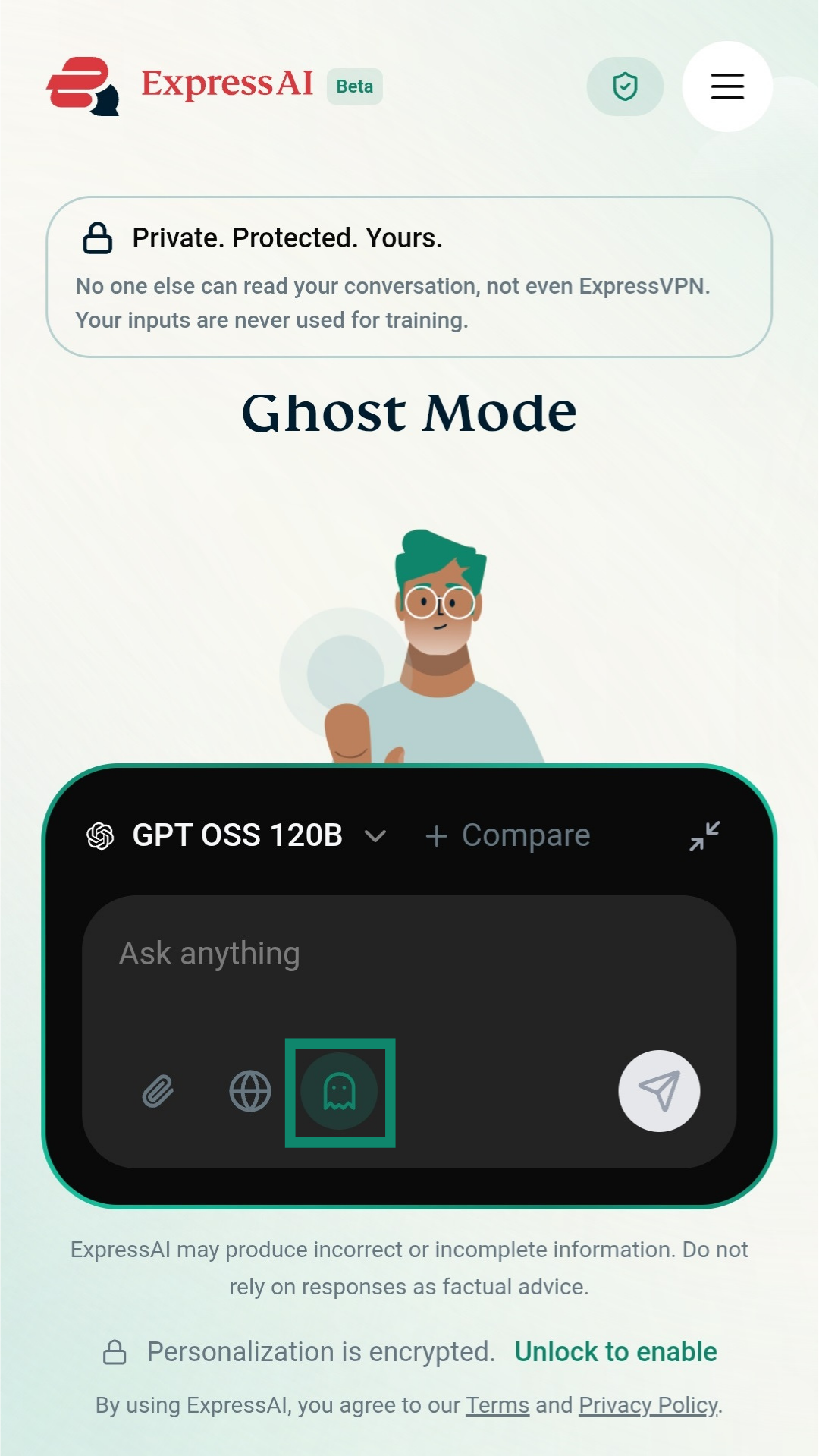
Ghost mode is now disabled.
Need help? Contact the ExpressVPN Support Team for immediate assistance.
How to adjust time taken for prompts to disappear
Important: You can only adjust the time taken for chats to auto-delete on desktop.
Once you have enabled ghost mode messages, you can adjust the time taken for all inputs and responses to disappear.
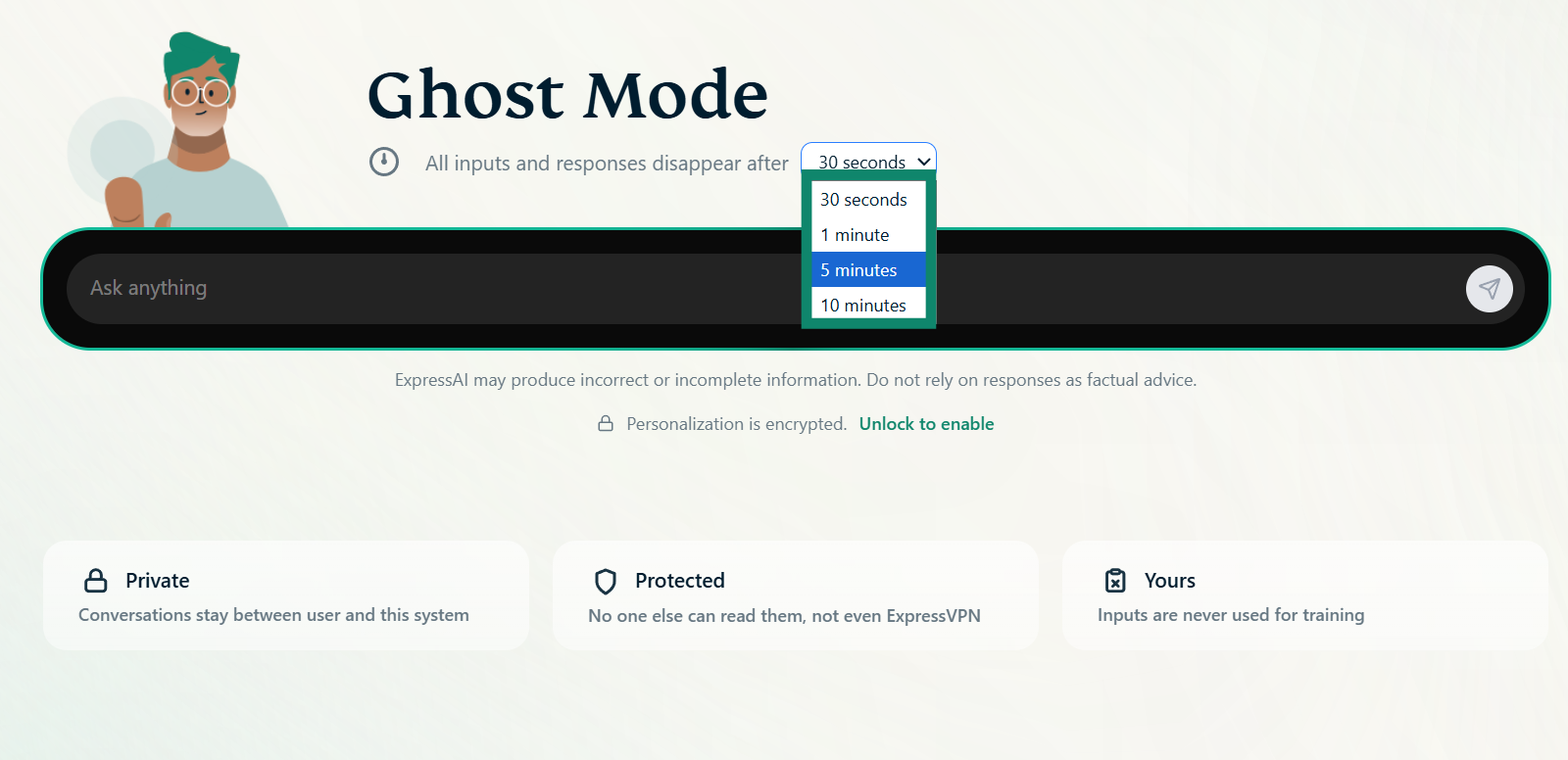
You can choose for all inputs and responses to disappear after:
- 30 seconds
- 1 minute
- 5 minutes
- 10 minutes
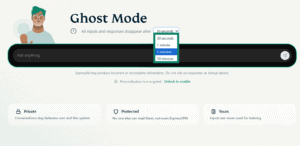
To adjust how long it takes for all inputs and responses to disappear on desktop:
- Enable ghost mode.

- Click the dropdown menu above the chat window.
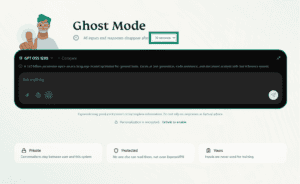
- Select your time duration of choice.

Need help? Contact the ExpressVPN Support Team for immediate assistance.