



Note: Failed delivery logs are only available to customers subscribed to an ExpressVPN Advanced or Express Pro plan.
The Failed Deliveries section of the ExpressMailGuard dashboard provides you a granular view of bounced or failed emails to help you diagnose missing messages.
It only includes failures where ExpressMailGuard tried to send from our servers to your recipients, including send or reply attempts from your aliases. It does not include messages that failed before reaching ExpressMailGuard from another sender.
To view any failed delivery attempts, ExpressMailGuard has to store the content of the email. This ensures that emails are not lost if they are rejected by your recipients, as they can be downloaded from the failed deliveries page. Failed deliveries are automatically deleted after 7 days.
You can choose to enable or disable ExpressMailGuard from storing your failed deliveries at any time. To do so:
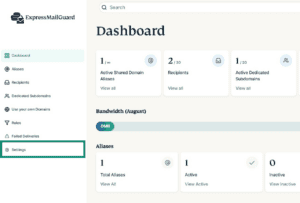
- On the ExpressMailGuard dashboard, click Settings.

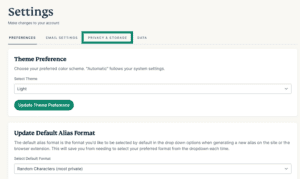
- Click the PRIVACY & STORAGE tab.

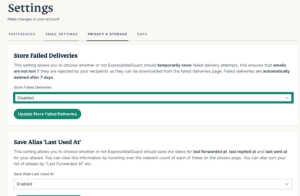
- Under Store Failed Deliveries, click the dropdown menu and select your preference.

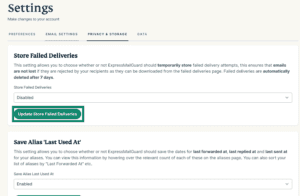
- Click Update Store Failed Deliveries.


If you have enabled ExpressMailGuard to store your failed deliveries, you can view and download these failed deliveries. To do so, click Failed Deliveries from the tabs on the left on the ExpressMailGuard dashboard.
Need help? Contact the ExpressVPN Support Team for immediate assistance.