



This guide will show you how to turn on and turn off auto-renewal for ExpressVPN for Teams licenses.
Important: To maintain the minimum license quantity, accounts with five or fewer licenses cannot turn off auto-renewal for individual licenses. Learn more here.
Jump to…
How to turn on auto-renewal
How to turn off auto-renewal
Accounts with five or fewer licenses
How to turn on auto-renewal
You can turn on auto-renewal for a single license or multiple licenses at the same time.
Single license
To turn on auto-renewal for a single ExpressVPN for Teams license:
- Sign into your ExpressVPN for Teams admin account.
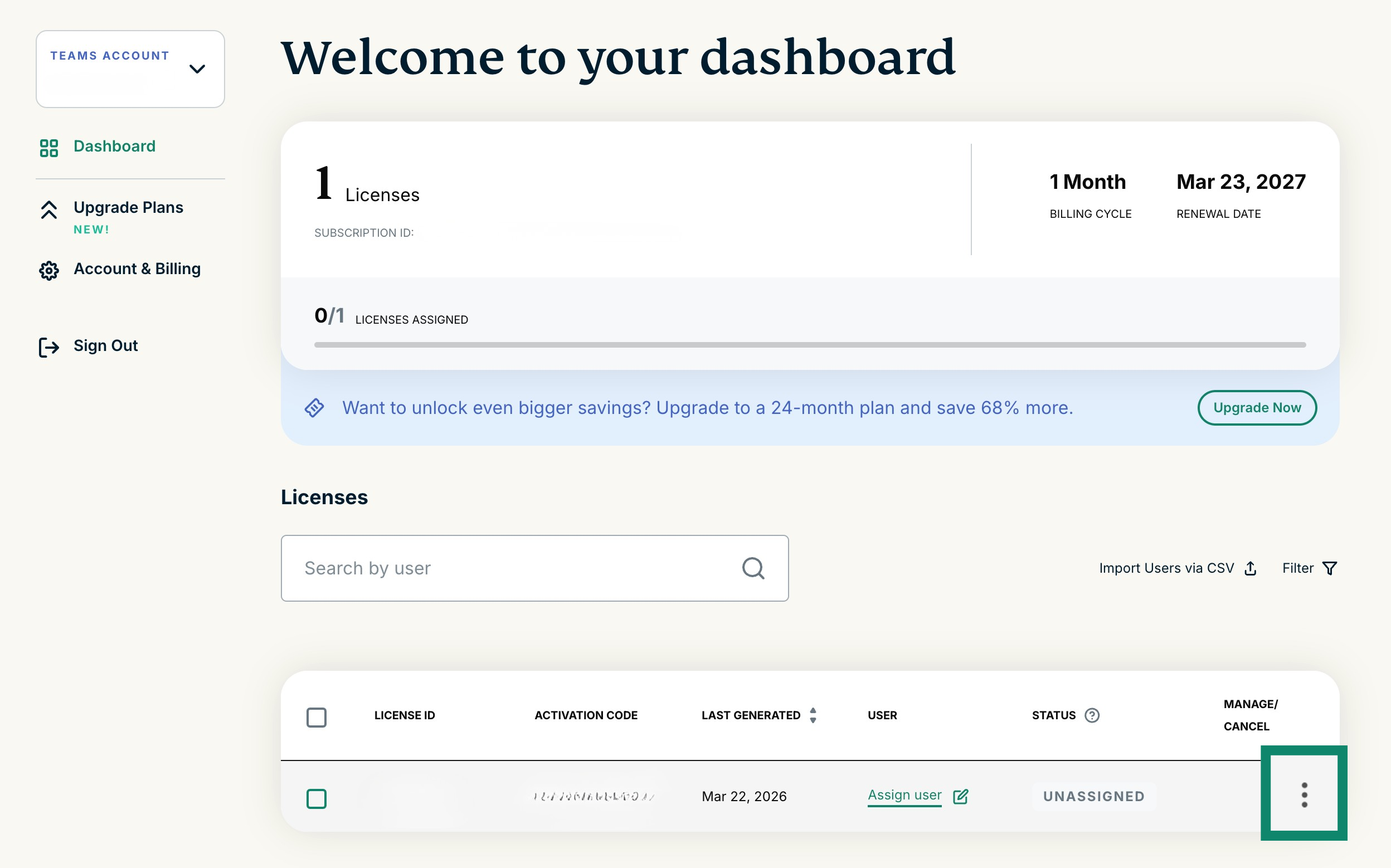
- Find the license you wish to turn on auto-renewal for and select

 under MANAGE/CANCEL.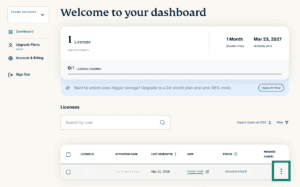

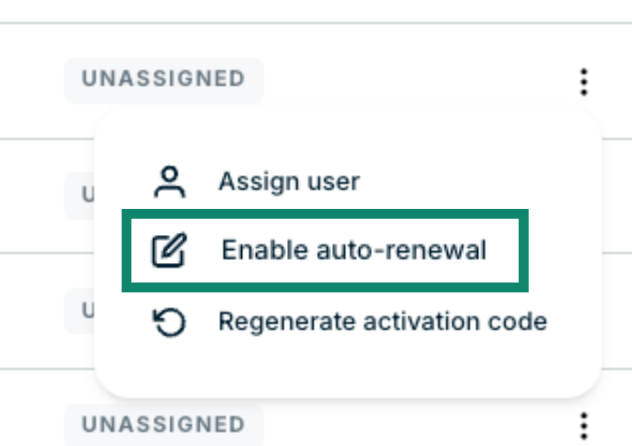
- Select Enable auto-renewal.


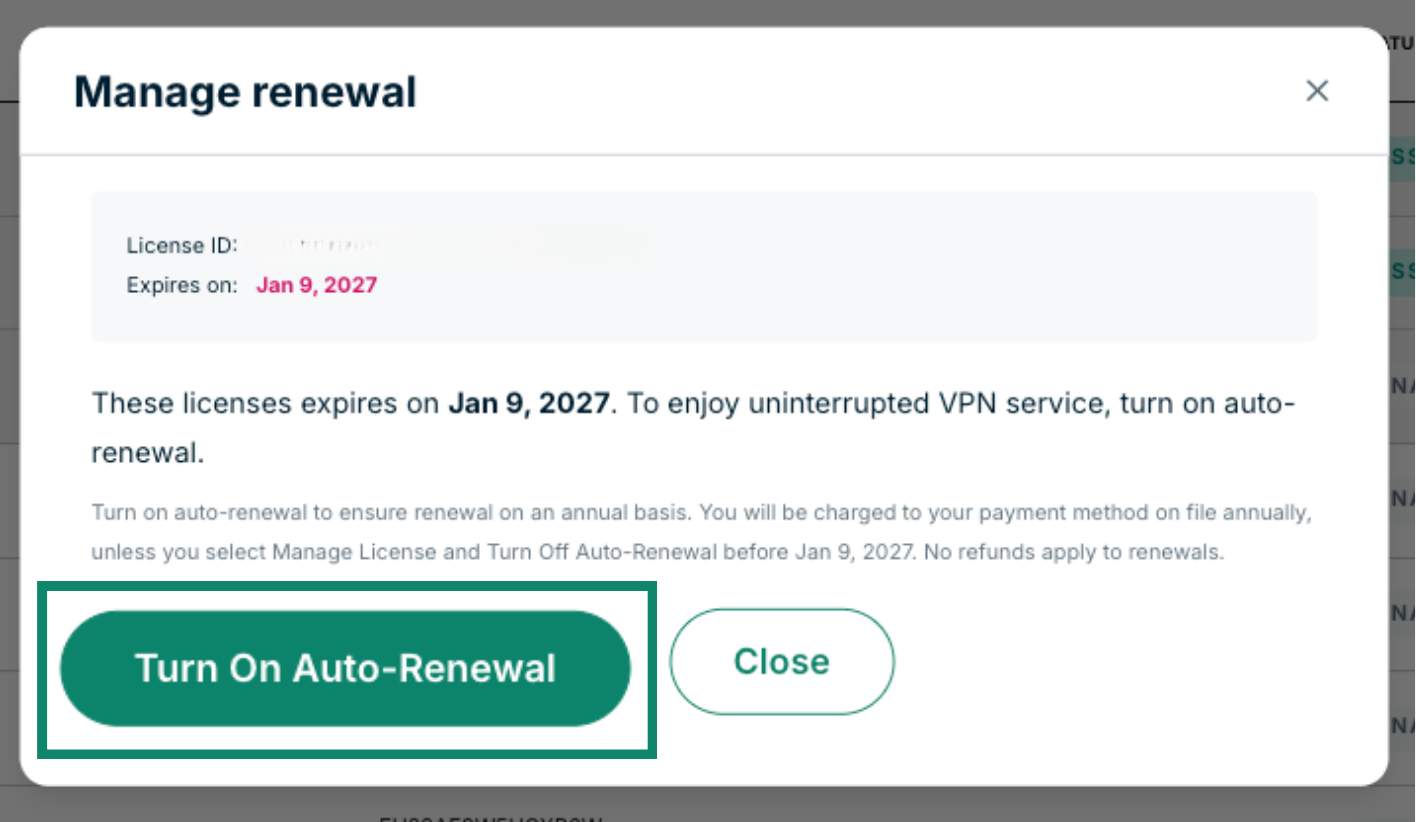
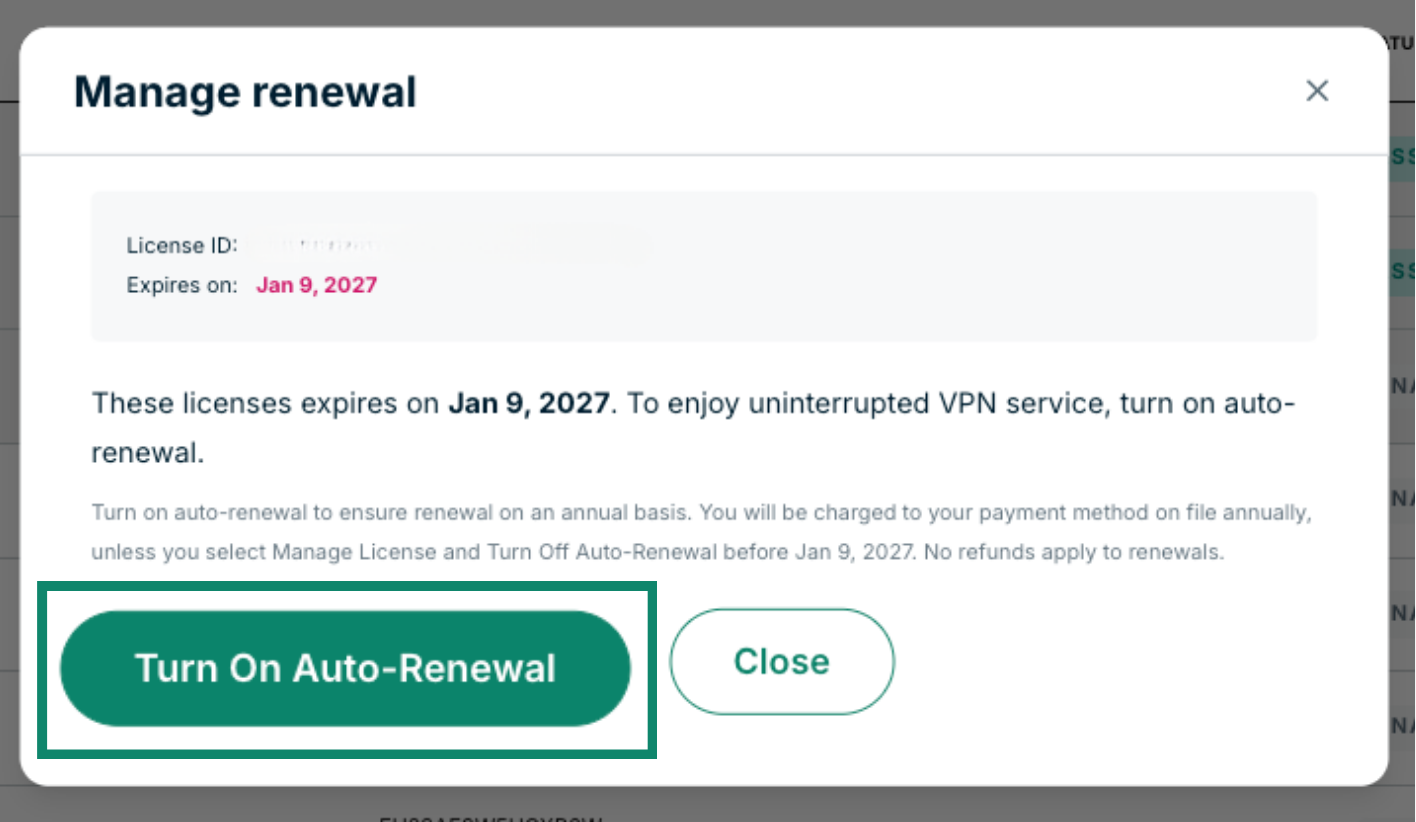
- Select Turn On Auto-Renewal.
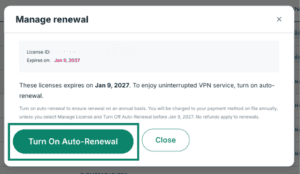

- If successful, you will see a message stating “You have successfully turned on auto-renewal for your selected licenses below. Your license/s will expire on XX.”
Multiple licenses
To turn on auto-renewal for multiple ExpressVPN for Teams licenses at the same time:
- Sign into your ExpressVPN for Teams admin account.
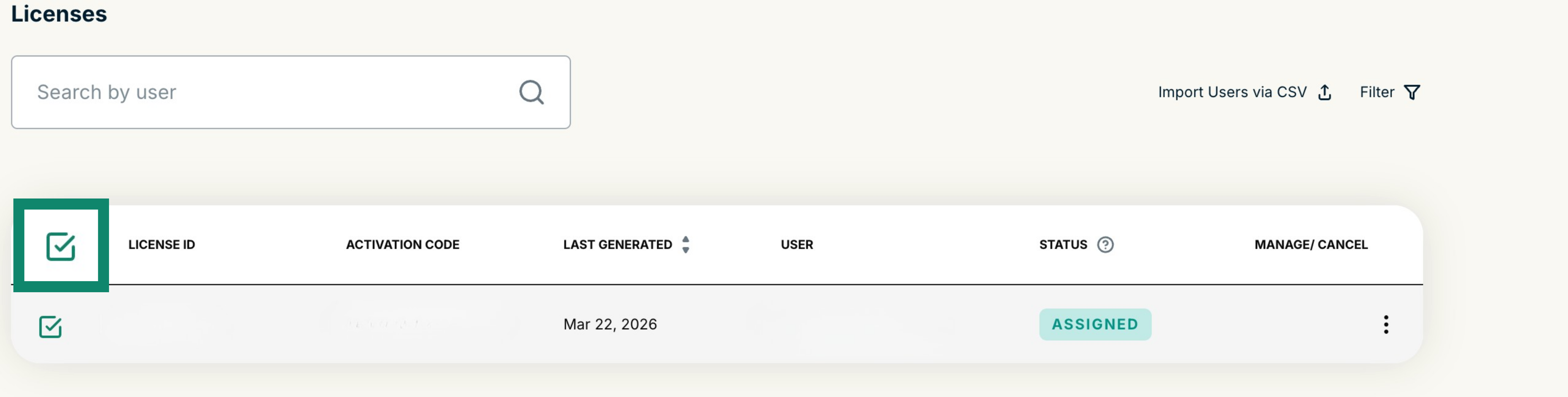
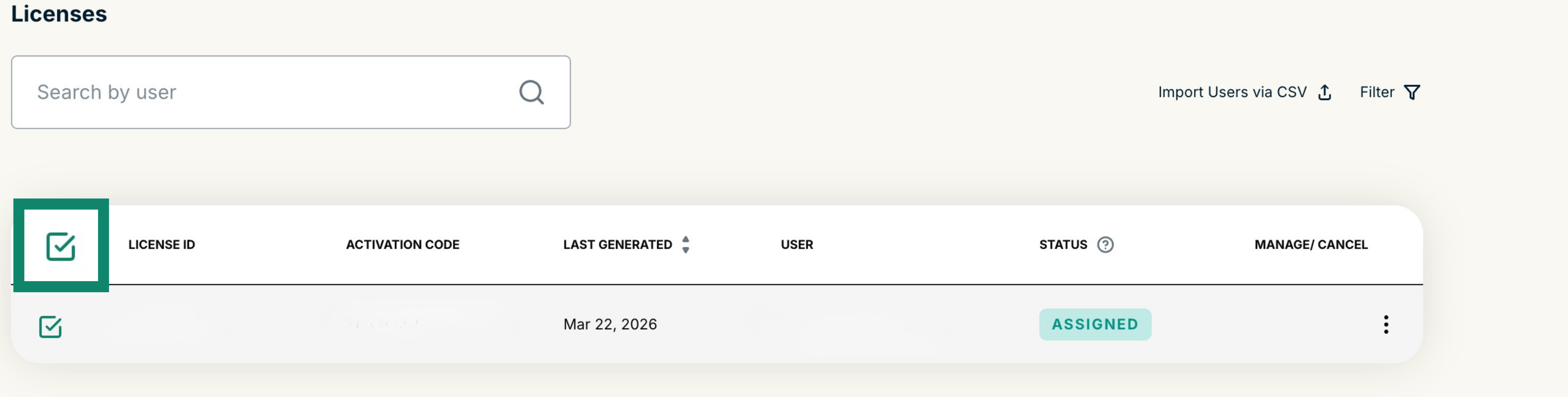
- Select the licenses you wish to turn on auto-renewal for by ticking the boxes in the left-hand column under LICENSE ID.

- You will see a black box pop up stating the number of licenses you have selected. Select Manage renewal.


- Select Turn On Auto-Renewal.
- If successful, you will see a message stating “You have successfully turned on auto-renewal for your selected licenses below. Your license/s will expire on XX.”

Need help? Contact the ExpressVPN Support Team for immediate assistance.
How to turn off auto-renewal
You can turn off auto-renewal for a single license or multiple licenses at the same time.
Single license
To turn off auto-renewal for a single ExpressVPN for Teams license:
- Sign into your ExpressVPN for Teams admin account.
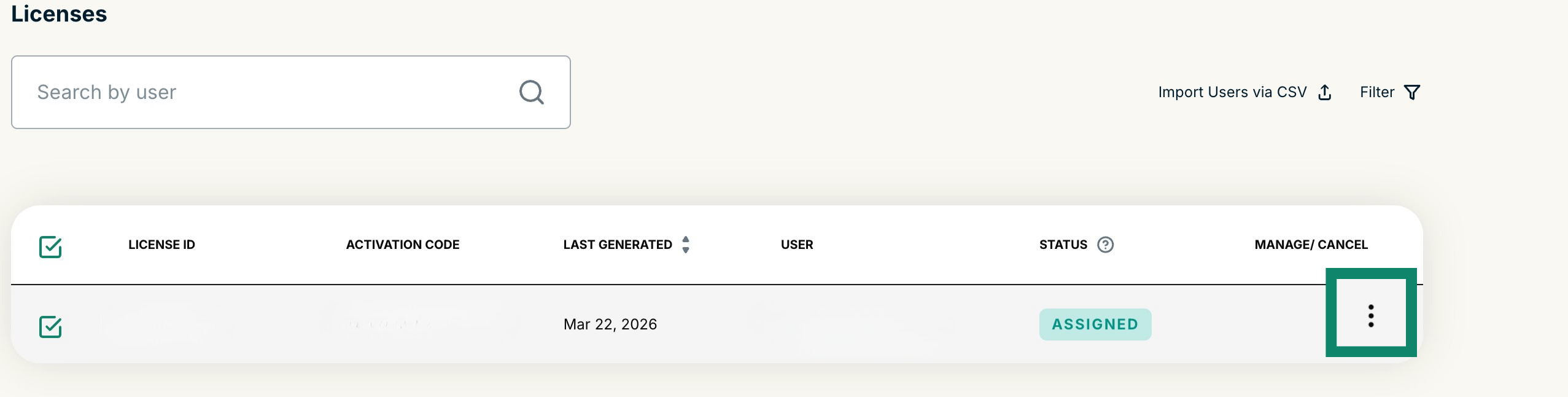
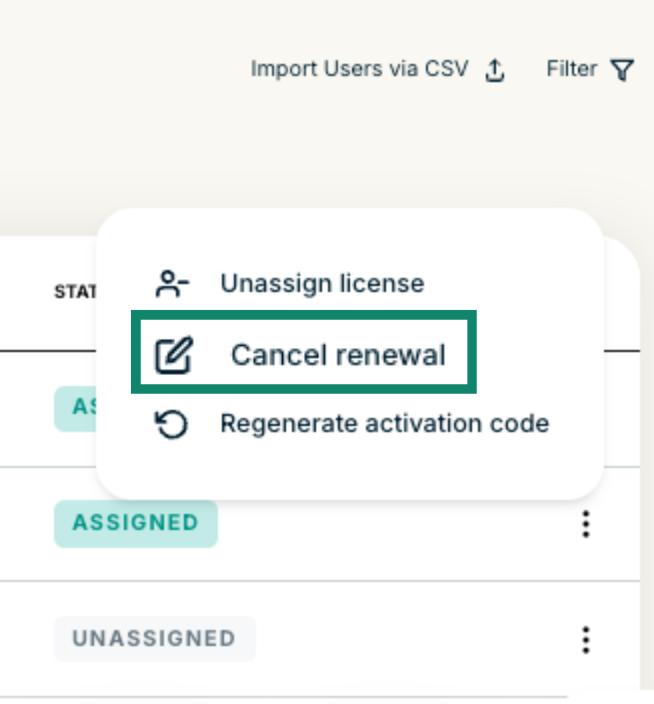
- Find the license you wish to turn off auto-renewal for and select under MANAGE/CANCEL.
- Select Cancel renewal.


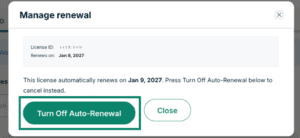
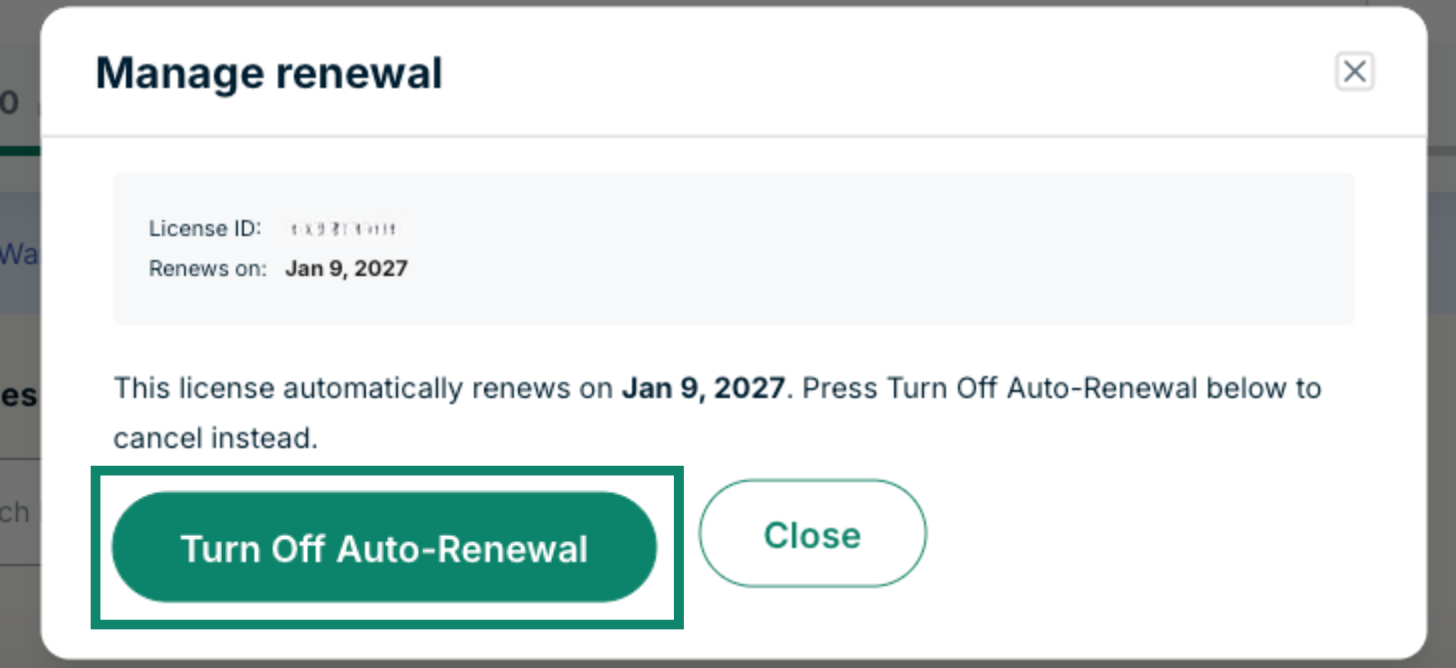
- Select Turn Off Auto-Renewal.

- If successful, you will see a message at the top of your Admin Account Dashboard stating “You have successfully turned off auto-renewal for your selected licenses below. Your license/s will expire on XX.”
Multiple licenses
To turn off auto-renewal for multiple licenses at once:
- Sign into your ExpressVPN for Teams admin account.
- Select the licenses you wish to cancel auto-renewal for by ticking the boxes in the left-hand column under LICENSE ID.
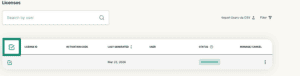
- You will see a black box pop up stating the number of licenses you have selected. Select Manage renewal.

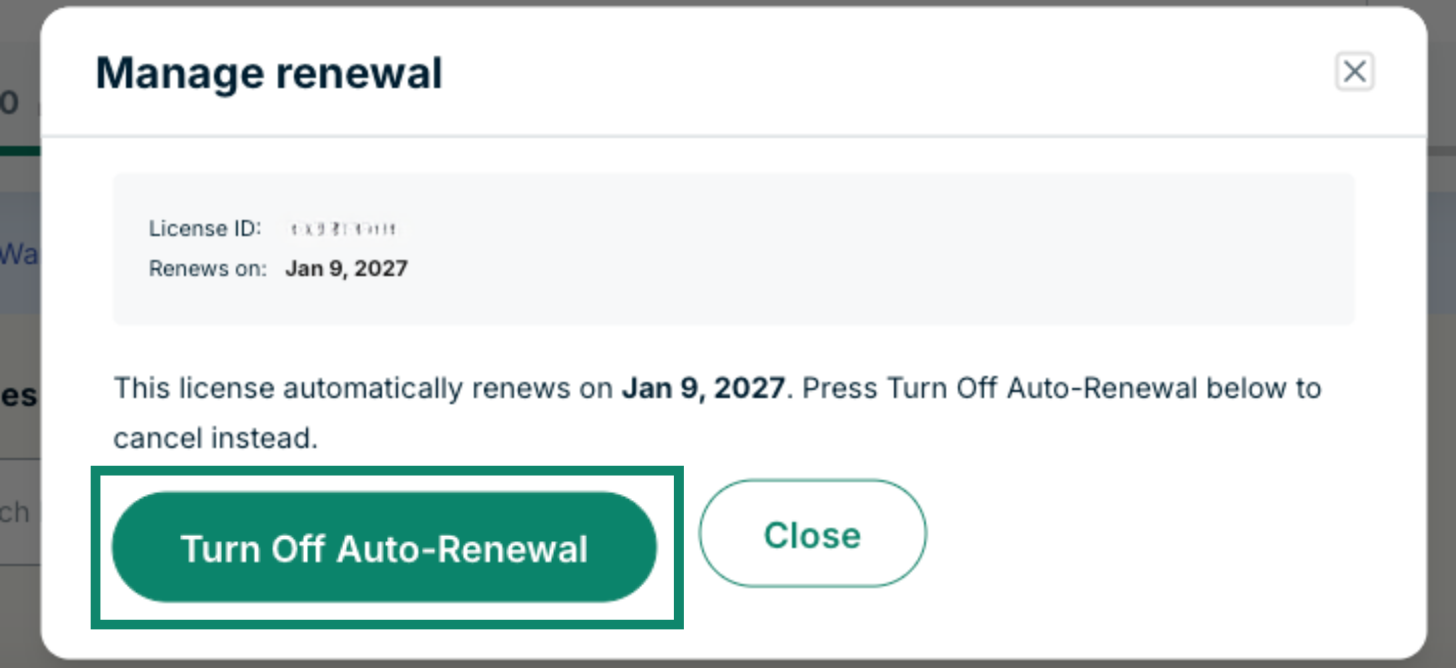
- Select Turn Off Auto-Renewal.
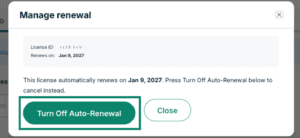
- If successful, you will see a message at the top of your Admin Account Dashboard stating “You have successfully turned off auto-renewal for your selected licenses below. Your license/s will expire on XX.”

Need help? Contact the ExpressVPN Support Team for immediate assistance.
Accounts with five or fewer licenses
Due to ExpressVPN for Teams’ minimum requirement of five licenses, auto-renewal cannot be turned off for individual seats on accounts with five or fewer licenses.
If you have an ExpressVPN for Teams admin account with five or fewer licenses and want to cancel your subscription, please contact the ExpressVPN Support Team.
Need help? Contact the ExpressVPN Support Team for immediate assistance.