This guide will show you how to start your first conversation with ExpressAI.

Jump to..

How to start a conversation on desktop
How to start a conversation on mobile


How to start a conversation on desktop

To start a conversation on desktop:

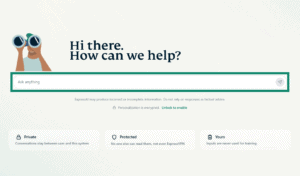
  1. Click the chat window.
    A screenshot of ExpressAI on a desktop browser. An arrow points to the chat window in the center of the screen.
  2. Click the AI model dropdown menu above the chat window. GPT OSS 120B is selected by default.
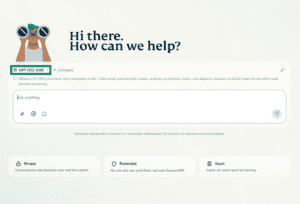
    A screenshot of the ExpressAI home screen on a desktop browser. An arrow points to the AI model selection menu just above the chat window in the middle of the screen.
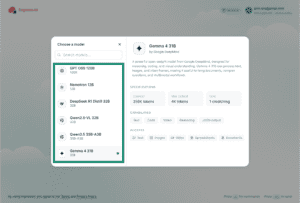
  3. Click the AI model you want to use.
    A screenshot of ExpressAI's AI model selection menu on a desktop browser. An arrow points of one of the selectable AI models.
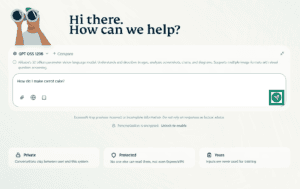
  4. Type your prompt into the conversation window, then press Enter or click the Send icon.
    A screenshot of the ExpressAI home screen on a desktop browser. One arrow points to the chat window in the middle of the screen, while another arrow points to the Send button to the right of the chat window.
  5. Your chosen AI model (or models) will respond to your prompt.
    A screenshot of ExpressAI on a mobile browser. It shows the AI's response to a prompt asking for Baked Alaska recipes.

If you want to start a new conversation, click New Chat in the top-left.

A screenshot of the ExpressAI home screen on a desktop browser. An arrow points to the Start Chat button in the top-left corner of the screen.

Need help? Contact the ExpressAI Support Team for immediate assistance.

Back to top


How to start a conversation on mobile

To start a conversation on mobile:

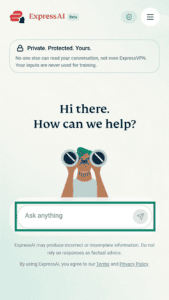
  1. Tap the chat window.
    A screenshot showing the ExpressAI home screen on mobile. An arrow points to the empty chat window at the bottom of the screen.
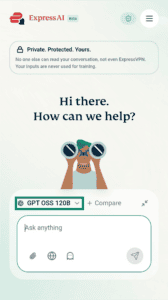
  2. Tap the AI model dropdown menu above the chat window. GPT OSS 120B is selected by default.
    A screenshot of the ExpressAI home screen on mobile. An arrow points to the AI selection menu just above the chat window.
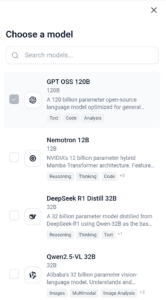
  3. Tap the model you want to use. If you only want to use one model, you need to tap your previously-selected model to unselect it.
    A screenshot of the AI model selection menu on mobile. Shows a list of five available AI models.
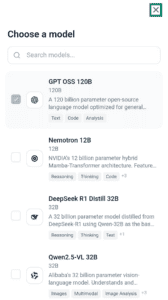
  4. Tap the X in the top-right corner to close the model selection window.
    A screenshot showing the ExpressAI AI model selection menu on mobile. An arrow points of the X (quitbutton) in the top-right corner of the screen.
  5. Type your prompt into the chat window, then tap the Send icon.
    A screenshot of the ExpressAI home screen on mobile. One arrow points to the chat window, while the other points to the Send button to the right of the chat window.
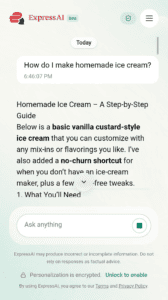
  6. Your chosen AI model (or models) will respond to your prompt.
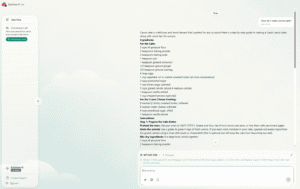
    A screenshot of the ExpressAI responding to a prompt about recipes for beans on toast on mobile.

If you want to start a new conversation:

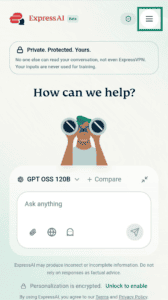
  1. Tap Menu icon..
    A screenshot of the ExpressAI home screen on mobile. An arrow points to the hamburger menu icon in the top-right corner.
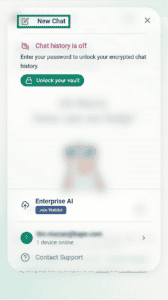
  2. Tap New Chat.
    An arrow points to the New Chat button on ExpressAI on a mobile browser.

Need help? Contact the ExpressAI Support Team for immediate assistance.

Back to top

Was this article helpful?

We're sorry to hear that. Let us know how we can improve.

A member of our Support Team will follow up on your issue.