This guide will show you how to save your encrypted chats.

ExpressAI securely syncs your chat history so you can pick up your conversations on any device. Your history is protected with zero-access, end-to-end encryption, ensuring only you—not ExpressVPN, not cloud providers—can decrypt or view it.

Important: To save your encrypted chats, you first need to set a primary password. Follow this guide to learn how.

Jump to…

How to save encrypted chats on desktop
How to save encrypted chats on mobile


How to save encrypted chats on desktop

To save your encrypted chats on desktop:

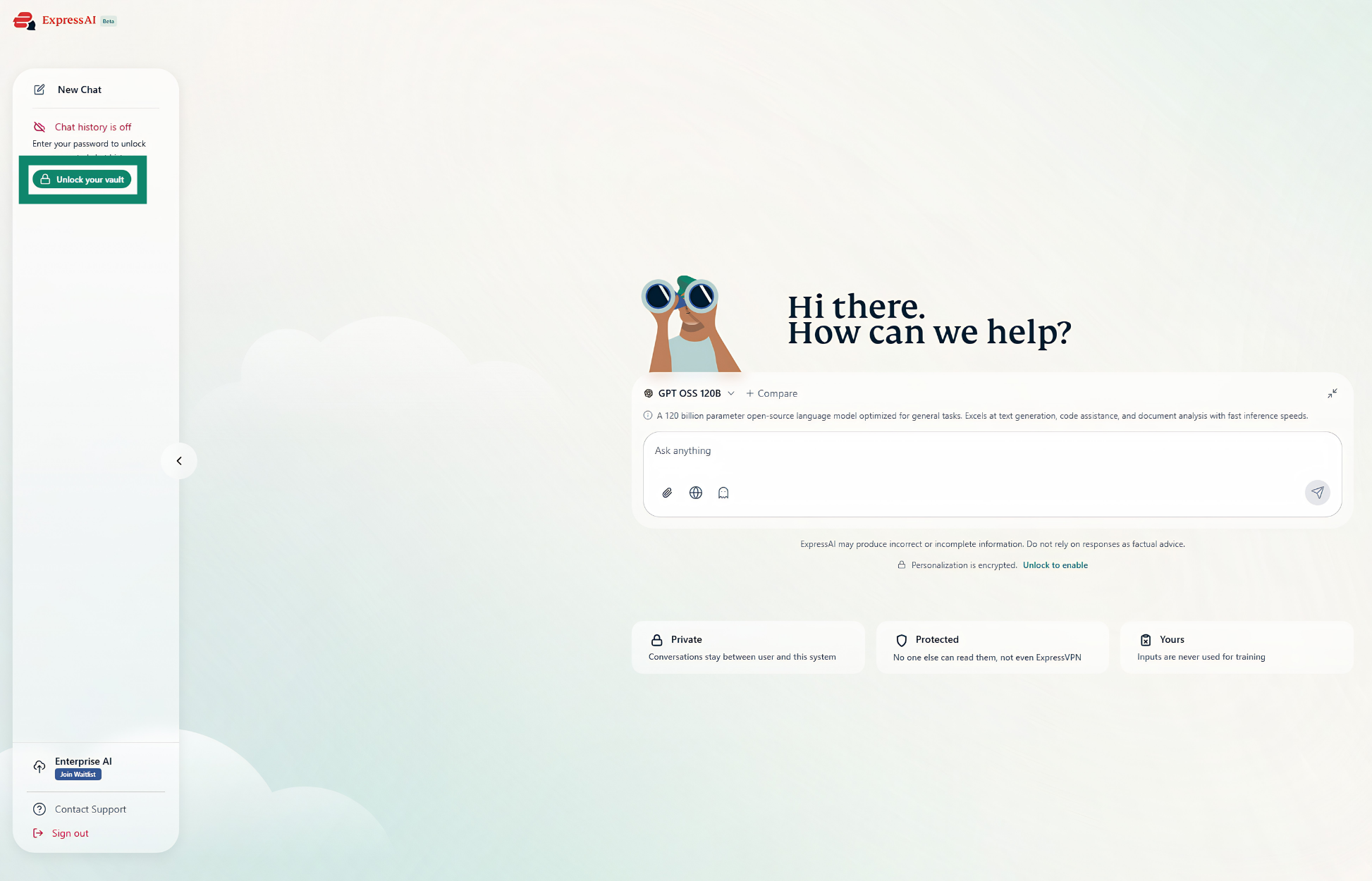
  1. Click Unlock your vault.
    A screenshot of the ExpressAI home page on a desktop browser. An arrow points to the Unlock Your Vault button in the top-left of the screen.
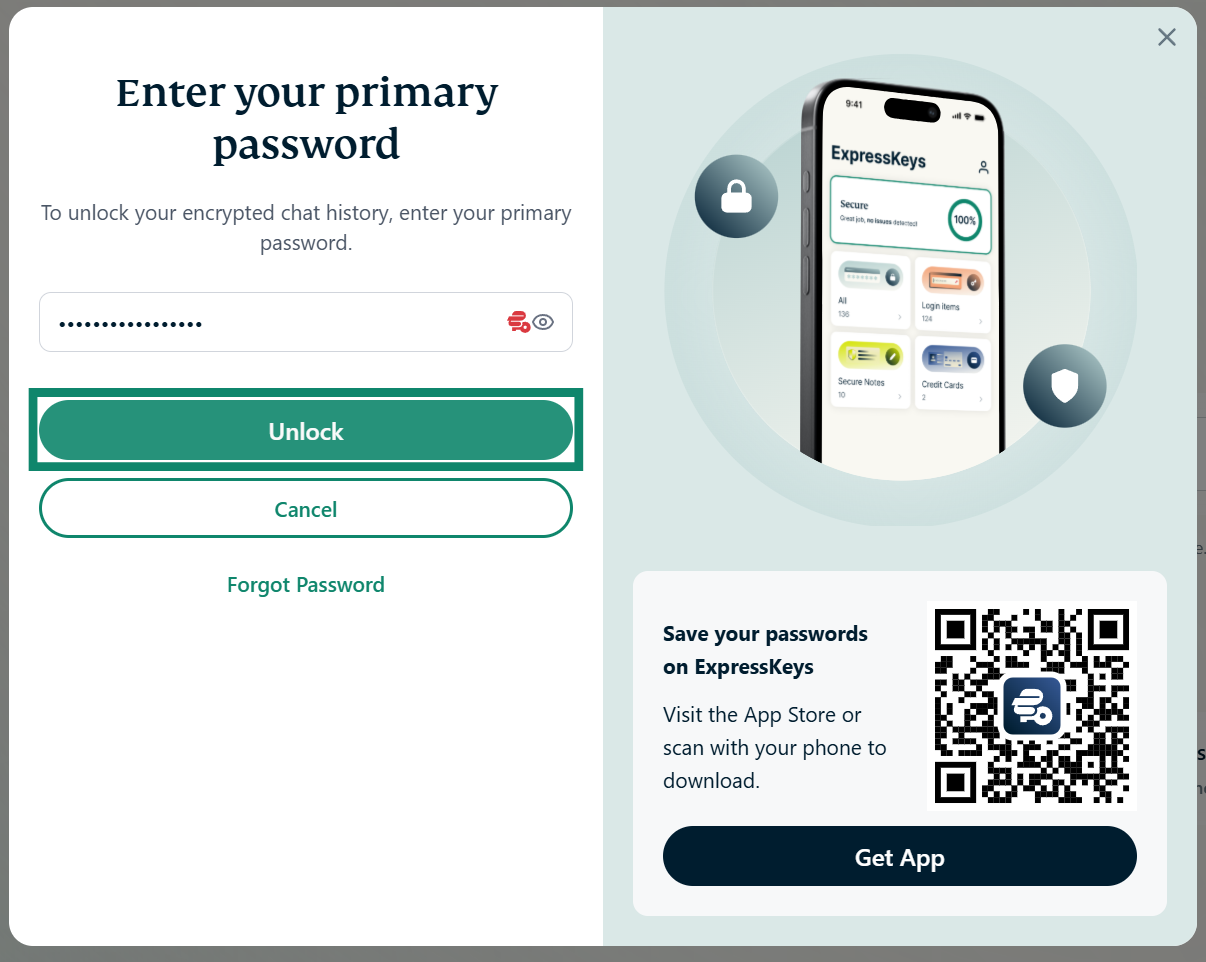
  2. Enter your primary password, then click Unlock.
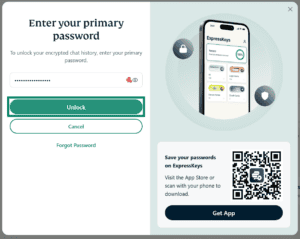
    A screenshot of ExpressAI's primary password input screen on a desktop browser. The primary password field in blank and an arrow points to the green Unlock button.

Once you have unlocked your vault, any conversations you start will be saved. You can view your saved chats and files in the sidebar on the left.
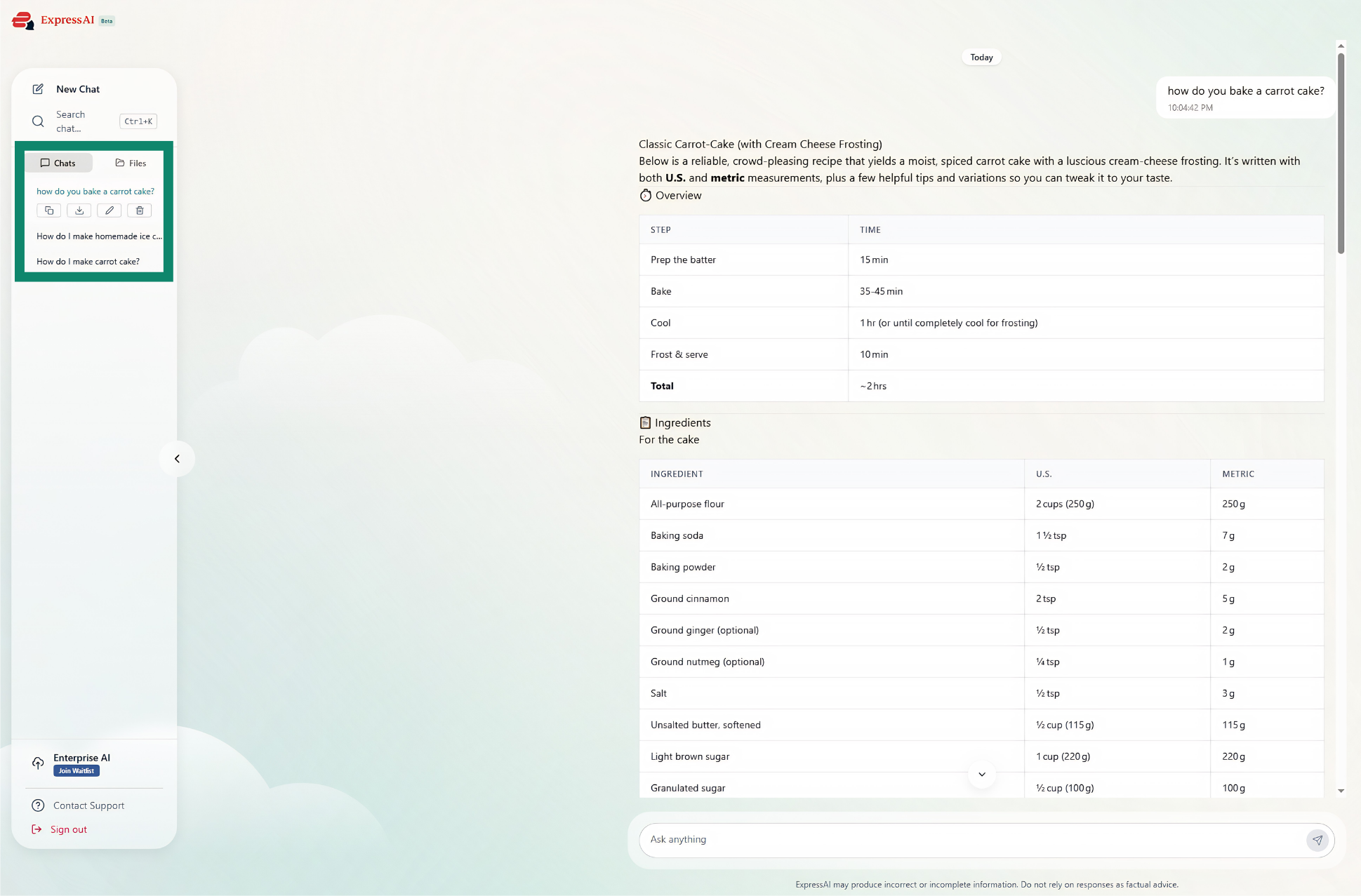
A screenshot of the ExpressAI home screen on a desktop browser. An arrow points to a list of saved chats in the toolbar on the left side of the screen.

Need help? Contact the ExpressAI Support Team for immediate assistance.

Back to top


How to save encrypted chats on mobile

To save your encrypted chats on mobile:

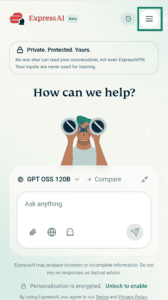
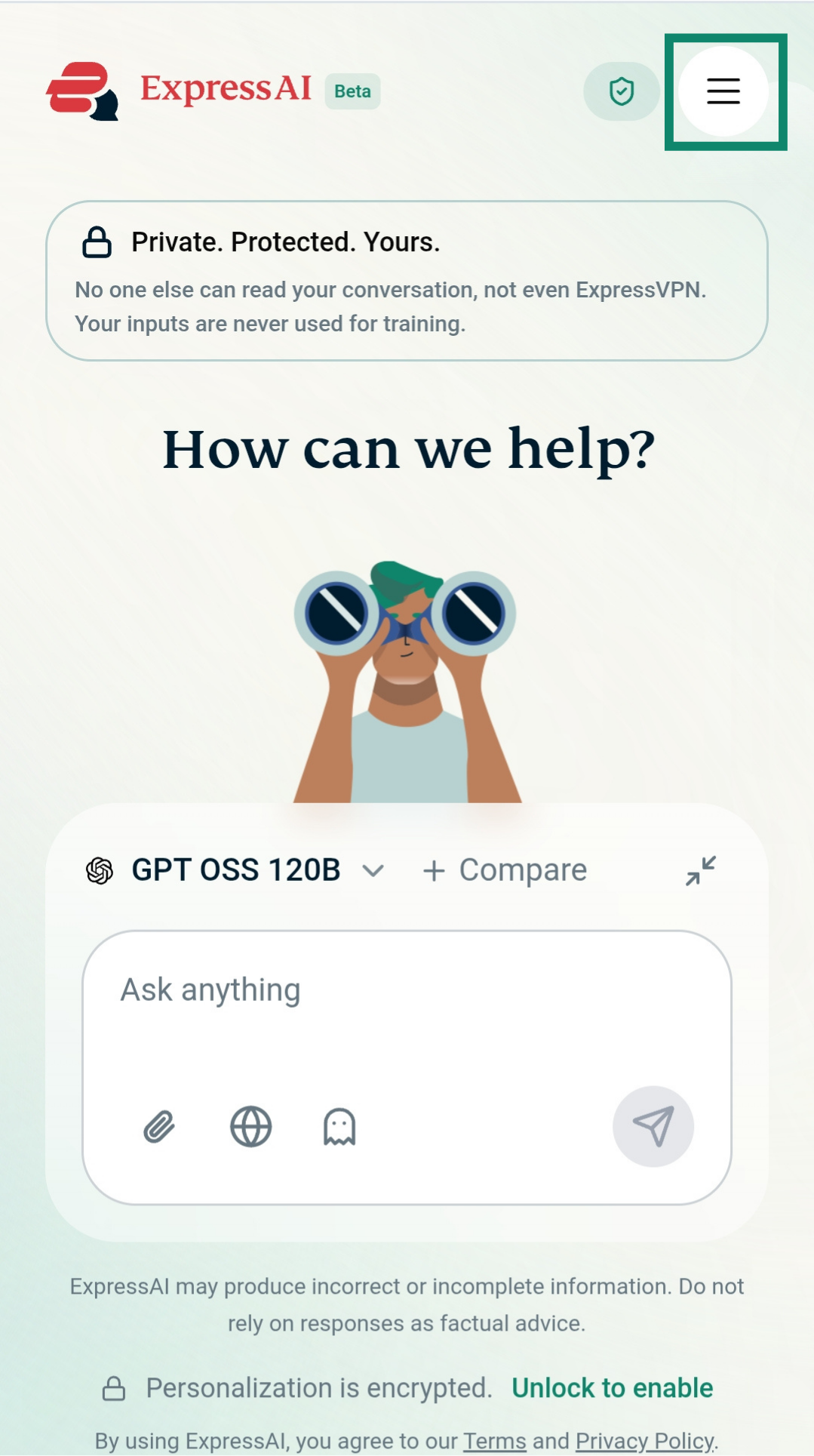
  1. Tap Menu icon..
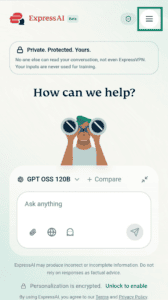
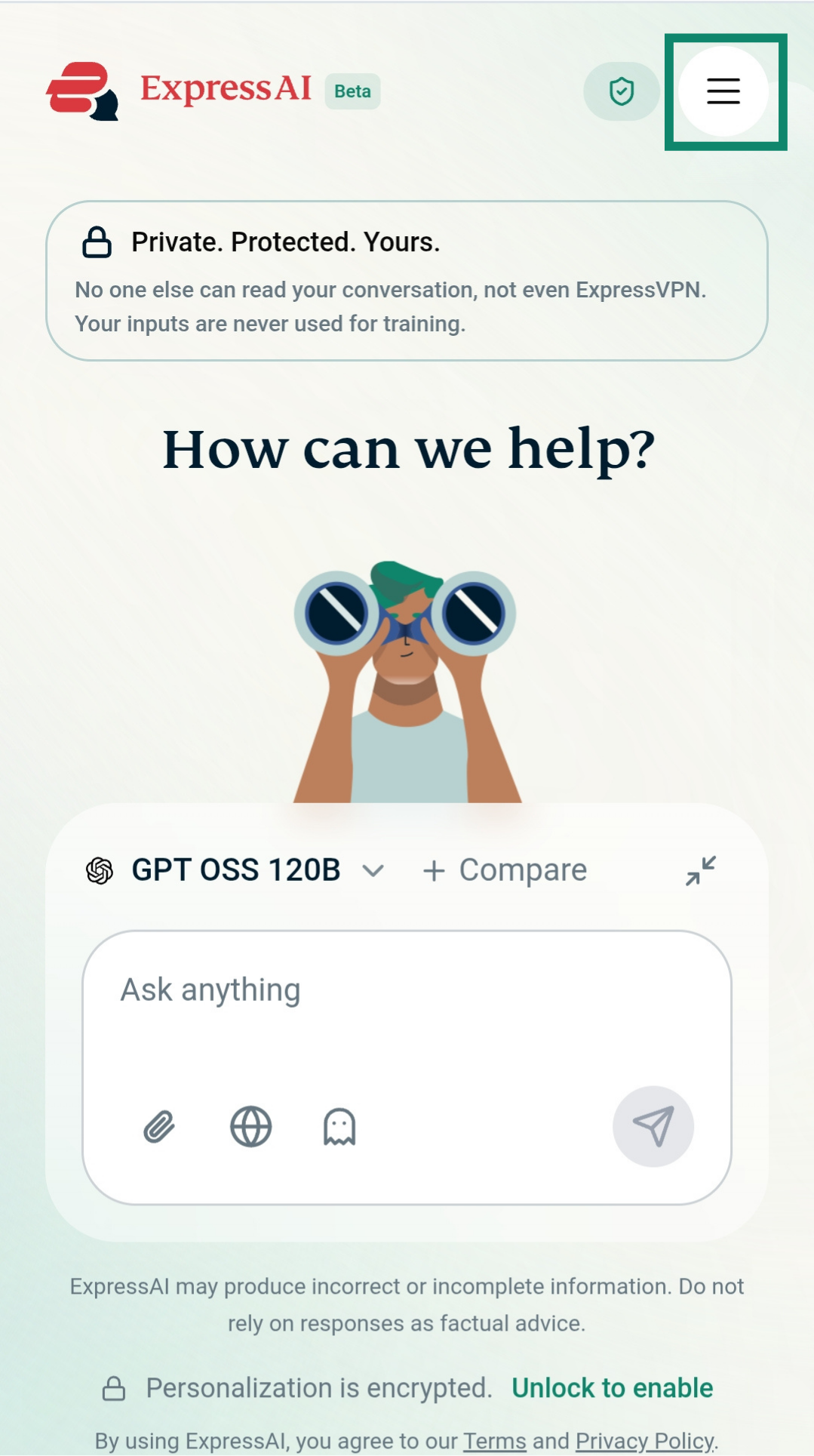
    A screenshot of the ExpressAI home screen on mobile. An arrow points to the hamburger menu icon in the top-right corner.
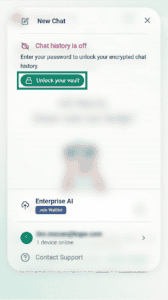
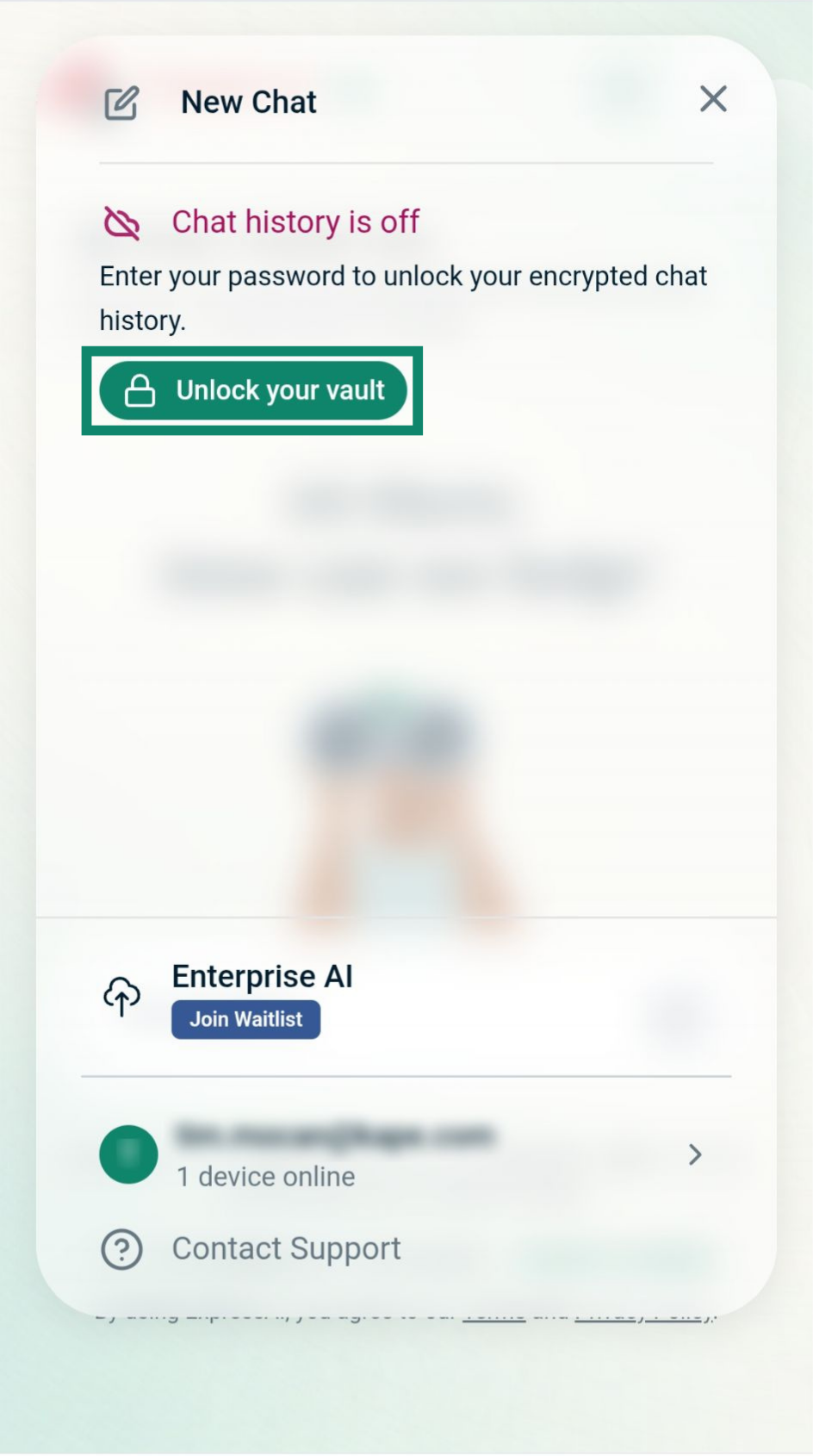
  2. Tap Unlock your vault.
    A screenshot of the button to unlock your vault on ExpressAI. An arrow points to the green Unlock your vault button.
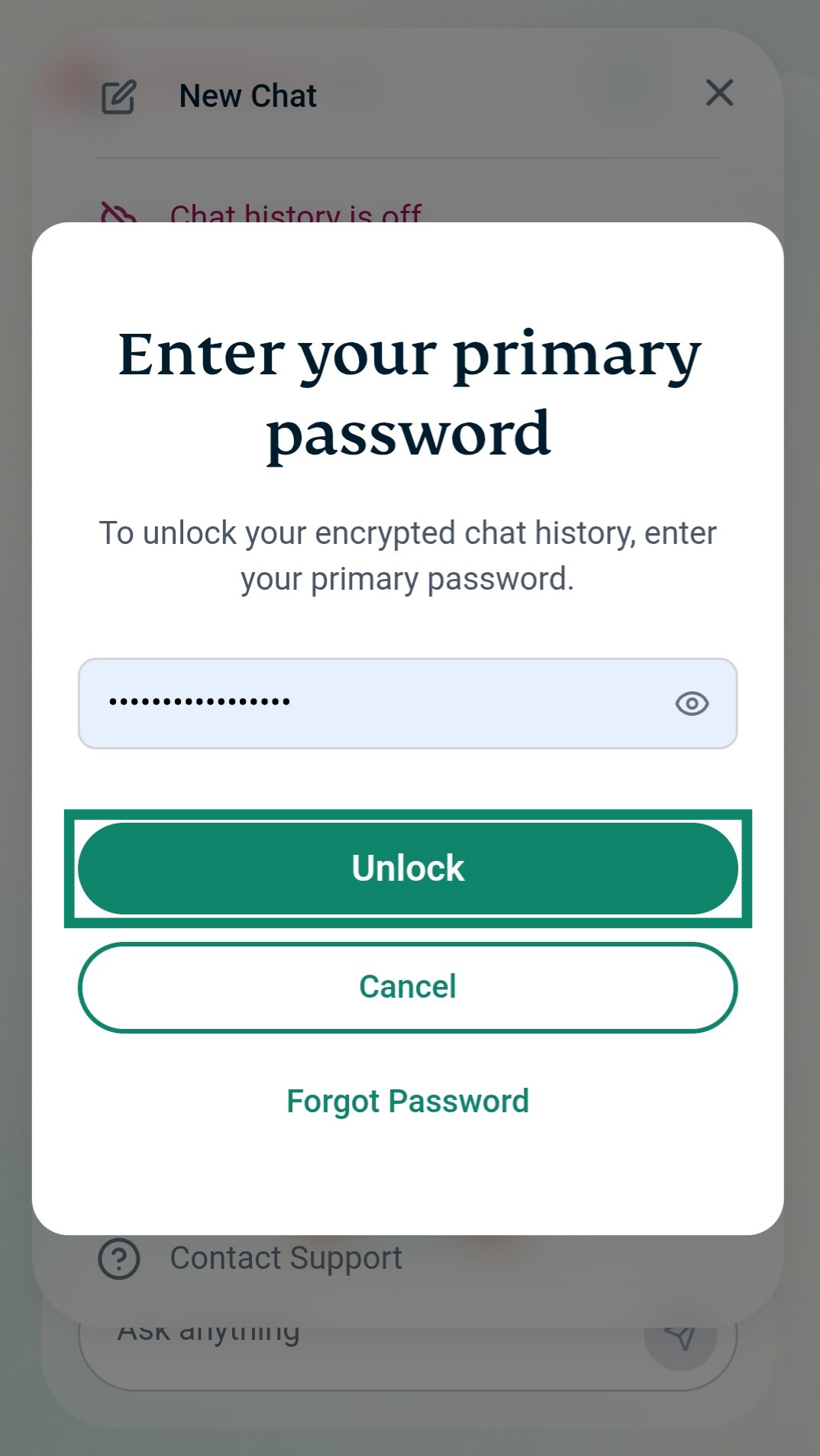
  3. Enter your primary password, then tap Unlock.
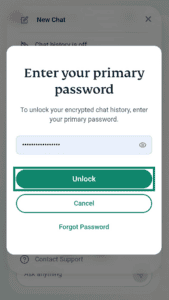
    A screenshot of ExpressAI's primary password unlock screen on a mobile browser. The primary password field is empty and an arrow points to the Unlock button.

Once you have unlocked your vault, any chats you start will be saved. To view your saved chats on mobile:

  1. Tap Menu icon..
    A screenshot of the ExpressAI home screen on mobile. An arrow points to the hamburger menu icon in the top-right corner.
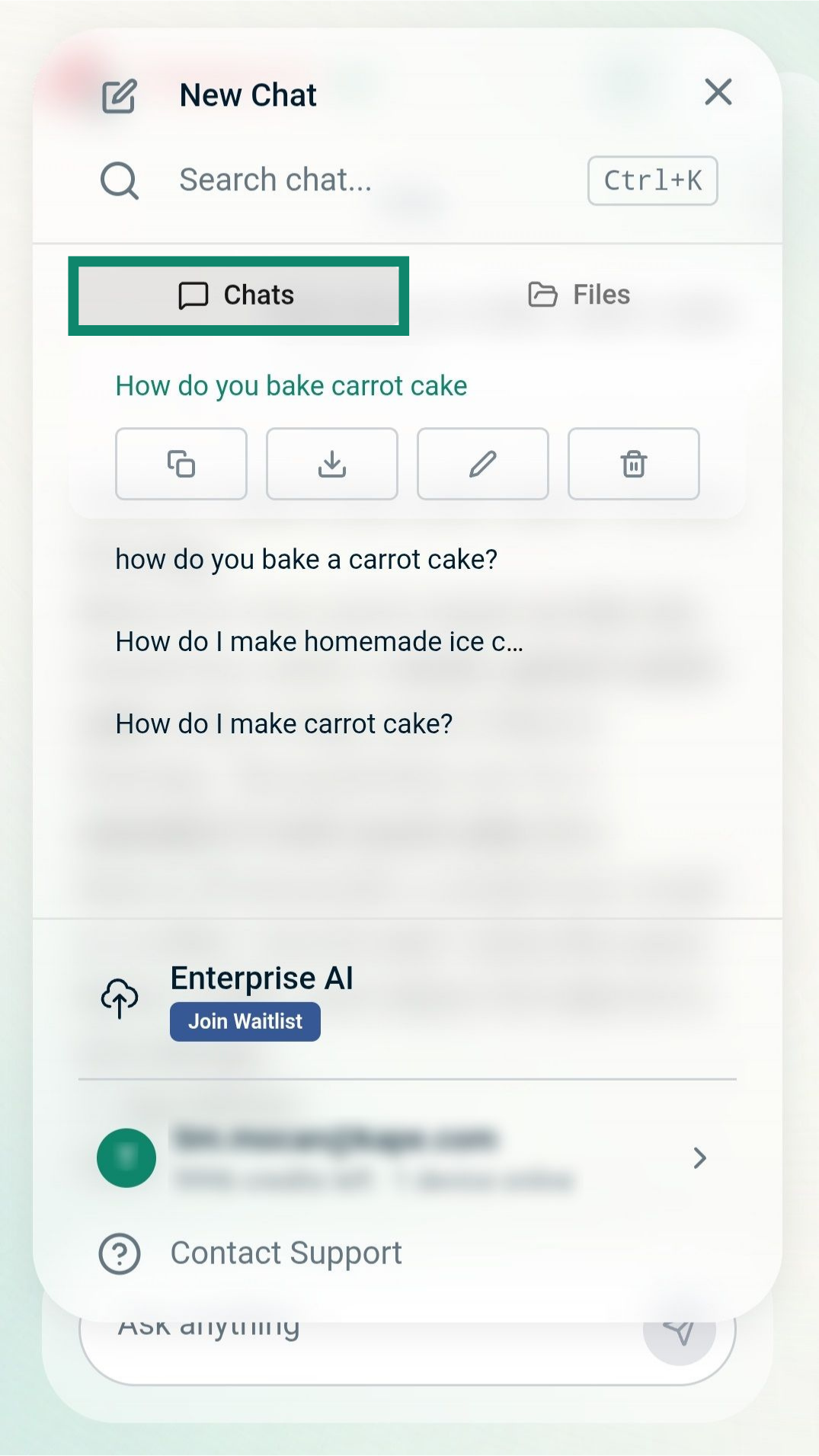
  2. Tap the Chats tab to view your saved encrypted chats.
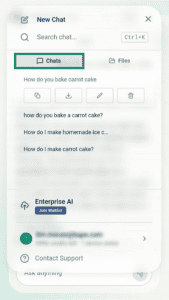
    An arrow points to the Chats tab on the mobile browser version of ExpressAI. There is a list of saved encrypted chats below the Chats tab. The top chat is about fish and chips recipes.

Need help? Contact the ExpressAI Support Team for immediate assistance.

Back to top

Was this article helpful?

We're sorry to hear that. Let us know how we can improve.

A member of our Support Team will follow up on your issue.