



This guide will show you how to set up a primary password for ExpressAI.
Your primary password protects your encrypted chat history. It allows you—and only you—to save, view, and decrypt your previous chats.
Note: ExpressAI securely syncs your chat history so you can pick up your conversations on any device. Your history is protected with zero-access, end-to-end encryption, ensuring only you—not ExpressVPN, not cloud providers—can decrypt or view it.
Jump to…
How to set up your primary password on desktop
How to set up your primary password on mobile
How to create a strong primary password
How to set up your primary password on desktop
To set up your primary password on desktop:
- Click Set Primary Password from the sidebar on the left.


- Fill in the following fields:
- Primary password
- Re-enter primary password
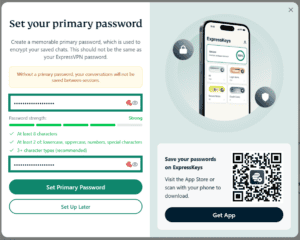

- Click Set Primary Password.
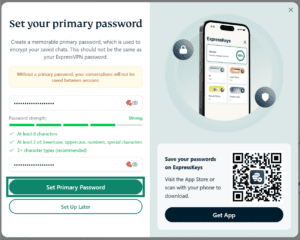
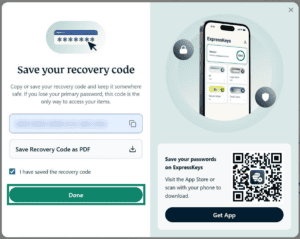
- Save the recovery code in a safe place. You will need it to access your saved encrypted conversations if you ever forget your primary password.
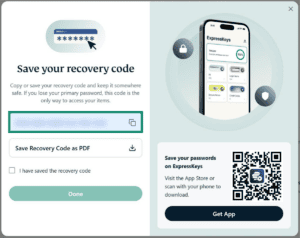

- Once saved, check the box for I have saved the recovery code.
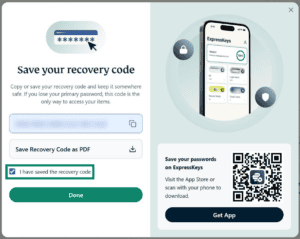

- Click Done.


Need help? Contact the ExpressAI Support Team for immediate assistance.
How to set up your primary password on mobile
To set up your primary password on mobile:
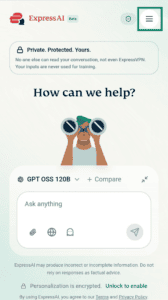
- Tap

 .
.

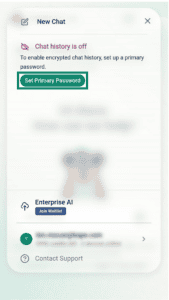
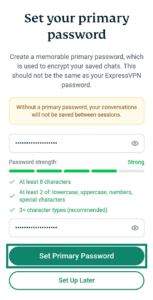
- Tap Set Primary Password.

- Fill in the following fields:
- Primary password
- Re-enter primary password
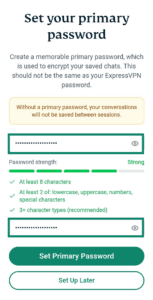

- Tap Set Primary Password.
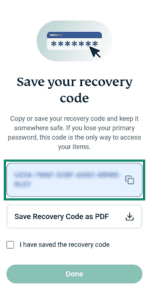
- Save the recovery code in a safe place. You will need it to access your saved encrypted chats if you ever forget your primary password.

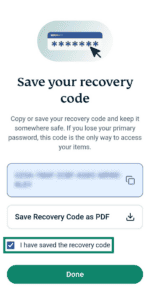
- Once saved, tap the box for I have saved the recovery code.

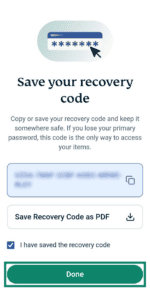
- Tap Done.


Need help? Contact the ExpressAI Support Team for immediate assistance.
How to create a strong primary password
Your primary password acts as the encryption key for your ExpressAI vault. If it’s weak, your conversations are vulnerable.
Here’s how to create a strong primary password:
Use ExpressKeys to generate a strong password
If you have an ExpressVPN Advanced or Express Pro subscription, you can use the standalone ExpressKeys app to generate a highly secure password. Once generated, you can also use ExpressKeys to securely store your ExpressAI primary password.
Learn how to generate strong passwords with ExpressKeys.
Make it unique
Never use the same password across multiple accounts. For your primary password, create a new password that you have not used for other apps and websites, including your ExpressVPN account.
Do not use obvious, weak passwords
Avoid common dictionary words, such as “apple” or “boy,” place names, the names of family members, and significant dates such as birthdays or anniversaries. Using uncommon words makes your password harder to crack; using misspelled ones even harder still.
Avoid common replacements for characters with symbols, for example, “P455w0rd” for “Password”.
Never use sequences of consecutive letters, numbers, or keyboard keys, for example, “abcde45678” or “qwerty12321”.
After creating your primary password, practice entering it a few times. If you forget your primary password in the future, you will have to use your recovery code to access your saved conversations. If you lose your recovery code, you will have to reset your primary password. Doing so will delete all your encrypted conversations.
Need help? Contact the ExpressAI Support Team for immediate assistance.