



This guide will show you how to unlock your vault and recover your saved encrypted chats and files in the event you forget your ExpressAI primary password.
If you forget your primary password, you will need your recovery code in order to unlock your vault and recover your saved encrypted chats and files.
If you cannot find your recovery code, you will need to reset your primary password in order to save any future chats or files. Resetting your primary password will permanently delete all your saved encrypted chats and files.
Jump to…
How to unlock your vault without a password on desktop
How to unlock your vault without a password on mobile
How to unlock your vault without a password on desktop
- Click Unlock your vault.


- Click Forgot Password.


- Enter your recovery code and click Unlock.
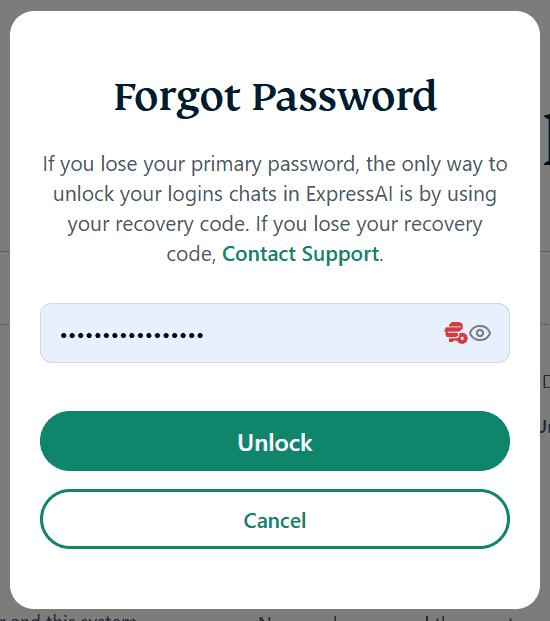


You can now access your saved encrypted chats and files.
If you cannot remember your primary password, you will need to continue to use your recovery code to unlock your vault, access your saved chats and files, and save new chats and files.
You can reset your primary password by following this guide. Resetting your primary password will permanently delete all your saved encrypted chats and files.
Need help? Contact the ExpressAI Support Team for immediate assistance.
How to unlock your vault without a password on mobile
- Tap

 .
.


- Tap Unlock your vault.
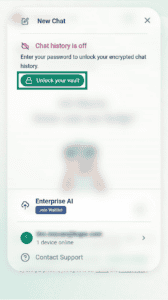

- Tap Forgot Password.


- Enter your recovery code and tap Unlock.


You can now access your saved encrypted chats and files.
If you cannot remember your primary password, you will need to continue to use your recovery code to unlock your vault, access your saved chats and files, and save new chats and files.
You can reset your primary password by following this guide. Resetting your primary password will permanently delete all your saved encrypted chats and files.
Need help? Contact the ExpressAI Support Team for immediate assistance.