Note: You need to set up a primary password and use it to unlock your vault before you can export your conversations.

This guide will show you how to export both a single conversation and all your conversations from ExpressAI.

Jump to…

Export a single conversation on desktop
Export a single conversation on mobile
Export all conversations on desktop
Export all conversations on mobile


Export a single conversation on desktop

To export a single conversation from ExpressAI on desktop:

  1. On your current conversation, click the Export button in the side bar on the left.
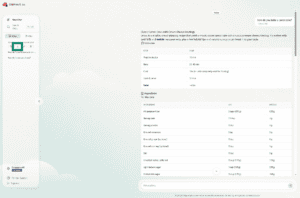
    Screenshot of a chat on the desktop version of ExpressAI. An arrow points of the export button in the toolbar to the left side of the screen.
  2. A warning will appear reminding you that downloaded files are no longer protected by zero-access encryption. Click Export Anyway. The download will begin immediately.
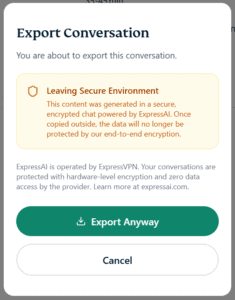
    Screenshot of the Export Conversation screen on the desktop version of ExpressAI. There is a warning message above a green button labeled Export Anyway. An arrow points to the green button.

Need help? Contact the ExpressAI Support Team for immediate assistance.

Back to top


Export a single conversation on mobile

To export a single conversation on mobile:

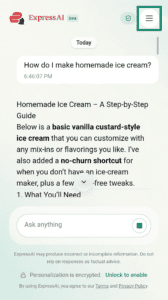
  1. On your current conversation, tap Menu icon..
    An arrow points to the hamburge rmenu icon in the top-right corner of ExpressAI on mobile.
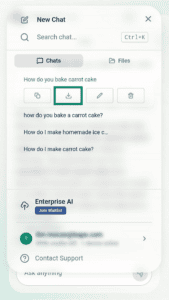
  2. Tap the Export button.
    An arrow points to the Export button underneath a saved chat about recipes for mashed potatoes.
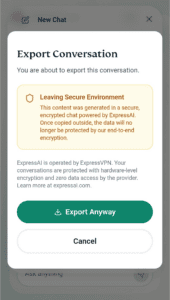
  3. A warning will appear reminding you that downloaded files are no longer protected by zero-access encryption. Tap Export Anyway. The download will begin immediately.
    Screenshot of the Export Conversation screen on mobile version of ExpressAI. There is a warning message about a green button labeled Export Anyway. An arrow points to that button.

Need help? Contact the ExpressAI Support Team for immediate assistance.

Back to top


Export all conversations on desktop

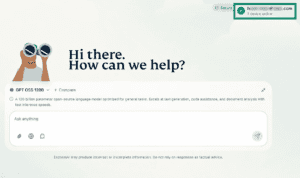
  1. Click your email address in the top-right.
    Screenshot showing the ExpressAI home screen on a desktop browser. An arrow points to the user's email address in the top-right corner.
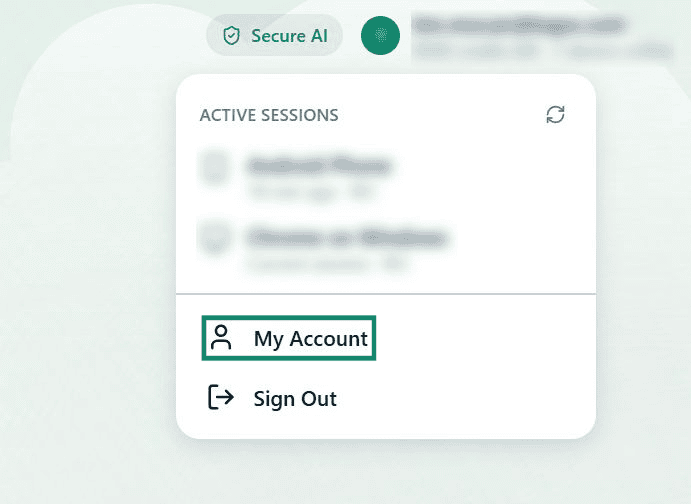
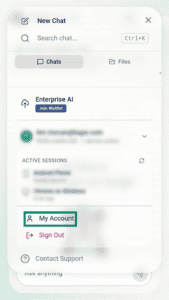
  2. Click My Account.
    Screenshot shows a dropdown menu. An arrow points to My Account.
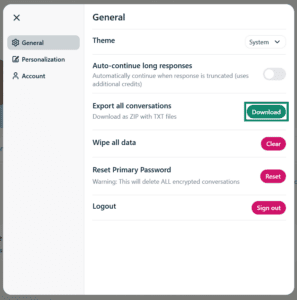
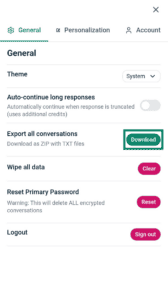
  3. Go to Export all conversations and click Download. The download will start immediately.

Need help? Contact the ExpressAI Support Team for immediate assistance.

Back to top


Export all conversations on mobile

To export all your conversations on mobile:

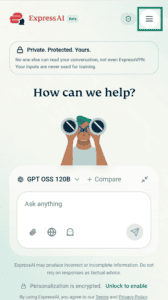
  1. Tap Menu icon..
    A screenshot of the ExpressAI home screen on mobile. An arrow points to the hamburger menu icon in the top-right corner.
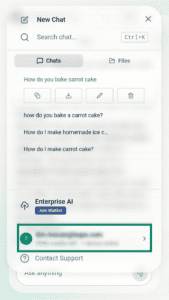
  2. Tap your email address.
    An arrow points to the user's email address at the bottom of the toolbar on the mobile version of ExpressAI.
  3. Tap My Account.
    An arrow points to the My Account option in the toolbar on the mobile version of ExpressAI.
  4. Next to Export all conversations, tap Download. The download will begin immediately.
    Screenshot of the ExpressAI settings menu on mobile. An arrow points to the Download button next to the Export all conversations option.

Need help? Contact the ExpressAI Support Team for immediate assistance.

Back to top

Was this article helpful?

We're sorry to hear that. Let us know how we can improve.

A member of our Support Team will follow up on your issue.