



This guide will show you how to create rules in ExpressMailGuard.
Rules can be used to perform different actions if certain conditions are met.
For example, you could create a rule that checks if an alias uses your custom domain and, if it does, then replace the email subject.
You can choose to apply rules on forwards, replies, and/or sends.
Rules are applied in the order displayed on this page from top to bottom. You can re-order your rules by dragging them using the icon on the left of each row.
To create a new rule:
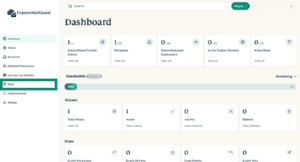
- On the ExpressMailGuard dashboard, click Rules.

- Click + Add.
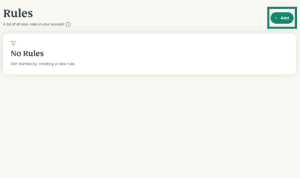


To create your rule, you need to fill out the following fields:
Name: The name of your rule. This can be anything you want.
Conditions: The criteria for your rule to be activated. When entering a value for your conditions, you need to click + to add the value to your condition. You can choose from the following conditions:
- If the sender email…
- Contains…
- Does not contain…
- Is exactly…
- Is not…
- Starts with…
- Does not start with…
- Ends with…
- Does not end with…
- Matches regex…
- Does not match regex…
- If the subject…
- Contains…
- Does not contain…
- Is exactly…
- Is not…
- Starts with…
- Does not start with…
- Ends with…
- Does not end with…
- Matches regex…
- Does not match regex…
- If the alias email…
- Contains…
- Does not contain…
- Is exactly…
- Is not…
- Starts with…
- Does not start with…
- Ends with…
- Does not end with…
- Matches regex…
- Does not match regex…
- If the alias description…
- Contains…
- Does not contain…
- Is exactly…
- Is not…
- Starts with…
- Does not start with…
- Ends with…
- Does not end with…
- Matches regex…
- Does not match regex…
Actions: What happens when the conditions you defined for your rule are met. You can choose from the following actions:
- Replace the subject with…
- Replace the “from name” with…
- Turn PGP encryption off
- Set the banner location information to…
- Top
- Bottom
- Off
- Block the email
- Remove attachments
- Forward to (one of your verified recipients)
Apply rule on: Defines whether your rule applies to forwarded emails, email replies, or sent emails. You can select any or all of the following options: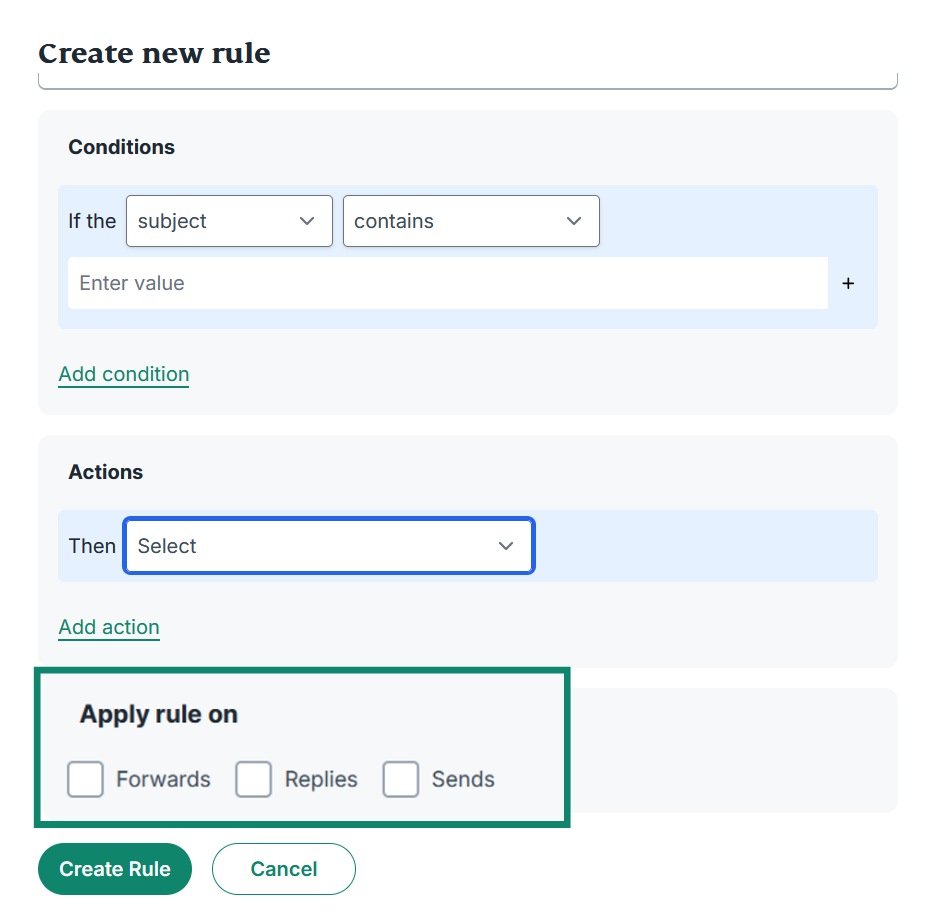
- Forwards
- Replies
- Sends
Once you are happy with your rule, click Create Rule to deploy your rule.
Need help? Contact the ExpressVPN Support Team for immediate assistance.