



This guide will show you which AI models are available for ExpressAI, how to change AI models, and how to use multiple AI models at the same time.
Jump to…
Available AI models
How to change AI models on desktop
How to change AI models on mobile
How to use multiple models at once on desktop
How to use multiple models at once on mobile
Available AI models
ExpressAI has six AI models to choose from. All six models are included in the Express Pro tier:
- GPT OSS 120B: A powerful open-weight model by OpenAI for everyday reasoning and writing. Excels at drafting, summarization, Q&A, and general-purpose tasks.
- Nemotron 12B: A compact powerhouse by NVIDIA for technical work. Excels at solving math problems, generating code, and tackling complex reasoning tasks.
- DeepSeek R1 Distill 32B: Your go-to model for problems that require careful thinking. Excels at multi-step reasoning, logic puzzles, research analysis, and anything that benefits from thinking before answering.
- Qwen2.5-VL 32B: See and understand the world around you. Excels at reading documents, extracting data from images, answering questions about charts, and analyzing diagrams.
- Qwen3.5 35B-A3B: A smart, efficient model for long and complex tasks. Excels at coding, multi-step reasoning, and multilingual tasks.
- Gemma 4 31B: Built for understanding and analyzing video content, images, and text. Excels at content summarization, video search, automated captioning, highlight extraction, and moderation.
Need help? Contact the ExpressAI Support Team for immediate assistance.
How to change AI models on desktop
To change AI models on desktop:
- Click the chat window.


- Click the AI model dropdown menu above the chat window. GPT OSS 120B is selected by default.
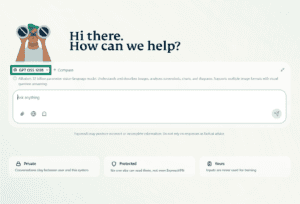

- Click the AI model you want to use.
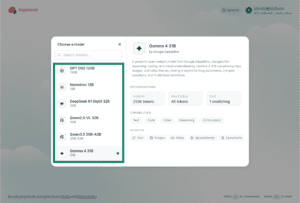


You can now start chatting with your chosen AI model.
Need help? Contact the ExpressAI Support Team for immediate assistance.
How to change AI models on mobile
To change AI models on mobile devices:
- Tap the chat window.


- Tap the AI model dropdown menu above the chat window. GPT OSS 120B is selected by default.


- Tap the model you want to use. If you only want to use one model, you need to tap your previously-selected model to unselect it.
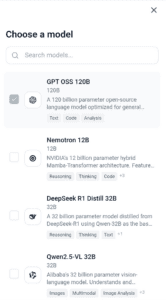

- Tap the X in the top-right corner to close the model selection window.
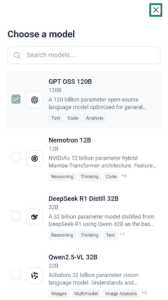


You can now start chatting with your chosen AI model.
Need help? Contact the ExpressAI Support Team for immediate assistance.
How to use multiple models at once on desktop
With ExpressAI, you can use multiple AI models at the same time and compare responses. You can use up to six models at the same time.
To select multiple models on desktop:
- Click the chat window.

- Click + Compare.

- Click the model you want to use.
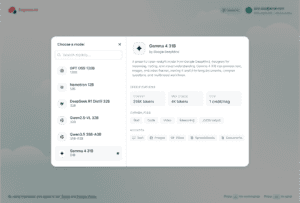


Repeat these steps to add more models.
To remove models on desktop:
- Click the model you want to remove.


- Click Remove.
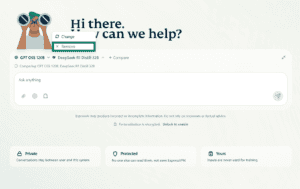


To change models on desktop:
- Click the model you want to change.

- Click Change.
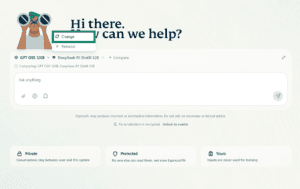
- Click the model you want to change to.
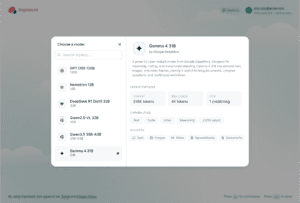


Need help? Contact the ExpressAI Support Team for immediate assistance.
How to use multiple models at once on mobile
With ExpressAI, you can use multiple AI models at the same time and compare responses. You can use up to six models at the same time.
To select multiple models on mobile:
- Tap the chat window.

- Tap the AI model dropdown menu above the chat window.

- Tap the models you want to use.
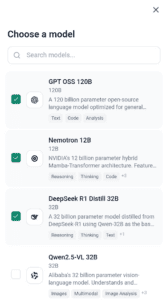
- Tap the X in the top-right corner to close the model selection window.
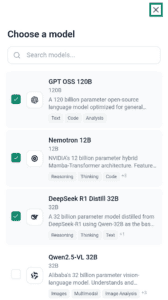


To remove models on mobile:
- Tap the chat window.

- Tap the number (+2, +3, etc.) to the left of + Compare.
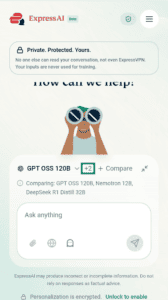

- Tap the model/models you want to remove.
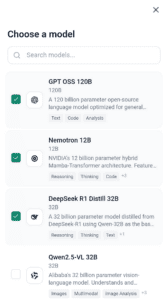
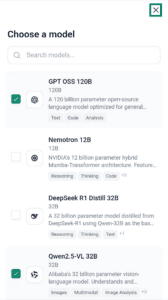
- Tap the X in the top-right corner to close the model selection window.
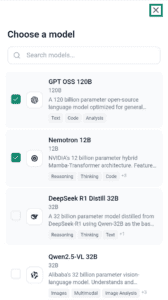


To change models on mobile:
- Tap the chat window.

- Tap the number to the left of + Compare.
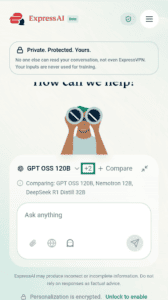
- Tap the model/models you want to add/remove.
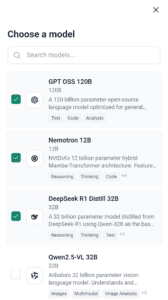
- Tap the X in the top-right corner to close the model selection window.


Need help? Contact the ExpressAI Support Team for immediate assistance.